Connecting Codex to Ollama: A Complete Guide to Deploying AI Large Models Locally

A complete guide to running open-source AI large models locally by connecting Codex to Ollama.
Learn how to combine the Codex coding tool with the Ollama framework to build a fully local AI environment. Enjoy data privacy, no subscription fees, offline operation, and ultra-long context—no VPN required. Includes hardware selection tips and full installation and configuration steps.
Why Deploy AI Large Models Locally
As the capabilities of open-source large models continue to improve, more and more developers and AI enthusiasts are trying to run large models on their own devices. Compared with calling cloud-based APIs, local deployment offers several core advantages: complete data privacy, no subscription fees, offline operation, and freedom from content censorship restrictions.
This article is based on the hands-on tutorial by Bilibili creator "Master Louis," introducing how to combine the Codex coding tool with the Ollama local model framework to build a complete local AI working environment. The entire process requires no VPN or proxy, and the model download speed depends on your local internet connection, making it quite friendly for users in China.
Please note that some models involved in this tutorial are "uncensored versions." Readers should use the relevant tools only in a legal and compliant manner.
Step 1: Install the Ollama Runtime Environment
Ollama is currently one of the most mainstream frameworks for running local large models. It encapsulates the complex process of model loading and inference scheduling into a clean command-line tool, greatly lowering the barrier to local deployment.
Technical background on Ollama: Ollama is a local model runtime framework built on top of llama.cpp. It was open-sourced in late 2023 and quickly gained widespread attention in the developer community. Its core value lies in packaging the inference workflow—which originally required complex environment configuration (CUDA drivers, Python virtual environments, model weight conversion)—into a Docker-like image management experience, where a single command completes model pulling, loading, and running. Ollama supports quantized models in GGUF format and can intelligently schedule hybrid GPU and CPU inference. Even when GPU memory is insufficient to fully load a model, it can offload some layers to run in RAM, balancing performance and compatibility.
Download and Installation
Download the installation package from the official Ollama website (about 1.32GB). It is recommended to run the installer as administrator to avoid permission-related issues later. The installation package can also be obtained through the domestic mirror link provided in the video comments section for faster download speeds.
Configuring Model Storage Path and Context Length
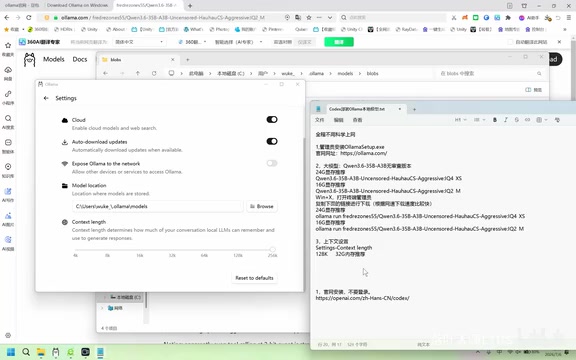
After installation, go to the Ollama settings interface, where you can see the model storage path corresponding to models. There is a key setting that is easily overlooked here—Context Length.
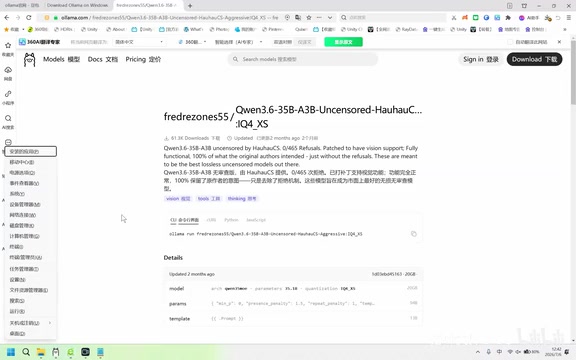
Understanding the technical principle of context length: Context length is one of the core parameters of large language models, referring to the maximum number of tokens a model can "see" in a single inference. A token is the basic unit by which a model processes text; in Chinese, each character roughly corresponds to 1-2 tokens. The longer the context window, the less likely the model is to "forget" earlier information when handling tasks such as code completion, multi-turn dialogue, and long document analysis. However, a longer context increases GPU and memory requirements at a near-quadratic rate (due to the KV Cache of the Attention mechanism), which is why this parameter needs to be configured reasonably based on hardware conditions—blindly increasing it will cause memory overflow or a sharp drop in inference speed.
Context length directly affects a model's performance in long conversations or complex tasks. If the context is too short, response interruptions or anomalies are likely to occur after consecutive operations. It is recommended to set the context length as large as possible. Below is a reference for the correspondence between memory and recommended context:
| Memory/GPU Memory | Recommended Context |
|---|---|
| 32GB RAM | ~128K |
| 64GB RAM | ~256K |
| 16GB GPU Memory | Depends on the model |
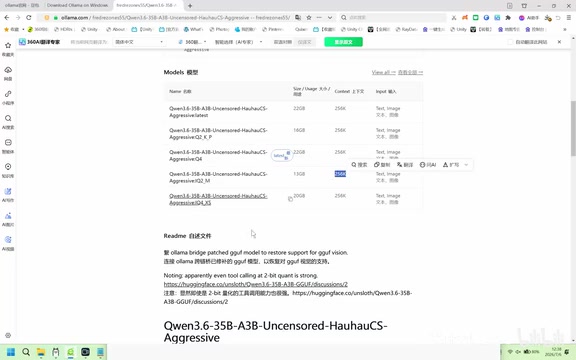
Step 2: Select and Download a Suitable Local Model
Model selection is the part of the entire deployment process that requires the most consideration of hardware trade-offs. The size of your GPU memory and RAM directly determines which scale of model you can run smoothly.
The relationship between model quantization and GPU memory: The "quantized models" mentioned in this tutorial (such as those in GGUF format) refer to techniques that compress model size by reducing the numerical precision of model weights. Standard trained model weights are usually stored in FP32 (32-bit floating point) or BF16 (16-bit), while quantization can compress them to INT8, INT5, or even INT4 precision, reducing model size by 2-8 times. Take a 70B parameter model as an example: the FP16 version requires about 140GB of GPU memory, while after Q4 quantization it only needs about 40GB, allowing it to run on ordinary consumer-grade GPUs. Quantization brings a slight loss of precision, but in engineering practice, medium quantization levels such as Q5_K_M and Q6_K usually have an acceptable impact on model capability. Models like the Qwen3 series are specifically optimized for quantized inference, which is why they perform especially well on devices with limited GPU memory.
Choosing a Model by GPU Memory Size
Below are the hardware recommendations based on actual testing:
- 24GB GPU memory: A larger parameter version is recommended, running about 30% faster than the small-memory option
- 16GB GPU memory: You can choose a medium parameter version supporting 256K context, balancing capability and speed
- 8GB GPU memory: Small-size quantized models such as the Qwen3 series (e.g., Qwen 3.5, 3.6) are recommended
The primary recommended "uncensored version" supports a 256K ultra-long context, outperforming the 128K option in both feature completeness and overall performance.
Two Methods for Downloading Models
Method 1: Copy the official ollama run command directly from the Ollama model page;
Method 2: Obtain the download link through a third-party mirror page for faster speeds.
The steps are as follows:
- Copy the corresponding download command on the model page
- Press
Win + Xand select "Terminal (Admin)" - Paste the command and press Enter, then wait for the download to complete
The entire download process requires no VPN or proxy. After the download is complete, you can directly type text in the terminal to test, and the model will respond instantly.
Step 3: Install and Configure Codex
Codex is the AI coding and dialogue tool to be integrated in this tutorial. There are a few potential pitfalls to be aware of during installation.
A note on the positioning of the Codex tool: It should be noted that the "Codex" in this tutorial is not OpenAI's historically namesake code generation model (which was discontinued as a standalone service in 2023 and integrated into the GPT-4 series), but rather an AI dialogue and coding assistant client tool that supports connecting to a local model backend. The core value of such tools lies in providing an interactive experience similar to Cursor or GitHub Copilot, while allowing users to customize the inference backend—it can connect to cloud APIs such as OpenAI, or to a locally running Ollama service. This decoupled frontend-backend architecture is precisely the key to why this tutorial's solution can achieve "fully local operation": Codex handles the interface and interaction logic, Ollama handles model inference computation, and the two communicate through a local HTTP interface (default localhost:11434).
Installation Notes
Download the installation package from the official Codex website (Windows version by default) and double-click to install. After installation is complete, do not open it immediately, and do not log in to the official account.
The correct procedure is as follows:
- After installation is complete, do not launch the program yet
- Find the integration command for
codex appon the configuration page and copy it - Open
Win + X→ "Terminal (Admin)" - Paste the command and press Enter to execute; open Codex only after the prompt appears
If you have previously installed an older version of Codex, the new configuration will automatically overwrite the old version, with no need for manual uninstallation.

Connecting to Local Ollama Models
After opening Codex, you can see the local models previously downloaded through Ollama in the model selection list. Once selected, you can start a conversation, all without an internet connection.
Here's a detail: even when running a local open-source model, Codex may answer "GPT-5 coding assistant" when asked "who are you"—this is due to the model's default self-identity setting (i.e., the role information preset in the System Prompt). What actually runs is still your locally deployed open-source model, and this does not affect normal use.
Real-World Experience: Response Speed Is the Biggest Highlight
From the actual demonstration, the most prominent advantage of the Codex + Ollama solution is its response speed. Compared with llama.cpp-related solutions, connecting to local models results in noticeably faster replies, returning results almost instantly after inputting a question.
Technical background on performance differences: llama.cpp is a C++ inference engine developed by Georgi Gerganov, and it is the underlying foundation for almost all current local inference tools (including Ollama itself). The performance difference here comes more from differences in upper-layer scheduling logic and optimization strategies—Ollama has introduced acceleration techniques such as Continuous Batching and Flash Attention in its ongoing updates, offering a significant throughput improvement in high-concurrency or long-context scenarios. The "faster response" that users perceive is usually reflected in a lower Time to First Token (the time from sending a question to receiving the first character).
There is one minor flaw in the interface: Codex defaults to an English interface, and switching to Chinese has little effect, but this does not affect normal use.
This solution is especially suitable for the following users:
- Developers who want to use an AI coding assistant for free and unlimited
- Users with high requirements for code data privacy who do not want content uploaded to the cloud
- AI enthusiasts with a certain amount of GPU memory (16GB or more recommended) who want to fully leverage their local hardware performance
Summary: Set Up a Local AI Environment in Three Steps
This tutorial demonstrates a complete path for local AI deployment: Ollama handles running the model, and Codex provides the interactive interface. The two communicate through a local HTTP interface, together achieving a local AI assistant that can run offline, has no subscription fees, and supports ultra-long context.
The three core steps of the entire process:
- Install Ollama: Install with administrator privileges and increase the context length setting
- Choose a model: Select the appropriate parameter version at the right quantization level based on GPU memory size and download it
- Connect Codex: After installation, execute the integration command first, then open and use it
For users who want to break free from the restrictions of cloud API subscriptions and explore the potential of local large models, this is a practical solution with a low barrier to entry, clear steps, and reproducible results. Please comply with local laws and regulations during use.
Key Takeaways
Related articles

The Truth Behind Codex 'Build a Website in 5 Minutes': AI Isn't Creating Sites—It's Helping You Copy Them
Exposing the truth behind viral Codex 5-minute website videos: creators aren't building original sites with AI—they're copying shared prompts or scraping others' work. Learn AI coding tools' real limits.

Getting Started with AI Agent Development: A Complete Guide from Concept to Practice
A comprehensive guide to AI Agent architecture and development, covering automated marketing, intelligent customer service, and investment analysis scenarios with single and multi-agent collaboration.

The Truth Behind Codex 'Build a Website in 5 Minutes': AI Isn't Creating Sites — It's Helping You Copy Them
Exposing the truth behind viral Codex 5-minute website videos: creators aren't building original sites with AI — they're copying shared prompts or scraping others' work.