How to Fix Codex Errors: Complete Troubleshooting Guide for DeepSeek Integration, GPT Login Issues & More

A troubleshooting guide for the most common OpenAI Codex errors and how to fix them.
This article compiles a comprehensive troubleshooting manual for the most common issues encountered when using OpenAI Codex, organized into three categories: DeepSeek integration, GPT account usage, and Codex-specific problems. It covers high-frequency issues including Windows security blocking, wrong installer versions, SysX proxy being blocked by antivirus, .env file extension pitfalls, SysX compatibility toggle settings, and tab configuration errors — with detailed root cause analysis and step-by-step solutions for each.
Introduction
Codex is an AI programming assistant launched by OpenAI, and its user base has been growing rapidly. OpenAI Codex is fine-tuned specifically for code generation tasks based on the GPT series of large language models. Its underlying capabilities come from training on billions of lines of public code (primarily from GitHub), enabling it to understand natural language descriptions and convert them into executable code, supporting dozens of programming languages including Python, JavaScript, Go, and Ruby. Mainstream AI coding tools like GitHub Copilot use Codex or its derivative models under the hood.
However, many beginners run into errors at various stages — downloading, configuring, and running the tool. This article compiles the most common issues encountered when using Codex into a troubleshooting manual, organized into three categories: "DeepSeek Integration with Codex," "Using Codex with GPT Accounts," and "Codex-Specific Issues" — making it easy to quickly identify the root cause of your problem.
Common Issues with DeepSeek Integration into Codex
Software Download Blocked by Windows Security
This is the first hurdle many people encounter. Windows' security blocking mechanism consists of two main components: Windows Defender SmartScreen and Windows Defender Firewall. SmartScreen performs reputation checks on downloaded executable files — if the file source is unknown or has low download counts, it triggers a "Windows protected your PC" warning. Newly released or niche software often gets blocked even when completely safe, simply because it lacks sufficient "reputation history." At the firewall level, network connection behavior is filtered, and proxy service software (like SysX) is particularly prone to triggering firewall rules because it needs to listen on local ports and forward network requests.
Steps to resolve:
- When the security prompt appears during download, click the three dots (...) on the right and select "Keep"
- When the second confirmation dialog appears, select "Keep anyway"
- Critical step: Disable Windows Firewall before downloading, otherwise the installer may be automatically deleted
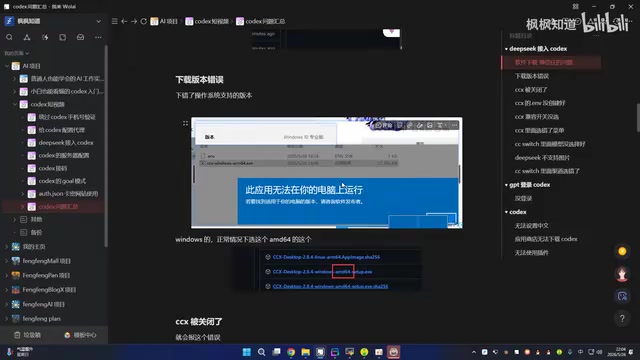
Downloaded the Wrong Installer Version
If you see "This app can't run on your PC" when trying to run the installer, you've selected the wrong version.
Modern computers primarily use two CPU instruction set architectures: x86-64 (also known as amd64) and ARM64. The vast majority of Windows desktops and laptops use Intel or AMD processors, which correspond to the amd64 architecture. ARM64 architecture mainly appears in Windows devices with Qualcomm Snapdragon processors (such as the Surface Pro X) and Apple Mac computers with M-series chips. The installer's architecture must match the device's CPU, otherwise the operating system cannot execute the program — this is the root cause of the error mentioned above. You can verify your device architecture by going to "Settings → System → About" and checking "System type."
Most Windows computers should select the windows-amd64 version. Do not download the arm64 or other architecture installers.
SysX Proxy Service Closed or Blocked by Antivirus Software
This issue occurs very frequently. SysX is essentially a local API proxy middleware that starts an HTTP service process on the user's machine, intercepting API requests sent by the Codex client and performing format conversion and forwarding according to the target AI service's (such as DeepSeek or OpenAI) API specifications. The drone disconnect error typically means the Codex client cannot connect to the local port that SysX is listening on — possible causes include SysX process crashes, termination by antivirus software, or port conflicts with other programs. Antivirus software falsely flagging proxy programs as malware is a well-known industry issue, since the network behavior patterns of proxy software resemble those of certain malware.
Typical error messages include:
drone disconnect(connection lost)- "Failed to fetch model list" when retrieving models in the SysX interface
Troubleshooting directions:
- Check Task Manager to see if the SysX process is still running
- Check your antivirus software's quarantine zone to confirm SysX hasn't been falsely flagged and removed
- Confirm the background service hasn't been manually closed
.env File Accidentally Created as .env.txt
This is an extremely sneaky pitfall. The .env file is a widely used environment variable configuration file format in software development, originating from the dotenv library in the Node.js ecosystem and now a cross-language common practice. Its core concept is separating sensitive configurations (such as API keys) from code. The file format uses one key-value pair per line, like API_KEY=your_key_here. When an application starts, it automatically reads the .env file in the same directory and loads the variables into the runtime environment.
Windows hides known file type extensions by default, so you think you've created .env, but the system actually appended a .txt suffix, turning it into .env.txt — and naturally Codex can't read the configuration. This Windows design causes serious problems in development scenarios that require precise control over filenames, and .env being accidentally saved as .env.txt is one of the most典型 victim cases.
The correct approach:
- Open File Explorer → Click "View" → Check "File name extensions"
- Confirm the file is named
.envand not.env.txt - If there's an extra
.txtsuffix, right-click and rename to remove it - Double-click to open and confirm the API key inside matches the one you actually applied for
- Make sure to press Ctrl+S to save after editing — forgetting to save will also trigger a 401 error

SysX Compatibility Toggle Not Turned Off
If you get an error message containing role-related keywords like developer when chatting with Codex, it's most likely because the SysX compatibility option isn't configured correctly. Go to the SysX settings page and turn off the compatibility toggle.
Selected the Wrong Cloud vs. Codex Tab in SysX
This is the most common mistake during configuration. When SysX opens, it defaults to the "Cloud" page, and many users add their channels directly under Cloud without noticing they need to switch to the "Codex" tab.
This mistake can cause three types of errors:
- SysX throws an error when checking models
- 401 errors appear in SysX logs
- A
proxy access key-related 401 error when chatting in Codex
Regarding the nature of 401 errors: HTTP 401 (Unauthorized) is a standard authentication failure response in Web APIs, indicating that the request lacks valid credentials or the credentials have expired. As an intermediary proxy layer, SysX's proxy access key error specifically refers to authentication failure between the Codex client and SysX — distinct from authentication failure between SysX and the upstream AI service. These two authentication steps are independent and need to be troubleshot separately.
The correct approach: After opening SysX, first switch to the "Codex" tab, then configure your channels on this page.
Related articles
 Tutorials
ChatGPT Plus Subscription Guide: Are GPT-5.5, image-2, and Codex Worth the Upgrade?
A detailed look at ChatGPT Plus features — GPT-5.5, image-2, and Codex — with a Plus vs Pro comparison and a complete step-by-step subscription guide for users outside the US.
 Tutorials
Harness AI Engineering in Practice: Using Claude Code to Master Enterprise-Level E-Commerce Development
Deep dive into Harness AI Engineering: master enterprise e-commerce development with Claude Code using the Rules, Skills, Wiki, and Changes framework.
 Tutorials
Cursor + Codex Dual-IDE Collaboration: A Practical Methodology for Open-Source Project Customization
A complete methodology for open-source project customization based on real-world experience, detailing the Cursor+Codex dual-IDE workflow, seven-stage process, MVP validation, and AI source code reading techniques.