7 Claude Prompts for Managing a Week of Social Media Publishing via MCP
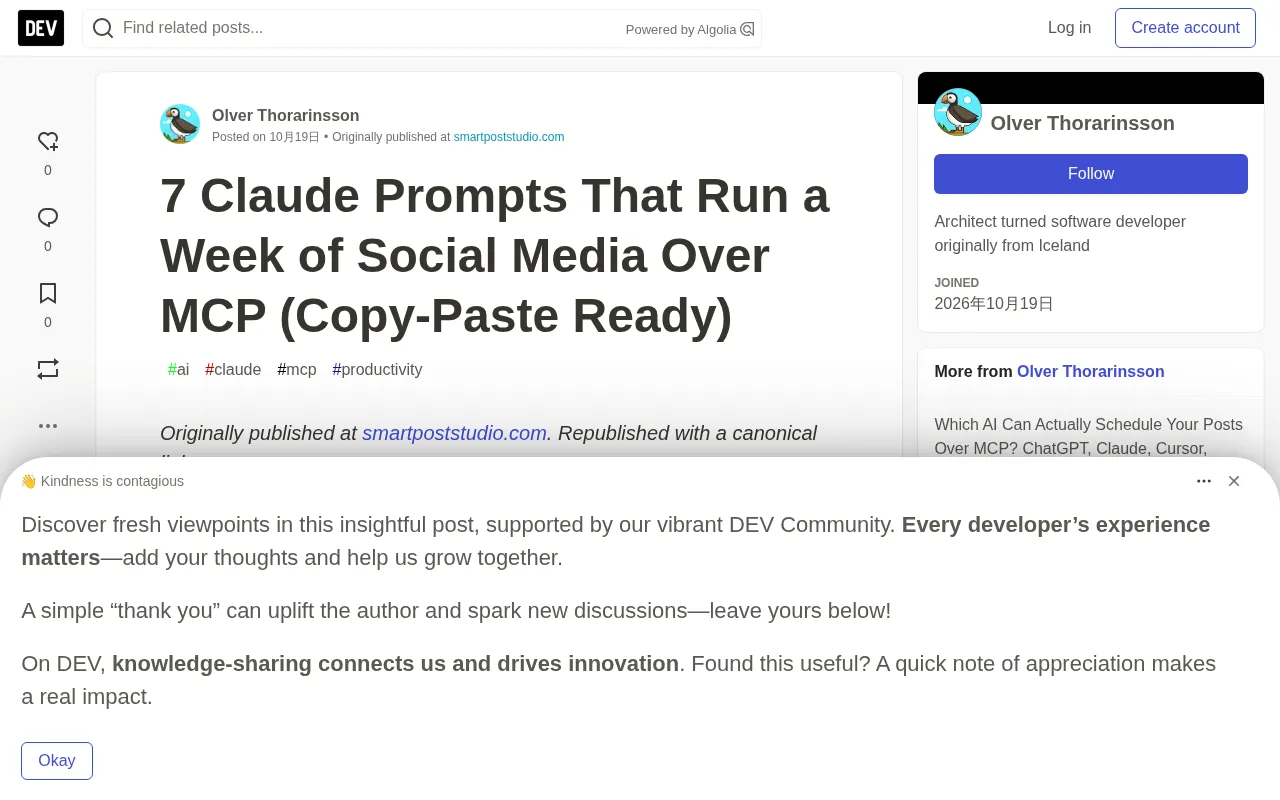
Seven week-ordered prompts and a permission-tier practice guide for connecting Claude to a social scheduling tool via MCP.
The article introduces seven Claude MCP social scheduling prompts designed by the Smart Post Studio team for independent creators, ordered by how they're used throughout a week. The core premise is to set permissions first: start with read and draft, and only enable scheduling once draft quality is stable; the system offers no "publish now," and any scheduled post is delayed at least ten minutes as an intervention window rather than an approval step. The seven prompts cover taking stock of the queue and content gaps on Monday, confirming reachable platforms, turning one idea into platform-specific drafts, revising in plain language, scheduling with explicit time zones and confirmation echoes, conversational rescheduling and cancellation, and verifying actual publish results on Friday. The article also lists three open-ended prompts to avoid and explains cost, beta status, and rate limits.
Title
7 Claude Prompts for Managing a Week of Social Media Publishing via MCP
Meta Description
Smart Post Studio shares 7 Claude prompts that connect to social scheduling tools via MCP, covering the full week's workflow: checking the queue, multi-platform drafts, revisions, scheduling, and publish verification—plus permission setup and pitfalls to avoid.
Article Content
Connecting Claude to a social scheduling tool via MCP takes only a minute, but the real challenge is what to say to it next. Most people just ask "what's in my queue," get an answer, and never come back. The Smart Post Studio team shared seven prompts they've prepared for independent creators, ordered by how they're used throughout a week, with each one explaining its purpose, why it's worded that way, and its boundaries.
Set Up Permissions Before Talking Prompts
When connecting MCP, you need to choose what the assistant can do: read (view the queue and results), draft (write drafts pending review), and schedule (place posts on the calendar). It's recommended to start with read and draft, and only enable scheduling once a week's worth of drafts no longer need rewriting.
Regardless of which permissions you check, one rule stays the same: there is no "publish now" tool. Anything the assistant schedules must be at least ten minutes out, will show an AI marker in the queue, and is written to the account history. This is an intervention window, not an approval step—it goes out when the time comes, whether or not you've looked at it by then.
MCP (Model Context Protocol) is an open protocol launched by Anthropic in late 2024, designed to let large models like Claude connect to external tools and data sources in a standardized way. Think of it as "the USB-C port of the AI world": previously every app had to write a separate integration for every model, but now you only need to implement an MCP server once and any client supporting the protocol (Claude desktop, Claude Code, Cursor, VS Code, etc.) can call it. The capabilities an MCP server exposes fall into "tools" (executable actions, like scheduling), "resources" (readable data, like the queue), and "prompt templates." The protocol itself doesn't define a permission model—specific authorization is negotiated between client and server—so the "read / draft / schedule" tiers emphasized in this article are permission granularity that Smart Post Studio designed on top of MCP, not something the protocol mandates.
Prompt One: Take Stock on Monday
"What's scheduled across all my platforms for the next seven days? Group by day, flag any dates with no content, and tell me which platforms each post goes to."
This is a read-only operation that runs safely with the narrowest permissions. What's genuinely useful isn't the list itself but "flag any blank dates"—the content gaps are what you're really looking for on Monday. Requiring the platform to be listed for each post also catches that post you thought would go to both Instagram and Threads but actually only went to Instagram.
Prompt Two: Confirm Which Platforms Are Reachable
"Which platforms can I currently publish to? Of those, which publish from the cloud and which publish from the desktop app?"
Run this again after connecting a new account. The assistant can only publish to accounts you've already connected; it can't add them on its own. The cloud-versus-desktop distinction corresponds to a hard rule: a single post can't mix cloud-published and desktop-published platforms. If you ask for a mix, the assistant will be required to split it into two posts—knowing the reason in advance is better than being confused afterward.
Prompt Three: Turn One Idea into Platform-Specific Drafts
"Draft posts about [some content] for Instagram, Threads, and LinkedIn. Same idea, different openings: Instagram leads with the visual, Threads should read like a reply to a friend, LinkedIn opens with a lesson learned. Keep Threads under 500 characters. Save everything as drafts—don't schedule anything."
There are three key points here. "Different openings" avoids the telltale signs of cross-platform copy-paste—that identical wording is obvious at a glance. An explicit character limit matters because models aren't good at counting—if the limit is hard, it's best to double-check with a character counter yourself before publishing. And "don't schedule anything" is a double safeguard: even if scheduling permission has been granted, this step should stop at the draft box.
If there are images or videos, attach the links in the prompt. Media is passed in via links, with a maximum of 25MB per file.
The article's mention that "models aren't good at counting" isn't a joke—it's a known limitation of large language models. Models process text by token (subword unit) rather than by character, so hard constraints like "under 500 characters" can only be estimated and tend to overshoot by 10%–20%. Common mitigations include giving an approximate token budget in the prompt, asking the model to count and annotate its own output, or doing truncation and validation at the application layer. For platforms with explicit character limits like Threads, the safest approach is still to verify manually with a character counter before publishing, or have the scheduling tool validate length when saving a draft and reject anything over the limit.
Prompt Four: Revise the Draft in Plain Language
"In the LinkedIn draft, delete the first sentence, swap 'game-changer' for something a normal person would say, and end with a question. Show me the new version before saving."
"Show me before saving" is a habit worth building. You're reviewing in chat at the lowest cost, rather than fixing things in the queue after the fact. If every revision keeps fixing the same kind of issue, that means your style rules should be written at the start of every session.
Prompt Five: State the Time Zone Clearly When Scheduling
"Schedule the Instagram and Threads drafts for Tuesday at 10:00 a.m. Eastern Time, and the LinkedIn one for Wednesday at 8:30 a.m. Eastern Time. Before executing, confirm each one with me in Eastern Time."
Always state the time zone. "Tuesday at ten" is unambiguous to you but not to the model. The confirmation echo step catches errors before they land on the calendar. If your audience spans time zones, work out the overlapping times first. This step requires scheduling permission; without it, it fails cleanly—which is exactly the point of holding off on authorization.
Prompt Six: Reschedule and Cancel Without Lifting a Finger
"Something came up. Move everything scheduled for Thursday to Friday at the same time, and cancel that X post about the promotion entirely."
This is where conversational scheduling beats a calendar interface: shifting a whole day's lineup takes just one sentence. "Cancel" sends the post back to drafts rather than deleting it, so the copy is still there when the promotion comes back.
Prompt Seven: Verify What Actually Went Out on Friday
"Did every post scheduled this week go out? List all failed posts, the platforms they belong to, and the reason given."
This closes the loop. What comes back is publish results per platform, not an analytics report—it tells you whether posts went out, not how they performed. For performance, use each platform's built-in analytics. A common reason desktop-published posts fail is that the desktop app wasn't running at the time; cloud-published platforms don't have that dependency.
Three Prompts to Avoid
"Run my social media for the week." Too open-ended. You'll get quantity, not judgment, and reviewing it takes longer than writing three good posts yourself.
"Publish this now." Can't be done. The earliest it can go out is ten minutes later, and that's by design.
"Schedule 50 posts for next month." Technically feasible within the limits (100 AI-created posts per day, 30 requests per minute), but batch-generating a month's worth in one go is exactly where an account starts to feel "less human." Draft in batches you'll actually read.
Cost and Boundaries
MCP access is included in all paid plans, starting with the $8/month Scheduler plan; the free tier doesn't have it. The feature is in beta: built, tested, and live, but still fairly new. If you just want the cheapest way to connect AI to a scheduling tool, this isn't the best choice. What you're getting is the ten-minute floor, the AI marker, and the audit trail—all of which matter more the longer your assistant runs.
All client configurations (Claude, Claude Code, Cursor, VS Code, Gemini CLI) are available as files in a public GitHub repository, along with a week of example prompts you can copy and paste directly.
The article's mention of "100 AI-created posts per day and 30 requests per minute" reflects a typical rate limiting design. Rate limits are usually set along two dimensions: burst limits (requests per minute, to prevent hammering the API in an instant) and daily quotas (to prevent long-term abuse or runaway costs). Setting a separate quota for AI-generated content also carries an implicit risk-control consideration—platforms want to discourage machine mass production and keep the timeline from being flooded with homogeneous content. The point of understanding these numbers is that they aren't performance metrics; they're the product's judgment about "what kind of usage is healthy," and prompt design should work with these boundaries rather than probe them.
One-line Summary
Seven week-ordered prompts and a permission-tier practice guide for connecting Claude to a social scheduling tool via MCP.
Paragraph Summary
The article introduces seven Claude MCP social scheduling prompts designed by the Smart Post Studio team for independent creators, ordered by how they're used throughout a week. The core premise is to set permissions first: start with read and draft, and only enable scheduling once draft quality is stable; the system offers no "publish now," and any scheduled post is delayed at least ten minutes as an intervention window rather than an approval step. The seven prompts cover: taking stock of the queue and content gaps on Monday, confirming reachable platforms, turning one idea into platform-specific drafts, revising in plain language, scheduling with explicit time zones and confirmation echoes, conversational rescheduling and cancellation, and verifying actual publish results on Friday. The article also lists three open-ended prompts to avoid and explains cost, beta status, and rate limits.
Related articles
Ollama+RAG Local Knowledge Base Setup: A Step-by-Step AnythingLLM Tutorial
Based on a Bilibili tutorial, this guide details building a local RAG knowledge base with Ollama + AnythingLLM: from general LLM knowledge limits and RAG principles to document upload, vector storage, and verification.
The Ultimate Ollama Tutorial: A Beginner's Guide to Running Large Models Locally for Free
Ollama is an open-source local large model management tool supporting free download and deployment of models like DeepSeek, with command-line and Web UI, cross-platform, automatic GPU/CPU scheduling — ideal for AI beginners and private deployment.
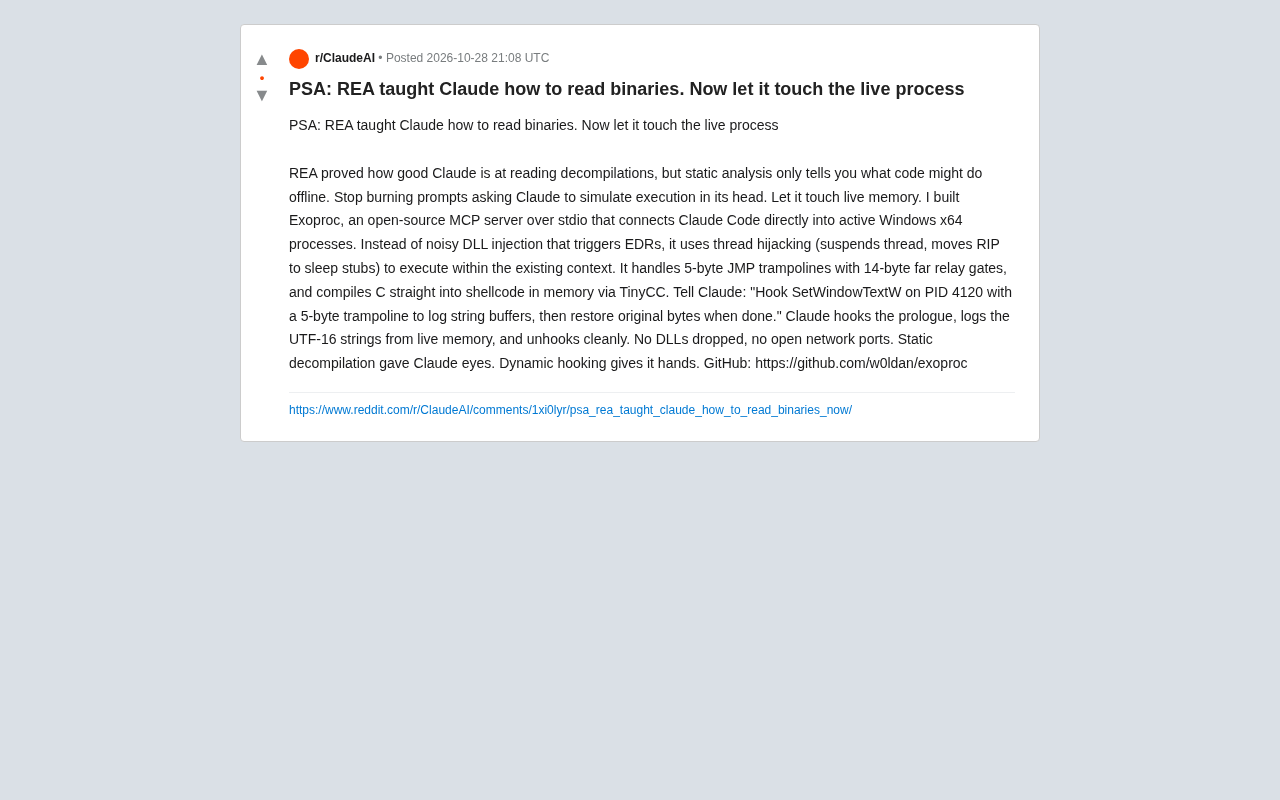
Giving Claude "Hands": Exoproc Open-Source MCP Server Enables Live Process Hooking
Exoproc is an open-source MCP server enabling Claude Code to hook live Windows x64 processes via thread hijacking, bypassing EDR for dynamic analysis. Static decompilation gave Claude eyes; dynamic hooking gives it hands.