8 Terminal Enhancement Tools to Supercharge Your Claude Code Programming Experience

8 terminal tools that make Claude Code and AI-assisted programming significantly more efficient.
This article recommends 8 free terminal enhancement tools—Bat, Eza, Chafa, Zoxide, TLDR, Miru, Yazi, and LazyGit—that transform the command-line experience for AI coding tools like Claude Code. Each tool replaces or enhances a default Unix utility with modern features like syntax highlighting, smart navigation, and visual Git management, with installation commands and practical configurations included.
Why Do You Need Enhanced Terminal Tools?
When using AI programming tools like Claude Code or OpenCode, we spend a significant amount of time on terminal operations—viewing files, browsing directories, and managing Git repositories. Claude Code is Anthropic's command-line AI programming assistant that runs directly in the terminal, capable of reading project files, executing commands, and writing or modifying code. OpenCode is a similar open-source alternative. The design philosophy behind these tools is to keep developers in the terminal environment to complete all their work, rather than constantly switching between IDEs and browsers. This means the terminal's ability to present information directly determines a developer's cognitive load and work efficiency.
However, built-in commands like cat, ls, and man produce monotonous output with low information density, seriously impacting productivity.
This article introduces 8 free terminal enhancement tools that can transform chaotic command-line data streams into well-organized information, making your AI programming experience silky smooth. All tools can be installed with a single command via Homebrew (for Mac users). Homebrew is the most popular open-source package manager for macOS (and Linux), created by Max Howell in 2009. It automatically handles software downloading, compilation, dependency resolution, and path configuration through simple brew install commands. For Linux users, all tools mentioned here can also be installed via apt, dnf, cargo, or other package managers.

Bat: File Viewer with Syntax Highlighting
Bat is an upgraded version of the cat command, supporting syntax highlighting, line numbers, and filename annotations. Written in Rust, it relies on the syntect library for syntax highlighting—which uses the same .tmLanguage syntax definition files as Sublime Text, supporting highlighting for over 200 programming languages. Bat also integrates with Git, displaying file modification status (added, modified, deleted) next to line numbers.
brew install bat
Core Features:
- Automatically detects file types and adds syntax highlighting
- View multiple files simultaneously:
bat file1.py file2.py - Highlight specific lines:
bat --highlight-line 6,17:18 file.py - Plain content mode: add
-Pflag to hide line numbers
Bat's paging feature uses less as the backend by default, supporting search and scrolling. In pipe operations, Bat automatically detects whether the output is a terminal—if it's a pipe, it automatically degrades to plain text output without interfering with script processing.
In a Claude Code workflow, when you need to quickly confirm which code the AI modified, Bat's syntax highlighting lets you spot key changes at a glance.
Eza: Modern Directory Browsing Tool
Eza is a replacement for ls, offering colorized output, icon display, and tree-structure views. It's actually a community fork of the discontinued exa project—exa was developed by Benjamin Sago and was one of the earliest projects to rewrite classic Unix tools in Rust. After the author stopped maintaining it in 2023, the community created Eza to continue development.
brew install eza
Recommended Alias Configuration:
Since Eza has many commonly used parameters, it's recommended to set up aliases in your shell configuration file:
alias ezal='eza --long --icons --git --header'
Eza's --git flag displays each file's Git status in the file listing, while --icons uses icon characters from Nerd Font to distinguish file types. Using the icon feature requires installing a Nerd Font family font (such as FiraCode Nerd Font) in your terminal.
Useful Commands:
- Tree structure display:
eza -T - View only document structure (ignoring node_modules, etc.): use with
--ignore-globparameter - Recursive view: combined view showing folder hierarchy and file contents
Chafa: In-Terminal Image Viewer
Chafa supports previewing images directly in the terminal, compatible with virtually all image formats. Its core technology maps image pixels to terminal characters, supporting multiple rendering modes: traditional ASCII art, Unicode half-block characters (▀▄, etc.), and Sixel and Kitty graphics protocols supported by modern terminals.
brew install chafa
Use Cases:
- View local images:
chafa image.png - Zoom into specific areas: specify crop regions for enlarged display
- View online images: pass in a URL directly
In terminals that support Sixel (such as iTerm2, WezTerm), Chafa can display images at near-original resolution. For terminals that don't support graphics protocols, it automatically degrades to character art mode. This adaptive capability allows it to work properly even in SSH remote connection scenarios.
While terminal resolution is limited, for quickly confirming AI-generated charts or UI screenshots, Chafa eliminates the hassle of switching windows.
Zoxide: Smart Path Navigation Tool
Zoxide is an ultra-fast path memory tool that learns your directory access habits, allowing you to jump to directories by typing just a fragment of the name. Its core is a path database based on the frecency (frequency + recency) algorithm—every time you cd into a directory, Zoxide records and updates that path's weight, with more frequently and recently accessed paths receiving higher weights.
This algorithm was originally introduced by Mozilla Firefox's address bar autocomplete feature and was later adopted by tools like z.sh and autojump. Zoxide is the Rust implementation, with performance far exceeding its predecessors.
brew install zoxide
Configuration Steps:
- Add the Zoxide initialization command to your shell configuration file (e.g.,
.zshrc) - Run
source ~/.zshrcto apply the configuration
Usage Logic:
- The first time, you need to use the full path to enter a directory
- Afterward, just type a fragment of the directory name, and Zoxide automatically matches the highest-weighted result
- When encountering similar paths, press
Space + Tabto choose
When frequently switching directories in Claude Code projects, Zoxide saves a tremendous amount of typing time.
TLDR: Quick Command Reference
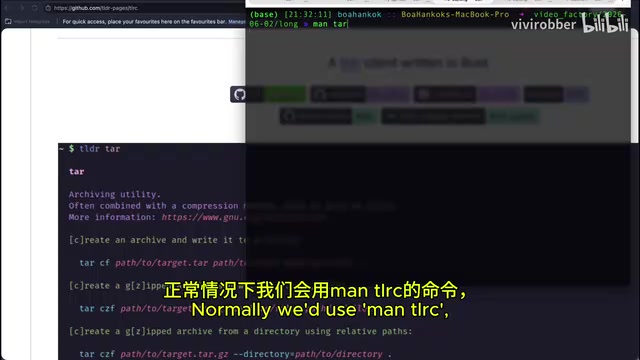
TLDR (Too Long Don't Read) condenses lengthy man pages into structured quick-reference cards with colorized output that's easy to scan. TLDR Pages is a community-maintained open-source project with translations in over 50 languages and quick-reference pages for thousands of commands. Each page follows a strict format: a one-sentence description of the command's purpose, followed by 5-8 of the most common usage examples.
brew install tlrc
The tlrc installed here is a Rust client implementation of TLDR, which starts faster than the Node.js version tldr and doesn't require a Node runtime.
Usage: tldr tar (view tar command usage). Compared to the walls of text from man tar, TLDR directly shows the most common command combinations and examples, making it perfect for quickly recalling parameters of infrequently used commands. TLDR's design philosophy aligns perfectly with information retrieval in the AI era—people don't need complete documentation, they need examples they can use immediately.
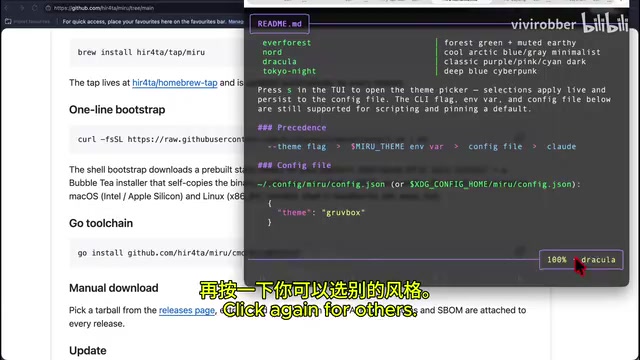
Miru: Terminal Long Document Reader
Miru is a terminal document reader supporting code files and Markdown. Its advantage over Bat is support for paginated reading of long documents, plus the ability to view HTML files in a browser-like manner.
brew install miru
Keyboard Shortcuts:
j/kor arrow keys: scroll line by lineCtrl+D/Ctrl+U: half-page scrollingShift+G: jump to end of documentgg: return to top of documentB: open in browser with formatted displayS: toggle display style?: view help menuQ: quit
In simple terms, Miru is a combination of Bat + Glow with more flexible usage. Glow is another popular terminal Markdown rendering tool, while Miru integrates file viewing and Markdown rendering into a single tool.
Yazi: Terminal File Manager
Yazi (meaning "duck" in Chinese) is a terminal-embedded file manager supporting file preview, batch operations, and multi-level browsing. It's built using Rust's Tokio async runtime, meaning file previews, directory scanning, and image rendering all execute asynchronously in the background without blocking user navigation. This is its biggest performance advantage over ranger (a similar tool written in Python).
brew install yazi
Yazi also supports a plugin system that can extend functionality through Lua scripts, such as integrating fzf fuzzy search or custom previewers. Its three-column layout (parent directory – current directory – preview) is inspired by macOS Finder's column view design.
Core Operations:
- Up/Down keys: select files/folders
- Left/Right keys: switch directory levels
- Space: multi-select files
Y: copy selected filesP: pasteR: renameD: deleteQ: quit
Yazi's right panel provides real-time file content preview, which is especially convenient when managing multiple AI-generated files.
LazyGit: Terminal Git Visualization Tool
LazyGit is the standout recommendation of this article—it fully visualizes Git operations within the terminal. LazyGit was developed by Jesse Duffield in Go, implementing all operations through the Git command-line interface under the hood. Its interface uses a panel-based layout: the left side shows file status, branch lists, and commit history, while the right side shows detailed diffs of selected items.
brew install lazygit
LazyGit supports interactive rebase, cherry-pick, stash management, and other advanced Git operations, all with undo functionality (via Ctrl+Z).
Perfect Pairing with Claude Code:
When Claude Code is modifying code in the background, you don't need to wait for it to finish before checking each change. After opening LazyGit:
- Click the Files tab to see what modifications the AI has made in real-time
- Press
Dto discard unwanted changes (choose to discard all or partially) - Press
Efor final confirmation of changes - Press
Shift+Pto push to the remote repository - Press
Shift+Uto pull the latest updates
For AI programming scenarios, LazyGit's stage hunk feature is especially useful—you can precisely select which parts of AI modifications to keep and which to discard, enabling code review at a finer granularity than whole files.
This is far more intuitive than pressing Ctrl+O in Claude Code to view detailed information—you can monitor all file changes in real-time while the AI is coding.
Summary: Which Tools Should You Install First?
These 8 tools each serve a specific purpose, and when used together, they significantly improve terminal operation efficiency. It's worth noting that most of these tools are written in Rust or Go—both languages compile to native binaries with extremely fast startup times and low memory usage, making them ideal for frequently invoked command-line tools.
| Tool | Replaces/Enhances | Core Value |
|---|---|---|
| Bat | cat | View files with syntax highlighting |
| Eza | ls | Beautiful directory display |
| Chafa | - | View images in terminal |
| Zoxide | cd | Smart path navigation |
| TLDR | man | Quick command reference |
| Miru | less/glow | Long document reading |
| Yazi | Finder | Terminal file management |
| LazyGit | git | Visual Git operations |
For Claude Code users, the top priority installations are LazyGit (real-time monitoring of AI code changes), Zoxide (quickly switching project directories), and Bat (quickly confirming file contents). This combination of three tools can take your AI programming workflow to the next level.
Related articles

Salesforce Acquires Rune for $375M: AI Logistics Tech Bolsters Defense Business
Salesforce reportedly acquires defense tech startup Rune for $375M. Rune's AI logistics tech will strengthen Salesforce's Missionforce defense platform, continuing its M&A spree.

Why Fair Use Benefits Everyone in the AI Era
Starting from a Hacker News discussion, this article analyzes the legal logic and controversies of the fair use principle in AI training and content creation, and its dual impact on creators and the tech ecosystem.

Mistral Large 4 Open-Sources a Trillion Parameters, Microsoft Offers Voluntary Severance to 60,000 Employees
Mistral Large 4 open-sources a trillion-parameter multimodal model with a coding agent score of 48; SanDisk earnings show AI inference reshaping NAND demand; Google Gemini adds in-app file editing, OpenAI raises Codex quotas, and Microsoft offers voluntary severance to 60,000 employees.