A Practical Guide to Pairing a Wear OS Phone with a Virtual Watch

Full process for pairing Wear OS emulator phone and watch, five failure scenarios, and three verification methods.
Based on a YouTube walkthrough, this article outlines the complete process for successfully pairing a virtual phone with a virtual watch in Android Studio. First, create a Wear OS project and check Pair Wear OS with Phone App to generate both mobile and wear modules; then create a phone emulator with Google Play Store and a Wear OS Small Round (API 34) watch emulator; optionally configure a Google AI Studio key to enable the Gemini assistant. Pairing must be initiated from the phone-side Wear OS app, completing via Pair with Emulator after confirming matching pairing codes on both ends. The article also summarizes five common failure scenarios (such as fake Bluetooth connections, watch stuck loading, phone side unable to proceed) and their solutions, and provides three verification criteria: Connected status, Device Manager connection icons, and changing the watch face.
When developing Wear OS apps in Android Studio, successfully pairing a virtual phone with a virtual watch is a prerequisite for joint debugging of many features. This seemingly simple step often gets stuck due to details involving emulator state, account configuration, or Bluetooth connections. Based on a complete YouTube walkthrough, this article organizes the full process from project creation to pairing verification to help developers avoid common pitfalls.
Creating a Project with Both Phone and Watch
When creating a new project in Android Studio, first select the Wear OS category, then choose the "Empty Wear App" template. This template generates a blank app structure, suitable as a starting point for pairing practice. Other templates such as quick cards or watch face templates can also be used, but aren't needed for this exercise.
The key step is checking the "Pair Wear OS with Phone App" option. According to the video presenter, only when this box is checked will Android Studio generate both the phone and watch modules simultaneously. After the project is created, switch the project view to Android view, and you'll see both the mobile and wear folders. If one is missing, it's recommended to recreate the project.
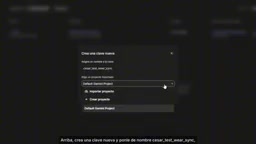
When naming the project, it's recommended to use lowercase letters and underscores, avoiding spaces. The package name is automatically generated based on the project name. Keep the minimum version at the default, which is the option recommended by Android Studio.
Creating Phone and Watch Emulators Separately
Open Device Manager and click "Create Virtual Device". Select Phone as the device type, then choose Medium Phone. The demo describes it as a general-purpose device with a 6.4-inch screen and 1800×2400 resolution, suitable for testing. For the system image, choose the version with Google Play Store, since the pairing app will need to be installed from the Play Store later.
There are two similar options for the system image: the recommended version uses traditional 4KB memory pages, while another version labeled "16K page size" uses larger memory pages. The presenter chose the 16K version and noted that either satisfies the needs of this exercise. If your computer is low on memory, you can choose the recommended version. Downloading the image requires about 2.1GB of space, and the download process cannot be canceled—you can only wait.
Next, create the watch emulator. Click create again in Device Manager, this time selecting the Wear OS category. The demo uses Wear OS Small Round, with a resolution of 384×284 pixels. For the system version, select API 34 (Android 14), which offers only one system image marked with a star, so no additional selection is needed. Using a lower API version for the phone and a higher version for the watch won't affect pairing.
16K page size system image refers to the 16KB memory page support introduced on some devices starting with Android 13. Traditional Android systems use 4KB memory pages, while 16KB pages can reduce the number of page table entries and lower memory management overhead, theoretically improving performance for memory-intensive apps. However, this feature requires apps and native libraries to be compiled with 16KB alignment, and some older dependencies may be incompatible. Testing with a 16K image in the emulator helps uncover such compatibility issues early; if you're just doing a pairing exercise, choosing the recommended 4KB version is safer and is usually more friendly to host memory usage.
The API version of the Wear OS emulator is independent of the phone side. Pairing relies on the Wear OS app-layer protocol (via Bluetooth or a network proxy), not on both sides having matching system versions. Therefore, using a lower API on the phone and API 34 on the watch won't affect pairing, but it's recommended that the watch side not be lower than the app's declared minSdk, otherwise installation will fail.
Configuring Google AI Studio and Firebase (Optional but Recommended)
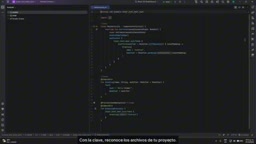
The video spends considerable time explaining how to obtain a Google AI Studio API key and connect it to the Gemini assistant in Android Studio. Although this isn't a required step for pairing the phone and watch, once configured, the AI assistant can recognize project files and provide more precise fix suggestions when code errors occur.
The process is: create an API key on the Google AI Studio website, return to Android Studio's Settings to find the Gemini-related settings, paste the key, and apply it. The presenter reminds viewers that the key is equivalent to a password and should not be shared with others. It's also recommended to turn off Google Backup when signing in, to avoid project data being automatically backed up to your personal account.
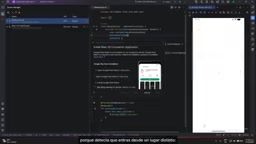
Gemini in Android Studio is an AI programming assistant provided by Google that can generate code and explain errors via the sidebar or inline. It requires binding an API key generated by Google AI Studio to call the model; the key is billed and rate-limited per project or account, which is why the article emphasizes it is "equivalent to a password". Once connected, the assistant can read the current project context (such as Gradle configuration and source files), thereby giving fix suggestions that match the project structure—this is also why it's more practical than a general chat window.
Firebase is not required for pairing in this process, but is often used later for data synchronization, crash collection, or remote configuration. If the project has Firebase-related options checked, Android Studio will guide you to link a Google account and generate google-services.json; this file contains the project identifier and API key and should likewise not be committed to a public repository.
Starting the Emulators and Initiating Pairing from the Phone
After both emulators are created, start the phone emulator first in Device Manager. The phone takes noticeably longer to start than the watch, so be patient. When a green dot appears next to the device name, it's ready. Then start the watch emulator.
The pairing entry point is in the phone emulator's Device Manager: click the three-dot menu on the phone device and select the pairing option, and the system will show a list of available watches. Select the watch you just created and click Next, and a pairing guide will pop up. Click "Open Wear OS Compatible App", and the phone will open or jump to Google Play to install the companion app. If the app isn't installed, you'll be directed to the Play Store to download it.
When signing in to a Google account in the phone emulator, the presenter recommends using a test account rather than your personal main account. The sign-in process may trigger identity verification, and choosing "confirm from your real phone" is the most convenient. Then accept the terms, decline data backup, and download and open the app. The in-app watch configuration process begins; after accepting permissions and terms, you reach the "Connect Your Watch" step.
Click the three-dot menu in the upper right corner and select "Pair with Emulator", and pairing codes will be displayed on both the phone and watch sides. After confirming the two codes match, click Pair on both ends. Android Studio will show a message such as "Waiting for user to complete pairing", and this process may last several minutes. When successful, a green arrow appears; click Finish.
Pair with Emulator is a pairing method built into the Wear OS companion app specifically for emulators. Real devices rely on Bluetooth handshakes and random pairing codes for confirmation, whereas emulators have no real Bluetooth hardware. Android Studio simulates this process through host port forwarding and a virtual Bluetooth bridge, so both ends need to display matching pairing codes to "manually confirm" that the channel is established. After pairing is complete, the phone side uses adb forward to map the Wear OS app's communication port to the watch emulator, and subsequent watch face changes and message synchronization all go through this channel.
This also explains why the pairing relationship is still remembered after closing the emulators: pairing information is stored in the emulator's user data image, and after a restart the port is re-mapped and the relationship restored. However, executing Wipe Data clears that image, and the pairing relationship is lost.
Five Common Failure Scenarios and How to Handle Them
The presenter summarizes five typical problems and their solutions:
- Pairing directly through the phone's Bluetooth settings causes a fake connection: The watch shows as connected but immediately disconnects, and the system indicates it cannot detect a real pairing. The solution is to go to Bluetooth settings, click the gear icon to unpair and "forget the device", then re-pair entirely through the Wear OS app. If the watch state is messed up, you can execute "Wipe Data" on the watch in Device Manager and start over.
- The watch side gets stuck loading or fails: Check whether Bluetooth is enabled on the watch, try Retreat and wait. If it times out, choose "Skip to Manual Introduction", follow the prompts to open the app and use Wear Watch. If it still doesn't work, cancel, turn off the watch, and start again.
- The phone side cannot proceed: Try the reverse operation—initiate pairing from the watch side, which can sometimes bypass the problem.
- The app shows Disconnect: Wait a moment and reconnect; the card may still show but the connection has actually recovered.
- Overall slowness or crashes: Close memory-hungry programs such as Chrome and restart both emulators. The presenter emphasizes that the whole process is essentially trial and error, and multiple attempts are normal.
Three Checks to Confirm Successful Pairing
After pairing is complete, you need to confirm communication is working through three checkpoints:
- The Wear OS app on the phone should show "Connected" below;
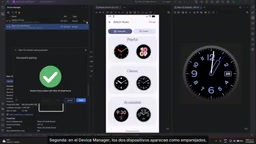
- Connection icons appear next to both devices in Device Manager, and in the Paired Devices tab of the watch device page, the phone status shows online;
- The most reliable verification is to change the watch face from the phone app; if the watch face changes accordingly, bidirectional communication has been established.
This connection is the foundation for passing data between the phone and watch later. The presenter finally reminds viewers that after closing the emulators, Android Studio will remember the pairing relationship, and restarting takes about one or two minutes. Don't casually clear the watch data, otherwise you'll need to pair from scratch.
The overall process can be summarized as: create a Wear OS project with a phone module, generate phone and watch emulators separately, configure AI and Firebase as needed, initiate pairing from the phone-side Wear OS app, troubleshoot according to the five scenarios if it fails, and finally verify with a watch face change.
Related articles
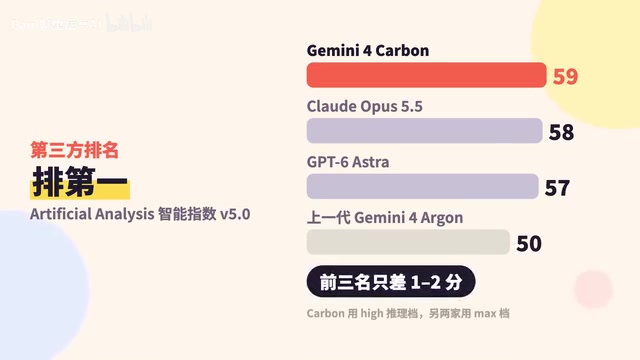
Google Releases Gemini 4 Carbon: Its Strongest Model Yet, Debuting with a Cybersecurity Focus
Google releases Gemini 4 Carbon, calling it its strongest model, with a cybersecurity focus. It tops the third-party composite ranking at 59 points but leads by only one or two. This article analyzes its security test results, staged rollout, token pricing, and the divergence between self-reported and third-party tests on hallucinations.

LangChain Adds SchemagateRetriever: On-Demand Table Retrieval Cuts Text-to-SQL Prompts by 92.9%
LangChain docs add SchemagateRetriever: retrieves only the tables needed for text-to-SQL with permission filtering, cutting median prompt size by 92.9% on Spider 2.0 large schemas via offline BM25 selection with no model calls.

Multi-Step AI Agent Guardrail in Practice: Fact-Change Detection Drives False-Alarm Rate to 0%
Developer shares first version of a multi-step AI Agent guardrail: re-verifying dependency facts before irreversible actions cut false alarms from 50% to 17% across 23 scenarios, then to 0% via conservative normalization without lowering catch rate. Runs on local qwen2.5-7b.