Advanced Codex Guide: A Complete Breakdown of Steering, Annotations, Skills, and Plugins

Master Codex's advanced features — steering, annotations, Skills, and plugins — to go from basic to power user.
This guide covers Codex's key advanced features across three layers: execution (real-time steering and preview annotations for precise modifications), management (context compression and conversation forking to keep workflows clean), and extension (Skills for domain expertise and plugins for connecting external services like Netlify). Together, these capabilities transform Codex from a basic AI coding tool into a highly efficient, professional-grade assistant.
Once you've mastered the basics of Codex, you'll likely realize there's still a significant gap between "being able to use it" and "using it well." This article systematically covers several core advanced features that can double your efficiency — from mid-task steering and precise modifications via preview annotations, to context management, Skill installation, and the plugin ecosystem — helping you truly upgrade Codex from "it runs" to "it rocks."
Real-Time Steering During Task Execution
A common pain point with AI coding tools is that once you send an instruction, all you can do is wait for the result. If you realize halfway through that things are going in the wrong direction, you either wait for it to finish and then redo everything, or abandon the task entirely. Codex offers a "steering" feature that lets you intervene at any point during task execution.
The operation is straightforward: while Codex is executing a task, you can add new requirements in the input box. It's important to note that sending directly will not interrupt the current task by default — new requirements get queued and processed after the current round completes. However, if you click the "Steer" button to the right of the input box, the new requirement gets injected into the currently executing task, and Codex adjusts course on the spot.
For example: you ask Codex to add a "weekly completion stats" section at the top of a page. It starts working, and you suddenly realize a progress bar would be more intuitive than plain numbers. At that point, just type "switch to a progress bar format" and click the steer button — Codex will switch approaches within the current task instead of finishing the number version first and starting over.
The core value of this feature is maintaining control during execution: after sending an instruction, you're not passively waiting but can course-correct at any time, dramatically reducing rework costs.
Preview Annotations: Ditching Inefficient Text-Based Modifications
When adjusting page styles, the most frustrating problem is "not being able to describe it clearly." For instance, "this title is too close to the content below" or "the card shadow here isn't prominent enough" — there might be several titles and cards on the page, and pure text descriptions can easily lead the AI to the wrong element.
Codex's "Preview Annotations" feature solves this problem. Here's the workflow:
- Click the "Annotation" icon at the top of the right-side preview window to enter annotation mode
- Click directly on the target element in the preview page — an input box will appear beside it
- Write your modification request (e.g., "change to a blue-toned interface color") and press Enter to send

Even more powerful: after clicking an element in annotation mode, a settings panel appears where you can directly adjust color, background, opacity, font, font size, layout alignment, spacing, and other details — with real-time preview as you make changes. When the result is close to what you want, click the checkmark in the bottom-right corner to add it as an annotation.
If you want to mark multiple modifications at once, use Command + Enter (or Ctrl + Enter on Windows) to add annotations to the input box without sending them immediately. Once all annotations are complete, send them all to Codex at once. This "what you see is what you get" interaction approach is an order of magnitude more efficient than text descriptions.
Context Management: Compression and Forking
Understanding Context and the Compression Mechanism
Context can be thought of as Codex's "short-term memory" — everything said and done throughout the conversation is stored here. It's thanks to this memory that Codex knows which "habit tracker" you're referring to and what changes were made previously.
But this memory has a capacity limit. The longer the conversation, the more it consumes, and earlier content may get pushed out, causing the AI to "forget things" or become sluggish.
How to check context usage: Go to Settings (bottom-left corner) → General page → scroll to the bottom to find the "Composer/Booster" section → check "Show Context Window Usage." After that, the input box will display the context usage percentage at the bottom.
Codex has a built-in automatic compression mechanism: when context is nearly full, it automatically condenses the long conversation into a concise summary, freeing up space. Manual compression is also simple — type /compress or /compact in the input box. In testing, a conversation using 92% of the context dropped to just 3% after compression — remarkably effective.
However, keep in mind that compression essentially turns detailed content into brief summaries, and occasionally some details may be lost. If the conversation contains critical requirements that absolutely cannot be wrong, it's best to verify them again after compression.
Conversation Forking: Protecting Your Main Thread
Another practical feature is "forking." Here's a typical scenario: you're deep in a conversation focused on expanding a feature, and you suddenly want to ask a tangential question (like "how would I add a login feature later?"), but you don't want to derail the current conversation's main thread.

To fork: click the "Fork" icon in the toolbar below a Codex response. Two options will appear:
- Fork to Local: Creates a copy of the conversation that still operates on the original project folder. Ideal for exploring ideas without intending to change code.
- Fork to New Worktree: Creates a separate workspace for the project, letting you experiment in an isolated environment without affecting the original code. This feature is Git-related and represents a more advanced use case.
An important caveat: "Fork to Local" protects the conversation thread, not the code files. Both conversations operate on the same project folder, so if you have Codex modify code in the new conversation, the original project will also be affected.
The Skill System: Turning AI into a Domain Expert
What Are Skills?
A Skill can be thought of as a "professional playbook for the AI." An expert in a particular domain compiles their experience into a document, clearly laying out rules, workflows, and best practices. After Codex reads it, it can follow these rules, immediately elevating output quality in that specific domain.
A Skill is typically a folder with a core Skill.md file, structured in two parts:
- Introduction (between two sets of triple dashes): The Skill's name and purpose, telling Codex when to use it
- Body: The specific rules and methodology
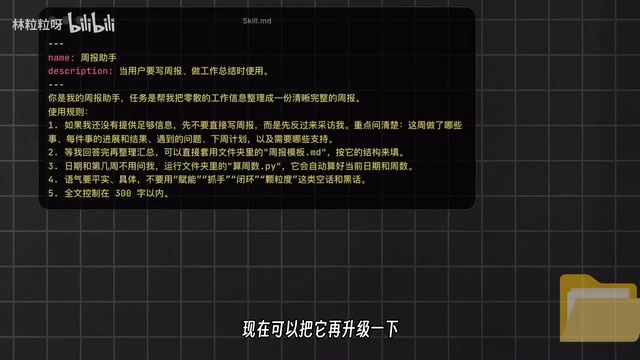
Skills are more sophisticated than simple prompts in two ways: first, they can include scripts, templates, and reference materials, forming a complete toolkit; second, they support on-demand loading — normally Codex only reads each Skill's brief description to determine relevance, and only loads the full content when it matches a specific need, avoiding wasted context space.
Installing and Using Skills
Installing a Skill doesn't require manually downloading files. In the input box, use the $ symbol to invoke Skill Installer, then tell it which Skill to install. Taking "Front End Design" as an example, after installation and restarting Codex, you'll see it in the Skills page in the left-side menu.

There are two ways to use Skills: explicit invocation (type $ and select the corresponding Skill) and automatic matching (Codex automatically determines whether to invoke one based on the task). In testing, after installing Front End Design and asking Codex to optimize a page, the color schemes, typography, and whitespace were noticeably more refined, with much less of that generic "AI look."
Currently, Skills aren't exclusive to Codex — Claude Code, Cursor, and other mainstream AI coding tools support similar mechanisms, meaning the global developer-shared Skill ecosystem is growing rapidly.
The Plugin Ecosystem: Connecting to the Outside World
If Skills solve the problem of "how to do things more professionally," plugins solve "how to connect to external services." Codex plugins can include three types of capabilities:
- Skills: Professional knowledge and methods
- App Integrations: Pre-built connections to specific applications (e.g., Figma, GitHub)
- MCP: A standard protocol for AI to connect with external tools — think of it as "a universal plug-and-socket standard"
Here's a practical example — publishing a local habit tracker app online. By searching the Codex plugin marketplace and installing the Netlify plugin, completing account authorization, and simply saying "deploy this website to Netlify," Codex can automatically handle the deployment and return an accessible URL. Even changing the domain prefix is just a one-liner.
This is the core value of plugins: transforming Codex from an assistant that can only work locally into a versatile assistant that connects to various external services and actually gets things done end-to-end.
Summary
The advanced Codex features covered in this article can be organized into three layers:
- Execution Layer: Steering (real-time course correction) + Preview Annotations (precise modifications)
- Management Layer: Context Compression (keeping memory clear) + Conversation Forking (protecting the main thread)
- Extension Layer: Skills (adding professional capabilities) + Plugins (connecting to external ecosystems)
Once you master these features, the Codex experience leaps from "usable" to "excellent." More advanced techniques — such as creating your own Skills, diving deeper into MCP, and more — will be explored in a future advanced guide.
Related articles

Tencent WorkBuddy Hands-On: How AI Agents Crush Traditional Chat Assistants
WorkBuddy vs Doubao tested: how AI Agents directly operate computers to convert PPT to PDF, archive files and more. Analysis of WorkBuddy's low barrier, domestic ecosystem, pricing and plugin marketplace, plus AI Agent selection advice.

Azure Cross-Tenant Attack Chain: Root Cause Analysis of Five Paths
Binary Security analyzes five full cross-tenant compromise paths in Azure, trending 271 points on HN. This article interprets their shared root cause perspective and offers defense recommendations for cloud tenant isolation and reflections on responsibility boundaries.

Recreating a Real Bubble Tea Station in Isaac Sim: Script-Driven Unitree G1 Brews Tea
Developers recreated a real self-service tea station in NVIDIA Isaac Sim, using scripts to drive a Unitree G1 through a five-step tea-brewing process, exploring whether physics simulation can be a source of synthetic robot demonstration data and discussing contact stability and imitation learning.