AI Game Development in Practice: Audio Buses and Building the Full UI Flow
A complete practical guide to audio hookup, global management, UI flow, save fault tolerance, and pixel font setup in Godot.
The article covers implementing audio and UI flow in AI-assisted game development. It breaks Godot's audio system into resources, players, and buses, explains regular versus 2D players and Linear to dB conversion, and details AudioManager's player pool, random pitch, and ID-based playback while stressing autoload boundaries. The UI flow section gives a fixed path from title to results with SceneTransition, pause restoration, and keyboard-only menus. The save section covers JSON fault tolerance and integer conversion, the pixel font section gives three iron rules, and it ends with pitfalls and an acceptance checklist.
In AI-assisted game development, audio systems and UI flows are often the most underrated parts. The previous lesson covered compiling a sound effects list, generating SFX and music with AI, and seamless looping. This lesson tackles two things: how to actually get sound into the game, and how to build the complete UI flow from the title screen to the clear/results screen.
The Audio Trio: Resources, Players, and Buses
Godot's audio system works like a set of playback equipment: audio resources are the records (imported WAV and OGG files), player nodes are the turntables that decide which record plays, at what volume, and at what pitch, and audio buses are the faders on a mixing console that let a group of sounds share one volume control.
There are two kinds of players. A regular player has no spatial position and plays equally in both channels, making it suitable for music, UI sounds, and the player's own action sounds. A 2D player has a position property: the farther away the sound, the quieter it gets, and it pans left or right based on direction. The course gives a classic example: a skeleton archer firing arrows from off-screen. With a regular player, the player can't tell where the arrow came from; switch to a 2D player with a max distance of 320 pixels, and the closer the arrow, the louder and more right-panned it sounds, letting the player locate it by ear. Since the screen is only 320 pixels wide, a regular player is enough for the vast majority of sound effects—only sounds that "the player hasn't seen yet but should hear" need the 2D version.
On the bus side, the SFX and Music buses both feed into Master before output to the speakers. The two volume sliders in the settings menu are essentially pushing these two faders. Bus volume is measured in decibels: 0 dB is the original volume, -6 dB sounds roughly half as loud, and -80 dB is effectively silent. The slider gives the player a linear value from 0 to 1, which needs to be converted via Linear to dB: 1 maps to 0 dB, 0.5 to about -6 dB, 0.25 to about -12 dB, and 0 is close to silent.
AudioManager: Designing a Unified Audio Outlet
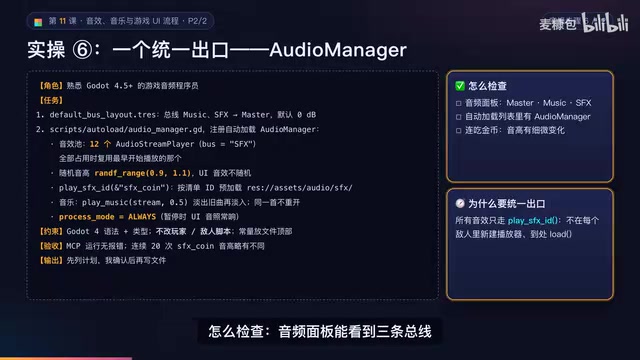
The AI-generated AudioManager uses autoload. Its core design includes: a pool of 12 players, reusing the one that started earliest when all are busy; random pitch of 0.9 to 1.1 on each playback, with no randomization for UI sounds; playing sound effects by list ID; tweening out the old track and fading in the new one, without restarting if the same track is already playing; and process mode set to Always so UI sounds still play while paused.
The random pitch detail deserves elaboration. Play the same sound effect 10 times in a row and the human ear immediately detects the mechanical, machine-gun-like feel. A pitch variation of plus or minus 10% is barely perceptible as a change, yet it makes the sound feel "alive." In the course's footage, the top row uses fixed pitch and the bottom row uses random pitch—10 playbacks each with a different pitch, and the contrast is striking. Acceptance testing is straightforward: the audio panel shows three buses, AudioManager is in the autoload list, and the pitch varies subtly when collecting coins in quick succession.
Hooking sound effects into game events follows two rules: always call AudioManager to play by ID, and never create new players inside player and enemy scenes—the only exception being the off-screen skeleton archer's arrows using a 2D player; and prefer connecting to existing signals rather than modifying combat and movement logic. UI buttons play a move sound on focus and a confirm sound on press, the three music tracks are assigned by scene, and the final level uses the boss battle music. Acceptance relies on a hookup table: which sound ID maps to which function or signal in which file, checked off line by line as each is triggered.
Autoload and the Boundaries of Global State
Regular nodes follow the scene and are destroyed when the scene changes. Autoload nodes are registered in Project Settings, created at game startup, and survive scene changes—any script can access them directly by name. The course adds three autoload nodes: GameManager manages the current level, coins, unlock progress, volume, and saves; AudioManager plays sound effects and switches music so music doesn't cut out on scene changes; and SceneTransition handles fade-out, scene switch, and fade-in.
There's an important boundary here: autoload is a global variable—handy, but not a catch-all pocket. Only put in it what genuinely needs to be shared across scenes. Player health belongs to the player itself; don't stuff it into GameManager.
Autoload in Godot is a singleton registered under Project Settings > Autoload. It's instantiated at game startup and attached under the scene tree's root node, and it isn't freed when switching scenes, so scripts can access it directly by node name without looking up a path. It's suitable for storing cross-scene global state or services such as saves, audio management, and scene transitions. But autoload nodes have no lifecycle management, and overuse creates implicit global dependencies that make testing difficult and increase coupling. The practical rule is to put only data or services that truly need to be shared across scenes, and to prefer signals over polling to notify changes.
UI Flow: The Complete Path from Title to Clear
A full pass through the UI flow goes like this: the title screen shows a menu on any key press, starting the game enters level select, choosing 1-1 enters the level with the HUD always on, pressing pause and then continue returns to the game, and reaching the goal enters the results screen. Every scene change is fade-out, switch, fade-in. Using "press any key to start" on the title screen has a hidden benefit too: browsers require user interaction before playing sound, so it saves a headache in web exports.
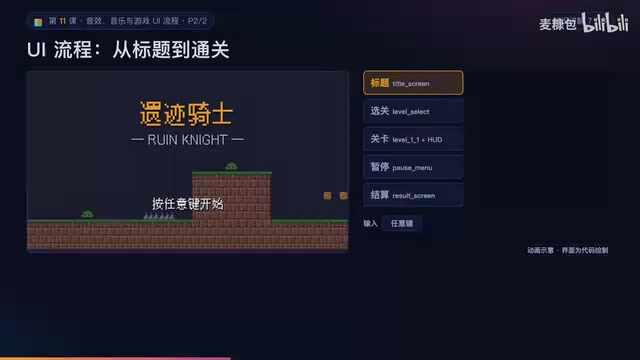
The scene list is fixed: the title is the main scene, pressing start goes to level select, the title and level select share one music track, levels use the level music, and the final level switches to boss battle music. The HUD, pause, and settings are overlay layers drawn on top of the level without changing scenes. Music is ducked while paused, and the settings menu can be opened from both the title and pause screens. Reaching the goal enters the results, then next level or back to level select; health reaching zero enters failure, then retry from checkpoint or back to level select. The path is fixed—don't let the AI rename things.
The key constraints for building the UI flow are: all scene changes must go through SceneTransition, pause state must be set back to False before changing scenes, all menus must be fully keyboard-operable, the first button must receive focus when entering a menu, layout is based on 320×180, and buttons are at least 64×16. Acceptance walks a fixed route: title, level select, 1-1, pause, back to level select, re-enter 1-1, clear results, next level—with no errors throughout.
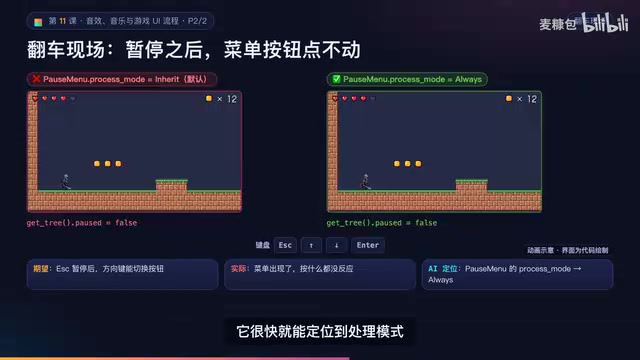
During transitions, a black overlay blocks all clicks to prevent players from double-clicking and triggering two scene changes, and it's released when the pop-in finishes. The course also shows a crash-and-burn moment: deliberately not setting the pause menu's process mode—pressing Escape pauses the game and the menu appears, but the arrow keys and Enter do nothing. Because the default process mode is Inherit, the menu freezes itself as soon as the game pauses. The pause menu's root node must be set to Always; set it to Pausable and it won't receive Escape when unpaused, so the menu never opens at all.
GameManager and Fault-Tolerant Save Design
GameManager records the current level, coins for this level, number of unlocked levels, best coins per level, and the two volumes. On clearing, it updates the best coins, unlocks the next level, and saves immediately. Saves are in JSON format with a version number field, incremented by 1 whenever the structure changes later. The save path is written as a variable so it can be swapped for a dedicated path during testing in the next lesson.
The most important constraint is: when loading a save, neither a missing file nor corrupted JSON may crash the game—fall back to defaults and log a warning with push_warning. Another detail: numbers read back from JSON are all floats, so assigning them to integer fields requires int conversion, otherwise the unlock count becomes 2.0. Acceptance: after clearing 1-1, quit and relaunch, and 1-2 is already unlocked in the level select screen.
JSON (JavaScript Object Notation) is a lightweight text data format; combinations of key-value pairs and arrays can cover most game save structures. In Godot, JSON.stringify serializes a dictionary into a string, and JSON.parse_string parses a string back into a dictionary—but the JSON spec only distinguishes numbers, with no integer/float distinction, so after parsing all numbers become floats (e.g., 2 becomes 2.0). Godot's GDScript leans toward static typing: assigning a float to an int variable triggers an implicit conversion warning, or even an error in some contexts, so int() must be used for explicit conversion. The version number field is forward-compatibility insurance: increment it when the data structure changes, branch on the version when loading, and avoid old saves crashing outright.
Why Pixel Fonts Look Blurry
Fonts enable anti-aliasing by default, adding semi-transparent pixels at the edges to smooth curves—a disaster for pixel fonts, which turn into a gray haze at 4x scale. With anti-aliasing off, every stroke consists of pure-color pixels only.
Three iron rules: turn off anti-aliasing, hinting, and subpixel positioning on import; the font size must be an integer multiple of the font's design size—the 12-pixel version only uses 12, 24, 36; using 13 or 14 makes strokes uneven in weight and distorted; at 320×180 resolution, use the 12-pixel version for Chinese—the 8-pixel version turns complex characters into mush and is only suitable for numbers and English.
Setting the font manually is more reliable than having the AI modify import files: put the 12-pixel Simplified Chinese font and its OFL license file into the fonts folder, select the font to open the import panel, set anti-aliasing to None, hinting to None, turn off subpixel positioning, turn off multichannel texture generation, and turn off multichannel signed distance field—that's for smooth fonts that need arbitrary scaling. Then create a theme resource with this font as the default font and default size 12, and set it as the global theme in Project Settings.
The HUD is an overlay: top-left shows heart icons with a count equal to the health component's max health, top-right shows the coin icon and count. Data comes from signals connected to the health component's health changes and GameManager's coin changes—don't poll in per-frame processing. Text uses only theme sizes, 12 or 24, sits 4 pixels from the screen edge, and must not cover the player's head. Acceptance: taking damage immediately reduces hearts, collecting a coin immediately adds 1, zooming into a screenshot shows pure-color pixel edges on Chinese strokes, and at a 1280×720 window it's exactly a 4x integer scale.
Pixel fonts are designed for a fixed pixel grid: each glyph is drawn pixel by pixel at a specific size, and scaling without interpolation keeps it sharp. Godot's font import enables anti-aliasing, hinting, and subpixel positioning by default—these serve smooth vector fonts: anti-aliasing adds semi-transparent pixels at edges, hinting adjusts glyph positions to non-integer pixels, and subpixel positioning lets characters land between pixels. Stack all three on a pixel font and you get gray edges and blur. Turn them off and font rendering aligns strictly to integer pixels. Additionally, multichannel signed distance field (MSDF) is a technique using distance-field textures to achieve smooth scaling at any size; it's equally unsuitable for pixel fonts and must be turned off.
Settings Menu and Full Walkthrough
The settings menu contains two sliders for music volume and SFX volume, ranging from 0 to 1 with a step of 0.05, plus a back button; it can be opened from both the title and pause menus. Dragging the SFX slider plays a UI sound once so the player can preview it. The core logic is just a few lines: convert the linear value to decibels with Linear to dB and set it on the corresponding bus, and mute directly when the value is less than or equal to 0.001. Values are recorded in GameManager and saved when the menu closes. Acceptance: drag music to 0 for complete silence, back to 0.5 for about -6 dB, and after quitting and relaunching the slider position and volume are both preserved.

For the full walkthrough, first delete the save file to simulate a new player: start from the title, only 1-1 is in level select, clear it and check the results, enter 1-2, pause mid-level to adjust volume, deliberately die once and retry from the checkpoint, beat the final boss and return to the title, then quit and relaunch to confirm the unlock state and volumes are both preserved. Then have the agent do a flow self-check, running the project for 10 seconds via MCP, reading debug output for errors, warnings, null nodes, and missing audio file errors; if there are issues, list the causes and a fix plan first, and wait for confirmation before changing anything.
Common Pitfalls and Acceptance Checklist
The course summarizes seven typical problems: the game not moving after a scene change is pause state not being restored—always go through SceneTransition; blurry, inconsistent Chinese text means anti-aliasing wasn't disabled or the font size isn't a multiple of 12; the AI writing Linear2dB is the old Godot 3 function name—Godot 4 calls it Linear2DB; creating a player in every enemy and loading audio everywhere means there's no unified outlet; the same sound effect stacking into a blast is several triggers in one frame—enforce that the same ID plays only once per 0.05 seconds; the AI stuffing health into GameManager is treating autoload as a universal pocket; the AI suggesting direct edits to import files is because it can't see the import panel—import settings are set by humans.
The acceptance checklist covers: complete sound effects list and license files, three music tracks looping twice or more with no gaps or blasts, three buses and three autoloads, coin pitch variation, the full flow working end to end, pop-in/pop-out on every transition, HUD updating in real time with clear text, and volume and unlock state persisting. Homework ranges from filling in P1 sound effects to a boss phase-two roar, advancing to ducking the music bus by 6 dB when taking damage and recovering within 0.5 seconds; the challenge task requires the level select screen to show best coins and total coins, adding a clear-save button with double confirmation, and having the AI explain why the game doesn't crash after clearing the save.
At this point, the game already looks and sounds like a real product—but how do you prove it has no bugs? The next lesson builds the acceptance pyramid: GUT automated testing, the agent self-check loop, web export browser acceptance, and external playtesting.
Linear2dB is a static method on AudioServer in Godot 3 that converts a linear volume value to decibels; Godot 4 renamed it to linear_to_db (GDScript's underscore style) and kept the underlying C++ Linear2DB as a binding, but recommends using linear_to_db in scripts. The AI generates old code because Godot 3 material is still abundant in training data. When a function name doesn't exist, prioritize checking the official documentation for the current engine version, or use editor autocomplete to confirm the available API, rather than copying old tutorials.
One-line Summary
A complete practical guide to audio hookup, global management, UI flow, fault-tolerant saves, and pixel font setup in Godot.
Paragraph Summary
The article covers the practical implementation of audio and UI flow in AI-assisted game development. It first breaks Godot's audio system into three parts—resources, players, and buses—explaining when to use regular versus 2D players and how volume sliders use Linear to dB conversion. Next it introduces AudioManager's design: a player pool as a unified outlet, random pitch to eliminate mechanical feel, and playing SFX by ID, emphasizing the global boundaries of autoload nodes. The UI flow section gives a fixed path from title to results, requiring all scene changes to go through SceneTransition, pause state to be restored first, and menus to be fully keyboard-operable. The save section stresses fault tolerance and integer conversion when reading JSON, the pixel font section gives three iron rules—disable anti-aliasing, use integer-multiple sizes—and it ends with common pitfalls and an acceptance checklist.
Related articles

A New Paradigm for Text Editing in Compose: TextFieldState Replaces the Old API
Jetpack Compose introduces the TextFieldState API to fix dropped characters and cursor jumps from async input. The old value/onValueChange callbacks will be deprecated in 1.13. This article covers InputTransformation, OutputTransformation, four state hoisting patterns, and new formatted text editing capabilities.

Remote Compose: A New Document-Driven Paradigm for Cross-Platform UI on Android
Remote Compose transmits compact binary documents instead of screen pixels, enabling efficient UI rendering on remote surfaces like Wear OS and widgets. This article covers its document creation API, expression animations, size optimization techniques, and Wear OS progress.

How Crashlytics Eliminates Android Memory and Responsiveness Issues
Through the Chroma Clip case study, this article explains how Firebase Crashlytics uses Application Exit Info, Profiling Manager, GWP ASAN, and ARM MTE to pinpoint ANRs, OOMs, memory limit terminations, and native memory corruption—solving the challenge of stack traces that don't point to the real culprit.