AI-SSH-Pro: A Multi-Session SSH Client with Controllable AI Assistant Execution
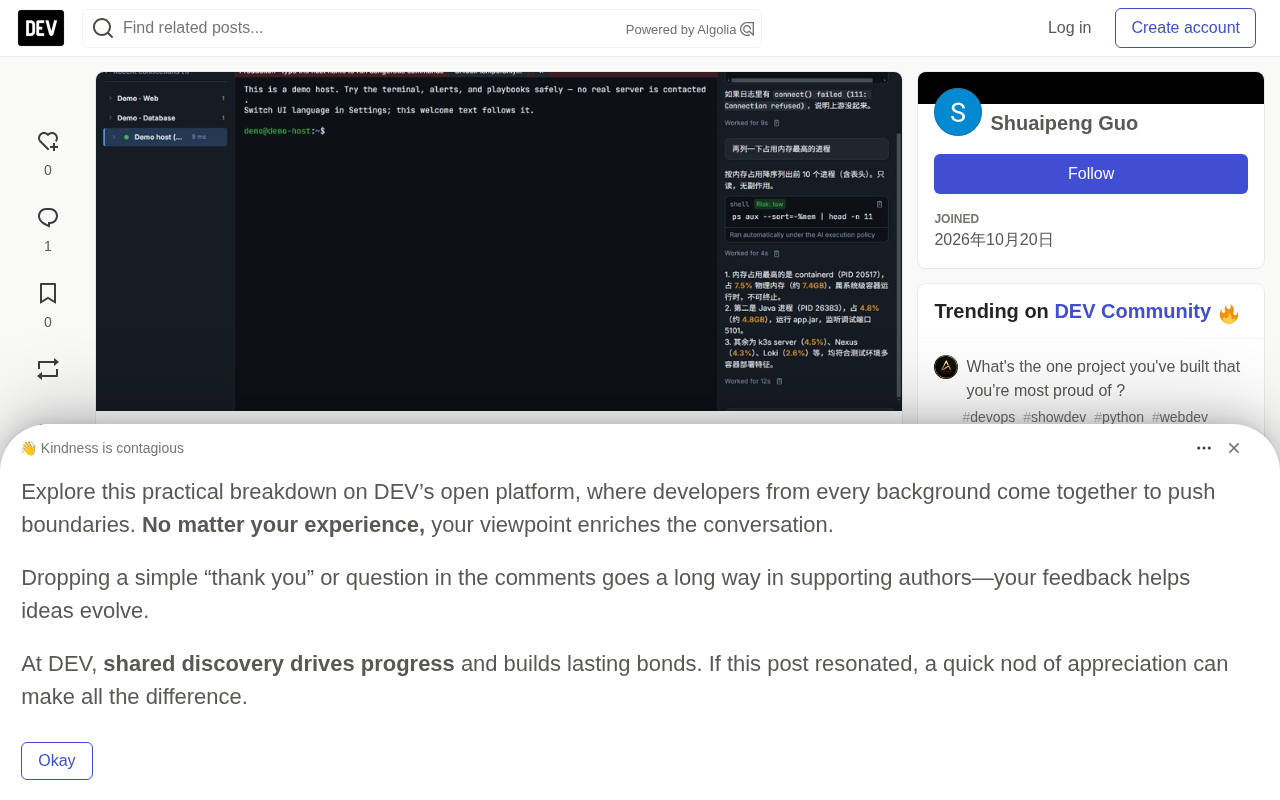
AI-SSH-Pro: open-source multi-session SSH client with tiered per-host AI command execution policies.
AI-SSH-Pro is an MIT-licensed local multi-session SSH desktop client that docks an AI assistant next to the terminal, giving users three execution modes (suggest only, confirm before run, auto run) and a per-host Safety card. Read-only hosts are hard-blocked from AI writes by the main process, while production hosts apply user policy as-is with a banner reminder. AI sessions are bound one-to-one to terminal tabs, and keys are stored locally and encrypted. Beyond the terminal, it integrates an Ops home page, dual-pane SFTP, monitoring, alerts, a Docker/Compose toolbox, session recording, and audit logs.
Title
AI-SSH-Pro: A Multi-Session SSH Client with Controllable AI Assistant Execution
Meta Description
AI-SSH-Pro is a local multi-session SSH desktop client with a built-in AI ops assistant, supporting three execution modes (suggest, confirm, auto) and per-host safety controls. MIT open source, supports OpenAI-compatible models.
Article Content
Ops and dev folks rely on SSH clients daily, but most tools on the market are either management-heavy or terminal-heavy, with AI capabilities often bolted on as an afterthought. AI-SSH-Pro takes a direct approach: put the AI assistant right next to the terminal and let the user decide how the AI can execute commands. It's a local, multi-session SSH desktop client, open-sourced under the MIT license, with support for both Chinese and English interfaces.
Who It's For: From Single Machines to Small Teams
AI-SSH-Pro has a clear target audience: ops/SRE engineers juggling multiple machines, backend developers who frequently SSH in to check logs or restart services, small team leads who want to introduce AI into their workflow while retaining per-host control, and users accustomed to tab pages and session trees in tools like Xshell and FinalShell. Its value isn't about replacing any existing tool, but about putting "visible host status" and "AI-assisted troubleshooting" in the same window.
Ops Home: Host Status at a Glance
On launch, the app opens to the Ops home page: the top shows online hosts and unhandled alerts, with a card for each host displaying real-time CPU, memory, and disk metrics. Clicking a card takes you into Terminal, SFTP, or Monitor. The home page also provides quick access to common Playbooks, such as rolling-restarting nginx or cleaning up disk space. This design is closer to an "on-call perspective" — no need to open a terminal first and check each host one by one.
Multi-Session SSH: Details Closer to a Mature Client
On the basics side, AI-SSH-Pro supports tabs, split panes, and session groups, with search and #tag filtering; supports multi-level ProxyJump jump hosts, port forwarding, and host key verification; can import configuration from ~/.ssh/config and reconnect to recent sessions with one click. Production environment tabs carry a prominent banner to prevent accidental operations. These features aren't novel, but they're complete as a package — a prerequisite for daily usability.
ProxyJump jump hosts are a chained connection mechanism introduced by OpenSSH. Via the form ssh -J user@jump1,user@jump2 target, multiple intermediate hosts are chained in one go; the client automatically sets up tunnels through port forwarding without needing to manually run ssh at each layer. Compared to the traditional ProxyCommand approach, ProxyJump is more concise, supports multi-hop lists, and can be reused with the ProxyJump directive in ~/.ssh/config. Multi-level jump hosts are common in isolated networks (bastion host → internal jump host → target machine). Whether the client can correctly handle keys, host key verification, and connection reuse at each hop directly affects daily ops efficiency.
Host key verification is the core mechanism by which SSH resists man-in-the-middle attacks: on first connection, the client records the server's public key fingerprint in known_hosts, and compares against that fingerprint on every subsequent connection, raising an alert on mismatch. Mature clients typically provide fingerprint display, fingerprint-change warnings, and batch management of known_hosts entries — an important detail when evaluating whether an SSH tool is "daily-usable."
AI Panel: Three Modes — Suggest, Confirm, Auto
The AI assistant is docked on the right side of the terminal, so there's no need to switch windows mid-incident. Suggested commands are grouped into a compact block with Copy / Run buttons and low/medium/high risk labels; each response shows its latency and can be copied with one click; the input row integrates model selection, execution policy, attached terminal output, and a send button. For models, it supports any OpenAI-compatible provider, such as OpenAI, DeepSeekAd, Qwen; API keys are stored locally.
Execution policy comes in three tiers, selectable in Settings → AI:
- Suggest only: Only read-only commands are executed; mutating commands are shown as suggestions only.
- Confirm before run (default): Read-only commands execute directly, mutating commands require confirmation, and high-risk commands require double confirmation.
- Auto run: Low-risk and medium-risk commands execute automatically; high-risk commands still prompt.
Under Auto run, you can additionally enable "auto-execute high-risk commands too," off by default. The policy menu in the input row can temporarily override the global policy for the current tab.
OpenAI-compatible APIs refer to a class of server-side interfaces that follow the OpenAI Chat Completions protocol (POST /v1/chat/completions, request body containing model and messages, response containing choices). By swapping base_url and api_key for another vendor's endpoint, the same client logic can be reused. OpenAI, DeepSeek, Qwen (DashScope compatible mode), Moonshot, and local Ollama/vLLM most offer this layer of compatibility, but vendors still differ in function calling, streaming output details, context length, and error codes — "depth of compatibility" is one of the observation points mentioned at the end of the article.
Storing API keys locally and having the client connect directly to providers means requests don't go through the product's cloud, reducing key-hosting risk — but it also means usage billing, rate limits, and network reachability are the user's own responsibility.
Per-Host Security: Read-Only Hosts Are a Hard Boundary
Each host configuration has a Safety card where you can set a protection level (Normal / Production / Read-only) and choose whether the host follows the global AI policy or has its own. The card shows the actually effective policy, e.g., "In effect: Suggest only (limited by read-only guard)."
One easily misunderstood point: production hosts are not forcibly downgraded — the user's chosen policy applies as-is, and the banner is just a reminder; only read-only hosts truly prevent AI from writing. This design puts control in the user's hands, but it also requires teams to agree on their own policies for production environments.
Hard boundaries like "read-only hosts" matter because LLM-generated commands are non-deterministic: the model might write rm -rf ./tmp as rm -rf /tmp, or accidentally execute systemctl restart during troubleshooting. The industry generally categorizes AI ops safety design into two types: one is policy-layer restrictions (prompt constraints, risk classification, manual confirmation), which rely on the judgment of the model and the user; the other is capability-layer restrictions (read-only accounts, read-only mounts, command allowlists), which are enforced by the execution side. AI-SSH-Pro makes read-only hosts a hard constraint re-verified by the main process — falling into the latter category. Even if the frontend is bypassed or the user mistakenly clicks approve, writes cannot go through. This is the more reliable layer in defense in depth.
Correspondingly, for production hosts, "policy applies as-is, banner is just a reminder" means safety responsibility falls back to team agreements. In actual deployments, it's usually recommended to pair this with dedicated read-only accounts.
Session-Terminal Binding: The AI Won't Run Wild
Each terminal tab corresponds to an independent session; two tabs on the same host are shown as #1 and #2. Clicking + New chat archives the current session rather than deleting it; history is grouped by host and can be restored with a click. When there's no bound terminal, the AI is just a plain Q&A — it won't execute any commands. This binding reduces the risk of "AI executing commands in the wrong context."
Toolbox: SFTP, Monitoring, and Auditing
Beyond the terminal, AI-SSH-Pro also offers dual-pane SFTP (local and remote side by side, drag-and-drop upload, transfer queue), resource charts and a multi-host monitoring dashboard, alert rules and an alert workbench; the toolbox includes process, port, service, log, Docker container, and Compose management; it also supports snippets, Playbooks, batch execution, broadcast input, session recording and playback, and audit logs that can be filtered by time and exported. These features bring it closer to a lightweight ops platform for small and mid-sized team scenarios.
Playbooks in ops context refer to a set of reusable, parameterized operation steps (e.g., "rolling restart nginx": remove from load balancer one by one → restart → health check → restore), commonly found in configuration management tools like Ansible. They codify expert experience into repeatable processes, lowering the bar for on-call operations. AI-SSH-Pro's home page provides Playbook shortcuts and combines them with the AI assistant and batch execution — meaning you can pair "AI suggests commands" and "predefined processes" modes. The article lists "alert-Playbook integration capability" as an observation point at the end, pointing precisely at whether alerts can automatically match and suggest the corresponding Playbook when triggered.
Session recording and playback captures the complete byte stream of terminal input/output (similar to script/asciinema). Combined with audit logs, it lets you search by time for who did what on which host — a foundational capability for small and mid-sized teams to meet compliance and post-incident accountability.
Security Design: Multi-Layer Verification, Not a Single Switch
The official documentation emphasizes several security mechanisms: before AI writes to the terminal, the main process re-checks the host's protection status — on read-only hosts, writes cannot go through even if the user clicks approve; settings, host cards, the AI input box, and background execution all use the same policy computation logic, avoiding "UI says confirm, backend just runs it"; tab-level policy overrides exist only in memory and reset on close or disconnect, while still respecting read-only restrictions; passwords, key passphrases, and API keys are encrypted using OS secure storage and are never uploaded to the product's cloud; AI-initiated commands and dangerous operations are logged to the audit log.
Who Should Try It
If you need a handy multi-session SSH client and want AI involved in troubleshooting while retaining execution decision-making, AI-SSH-Pro is worth a try. It includes a demo host with simulated data, so after downloading the installer you can try it out without touching real servers. The project is open-sourced under the MIT license on GitHub and welcomes issues and stars.
From a product positioning standpoint, it's more of a "terminal workbench with AI" than an "AI automated ops platform." This restraint is reasonable at the current stage: AI suggests commands, humans set policy — easier for ops teams to accept than full automation. Worth watching going forward: its depth of compatibility with more model providers, alert-Playbook integration capability, and audit granularity in multi-person collaboration scenarios.
One-line Summary
AI-SSH-Pro: an open-source multi-session SSH client where an AI assistant controls command execution with per-host tiered policies.
Paragraph Summary
AI-SSH-Pro is an MIT-licensed local multi-session SSH desktop client that docks an AI assistant to the right of the terminal, letting users bring AI into troubleshooting while retaining control. It offers three execution modes — suggest only, confirm before run (default), and auto run — plus a Safety card per host: read-only hosts are hard-blocked from AI writes by the main process, while production hosts apply the user's policy as-is with a banner reminder. AI sessions are bound one-to-one to terminal tabs; with no bound terminal, the AI only does Q&A and won't execute commands. It supports any OpenAI-compatible model with locally encrypted keys. Beyond the terminal, it integrates an Ops home page, dual-pane SFTP, monitoring and alerts, a Docker/Compose toolbox, session recording, and audit logs. The product is positioned as a "terminal workbench with AI" rather than a fully automated ops platform, with a built-in demo host for zero-risk trial.
Related articles

AgentCore in Practice: Connecting Custom Tools and MCP Servers to Agents
DebuggerCafe tutorial shows how to connect custom tools and MCP servers to Amazon Bedrock AgentCore agents, covering tool contract design, MCP reuse, and production concerns.

816B Parameters Scores Only 39? The Real Cost-Effectiveness of the Open-Source LLM Parameter Race
Meta's 816B Muse Spark Open scores just 39 on Artificial Analysis, while 180B Qwen3.8-Flash-Next scores 40. This article analyzes 11 open-weight models' parameters vs. scores, exploring the real impact of activated parameters, quantized size, and deployment cost.

Aerial Manipulators: The Next Step for Drones from 'Seeing' to 'Changing'
Starting from a Reddit discussion, this article analyzes the technical challenges, potential applications, and deployment bottlenecks of aerial manipulators, exploring the key challenges for drones moving from environmental perception to physical manipulation.