Anima Anime AI Model: Local Deployment with 6GB VRAM & Workflow Configuration Guide

Anima anime AI art model runs locally with just 6GB VRAM for accessible anime image generation
Anima is an anime-focused AI image generation model that uses model distillation and quantization compression to reduce VRAM requirements to just 6GB, making AI art accessible to mid-to-low-end GPU users. Built on ComfyUI's node graph architecture, the workflow features text-to-image and upscale modules, generating single images in about 1 minute. Local deployment is strongly recommended for maximum creative freedom, though users remain responsible for content compliance.
Overview
Recently, an anime-style AI image generation model called Anima has been gaining traction in the community. Its biggest selling point is its incredibly hardware-friendly requirements — you only need 6GB of VRAM to run it locally, and it has relatively few content generation restrictions. It essentially provides anime enthusiasts and AI art creators with a very low-barrier local deployment solution.
This article is based on hands-on testing shared by a Bilibili content creator, covering Anima's workflow configuration, real-world performance, and important details to keep in mind during local deployment.
Core Features of the Anima Model
Ultra-Low Barrier: Runs on Just 6GB VRAM
The most impressive thing about Anima is how low its hardware requirements truly are. To appreciate how remarkable this is, you need some context: most mainstream AI image generation models are based on the Stable Diffusion architecture, which requires model weights, activation values, KV cache, and other data to be loaded into GPU VRAM simultaneously during inference. SD 1.5 series models require approximately 4-6GB of VRAM, while SDXL series typically need 8-12GB, locking out a large number of users with mid-to-low-end GPUs. Through techniques like model distillation and quantization compression, Anima manages to reduce VRAM requirements to 6GB while maintaining image quality — a fairly aggressive optimization strategy among anime-specialized models.
In other words, even if you're using a GTX 1660 or RTX 2060 — mid-to-low-end GPUs — you can run it without any issues. In real-world testing with 6GB of VRAM, without enabling upscaling, a single image takes roughly about 1 minute to generate, which is perfectly adequate for everyday creative work.
Purpose-Built for Anime Style
Anima is a large model specifically optimized for anime and 2D art styles, delivering impressive results in character illustrations and scene artwork. Compared to general-purpose models, Anima has clear advantages in style consistency and detail rendering.
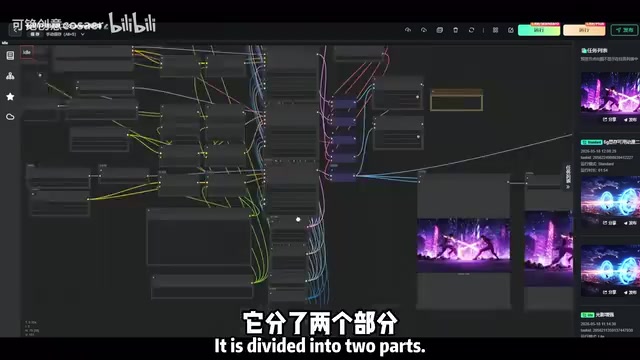
Detailed Anima Workflow Configuration
Anima's workflow is built and distributed via ComfyUI. ComfyUI is one of the most popular local deployment frontends in the AI art community, using a Node Graph architecture that breaks the entire image generation pipeline into visual nodes, each responsible for an independent computation step (such as loading models, encoding prompts, sampling/denoising, decoding images, etc.). Nodes pass tensor data between each other through connections. This design allows users to flexibly combine and reuse workflows, making it easier to debug and extend compared to WebUI's linear process — which is the main reason Anima chose to distribute in ComfyUI workflow format.
The overall workflow is divided into two core modules with clear logic, allowing users to adjust flexibly based on their needs.
Text-to-Image Module Configuration
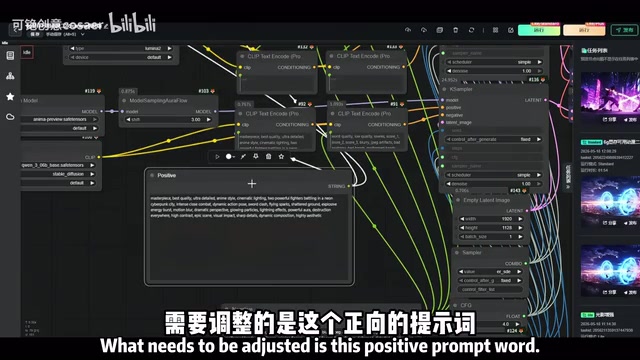
The first module is Text-to-Image (txt2img), which forms the foundation of the entire workflow. You simply input a positive prompt describing the image you want, and the model generates a corresponding anime-style image.
Here are the key parameters to adjust:
- Positive Prompt: Clearly describe the image content you want, such as character appearance, scene atmosphere, style preferences, etc.
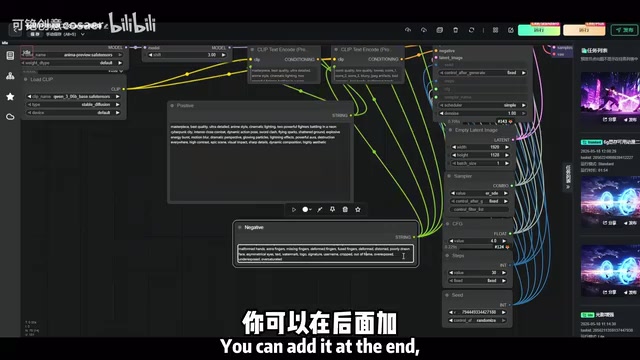
- Negative Prompt: Optional — mainly used to exclude unwanted elements. Testing shows that adding negative prompts later works fine, and leaving it blank doesn't affect image generation.
- Output Dimensions: Width and height must be set manually; choose an appropriate resolution based on your intended use.
- Batch Count: Set how many images to generate at once.
Upscale Module Settings
The second module is Upscale (High-Resolution Enhancement). Images from the text-to-image step are typically not very high resolution, and this module can upscale them to higher resolutions while refining details.
Upscaling in AI art is not simple interpolation scaling — it uses dedicated super-resolution models (such as Real-ESRGAN, 4x-UltraSharp, etc.) to perform semantic-level detail reconstruction. In a ComfyUI workflow, the Upscale node typically enlarges the low-resolution image by 2-4x, then optionally performs a round of img2img redrawing to fix blurriness and artifacts from upscaling. This secondary inference process consumes approximately 1-2GB of additional VRAM. Therefore, if your VRAM is right at the 6GB threshold, it's recommended to keep upscaling disabled during preview, and only enable it once you're satisfied with the composition. This saves time while still delivering high-quality final output.
Specific Recommendations for Local Anima Deployment
Why Local Deployment Is Strongly Recommended
Online AI art platforms (such as Midjourney, NovelAI online version, etc.) typically deploy NSFW classifier-based content moderation systems that filter prompts and images before and after generation. Local deployment transfers all inference computation to the user's own hardware, removing platform-level moderation mechanisms from the equation. For a model like Anima with relatively relaxed content restrictions, local deployment is essentially the optimal solution. The reasons are straightforward:
- Privacy and security guaranteed: All generated content stays on your own computer — no risk of data leaks
- No platform censorship restrictions: Online platforms typically have strict content moderation, making many creative ideas impossible to realize
- Avoid compliance risks: Generating certain sensitive content on public platforms may pose compliance issues, which isn't a concern locally
It's important to emphasize that local deployment does not mean legal immunity — generating or distributing illegal content is subject to relevant laws under any circumstances, and users bear their own content compliance responsibilities.
Resource Checklist for Deployment
Based on the content creator's sharing, complete deployment requires the following resources:
- Anima model file: The core model weight file
- ComfyUI workflow configuration: A pre-configured workflow JSON file
- Custom node plugins: Various nodes that the workflow depends on
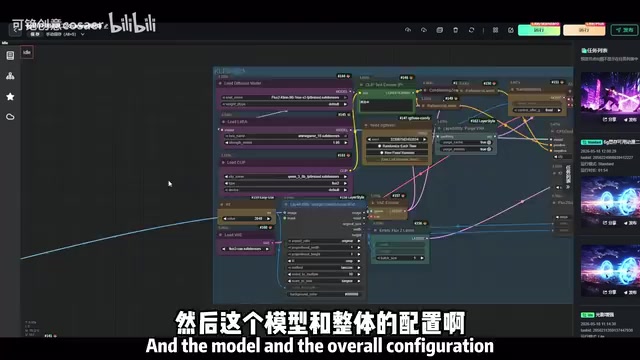
These resources come pre-packaged and can be used almost immediately after importing into ComfyUI, eliminating the hassle of configuring from scratch.
Performance Optimization Tips for 6GB VRAM Users
If you only have 6GB of VRAM, these optimization tips will help you achieve a smoother experience:
- Close VRAM-hungry background programs: Chrome browser, video players, and similar applications silently consume VRAM — close them all when generating images
- Preview first, upscale later: Use lower resolution for quick previews, and only enable upscaling once you're satisfied, avoiding wasted time from repeated runs
- Limit batch size: With 6GB VRAM, generating only 1-2 images at a time is recommended — too many batches can cause VRAM overflow errors
- Enable FP16 half-precision inference: Deep learning models store weights in FP32 (32-bit floating point) by default, while FP16 (16-bit floating point) half-precision mode halves the storage space per parameter, theoretically reducing VRAM usage by approximately 40-50%. Note that GTX 10-series GPUs have limited hardware acceleration support for FP16, so actual speed gains may be lower than expected, but the VRAM compression effect remains valid. If your workflow supports it, switching to half-precision mode can further reduce VRAM usage.
Conclusion
As an AI image generation model focused on the anime domain, Anima's ability to run on just 6GB of VRAM genuinely gives hope to many users with mid-to-low-end GPUs. The workflow design based on ComfyUI's node graph architecture is also well-thought-out, with the dual-module architecture of text-to-image plus upscaling balancing both efficiency and image quality.
If you're an anime enthusiast who's been unable to experience AI art due to insufficient GPU capabilities, Anima is definitely worth trying. Of course, a final reminder: regardless of which AI tool you use, please comply with relevant laws and regulations and create responsibly and legally.
Key Takeaways
- Anima is an AI image generation model focused on anime style that only requires 6GB VRAM for local operation through quantization compression and other techniques
- The workflow is built on ComfyUI's node graph architecture, divided into text-to-image and upscale modules; single image generation takes about 1 minute with 6GB VRAM
- Key parameters include positive prompt, output dimensions, and batch count; negative prompt is optional
- Local deployment is strongly recommended, but it does not equal legal immunity — users bear their own content compliance responsibilities
- Complete deployment resources include model files, workflow configuration, and node plugins for one-click import; FP16 half-precision inference can further reduce VRAM usage
Related articles
 Tutorials
ChatGPT Plus Subscription Guide: Are GPT-5.5, image-2, and Codex Worth the Upgrade?
A detailed look at ChatGPT Plus features — GPT-5.5, image-2, and Codex — with a Plus vs Pro comparison and a complete step-by-step subscription guide for users outside the US.
 Tutorials
Harness AI Engineering in Practice: Using Claude Code to Master Enterprise-Level E-Commerce Development
Deep dive into Harness AI Engineering: master enterprise e-commerce development with Claude Code using the Rules, Skills, Wiki, and Changes framework.
 Tutorials
Cursor + Codex Dual-IDE Collaboration: A Practical Methodology for Open-Source Project Customization
A complete methodology for open-source project customization based on real-world experience, detailing the Cursor+Codex dual-IDE workflow, seven-stage process, MVP validation, and AI source code reading techniques.