Archie: The Productivity Tool That Tucks Your Mac Screenshots Into the Notch

Archie stashes screenshots in the MacBook notch, shortening the capture-to-drag path, with 78 upvotes on Product Hunt.
Archie is a Mac screenshot tool that places a staging Shelf in the MacBook notch, letting users drag screenshots out or edit in place to cut the "desktop-then-drag" friction. It launched on Product Hunt with 78 upvotes and 8th place, spanning design, productivity, and UX tags. Its edge is the notch location, but it depends on notch hardware, and its editing features and non-notch adaptation aren't disclosed.
Title
Archie: The Productivity Tool That Tucks Your Mac Screenshots Into the Notch
Meta Description
Archie is a productivity tool that stores Mac screenshots in the notch, with in-place editing and drag-and-drop. We analyze its interaction design, target users, and Product Hunt performance to help Mac users decide if it's worth a try.
Article Content
Mac users probably all share the same feeling about screenshots: hit the shortcut, the screenshot lands on the desktop, then you manually drag it into some app. The process isn't long, but repeat it a dozen times a day and the friction starts to add up. Archie tries to use the MacBook's notch as a staging area for screenshots, compressing "capture—edit—drag" into a shorter path. The product launched on Product Hunt with 78 upvotes and an 8th-place finish, positioning itself at the intersection of design tools and productivity tools.
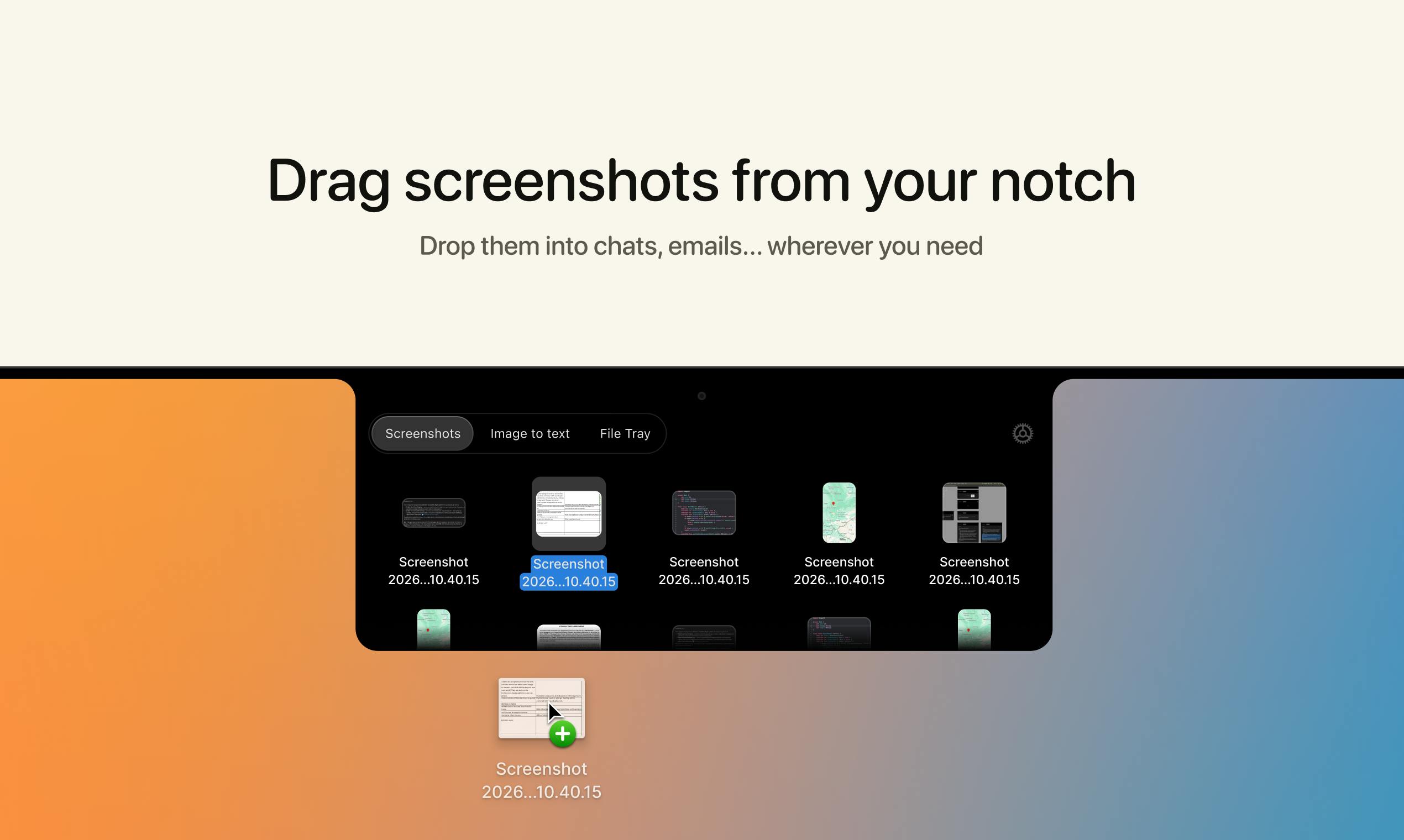
The Notch Isn't Just Decoration: A Temporary Waypoint for Screenshots
Archie's core idea isn't complicated: after you take a screenshot, it doesn't land on the desktop but instead goes into the notch area to form a small Shelf. When you need it, you drag it straight out from the notch to the target location, or edit it in place.
This design targets a real pain point—desktops cluttered with screenshots, Finder stuffed with chaotically named PNGs that are a pain to find. Tucking screenshots temporarily at the top of the screen doesn't disrupt your current window layout and keeps them available at any time. For users who frequently paste screenshots into documents, chat windows, or design files, this eliminates one "find the file first, then drag it" round trip.
Looking at its product categories, Archie is tagged under Design Tools, Productivity, and User Experience, indicating its target audience isn't just ordinary office users but also designers who are sensitive to interface details.
What is the MacBook notch
The notch is the camera cutout area at the top center of the screen that Apple introduced starting with the 2021 MacBook Pro, with menu bar content still displayed on either side. macOS itself doesn't provide an interaction API for the notch area, so third-party apps typically draw UI there by overlaying a borderless window or using a menu bar extension. Archie uses this space precisely as a temporary Shelf for screenshots, and its implementation relies on precise screen coordinate calculations and control over window layering. The feasibility of this interaction rests on the notch area always being at the very top of the screen and never being covered by ordinary windows, but it also means the app needs to run persistently and keep monitoring the notch area, which imposes additional demands on system resource usage and permission management.
The Real Barrier for Productivity Tools Is in the Details
Screenshot management tools aren't new—built-in screenshot tools, third-party utilities, and clipboard managers can all partially cover this need. Archie's differentiation lies in "location"—the notch is very close to both your visual focus and your mouse activity area on a MacBook screen, making it lighter than opening a separate window or sidebar.
But this also means its experience depends heavily on hardware form factor. Users with notch-equipped MacBooks can enjoy this interaction, while external monitors or models without a notch require the product to offer an alternative. The source material doesn't disclose its adaptation strategy for these cases, which is worth confirming before actual use.
Additionally, a screenshot tool's competitiveness often lies in its editing capabilities: whether annotation, cropping, redaction, and color picking are smooth. Archie mentions screenshots are "ready to edit" but doesn't expand on the specific feature list, so actual experience needs hands-on verification.
What editing capabilities do screenshot tools typically include
A screenshot tool's editing features generally cover: rectangle/ellipse/arrow annotations, text addition, mosaic or blur redaction, cropping and rotation, color picker, shadow and border beautification, plus export format and compression options. More advanced tools also offer scrolling screenshots, delayed screenshots, OCR text recognition, and pinned overlays. Archie claims screenshots are "ready to edit" but doesn't list specific supported features, so it's impossible to judge whether its editing depth is at the "quick annotation" level or the "lightweight design" level. For designer users, color picking and shadow beautification are often must-haves; for ordinary office users, redaction and arrow annotations are more commonly used. The lack of a feature list means potential users need to actually try it to assess whether it matches their workflow.
What the Product Hunt Data Says
78 upvotes, 1 comment, 8th place for the day—this result represents mid-to-upper exposure on Product Hunt. The vote count isn't explosive, indicating it attracted a group of users sensitive to Mac productivity tools but hasn't yet sparked widespread discussion. The low comment count also means the community feedback sample is limited, and the product's reputation still needs more real-world use cases to build up.
For a small, lightweight utility app, the signal at this stage matters more than the data itself: it validates that someone is willing to pay for the "notch + screenshot" combination. The next question to answer is retention and willingness to pay.
What Product Hunt rankings and vote counts mean
Product Hunt ranks products daily by the number of upvotes received, with the top five typically getting prominent homepage exposure and 8th place sitting in the middle of the pack. 78 upvotes is at the level of "initial attention but no breakout" among tool products—popular products often rack up hundreds or even thousands of votes in a day. 1 comment indicates extremely low community engagement, possibly because the product launched at a poor time, has a narrow target audience, or hasn't yet provided enough discussion points. For indie developers' small tools, Product Hunt's value lies more in acquiring the first batch of seed users and feedback than in directly converting to sales. So 78 upvotes and 8th place should be seen as an effective cold-start exposure, but not enough to prove the strength of market demand.
Who It's For, and What to Watch Out For
Archie has clear appeal for heavy, high-frequency screenshot users, especially designers and developers who are used to drag-and-drop operations and whose desktops are often cluttered with screenshot files. Its lightweight, system-interface-hugging interaction fits the consistent "small and beautiful" aesthetic of Mac ecosystem tools.
What to keep in mind: it solves a localized friction, not a must-have need. System screenshots plus clipboard history already cover most scenarios, and whether users are willing to install a persistent app just for a smoother one-step operation depends on the depth and stability of the editing features. The source material doesn't provide pricing or system version requirements, so it's advisable to confirm on the official website before deciding whether to incorporate it into your daily workflow.
One-line Summary
Archie stashes screenshots in the MacBook notch, shortening the path from capture to drag-and-drop, earning 78 upvotes on Product Hunt.
Paragraph Summary
Archie is a Mac screenshot productivity tool whose core idea is to place the post-screenshot staging area in the MacBook's notch, forming a small Shelf where users can drag screenshots straight out to the target location or edit them in place, reducing the "screenshot lands on desktop, then manually drag" round-trip friction. The product launched on Product Hunt with 78 upvotes and 8th place for the day, spanning the design tools, productivity, and user experience tags, with designers among its target audience. Its differentiation lies in using the notch—a location close to both visual focus and mouse activity—but the experience depends heavily on notch-equipped hardware, and its adaptation strategy for non-notch models isn't disclosed. The specific feature list for screenshot editing also isn't detailed, so actual competitiveness needs hands-on verification. Overall, it solves localized friction rather than a must-have need, and whether it's worth keeping resident depends on editing depth and stability.
Related articles

Hermes Agent Beginner's Guide: Hands-On with a Self-Evolving AI Agent
A beginner's guide to Hermes Agent, the open-source self-evolving AI agent that gained 41.7K GitHub stars in two months—covering Harness Engineering, the learning loop, three-layer memory, WSL installation, and hands-on configuration.

AI Agent in Action: Building a Smart Office Assistant with WorkBuddy
A practical case study shows how Tencent WorkBuddy batch-converts and archives files, compares chat LLMs with AI Agents, and analyzes WorkBuddy's credit system, use cases, and positioning for office automation selection.

From Single-GPU Bottlenecks to Hundreds of Billions of Parameters: 6 Key Questions in Large Model Distributed Parallelism
Based on a Bilibili tutorial, this article organizes core knowledge of large model distributed parallelism: starting from decoder-only architecture's token-by-token generation and the essence of X times W computation, it analyzes six key questions including data parallelism, tensor parallelism, and pipeline parallelism under single-GPU bottlenecks. Suitable for learners in private deployment and model training scenarios to build systematic understanding.