Browser Use Tutorial: AI Browser Automation Agent Installation, Configuration & Practical Guide

Browser Use: open-source AI browser automation agent that controls browsers via natural language
Browser Use is an open-source AI browser automation agent built on Playwright and LLMs, allowing users to control browsers through natural language instructions to complete repetitive operations without writing code. It supports mainstream LLMs, offers both Web UI and code integration, understands webpage structure through DOM parsing, and can reuse browser login states via CDP. Current limitations include lack of assertion support and no mobile automation.
What is Browser Use
Browser Use is an open-source AI web automation agent that allows users to control browsers through natural language instructions, automatically completing various repetitive online tasks without writing any code.
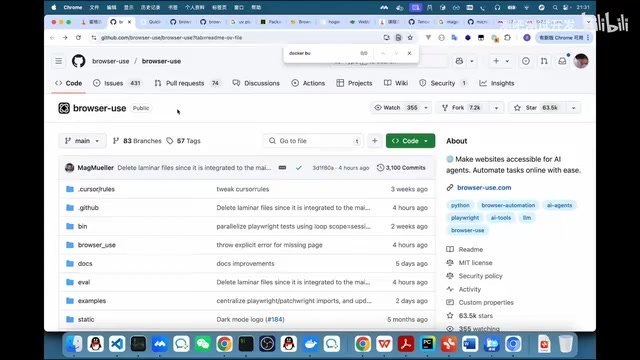
The official team defines it as an "AI browser agent," with a straightforward core philosophy: any repetitive operation involving a browser can be delegated to the agent. The project is fully open-source, hosted on GitHub, with comprehensive documentation and an active community.
From a technical architecture perspective, Browser Use integrates the agent, browser control, DOM structure parsing, and tool encapsulation into a single project. Under the hood, it uses Playwright to drive browser operations and leverages large language models (LLMs) to understand user intent and generate execution actions step by step. Playwright is an open-source browser automation framework developed by Microsoft that supports three major browser engines: Chromium, Firefox, and WebKit. Compared to the earlier Selenium, Playwright natively supports async operations, automatic element wait, network interception, and other modern features, while being faster and more stable. Browser Use chose Playwright as its underlying driver precisely because of its comprehensive support for modern web applications, including handling Shadow DOM, nested iframes, single-page application (SPA) route transitions, and other complex scenarios.
Environment Setup & Installation
Basic Dependency Installation
Browser Use requires Python 3.11. Installation takes just two steps:
# Install Browser Use
pip install browser-use

# Install Playwright and browser drivers
playwright install
The project also provides a standalone Web UI version built on Node.js. You can clone the repository locally, create a Python 3.11 virtual environment, install dependencies, and launch it. If you prefer not to configure manually, you can deploy with Docker Compose in one command:
docker compose up
Once started successfully, the Web UI runs on port 7788 by default.
LLM Configuration
Simply fill in the LLM's API Key, Base URL, and model name in the .env configuration file. Browser Use is compatible with virtually all mainstream LLMs:
- OpenAI: GPT-4, GPT-4o, etc.
- DeepSeekAd: V3, R1, etc.
- Alibaba Qwen: Qwen 2.5, Qwen 3, etc.
- Local models: Any model running via Ollama
Local models are free but tend to have slower inference speeds. For production use, online models are recommended for a much better experience.
Web UI Usage Demo
Interface Configuration
The Browser Use Web UI is divided into three main configuration areas:
- Agent Configuration: System prompt, extended prompt, MCP tool integration. MCP (Model Context Protocol) is an open standard released by Anthropic in late 2024, designed to provide LLMs with a unified way to access external tools and data sources. It's like a "USB port" for AI—any service that follows the MCP protocol can be plug-and-play for AI agents. Browser Use's MCP tool support means users can seamlessly integrate external capabilities like database queries, file operations, and API calls into browser automation workflows, greatly expanding the agent's capability boundaries.
- LLM Configuration: Model selection, Temperature, Base URL, API Key
- Browser Configuration: Browser path, window size, headless mode, CDP remote debugging, etc.
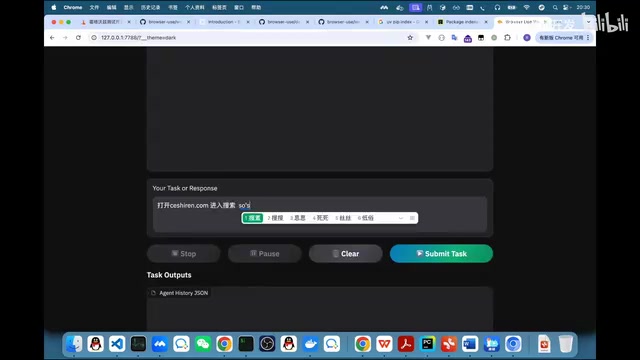
Practical Operation Examples
Once configured, simply describe your requirements in natural language in the task input box and click submit. Here are some typical scenarios:
- Simple task: "Open Baidu" — the agent automatically launches the browser and navigates to Baidu's homepage
- Multi-step task: "Open Baidu, search for Hogwarts Test Development Academy, click the first link in the search results" — the agent completes each step sequentially
- Cross-site operation: "Open Bilibili, search for Hogwarts" — the agent automatically identifies bilibili.com and completes the search
When using powerful models like GPT-4o, execution speed is noticeably faster than local small models. Each operation step displays screenshots and logs in the interface for easy tracking of the execution process.
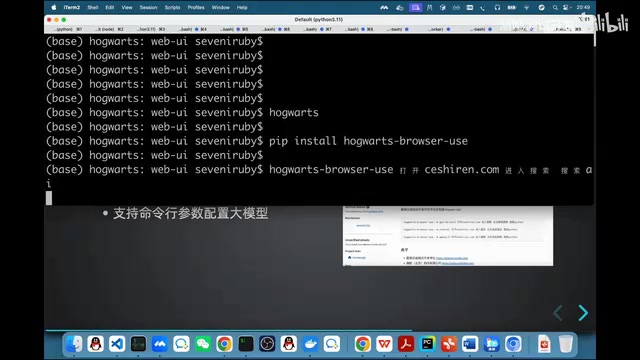
Tips for improving accuracy: When the agent isn't precise enough, breaking the task into finer steps works much better. For example, instead of writing "Open Baidu and search for XX," explicitly break it down: "Step 1: Open Baidu. Step 2: Type XX in the search box. Step 3: Click the 'Search' button. Step 4: Open the first result." This approach essentially reduces the decision complexity per inference — each step only requires understanding one clear operational intent, rather than inferring a complete operation sequence from a vague instruction.
Code Integration
Async Pattern (Officially Recommended)
import asyncio
from browser_use import Agent
from langchain_openai import ChatOpenAI

async def main():
    agent = Agent(
        task="打开测试人.com",
        llm=ChatOpenAI(model="gpt-4o")
    )
    await agent.run()

asyncio.run(main())
The official implementation has fully adopted the async (async/await) approach, callable from synchronous environments via asyncio.run(). The code structure is very clean: pass the task description and LLM configuration when creating an Agent instance, then call the run() method to start execution.
Python's asyncio is the standard library's asynchronous I/O framework, using a coroutine and event loop model. Unlike traditional multithreading, asyncio achieves concurrency within a single thread through cooperative scheduling — when one coroutine waits for a network response or browser operation to complete, the event loop switches to other ready coroutines. Browser Use's full adoption of async/await syntax is because browser automation involves extensive I/O waiting (page loading, network requests, element rendering), and the async model significantly improves execution efficiency while naturally aligning with Playwright's async API.
Browser Reuse & Session Persistence
This is the most common requirement in real projects. Browser Use supports connecting to existing browser instances via CDP (Chrome DevTools Protocol) or WebSocket:
- Start the browser with a remote debugging port enabled
- Enter the local browser's debug address in the configuration
- The agent operates within that browser window, directly reusing existing login states and cookies
CDP (Chrome DevTools Protocol) is Chrome's built-in remote debugging protocol that exposes the browser's internal capabilities via WebSocket connections, including page navigation, DOM manipulation, network monitoring, and JavaScript execution. DevTools itself communicates with the browser through CDP. When you launch Chrome with the --remote-debugging-port=9222 parameter, any CDP-compatible client can connect and control that browser instance. Browser Use leverages this mechanism to connect to the user's already-open browser, directly reusing its cookies, sessions, and login states, avoiding the hassle of re-authenticating every time.
Note that this process involves copying and configuring user profile directories, and there are many pitfalls in practice that require patient debugging.
How the Agent Works
Core Architecture
Understanding how Browser Use works is crucial for troubleshooting and optimization:
The entire agent execution flow is a continuous loop:
- Receive task: User provides natural language instructions
- LLM reasoning: The LLM determines the next action based on the task description and current page context
- Tool calling: Browser control tools (click, type, navigate, etc.) are invoked via Function Calling
- Observe results: Capture post-operation page state (DOM structure or screenshots)
- Loop decision: Feed new context back to the LLM, continuing reasoning until the task is complete
Function Calling is the critical hub in this architecture. Introduced by OpenAI in 2023, it allows LLMs to structurally invoke predefined external functions during conversations. The model doesn't execute code directly — instead, it outputs a JSON structure containing the function name and parameters, with the application layer responsible for actual execution and returning results to the model. This mechanism is the core infrastructure of AI Agents — it evolves LLMs from "can only generate text" to "can operate tools." In Browser Use, every browser operation (click, type, scroll, navigate) is encapsulated as a function, and the model selects and calls these functions through Function Calling.
This "perceive-decide-act" loop pattern is known as the ReAct (Reasoning and Acting) paradigm in AI, and is the common architecture for mainstream Agent frameworks today.
Vision Mode vs. DOM Mode
Browser Use provides two approaches for page understanding:
- DOM Mode (Recommended): Directly parses the webpage's HTML structure. It's fast, consumes fewer tokens, and can identify hidden elements like dropdown options
- Vision Mode: Has the LLM "see" the page through screenshots. It's more expensive and slower, but more effective for certain dynamically rendered pages
DOM (Document Object Model) is the tree-like data structure generated when the browser parses an HTML document, where each HTML tag corresponds to a node in the tree. Browser Use's DOM mode extracts the page's DOM tree, filters out irrelevant information like styles and scripts, retaining only interactive elements (buttons, input fields, links, etc.) and their attributes, then passes this structured information as context to the LLM. Compared to vision mode, which needs to encode an entire screenshot into tokens, DOM mode transmits concise text information, resulting in significantly lower token consumption. This is also why DOM mode can identify hidden dropdown options — these elements are invisible visually but exist in the DOM tree.
For common UI elements like dropdowns and radio buttons, DOM mode typically completes selection in one step; vision mode may require two steps — first clicking to expand, then selecting the option.
Token Consumption Optimization Tips
Many users report excessive token consumption. The root cause is often the lack of page structure compression. Here are some practical optimization approaches:
- Compress the webpage DOM structure, keeping only key elements relevant to the task
- Periodically clean up context from historical steps to prevent information accumulation
- Provide the LLM with minimized page information
With proper optimization, token consumption can be reduced to one-tenth of the original amount. To understand why token consumption is so critical: in each cycle of the agent, the current page's DOM structure and historical operation records are sent to the LLM as context. A complex webpage's complete DOM might contain thousands of nodes — without trimming, a single request could consume tens of thousands of tokens. Since an agent typically needs 5-15 cycles to complete a multi-step task, token costs accumulate rapidly. Therefore, intelligent DOM trimming and context window management are core topics in Browser Use performance optimization.
Advanced Tool Recommendation: Magentic-One
Besides Browser Use, Microsoft's open-source Magentic-One (M-Agent1) is also worth noting. Built on Microsoft's AutoGen framework, it provides a complete agent system similar to Manus, with key features including:
- Built-in VNC for real-time viewing of browser operations
- Support for collaborative planning and task execution
- MCP service integration to extend capability boundaries
AutoGen is a multi-agent conversation framework open-sourced by Microsoft Research. Its core idea is having multiple AI agents collaborate through dialogue to complete complex tasks. Unlike single agents, AutoGen supports defining agents with different roles (such as planner, executor, reviewer), each performing their duties and coordinating through message passing. Magentic-One is built on AutoGen and internally contains multiple specialized agents: one responsible for overall planning and task decomposition, one for browser operations, one for file handling, and one for code execution. This multi-agent architecture is more stable and flexible than a single agent when handling complex, multi-step tasks.
Installation is relatively complex, requiring Docker builds and configuration of environment variables like the OpenAI API. While more powerful, the underlying principles are the same as Browser Use — it's recommended to master Browser Use first before advancing to this tool.
Practical Use Cases & Limitations
Suitable Scenarios
- Manual test automation: Directly hand off manual test cases from Jira to the agent for execution
- Repetitive web operations: Data entry, information lookup, batch operations
- Regression testing: Automated regression verification of existing features
Current Limitations
- Insufficient assertion support: Browser Use doesn't support test assertions by default and requires additional development. In the automated testing domain, assertions are the core mechanism for verifying whether actual results match expectations. Traditional testing frameworks (like pytest, JUnit) have rich built-in assertion methods, while Browser Use, as a general browser automation tool, is designed to "complete operations" rather than "verify results." To use it for testing scenarios, you need to encapsulate assertion logic at the code level, or instruct the agent through prompts to check page content and report results.
- No app automation: Only supports web; mobile requires other solutions (such as Tencent's AppAgent)
- Unstable complex interactions: Dynamically generated UI elements and complex multi-step operations may require carefully crafted prompts for stable execution
Summary
Browser Use is currently the most accessible and feature-complete open-source browser automation agent tool. It perfectly combines LLM language understanding capabilities with Playwright browser automation, enabling non-technical users to complete complex web operations through natural language.
To truly master AI browser automation tools like this, the key is understanding the underlying principles: how LLMs parse webpage structures, how prompts guide operations, and how Function Calling orchestrates tools. Once you grasp these fundamentals, whether optimizing execution results or troubleshooting complex issues, you'll be able to handle them with ease.
Key Takeaways
- Browser Use is an open-source AI browser automation agent that supports controlling browsers through natural language to complete repetitive tasks without writing code
- It supports virtually all mainstream LLMs (OpenAI, DeepSeek, Qwen, Ollama local models) and offers both Web UI and code integration approaches
- The agent understands webpages through DOM structure parsing (rather than vision), and token consumption can be optimized to one-tenth through page structure compression
- CDP/WebSocket remote debugging enables reuse of local browser login states, though configuration can be complex
- Current limitations include no assertion support, no app automation, and complex interaction scenarios requiring carefully crafted prompts
Related articles
 Tutorials
ChatGPT Plus Subscription Guide: Are GPT-5.5, image-2, and Codex Worth the Upgrade?
A detailed look at ChatGPT Plus features — GPT-5.5, image-2, and Codex — with a Plus vs Pro comparison and a complete step-by-step subscription guide for users outside the US.
 Tutorials
Harness AI Engineering in Practice: Using Claude Code to Master Enterprise-Level E-Commerce Development
Deep dive into Harness AI Engineering: master enterprise e-commerce development with Claude Code using the Rules, Skills, Wiki, and Changes framework.
 Tutorials
Cursor + Codex Dual-IDE Collaboration: A Practical Methodology for Open-Source Project Customization
A complete methodology for open-source project customization based on real-world experience, detailing the Cursor+Codex dual-IDE workflow, seven-stage process, MVP validation, and AI source code reading techniques.