Budget AI Coding Setup: Connecting VSCode + Claude Code to DeepSeek
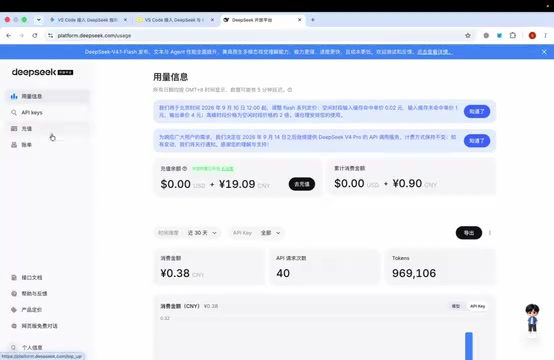
Full guide to connecting VSCode + Claude Code to DeepSeek API for a low-cost AI coding setup.
This article presents a budget-friendly setup for students and AI coding beginners: install the official Claude Code extension in VSCode, then redirect the underlying model to the affordable DeepSeek API by editing a configuration file. The three-step process covers topping up and creating a DeepSeek API key (shown only once — save it immediately), installing Claude Code in VSCode while skipping the official login, and creating a config file via terminal to enter the DeepSeek key. Reload VSCode and test to confirm. The article also notes the setup's limitations: DeepSeek lags behind Claude in long-context handling and complex reasoning, making this best suited as a beginner practice environment.
For students and AI coding beginners working with limited budgets, the cost of using official Claude models is often prohibitive. A more affordable alternative is to use VSCode as your editor, install the Claude Code extension, and swap the underlying model for the much cheaper DeepSeek API. This combination preserves the Claude Code interaction experience while dramatically cutting costs — making it a popular choice among beginners.
This article is based on a hands-on tutorial from the Bilibili channel "AI实验中心" (AI Lab Center). It walks through the full setup of this "broke college student dev kit," helping you get a working AI coding environment up and running quickly.
Step 1: Register and Get a DeepSeek API Key
The core of this approach is replacing the official Claude model with DeepSeekAd's API, so the first step is obtaining a usable API key.
Search for "DeepSeek开放平台" (DeepSeek Open Platform) and navigate to the DeepSeek Platform. One important note: make sure you're entering the Open Platform (Platform), not DeepSeek's web chat interface — these are two entirely separate entry points.
After logging in, you'll need to top up your account balance, since API calls are billed by usage and won't work without funds. Once topped up, open the "API Keys" page and click to create a new API key. Give it any name you like (e.g., "test").
There's one critical detail here: the API key is only shown in full once. After creation, you must copy and save it immediately. The tutorial author recommends pasting the sk--prefixed key into WeChat or QQ's "File Transfer Assistant" as temporary storage for easy retrieval later. If you miss this window, you'll have to create a new key entirely.
DeepSeek is a series of large language models developed by the company DeepSeek (深度求索). Its API pricing is one to two orders of magnitude lower than overseas providers like OpenAI and Anthropic. For example, DeepSeek-V3 costs roughly ¥1 RMB per million input tokens and ¥2 per million output tokens, whereas comparable Claude models can run tens of RMB or more per million tokens. With pay-as-you-go billing, light users may spend just a few yuan per month — which is the main reason it's become a go-to alternative for student users. The key difference between API access and the web chat version: the web version has a free quota but can't be called by third-party tools, while the open platform API requires payment but can be integrated into local development environments like VSCode.
Step 2: Install the Claude Code Extension in VSCode
Open VSCode, go to the Extensions panel on the left sidebar, and search for "Claude Code."
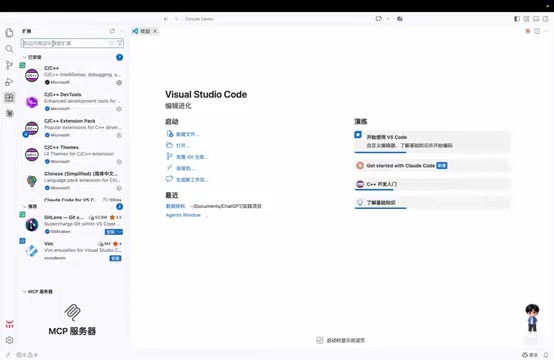
In the search results, make sure you select the official VSCode version of Claude Code — don't accidentally install a third-party imitation plugin. Select it and click Install.
Once installed, the extension will typically prompt you to log in. Pay attention here: do not log in yet. Since our goal is to connect to DeepSeek rather than use Claude Code's official account service, simply close the login popup.
Next, open VSCode Settings and search for "Claude Code." Find the corresponding option and confirm it's checked (enable it manually if it isn't).
Claude Code was originally a command-line AI coding tool released by Anthropic, later made available as a VSCode extension. Its core capability is multi-turn conversational coding assistance directly within the editor — it can read current project files, execute terminal commands, generate and modify code, and has far stronger context awareness than standard code completion plugins. Because Claude Code specifies the model endpoint and API key through a configuration file, it's possible to point it at any third-party model that's compatible with the OpenAI API format (such as DeepSeek). All you need to do is update the Base URL and token in the config — you keep the same interface while swapping out the actual model being called.
Step 3: Edit the Config File to Connect DeepSeek
This step is the technical core of the entire process. You'll use the command line to create a Claude Code configuration file and redirect the underlying model to DeepSeek.
Open VSCode's terminal (create a new terminal), and enter the configuration commands one by one. The first command creates the config file — press Enter to run it. Then open the newly created file and enter the next command to complete the configuration. The tutorial author notes that if the platform displays a "Do you trust this?" prompt, you should select "Trust."
Note: The video author mentioned they would post the specific commands in the comment section of the video, so this article cannot list the exact commands. For the actual steps, please refer to the official documentation or the commands provided by the author.
The most critical field in the configuration file is the Token field. Paste in the sk--prefixed API key you obtained earlier from the DeepSeek Open Platform. Retrieve the key you saved in your messaging app and enter it in the appropriate field.
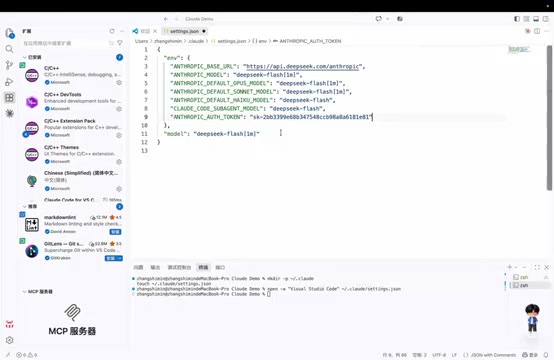
Once filled in, save the file with Command+S (or Ctrl+S on Windows).
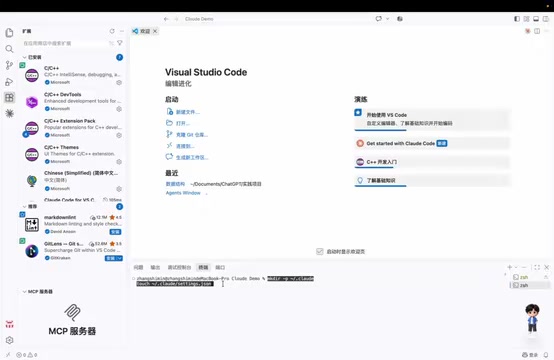
Verifying the Configuration
After saving, you'll need to reload VSCode for the configuration to take effect. Press Command+Shift+P to open the Command Palette, then select Developer: Reload Window to refresh the current window.
After reloading, click the Claude Code entry point in the top-right corner of VSCode and send a test message. If the response indicates that the underlying model is DeepSeek, the integration was successful and your AI coding environment is ready to use.
The Value and Limitations of This Setup
The "VSCode + Claude Code + DeepSeek" combination is fundamentally a cost-cutting compromise. Its value lies in preserving the Claude Code coding interaction experience within VSCode while replacing the expensive model calls with the more cost-effective DeepSeek — making it quite friendly for budget-conscious students and beginners.
That said, it's worth being clear-eyed about its limitations. There are real differences between DeepSeek and Claude in areas like code comprehension and long-context handling, and swapping the model means the actual coding performance won't be fully equivalent to native Claude Code. This setup is better suited as an introductory practice environment — a way for newcomers to get familiar with the toolchain and workflow at minimal cost.
For users who want to quickly get started with AI-assisted coding without spending heavily upfront, this is genuinely a worthwhile starting point. Once you've built up experience and have a clearer sense of your needs, you can then evaluate whether to upgrade to a more capable model.
The capability gap between DeepSeek and Claude on real-world coding tasks shows up in a few key areas: long-context understanding (Claude supports a larger context window, better suited for analyzing large codebases), complex reasoning tasks (Claude performs more consistently on multi-step logical inference), and accuracy in following complex instructions. For the tasks beginners most commonly face — debugging short snippets, generating boilerplate code, explaining error messages — DeepSeek's performance is more than adequate for everyday use. If, as your usage and demands grow, you find the model's capabilities becoming a bottleneck, you can switch to the Claude API or another model without needing to change any other part of your toolchain configuration.
Related articles
Jev + Claude Code: How Fast-and-Slow Thinking Can Cut AI Agent Costs by 90%
Jev is a System 1 frontend model that outputs option probabilities in milliseconds — not text. See how it pairs with Claude Code and GPT-6 Astra to cut AI agent costs by up to 90%.

Former Anthropic Researcher's Resignation Tweet Goes Viral: The Truth Behind AI Safety's 'Conspiracy Theory'
Former Anthropic researcher Jacob Coxon's resignation tweet hit 172M impressions, sparking debate over Dario Amodei, Meter, EA networks, and AI safety as a power play.

Ginger Cinnamon Tea for Cold Relief: The Physiology Behind a Traditional Herbal Remedy
Antibiotics don't work on colds. Try ginger cinnamon tea instead. Learn the simple recipe and the physiology behind how ginger dilates blood vessels and thins mucus.