Claude Code Beginner's Complete Guide: Master the AI Coding Workflow in 28 Minutes

Claude Code unifies chat, editor, and terminal so beginners can build real projects with plain language.
This tutorial breaks down the full Claude Code workflow based on a hands-on demo, arguing that the biggest obstacle for beginner programmers isn't code complexity but the constant switching between chat, editor, and terminal. As an AI agent with file read/write and terminal execution capabilities, Claude Code integrates these into one workspace. The guide covers six key practices: crafting a strong first prompt, making targeted code modifications, debugging with complete error messages, running terminal commands via natural language, using CLAUDE.md to persist project rules, and handing off multi-step tasks in agent mode — plus five common beginner pitfalls.
Many beginner programmers get stuck not because the code itself is too hard, but because they're manually bridging three separate tools — a chat window, an editor, and a terminal. You ask for code in the chat, copy-paste it into the editor, run it in the terminal, then paste the error back into the chat when something breaks, fix it, and copy it back again. This constant back-and-forth is the real culprit slowing you down.
This tutorial is based on a hands-on Claude Code demo shared by a Bilibili creator, and the core argument is straightforward: Claude Code nearly eliminates this friction, because it doesn't just answer coding questions — it works directly inside your project. Below is a complete breakdown of the workflow, from installation to building, editing, debugging, terminal operations, project rule setup, and multi-step automated builds.
Why Claude Code Is Different from Ordinary Chat
In the traditional AI coding model, you're the "human relay" shuttling content between three tools. Claude Code, as an agent that can read, edit, and run an entire project, integrates all these steps into a single workspace.
For someone with little to no coding experience, this means you don't need to understand every file, every terminal command, or every error message before you start. The only thing you truly need to control is "what gets approved and what gets modified." The video's author started from a completely empty folder and turned it into a working task manager using plain language alone — that's exactly where this tool lowers the barrier to entry.
Technically, Claude Code falls into the category of "AI Coding Agents." Its fundamental difference from tools like GitHub Copilot or ChatGPT is that it has read/write access to the file system and the ability to execute terminal commands. Ordinary AI assistants can only output text within a conversation window — you have to manually move code into an editor. An agent, by contrast, can open files, write changes, run commands, and read the output, forming a complete "perceive → decide → act" loop. The underlying technology is "Tool Use / Function Calling" — large language models are given the ability to call external functions such as reading files, writing files, and executing shell commands. Claude Code is built on this mechanism, transforming the model from a pure text predictor into an executor that can operate in a real environment. Understanding this explains why "treating Claude Code like a regular chat window" is inefficient — you're only using a small fraction of its capabilities.
Installation and Setup: Point Claude Code to the Right Folder
Installation looks technical but is actually straightforward. Download the Mac or Windows desktop app from Claude's official download page (note that the web version runs in a browser — this tutorial uses the desktop version), run the installer, and log in.
One key prerequisite: your account must be on the Pro, Max, or higher plan to use Claude Code. Free accounts need to upgrade first. The model dropdown near the send button is already set to a sensible default — beginners don't need to change it.
The core of setup is opening the correct project folder: go to the Code tab, select "Local," and point it to a clean folder dedicated to this project. Be careful here — Claude Code can see the entire workspace, not just a single file, so don't point it at your entire desktop or downloads folder. The more focused the workspace, the more accurate the context, and the better your prompts will work. Once set up, type "what files are in this project" to verify the connection is working.
Building from an Empty Folder: Your First Prompt Sets the Tone
Starting from nothing is the most intimidating part. But Claude Code can plan the project structure, create the files, and assemble a working first version all at once — you don't have to write one file at a time like you would with ordinary chat.
The quality of that starting point depends on how clearly you describe what you need. A vague "build me a task app" gives Claude too much freedom to make decisions that may not match your expectations. The author recommends that your first prompt include four things: what you want to build, what technology you want to use, what key features you need, and a constraint to prevent the project from getting overly complex.
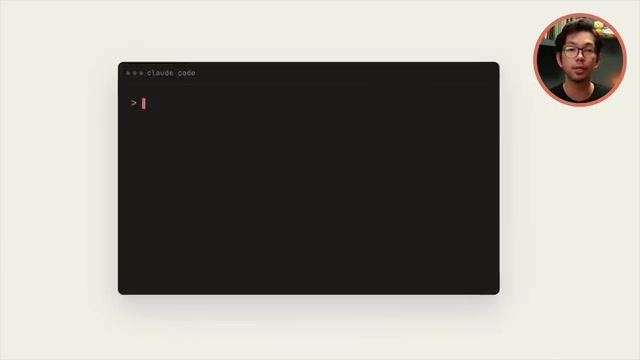
His example prompt was: "Create a simple task manager web app using HTML, CSS, and vanilla JavaScript. Users should be able to add tasks, mark them complete, and delete them. Keep it single-page and don't use any external libraries." After sending, Claude Code will understand the request, plan the structure, and generate HTML (page structure), CSS (styling), and JavaScript (logic) as separate files.
Once the scaffold is built, spend 30 seconds checking whether the overall structure makes sense. That's far easier than discovering the organization is wrong several prompts later. That's the point of scaffolding first.
Understanding and Modifying Existing Code: Specificity Is Everything
In real projects, you'll spend more time working with existing code than creating from scratch — whether it's code you wrote weeks ago, something a teammate handed off, or a scaffold Claude just generated. Two core skills are required here: understanding existing code, and making targeted small changes without disturbing the rest.
To understand code, you don't have to study it line by line yourself. Just ask Claude to explain the part you care about in plain language — for example, "explain in plain English what the task completion logic does." It will read the relevant code and break down the detection logic, state changes, and how the pieces connect.
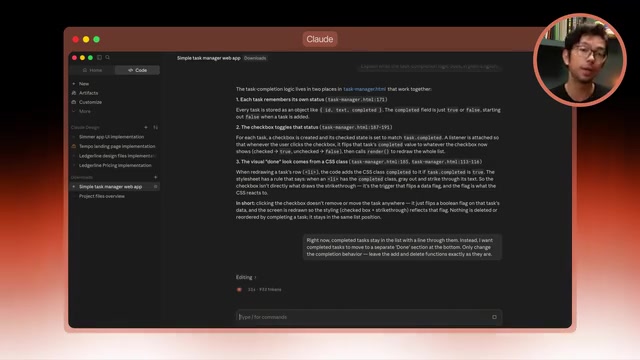
Modification is where beginners often create more work for themselves. A broad request like "rewrite this" gives Claude too much latitude and may change things that were working fine. A better approach: explain what the code currently does, describe the change you want, and specify what must stay the same. The author's example was: "Right now completed tasks stay in the list with a strikethrough. I want them to move to a separate completed section at the bottom. Only modify the completion behavior — leave the add and delete functions exactly as they are." The desktop app shows a clear before/after comparison of the changes, so you can see exactly what's being modified before you approve.
Debugging: Give Claude the Clearest Evidence Possible
Bugs are often where beginners lose momentum, but with Claude Code you don't need to understand the entire codebase to troubleshoot. The author splits common problems into two categories:
The first is when you have a clear error message. Don't trim it, and don't paste only the last line — copy the complete error from the console and add a sentence like "I get this error when I click a task." The full message contains the filename, line number, and stack trace — exactly the clues Claude needs to locate the problem. Cutting any of it out might remove the critical detail.
The second is when there's no error but the behavior is wrong. The app loads, the buttons click, but some logic is off. Just describe the symptom: "When I delete a task, the counter at the top doesn't decrease — it should go down by one with each deletion." Claude can trace the delete logic to find the cause.
The author mentioned that when his recipe app wouldn't load, he didn't dig through files himself — he clicked the play button and let Claude run the project. Claude detected the problem in the process and fixed it automatically. In either case, the key is to stay in the same conversation thread so Claude retains the context from previous attempts.
Terminal Operations: Accomplish Commands in Everyday Language
Terminal commands are one of the things that make programming feel more technical than it actually is. You might know exactly what you want to do (start a server, install a package) but still have to look up the command, check the syntax, and confirm you're running it in the right place.
Claude Code can install packages, run scripts, start local servers, run tests, and handle Git tasks directly through the terminal. You describe the outcome in plain language, and it figures out the right commands. For version control, for example, type "initialize a Git repository for this project and make the first commit." Claude won't act immediately — it will first show you the commands it plans to run and ask for your approval, then initialize the repository, stage the files, and create the commit once you confirm.
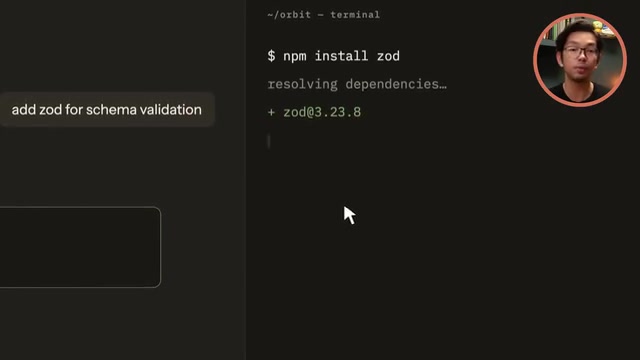
This approval step is especially important when the consequences are significant. Routine operations like starting a dev server, running tests, or installing trusted packages carry low risk; commands that delete files, modify important data, or push to production are worth reading carefully before approving. There's also a stop button to immediately interrupt a running command — you stay in control of what runs and when.
CLAUDE.md: Set It Once, Apply It Throughout
Repeating the same instructions in every project (use this language, follow this file structure) gets old fast. Claude Code solves this with a CLAUDE.md file — placed in the project folder, it acts as a set of standing instructions that Claude automatically reads when working on the project, so you don't have to repeat context in every prompt.
Beyond creating it manually, the faster approach is to type /init — Claude will inspect the project and generate an initial draft that you can then edit into the rules you want. The author added a few simple rules for the demo project: use plain vanilla JavaScript with no frameworks, use full descriptive words in function names with no abbreviations, keep everything in a single file, and never add libraries without permission.
Once configured, asking it to "add a button to clear all completed tasks" will have Claude automatically follow the naming style, single-file structure, and no-library constraint — without you having to say so. Even three or four clear rules make the code more consistent and save you from repeated reminders. That's why it's worth creating at the start of every project.
CLAUDE.md is essentially a "system prompt persistence" mechanism. In ordinary chat, every new session starts with a blank context. CLAUDE.md lets you lock project-level constraints, preferences, and background information into a file that Claude loads as front-loaded context every time it works on that project. This is similar to the software engineering principle of "Convention over Configuration" — write the rules up front, and all subsequent operations follow them automatically without declaring them each time. Similar mechanisms exist in other AI coding tools: Cursor's
.cursorrulesfile, Copilot's custom instructions, and so on. They all solve the same problem: how to keep AI behavior consistent throughout the life of a project. In team settings, CLAUDE.md can also be committed to the Git repository so everyone using Claude follows the same project conventions.
Agent Mode: Hand Off Multi-Step Tasks All at Once
Everything above has been step-by-step — make a request, review, approve, continue. Agent mode lets you hand off larger, multi-step tasks all at once. Claude plans the sequence, executes the changes, and completes the entire flow without needing a new prompt at each step.
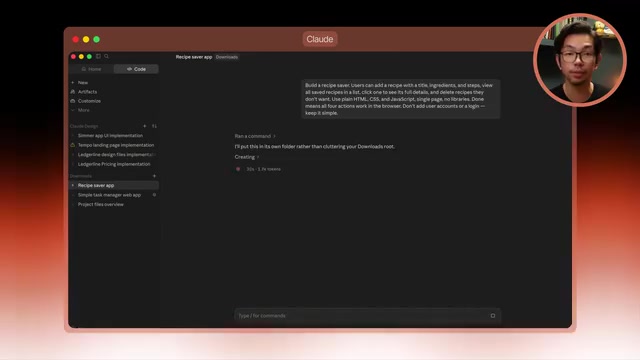
The author demonstrated this with a recipe app: he asked Claude to build an app where users can add recipes (with title, ingredients, and steps), view a list, open a detail view, and delete recipes — constrained to plain HTML/CSS/JavaScript single-page format, no libraries, no login system — and specified that "the task isn't done until all four operations work correctly in the browser."
After sending, he stopped adding step-by-step instructions. Claude planned what the app needed, then sequentially created the structure, built the functionality, set up the list, created the detail view, and added the delete feature — all from that single request. Afterward, the focus shifted to review: check the modified files, open the preview, test all four operations. Any adjustments become the next prompt. Give it a goal, set the boundaries, define what "done" looks like, and let it handle the steps in between — that's the real value of agentic coding.
The technical concept behind agent mode is "Agentic Task Planning" — the model breaks a high-level goal into an ordered sequence of subtasks and executes them until the completion condition is met. The difference between this and early "one question, one answer" AI interaction is like the difference between telling an employee "finish this report" versus instructing them every five minutes: "now open Word," "now write the title." In technical terms, this pattern is often called ReAct (Reasoning + Acting) or a Plan-and-Execute architecture — the model first reasons out a step-by-step plan, then loops through "act → observe result → adjust plan." When using agent mode, a clear completion definition is critical: the model needs a standard to judge whether the task is done, otherwise it may get stuck between "good enough" and "keep optimizing." The author's requirement that "the task isn't done until all four operations work correctly in the browser" gave it a verifiable exit condition.
The Five Most Common Mistakes Beginners Make
The author summarized the mistakes that almost every beginner makes and that slow down their progress:
- Prompting one line at a time: Waiting after every step means you're managing the entire workflow yourself. Provide complete context and let it do more in a single pass.
- Skipping CLAUDE.md: Repeating your preferences over and over is wasted effort — write them into the file once and you're done.
- Asking for a full rewrite over small changes: Broad requests let Claude touch things that didn't need changing. Be specific about what to change and what to leave alone.
- Skipping error messages: When something breaks, firing off a new prompt without context is less effective than pasting the complete error message.
- Treating Claude Code like a regular chat window: It can read files, edit code, run commands, and complete multi-step tasks. Give it complete tasks rather than isolated single questions, and your workflow becomes genuinely efficient.
Closing: The Core Is Treating It Like an Agent
Once you've got the core workflow down, the best move is to stop studying and start using it on a real project — make it a habit. Install the desktop app, create a clean folder as your workspace, add a CLAUDE.md with a few rules, and keep your first project simple enough to actually finish: rebuild a familiar task list, notepad, or calculator.
The real key is this: treat Claude as an agent that can read files, run commands, make changes, and handle large tasks — and your prompts will naturally evolve from fragmented single-step requests into clear goals for it to work toward. That mindset shift is the most important 95% of working efficiently on real projects.
Related articles

Structuring Data for AI Agents: Five Approaches and a Selection Guide
There's no single best way to structure data for AI Agents. This article compares semantic models, knowledge graphs, RAG, Markdown+grep, and open formats, drawing on research from dbt, Microsoft, and Chroma to help you pick the right data architecture based on question type.

Fish Audio Drama 3 Open-Source Launch Sparks Debate: The 35B Speech Model's Selling Points and Licensing Controversy
Fish Audio Drama 3 sparks debate with 35B parameters and open weights, ranking first on pronunciation benchmarks with director-style control and word-level inpainting, but its community license restricts commercial resale, API prices are rising, and local runs need ~39GB VRAM.
LLM Gateway Selection Checklist: Evalu…
LLM Gateway Selection Checklist: Evaluate a Gateway in 10 Minutes
A 10-minute LLM gateway evaluation checklist: from protocol coverage, cache pricing, discount transparency, and credit terms to per-model SLAs and migration cost, filter out unreliable LLM gateways fast.