Claude Code Context Management in Practice: 5 Tips to Double Your AI Programming Efficiency

A systematic guide to Claude Code context window management and optimization techniques.
Claude Code's context window is a finite working memory, and poor management leads to model "forgetfulness" and degraded responses. This article covers three core commands (Compact for compression, Clear for reset, Plot Context for visual diagnostics) and four optimization tips: using CLAUDE.md for cross-session memory persistence, writing clear prompts to reduce wasteful exploration, disabling unnecessary MCP servers to save tokens, and leveraging sub-agents with isolated contexts to offload tasks.
When coding with Claude Code, many developers encounter this situation: mid-conversation, the model suddenly becomes "forgetful" and response quality noticeably declines. The root cause is often poor context window management. This article systematically covers Claude Code's context management mechanism and provides optimization tips you can implement immediately.
What Is the Context Window?
The context window can be understood as Claude's "working memory." Whether reading files, running commands, or receiving user messages, all these operations consume space in the context window. Every time you enter an instruction, Claude needs to read relevant files, invoke tools, and retrieve results—all of this information gets loaded into the context window.
From a technical perspective, the Context Window corresponds to the upper limit of tokens that the Attention Mechanism in the Transformer architecture can process simultaneously. Each token roughly corresponds to 0.75 English words or 0.5 Chinese characters. Notably, the context window includes not just user input, but also System Prompts, tool call records, file contents, and the model's historical outputs—all of these constitute the complete information the model "sees" and collectively consume this finite resource.
The key point is that this memory space is finite. As you continuously accumulate operation records in a long session, the context window gradually fills up. Once it approaches capacity, the system automatically triggers a compression mechanism that retains key information and clears unnecessary tool call results.

This automatic compression mechanism is essentially a Summarization strategy—similar to how human Working Memory operates, where the brain automatically consolidates or forgets information that's no longer active in short-term memory. The system performs semantic compression on historical conversations and tool call results, preserving key decision nodes and code states while discarding redundant intermediate process information. However, compression is irreversible, and compression quality depends on the model's judgment of "importance," so important details may be lost. This is why proactive context management is so critical.
Three Core Commands: Compact, Clear, and Plot Context
Compact Command: Manually Compress Context
When you sense the context space is running low but your current task isn't finished, the Compact command is your best option. It compresses all current operation records, clearing redundant information while preserving working memory.
Use case: You need to free up context space without losing your current work progress and key context.
Clear Command: Completely Reset Context
If you're about to develop an entirely new feature that's completely unrelated to previous conversations, use the Clear command decisively. It wipes everything clean, letting you start from scratch. The benefit is avoiding historical conversation interference with new task execution while freeing up complete memory space for new requirements.
Plot Context Command: Visual Context Diagnostics
Want to know how your context window is being used? Run the Plot Context command. It displays the overall context size, shows which categories are consuming the most space, and provides visual charts for instant clarity.

Practical advice: When developing a specific feature, if the context window is nearly full but you still need to continue coding, immediately use Compact. When switching to a new feature, use Clear to reset. Build a habit of regularly checking with Plot Context to stay informed.
Four Tips for Efficient Context Usage
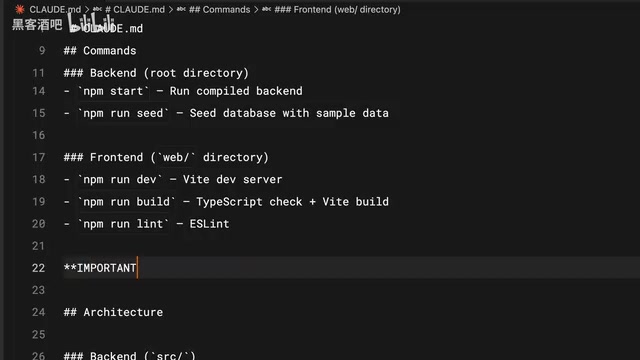
1. Use CLAUDE.md Files to Preserve Core Information
The design philosophy behind CLAUDE.md files comes from the "Convention over Configuration" principle in software engineering. It's essentially an External Memory mechanism that compensates for the Stateless nature of LLMs—each new session starts with the model carrying zero memory from previous conversations. CLAUDE.md achieves cross-session knowledge persistence by automatically injecting project context during session initialization.
Store your project's core content—architecture documentation, coding standards, common commands, Architecture Decision Records (ADR), etc.—in a CLAUDE.md file. The next time you start a new session, Claude reads this file directly without needing to communicate from scratch. Think of it as a persistent "memory memo" for Claude.
2. Write Clear and Specific Prompts
Many people assume shorter prompts save memory, but the opposite is true. Vague prompts cause Claude to repeatedly search and reason through the codebase, and this autonomous exploration process consumes more context space than executing clear instructions directly. A single clear, detailed instruction actually saves more resources in the long run than multiple rounds of ambiguous conversation.
3. Disable Unnecessary MCP Servers
MCP (Model Context Protocol) is an open protocol introduced by Anthropic to standardize interactions between AI models and external tools/data sources. When each MCP server connects, it pre-injects all available tool names, descriptions, and parameter specifications as structured text into the context window—even if those tools are completely irrelevant to the current task. When multiple MCP servers are connected simultaneously, tool descriptions alone can consume thousands or even tens of thousands of tokens, equivalent to cluttering your workbench with tools unrelated to your current task—wasting space and splitting attention.
The recommendation is to directly disable unneeded MCP servers, or try using the Skills feature—it provides capabilities similar to MCP without consuming the entire context window.
4. Leverage Sub-agents to Offload Tasks
Sub-agents are a specific application of Multi-Agent Systems in code development scenarios and a powerful tool for context management. Architecturally, each sub-agent is an independent model invocation instance with a completely isolated context window, communicating with the main agent through Message Passing—borrowing from the concept of Process Isolation in operating systems.
For tasks where you "only need results, not the process," delegating to sub-agents keeps intermediate exploration from polluting the main agent's context window, effectively multiplying your available context capacity.
Related articles
 Tutorials
ChatGPT Plus Subscription Guide: Are GPT-5.5, image-2, and Codex Worth the Upgrade?
A detailed look at ChatGPT Plus features — GPT-5.5, image-2, and Codex — with a Plus vs Pro comparison and a complete step-by-step subscription guide for users outside the US.
 Tutorials
Harness AI Engineering in Practice: Using Claude Code to Master Enterprise-Level E-Commerce Development
Deep dive into Harness AI Engineering: master enterprise e-commerce development with Claude Code using the Rules, Skills, Wiki, and Changes framework.
 Tutorials
Cursor + Codex Dual-IDE Collaboration: A Practical Methodology for Open-Source Project Customization
A complete methodology for open-source project customization based on real-world experience, detailing the Cursor+Codex dual-IDE workflow, seven-stage process, MVP validation, and AI source code reading techniques.