Claude Code Desktop Configuration Guide: Login-Free Setup + Chinese Localization + DeepSeek Integration
A complete guide to configuring Claude Code Desktop with login-free mode, DeepSeek integration, and localization.
This guide walks you through the full setup of Claude Code Desktop, including enabling Developer Mode for login-free usage, integrating cost-effective DeepSeek models via CC Switch (a local model gateway), applying Chinese localization scripts, and loading custom Skills through zip uploads. The entire process requires no programming background and dramatically reduces API costs while maintaining Claude Code's excellent UX.
Introduction
Since the official release of Claude Code Desktop, developers now have access to a more intuitive graphical interface. However, in practice, many users face two core challenges: the high cost of calling Claude's official models, and the English-only interface that isn't friendly for non-English speakers.
Claude Code is an AI programming assistant tool developed by Anthropic for developers. It was initially released as a command-line interface (CLI), requiring developers to interact with the AI through text commands in a terminal. The desktop version marks the tool's expansion from professional developers to a broader user base, offering visual project management, file browsing, and a conversation interface. Compared to similar tools like GitHub Copilot and Cursor, Claude Code stands out for its powerful contextual understanding and multi-file collaborative editing capabilities, able to comprehend entire project structures and perform cross-file code refactoring.
This article will guide you step by step through installing Claude Code Desktop from scratch, and progressively configuring login-free usage, Chinese localization, DeepSeekAd integration, and custom Skill loading.


Installing Claude Code Desktop
Download and Installation Steps
Visit the Claude Code official website and find the "Get Claude Code" button on the homepage. Hovering over it reveals multiple usage options, with Desktop listed first. Click it to navigate to the download page, where the system will automatically detect your operating system and provide the corresponding version (Windows/Mac).
After downloading, double-click the installer to run it. No additional configuration is needed—just follow the prompts and click next. Once installation is complete, a login screen will appear, supporting Google account and other login methods.
Login-Free Configuration (Developer Mode)
If you don't want to register or log in, you can bypass this step by enabling Developer Mode:
- Click the hamburger menu (three horizontal lines) in the top-left corner
- Select "Help"
- Find the third option: "Enable Developer Mode"
- Confirm and wait for Claude Code to restart automatically
Developer Mode is a special runtime state built into Claude Code Desktop. In this mode, the application skips the OAuth authentication flow, allowing users to provide model inference capabilities through third-party API proxy services. This design essentially decouples the model calling layer from the application layer, enabling the frontend interface to connect with any large language model service compatible with the OpenAI API format. This is the technical prerequisite for integrating third-party models like DeepSeek later on.
After the restart, the interface will change. Don't perform any other operations at this point—next, you'll need to install a key auxiliary tool to complete the model integration.
Integrating DeepSeek Models via CC Switch
CC Switch Installation Requirements
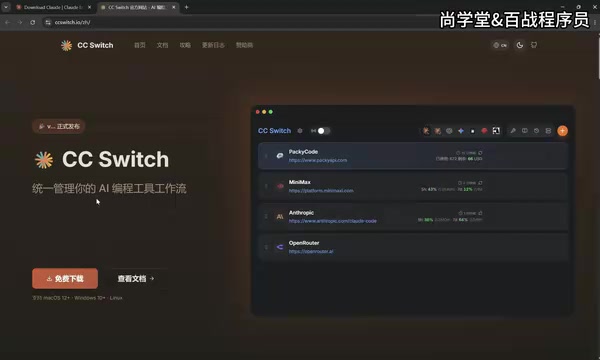
CC Switch is software specifically designed for managing AI tool workflows. Its core capability is helping users freely switch between different large language models.
From a technical perspective, CC Switch is a Model Gateway tool. Its core principle is launching a local proxy server (typically listening on a local port) that intercepts API requests from Claude Code and forwards them to user-specified model service endpoints. The advantage of this Local Router architecture is that users don't need to modify Claude Code's underlying code—they can achieve model switching through standardized API interface protocols. Similar tools include open-source projects like LiteLLM and One API, but CC Switch is deeply adapted for Claude Code, providing an out-of-the-box configuration experience.
Important: The version must be 3.15.0 or above—versions below this won't support Claude Code Desktop configuration features.
The installation process is equally straightforward. After opening the software, if a desktop version option with a small computer icon appears at the top, it means the current version correctly supports it.
DeepSeek Model Configuration Process
DeepSeek is one of China's leading AI companies. Its DeepSeek-V3 and DeepSeek-R1 models have performed excellently across multiple benchmarks, particularly in code generation and mathematical reasoning tasks, approaching or even surpassing some top international models. DeepSeek provides an interface service compatible with the OpenAI API format, meaning any client supporting the OpenAI API protocol can seamlessly switch to DeepSeek. Its API pricing is far lower than models like Claude and GPT-4—typically one-tenth to one-fifth the cost—which is the core reason many developers choose to integrate DeepSeek.
Follow these steps to complete the DeepSeek integration:
- Enable Local Router: Click the settings button on the left → Router → Local Router → Click the down arrow to enable
- Select Desktop Mode: Return to the main interface and switch to the Desktop option
- Add DeepSeek Model: Click the add button on the right and select DeepSeek from the list
- Enter API Key: Go to DeepSeek's official website API documentation page → Key Management → Create New Key → Copy and paste it into the corresponding input field in CC Switch
- Enable Context Extension: It's recommended to enable the 1M context size option for greater context processing capability. The 1M (million token) context window is one of DeepSeek's flagship features, allowing the model to process approximately 1.5 million Chinese characters in a single input, suitable for analyzing large codebases or lengthy documents.
- Add and Start: After configuration, click Add, then be sure to click the "Start" button—otherwise the configuration won't take effect
Once started successfully, you can minimize CC Switch (clicking the close button actually minimizes it to the system tray without exiting the program).
Completing the Integration with Claude Code Desktop
Return to Claude Code Desktop and perform the following:
- Click the hamburger menu in the top-left corner
- Find the newly appeared "Developer" option
- Click "Configure Third-party"
- The relevant information has been automatically filled in by CC Switch—no manual input needed
- Click Apply and wait for the restart
After restarting, the model selection list will display Flash, Pro versions, and the 1M context version. Select any model to begin normal conversations.
Chinese Localization for Claude Code
Although model integration is complete, the all-English interface remains a significant barrier. Fortunately, the localization process is very simple:
- Download the Chinese localization package (available for both Windows and Mac)
- After extracting, find the
.batfile (Windows) and double-click to run it - In the popup options, enter "1" to select Simplified Chinese (Traditional Chinese and Traditional Chinese Hong Kong versions are also available)
- Press Enter to confirm
The localization tool will automatically close Claude Code and perform the replacement operation. After completion, the program will restart automatically. Upon reopening, interface elements like "New Task," "Project Plan," and "Task Customization" will all display in Chinese.
The technical principle behind localization typically involves replacing localization resource files (such as JSON or YAML language packs) in the application's installation directory. Since Claude Code Desktop is built on the Electron framework, its interface text is stored in specific files under the resources directory. The localization script locates these files and overwrites them with Chinese translated versions. Note that you may need to re-run the localization after each Claude Code update.
Loading and Using Custom Skills
Skill System Overview
Skills are reusable Prompt Engineering modules in Claude Code. Each Skill is essentially a set of structured instruction files, typically containing task descriptions, execution steps, output format requirements, and constraints, written in Markdown format. When a user invokes a Skill, its content is injected into the model's context as a System Prompt, guiding the model to execute tasks according to predefined workflows. This design borrows from the "separation of concerns" principle in software engineering, decoupling general AI capabilities from domain-specific expertise. Users can create and share Skills based on their work scenarios, forming a community ecosystem.
Skill Import Methods
The desktop version's Skill management differs significantly from the CLI version. The CLI version requires placing files in the .claude/skills/ directory, while the desktop version uses compressed package uploads for installation.
Specific steps:
- Create a new task
- Click the plus icon → Skills → Manage Skills
- Click "Add Skill" → "Upload Skill"
- Supported file formats include:
.mdfiles,.ziparchives, or.skillfiles - Compress the Skill folder into a zip file and drag-and-drop to upload
Skill Invocation Method
After successful upload and installation, type a forward slash / in the conversation input box, select the "Skills" menu, and you'll see a list of all installed Skills. After selecting the target Skill, enter your specific requirement description, and the model will strictly follow the rules and processes defined in the Skill to execute the task.
This Slash Command interaction pattern draws from the design paradigm of collaboration tools like Discord and Slack, reducing the learning curve for users. A well-designed Skill can encapsulate complex multi-step tasks (such as "generate database table structures from requirements documents → create API endpoints → write unit tests") into a single simple invocation, significantly improving development efficiency.
Summary
Through the configurations above, we've fully optimized Claude Code Desktop:
| Configuration | Method | Difficulty |
|---|---|---|
| Install Desktop Version | Download from official site, one-click install | ★☆☆☆☆ |
| Login-Free Usage | Enable Developer Mode | ★☆☆☆☆ |
| Integrate DeepSeek | CC Switch 3.15.0+ configuration | ★★☆☆☆ |
| Chinese Localization | Run localization script | ★☆☆☆☆ |
| Custom Skills | Upload zip + slash command invocation | ★★☆☆☆ |
The entire process is very beginner-friendly and requires no programming background. In particular, after integrating DeepSeek through CC Switch, usage costs are dramatically reduced compared to calling Claude's official API directly, while still enjoying Claude Code Desktop's excellent interactive experience and project management capabilities.
From a broader perspective, this "frontend interaction layer + replaceable model layer" architecture is becoming the mainstream trend in AI development tools. Users are no longer locked into a single model provider but can flexibly choose the most suitable model based on task characteristics, budget constraints, and response speed requirements. As domestic large language models continue to improve and API ecosystems mature, the value of this flexible configuration approach will become increasingly apparent.
Related articles

How Does Claude Call Tools It Has Never Seen? MCP and AI Agent Principles Explained
How does Claude call tools it was never trained on? This article breaks down the AI Agent tool-calling loop, Anthropic's three-layer MCP architecture, context bloat and context rot, and production-grade Agent safety design principles including timeout retries, prompt injection, and idempotency keys.

OpenAI Cracks Math Problems, Why Are Mathematicians Losing Sleep?
OpenAI claims to solve math problems — why are mathematicians anxious? Vergecast reveals the Eye of Sauron dilemma and the tension between AI answers and human understanding.

CSS Conditional Border-Radius Trick: Auto-Square Corners When Elements Touch the Edge
Pure CSS conditional border-radius: auto-square corners when elements touch the edge, rounded while floating. Use calc(100vw-100%) with clamp() to kill the transition band, and container query units cqi for non-fullscreen containers, plus a scrollbar offset workaround.