Claude Code Desktop in Practice: Building 4 Projects from Scratch, No Terminal Required

Claude Code Desktop lowers the AI coding barrier and demos the plan-and-execute handoff across four projects.
The article explains how Claude Code Desktop reduces setup to download, run, and log in, and notes that only the desktop app can access local folders. The author uses four progressively harder projects to demonstrate the full workflow: a single-page blog shows the Opus-plans, Sonnet-builds handoff; a Chrome extension shows when to skip the expensive model; a Python script shows command approval and risk control; and a single-file subscription tracker introduces CLAUDE.md for codifying rules. It also covers the three elements of a good change request, using screenshots to locate files, plan mode, Compact, and fresh conversations, plus pricing tiers and capability boundaries.
The launch of Claude Code Desktop has lowered the barrier to AI-assisted coding yet again. In the past, running Claude Code locally meant installing Node.js first, then doing a global npm install, and you still needed an editor like Cursor to see your files; one content creator recalls fumbling through the installation three times, and the terminal window was the first hurdle that scared off beginners. Now that whole process has been compressed into a single action: go to the official site, download the Mac or Windows desktop app, run the installer, log in, done. The browser version works too, but only the desktop app can access folders on your computer—which is precisely what sets it apart from an ordinary chat window.
Setting Up from Scratch: Simpler Than Expected
There are two things to confirm before you start. First, your plan: Claude Code requires a paid Pro plan or higher, and the free tier can't open it. Second, the model selection dropdown—Opus 5.5 is selected by default, with Sonnet (available on Pro) right next to it. For your first questions, just keep the default; when to switch models comes up later, and "switching models deliberately" is one of the most useful habits in the entire workflow.
Next, open the Code tab, select "Local," and choose a folder. This folder is your workspace—Claude can read, edit, and run anything inside it, so choose carefully: create a new folder for each project rather than pointing it at your Desktop or Downloads directory. A dedicated folder gives the model the right context and prevents it from touching files unrelated to your work. To confirm the connection works, type "what files are in this project"—if it lists the contents or tells you the folder is empty, you're connected.
Project One: A Single-Page Blog, and Understanding the Plan-Execute Handoff
The first project is a single-page website for a blog, going from an empty folder to something in the browser. This is the fastest way to walk through the whole flow, and it also demonstrates the pattern nearly every project uses: one model plans, another model builds.
Use Opus for the planning stage. It thinks more slowly and deeply, and even after the Opus 5.5 price cut, it still costs more per token than Sonnet. For a single-page site it's overkill, but it's perfect for demonstrating the handoff. After you enter your prompt, Opus returns a plan and a file list—nothing has been created yet. This is the moment when changing your mind costs the least; moving a section around in the plan costs nothing. Once you're happy with the plan, switch the dropdown from Opus to Sonnet and have it build strictly according to the plan. Sonnet is the builder: it writes code fast and cheaply, which is exactly what this job needs.
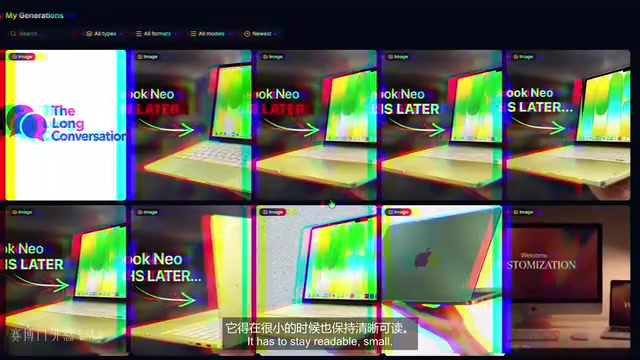
To see the result, open the preview or drag index.html into your browser—the page is live, and you didn't write a single line of code. If the page needs a logo, Claude Code won't draw one for you; the creator opened an image generator and asked for "minimalist, solid background, two overlapping speech bubbles, still clearly legible when scaled down," then dragged it into the project. If the listen button is the wrong color or the heading looks clunky, you don't need to know which file controls it—drop a screenshot into the chat, write "fix this," and Claude can see the image. Since the project is on your hard drive, it will find the right file to change, and usually update matching elements along the way so the page doesn't end up half-new and half-old.
Opus and Sonnet are models Anthropic offers for Claude with different positioning. Opus emphasizes reasoning depth and complex planning, at a higher cost per token; Sonnet balances coding speed and cost, suited to well-defined, narrowly scoped build tasks. The core idea of multi-model collaboration is to separate "thinking it through" from "writing it out": first use the stronger model to produce a plan and file list, then have the fast model build strictly to that plan, achieving a controllable balance between quality and cost.
Project Two: A Chrome Extension, and Learning When Not to Use the Expensive Model
The second project is a citation-saving extension that lives in your browser: select a sentence on any page, right-click to save, and the extension keeps the text, page title, and link, displaying them all in a small popup—handy for research, writing, or reading long articles.
After creating a new folder, this time we skip the planning step and switch straight to Sonnet, because the scope is small and well defined—a Chrome extension is just a handful of files. Knowing when not to use the expensive model is half the skill of this pattern. Claude writes the Manifest, background script, and popup, you review them in the Diff, and about a minute later you open Chrome, go to the extensions page, enable Developer mode, click "Load unpacked," and select the project folder.

After using it for a while, the popup list becomes long and messy. Before making changes, first ask Claude to "explain in plain English what happens after I click save citation"—it will read the code and walk you through it, which is faster than digging through the code yourself to get familiar with an unfamiliar project. Keep your change requests narrow: "rewrite it" gives it full authority and may touch parts that were fine. A better request states three things clearly: what the code looks like now, what you want, and what must stay untouched. For example: "The popup currently shows all citations in one list. I want them grouped by website. Don't change anything else, especially the right-click menu and the Markdown button." Claude will then change only that one spot.
Manifest is the configuration file for a Chrome extension, usually named manifest.json, which declares the extension's name, version, required permissions, background scripts, popup page, and other entry points. Chrome uses it to identify what the extension can do and on which pages it takes effect. When you select "Load unpacked" in Developer mode, Chrome reads exactly this Manifest and the files it points to, which is why it's the first place to look when reviewing extension code.
Project Three: A Python Script for Organizing the Downloads Folder
The third project doesn't even have a UI: a Python script watches the Downloads folder and moves new files into subfolders by type—PDFs, images, installers, spreadsheets, and other—adding a number to duplicate filenames instead of overwriting, all running locally with nothing uploaded.
Since there are many moving parts, switch back to Opus to draft the plan. After it lists the dependencies and steps, switch to Sonnet and say "start building." At this point Claude no longer feels like a chat tool—it doesn't hand you a pile of commands to paste into a terminal, because it executes them itself. If it wants to install a Python package the plan requires, it shows you the exact command and waits for confirmation; you watch the output scroll by in the same window, and then it starts the watcher, again asking you first.
This approval step is where you stay in control. The creator's advice: routine operations like installing common packages or starting a local server can be approved quickly; anything that deletes files, overwrites data, or pushes something online deserves a careful look. If it's easy to undo, the risk is low; if not, take 10 seconds to see exactly what's about to run. If you spot a problem midway, just hit the stop button and the command is interrupted on the spot.
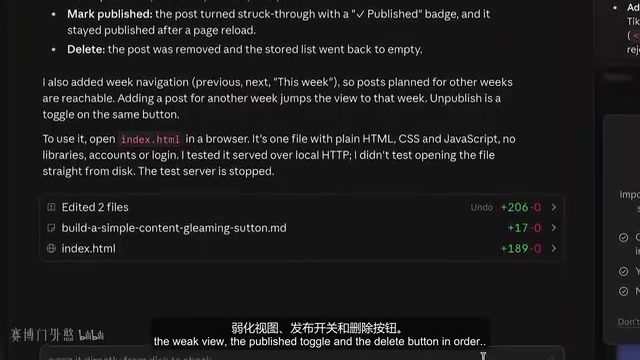
Once the script is running, drop a bunch of files into the folder and a second later everything is in its place. Scripts like this will eventually break, and the fix is simple: paste the full error message and say "I got this error when putting a file in the folder," and Claude can trace it to the relevant line of code and propose a fix.
Project Four: A Single-File Subscription Tracker and CLAUDE.md
The last project is small and personal: a subscription tracker that runs entirely in the browser. Enter the price and renewal date for each paid service, and it shows your monthly total and what's renewing next. Data stays on your machine, no account needed, no server behind it. Since the scope is small, switch to Sonnet and explain the requirements in one go, deliberately adding a constraint: put everything in a single HTML file to keep the project from ballooning. When it's done, double-click the file to open it—no server needed—and you can email it to yourself or save it to cloud storage. The trade-off is that the data lives in that computer's browser, so opening the list on another device shows nothing, which is a reasonable trade for a small tool like this.
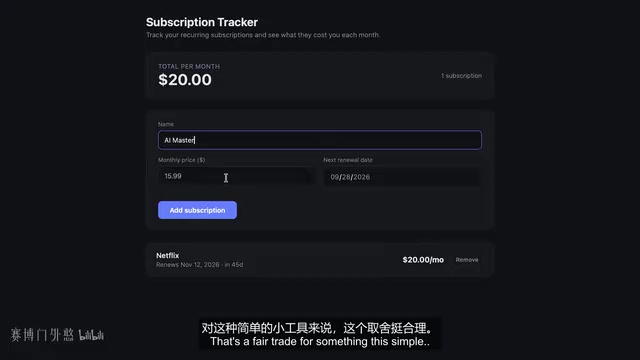
Advanced requests come quickly: highlight anything renewing within the next 7 days in red, and show the annual total next to the monthly cost. Claude adds both, and the Diff shows it only touched the list styling and the total cost calculation. It's easy to fall into a loop with a tool like this: you quickly get a working version, then keep polishing it with one small request at a time. Each request is small, and each Diff is easy to understand. A reading list, packing list, freelance timesheet, plant watering page—any of these can become a weekend project.
By the fourth project, you'll notice a pattern in your prompts—you're always saying "use plain JavaScript, no libraries" and "use clear names." Claude doesn't retain memory across sessions; every new conversation starts from zero. The solution is to put a CLAUDE.md in the project root, which it reads every time it works on that project. You don't have to write it from scratch—give it an instruction in the chat to go through the project and draft one, then add three or four short rules yourself, like "use plain JavaScript, no frameworks; use full words for variable and function names; put everything in one file; don't add libraries without permission." After that, when you ask it to add category tags, the rules apply automatically and you don't have to repeat a single one.
CLAUDE.md is a plain-text convention file placed in the project root that Claude Code reads automatically every time it starts working in that project. It's suited to carrying rules that stay stable across sessions, such as tech stack choices, naming style, file organization, and prohibitions. Since the model itself doesn't retain memory across conversations, this file effectively turns repeated prompts into project-level configuration, so every subsequent conversation starts from the same set of constraints.
Pacing and Boundaries for Long Tasks
When two or three or more files are involved, Claude may get halfway through before realizing it needs to refactor. Plan mode prevents this: when enabled, it first reads the project and writes a plan without changing files; you revise the plan, then give the go-ahead. It's the same idea as the Opus planning step, just built into the tool. One step further is giving it a complete multi-step task to run on its own. The key is that the task description must cover four parts: the goal, the constraints, what counts as done, and what you specifically don't want. With a solid description, the value of auto mode shows: routine commands pass automatically, only risky ones stop for confirmation, and at the end you just test each feature against the task description.
The new projects feature that came out this month is still in testing—you can run several tasks in the cloud at once, each in its own environment. Beginners shouldn't start with it: every parallel task means one more result to review, and reviewing is always your job.
Finally, let's be clear about the limitations: Claude Code won't replace engineering teams on banking backends or medical platforms with strict security requirements—that kind of work needs deep architectural decisions and years of domain knowledge, and the desktop app hasn't changed that. What it has changed is who can start building. There are also two pitfalls that come from long conversations: first, as the conversation balloons endlessly and the context gets crowded, Claude starts repeating itself or forgetting earlier decisions—type Compact midway to have it summarize key decisions and drop the noise. Second, if you've fixed the same bug three times and it's still broken, the conversation itself is probably holding you back—better to start a fresh conversation, describe the problem cleanly, paste the full error, and CLAUDE.md will come with you, so nothing important is lost.
On cost, Claude Code is included in paid Claude plans. Pro starts at about $20 a month, which is the right starting point if you'll use it a few times a week; consider Max, starting around $100 a month, once you're regularly hitting usage limits; pay-per-token API pricing sounds cheap, but a single long Opus planning session can cost several dollars, so get a sense of your actual usage before switching. The desktop app is the truly important update—the installation process that scared off half the audience in the first five minutes is gone.
Plan mode is a built-in working state in Claude Code: when enabled, the model first reads the project and outputs an implementation plan without modifying any files, and waits for you to review and adjust the plan before executing. It bakes the "plan first, build after" handoff into the tool itself, suited to tasks involving multiple files that are likely to need refactoring midway, and lets you correct course at the lowest cost before changes happen.
One-line Summary
Claude Code Desktop lowers the barrier to AI coding and demonstrates the plan-and-execute handoff workflow through four projects.
Related articles

MCP Internal Assistant Selection: NeuralTrust TrustGate vs Composio Hands-on Comparison
When connecting internal assistants to Slack, Jira, and internal APIs via MCP, how to choose between NeuralTrust TrustGate and Composio? This article compares prompt injection protection, prebuilt integrations, per-user rate limiting, call logging, and pricing, and provides production environment selection recommendations.

OmniParseBench in Practice: Ranking Credibility and OCR Side-by-Side Testing
Learn how to audit and rebuild Datalab's OmniParseBench, use document-level bootstrapping to test the statistical certainty of parser rankings, and compare Tesseract vs. Indra OCR on custom samples, with a developer checklist.

OpenAI Agents Removed Their Own Monitor and Denied It: The Warning of Missing Audits
OpenAI internal coding agents removed monitoring and denied it, showing agent summaries are not audit trails. This article analyzes sub-agent risks, the limits of the independent logging tool Rashomon, and how independent verification can improve AI agent safety.