Claude Code Desktop Windows Installation Guide: Creating and Using Custom Skills

Windows installation guide and custom Skill tutorial for Claude Code Desktop
This article covers installing and logging into Anthropic's Claude Code Desktop on Windows, with a focus on its core feature — the Skill system. Skills let users create custom task templates through interactive Q&A, essentially serving as a graphical wrapper for System Prompts. Using an English-to-Chinese translation Skill as a hands-on example, the article demonstrates the complete creation, saving, and testing workflow, along with an overview of the pre-built Skill library and Connectors.
Introduction
Anthropic recently launched the Claude Code desktop application, supporting Windows with free access. Compared to the command-line version, the desktop edition offers a more user-friendly graphical interface and comes with a powerful built-in Skill system that allows users to customize AI behavior patterns. This article provides a detailed walkthrough of installing Claude Code Desktop on Windows, as well as how to create and use custom Skills to boost productivity.
Background: How Claude Code Differs from Traditional AI Assistants
Claude Code is essentially a "programmable AI agent" platform built by Anthropic on top of the Claude large language model. Unlike general-purpose conversational assistants such as ChatGPT or Gemini, Claude Code's design philosophy is closer to a "workflow automation engine" — it doesn't just answer questions but can encapsulate complex multi-step tasks into reusable templates through its Skill system. This design philosophy shares similarities with RPA (Robotic Process Automation), but Claude Code's advantage lies in its ability to understand natural language instructions without requiring precise rule-based programming. The desktop release further lowers the barrier to entry, transforming what was originally a developer-facing command-line tool into a graphical interface product accessible to everyday users.
Installing and Logging into Claude Code Desktop
Download and Installation Steps
First, visit the official Claude Code documentation page (Docs) and find the Desktop App option. The page provides download links for multiple versions — select the Windows version to download. Once downloaded, double-click the installer. The installation process is extremely quick, essentially a one-click setup.
After successful installation, click the Start menu in the bottom-left corner of Windows, find the Claude application icon, and open it.
Email Verification Login Process
After opening the app, you'll see the Claude for Windows welcome screen. The login process is as follows:
- Enter your email address and click Continue
- Check your inbox for the verification email
- Right-click to copy the secure login link in the email
- Open the link in your browser
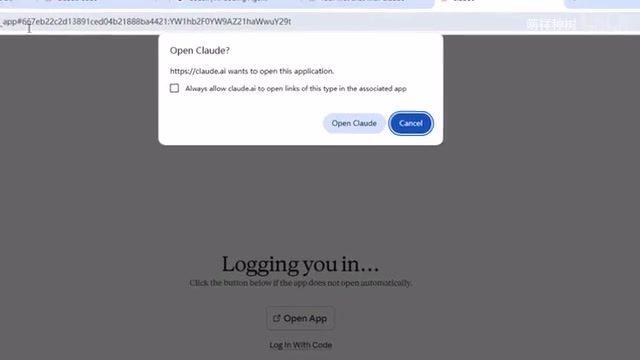
- An "Open Claude" dialog will appear — click to confirm
After completing these steps, you'll be successfully logged into Claude Code Desktop.
The Business Logic Behind the Free Access Strategy
Claude Code Desktop's free access is closely tied to Anthropic's current market expansion phase. Founded in 2021 by former OpenAI core team members, Anthropic champions "responsible AI development" and has secured over $10 billion in funding from investors including Google and Amazon. The free desktop release is essentially a "user education + ecosystem building" strategy: by lowering the barrier to entry, it accumulates a user base and cultivates dependency on Skill workflows, ultimately driving commercial conversion through enterprise features, API call volumes, premium Connector integrations, and other paid tiers. This mirrors the "Freemium" model used by SaaS products like Notion and Figma, with one key difference — AI products tend to have higher user stickiness. Once users deeply integrate custom Skills into their workflows, migration costs rise significantly.
Language Settings
Claude Code Desktop currently does not support a Chinese interface, but you can access language settings via the avatar in the bottom-left corner and switch to English. After logging in, send "Hello" as a test — if you receive a response, the connection is working properly.
Custom Skills: A Detailed Guide
Skills are one of Claude Code Desktop's core features. They allow users to define specific task templates so the AI executes operations according to preset rules and workflows.
The Technical Nature of the Skill System: Productized System Prompt Engineering
From a technical perspective, Claude Code's Skill system is essentially a graphical interface wrapper for "System Prompt template management." A System Prompt is a special instruction layer in large language model interactions that sits before user conversations, presetting the AI's role, behavioral norms, output format, and constraints. Traditionally, writing high-quality System Prompts requires Prompt Engineering experience, but the Skill Creator "wizardifies" this process through interactive Q&A, automatically converting user requirements into structured System Prompts. This means even users unfamiliar with prompt engineering can create specialized AI assistants with stable behavior and predictable outputs. This "low-code" approach to AI customization exemplifies the current trend of AI tool democratization.
How to Create a Custom Skill
Click "Customize" in the left sidebar to enter the "Skills" page. The system includes a built-in "Skill Creator" tool that guides users through creating new Skills via conversation.
Step-by-step process:
- Click the plus button and select "Create Skill"
- Choose "Create with Claude" (AI-assisted creation)
- The system will prompt "Let's create a skill together" and ask about the Skill's purpose
Hands-On Demo: Creating an English-to-Chinese Translation Skill
Using an English-to-Chinese translation Skill as an example, enter "Skill: Translate English to Chinese" and send. Claude will initiate an interactive Q&A flow, progressively confirming requirement details:
First question: Target Chinese variant
- Simplified Chinese
- Traditional Chinese
Second question: Content type to process
- Everyday conversation
- Business content
- Technical content
Third question: Output format preference
- Add explanatory notes
- Output translation only
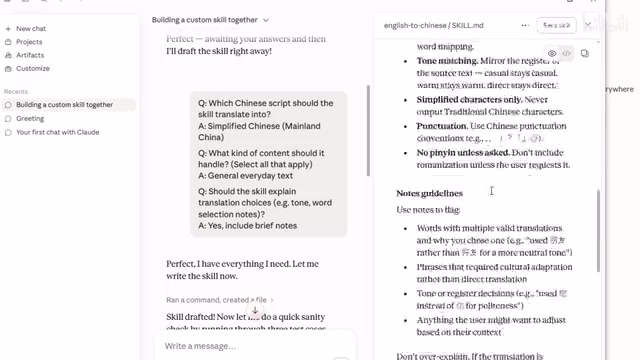
After answering all questions, Claude automatically writes the complete Skill logic. The right panel lets you preview the generated Skill content. Once confirmed, click "Save Skill" in the upper-right corner to save.
Testing Your Custom Skill
After saving, click "Manage" to enter the Skill management page, where you'll see your newly created Skill listed. Click the three-dot menu on the right and select "Try in Chat" to test it.
Test results:
| Input | Translation | Additional Notes |
|---|---|---|
| Great Wall | 长城 | Literal meaning: Long Wall |
| Panda | 熊猫 | Literal meaning: Bear Cat |
| I will go to school tomorrow | 我明天要去学校 | Full sentence translation |
The translations are accurate and include literal meaning explanations, confirming the custom Skill works correctly.
Pre-built Skills and Connectors
Pre-built Skill Template Library
Beyond custom creation, Claude Code comes preloaded with numerous ready-to-use Skill templates, including:
- Creator Skill: Content creation assistance
- Design Skill: Design-related tasks
- Writing Skill: Article writing
- And many more specialized domain Skills
Users can directly enable these pre-built Skills or modify and customize them as needed.
Connectors Configuration
Click "Connectors" in the left sidebar to access connector settings.
Related articles
 Tutorials
ChatGPT Plus Subscription Guide: Are GPT-5.5, image-2, and Codex Worth the Upgrade?
A detailed look at ChatGPT Plus features — GPT-5.5, image-2, and Codex — with a Plus vs Pro comparison and a complete step-by-step subscription guide for users outside the US.
 Tutorials
Harness AI Engineering in Practice: Using Claude Code to Master Enterprise-Level E-Commerce Development
Deep dive into Harness AI Engineering: master enterprise e-commerce development with Claude Code using the Rules, Skills, Wiki, and Changes framework.
 Tutorials
Cursor + Codex Dual-IDE Collaboration: A Practical Methodology for Open-Source Project Customization
A complete methodology for open-source project customization based on real-world experience, detailing the Cursor+Codex dual-IDE workflow, seven-stage process, MVP validation, and AI source code reading techniques.