Claude Code Installation Guide: Connecting DeepSeek Models + PPT Creation in Practice

A complete tutorial on connecting Claude Code to DeepSeek models with a hands-on PPT generation demo.
This article provides a detailed walkthrough for installing and deploying the Claude Code command-line AI tool, then connecting it to domestic Chinese LLMs like DeepSeek via environment variables or the CC Switch tool for a lower-cost, more stable experience. It also demonstrates Claude Code's practical capabilities through a magazine-style PPT auto-generation example using Skills, and concludes with actionable tips on model selection, configuration management, and ecosystem exploration.
Claude Code is a command-line AI programming tool from Anthropic that has quickly become a productivity powerhouse for many developers, thanks to its excellent code generation and task execution capabilities. However, since it's officially bound to Claude's own models by default, connecting to domestic Chinese LLMs like DeepSeek is often a more practical choice for users in China — lower cost and more stable network connectivity.
This tutorial will walk you through the entire process from scratch: installing and deploying Claude Code, configuring DeepSeekAd model integration, and finally demonstrating the real power of this tool combination with a hands-on PPT auto-generation example.
Environment Preparation and Dependency Installation
Installing Node.js
Claude Code requires a Node.js environment to run. Visit the Node.js official download page and choose the installation method for your operating system. You can install via command-line instructions or download the installer package for a graphical installation — the latter is more beginner-friendly.
After installation, verify in your terminal with the following command:
npm -v
If a version number displays correctly, your Node.js environment is ready.
Installing Git
The second dependency is Git. Visit the Git official download page and select the appropriate installer for your operating system (Windows, Mac, or Linux). Windows users should pay attention to selecting the correct version based on their CPU architecture. Keep the default settings during installation and click through.
Installing and Verifying Claude Code
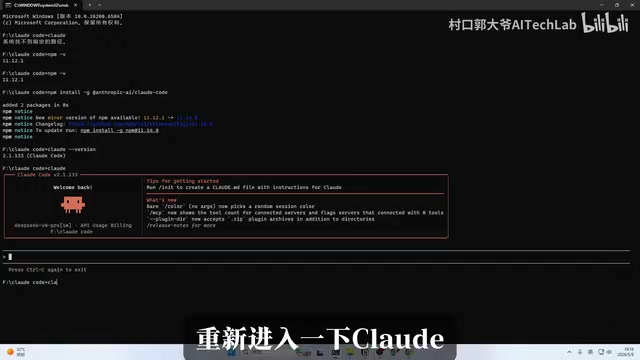
Once the environment is ready, installing Claude Code itself requires just one command:
npm install -g @anthropic-ai/claude-code
After installation, run the following command to confirm it was successful:
claude --version
Seeing a version number in the output means everything is fine.
Simply type claude and press Enter in the command line to launch the tool. On first launch, it will guide you to register on the Anthropic website and use Claude's official models. If you plan to connect a third-party model, press Ctrl+C twice to exit the guided setup, then complete the model configuration via environment variables.
Connecting the DeepSeek Model
Obtaining a DeepSeek API Key
First, visit the DeepSeek API Platform (note: this is not the everyday chat web interface). You'll need to top up your account first — Alipay and WeChat Pay are both supported, with both fixed and custom amounts available. For first-time users, it's recommended to start with a small amount to understand the actual consumption rate before adding more.
After topping up, go to the "API Key Management" page and click "Create" to generate a key starting with sk-. This key is only displayed once, so make sure to copy and save it immediately.
Temporary Configuration Method
DeepSeek's official documentation already explains how to integrate with Claude Code — the core is setting two environment variables.
PowerShell users (Windows):
$env:ANTHROPIC_BASE_URL="https://api.deepseek.com"
$env:ANTHROPIC_API_KEY="your-sk-prefixed-API-Key"
CMD users (Windows):
set ANTHROPIC_BASE_URL=https://api.deepseek.com
set ANTHROPIC_API_KEY=your-sk-prefixed-API-Key
Mac / Linux users:
export ANTHROPIC_BASE_URL="https://api.deepseek.com"
export ANTHROPIC_API_KEY="your-sk-prefixed-API-Key"
After setting these, type claude again to launch the tool and ask it a test question. If it responds normally, the DeepSeek model has been successfully connected.
Note that this is a temporary configuration — the environment variables will be lost when you close the terminal window, and you'll need to set them again next time.
Permanent Configuration Method
If you don't want to manually set these every time, there are three approaches for making the configuration permanent:
Method 1: Let Claude Code configure it for you. After launching Claude Code, paste the environment variable information and tell it "help me permanently write these configurations into environment variables" — it will handle the operation automatically.
Method 2: Manually edit the configuration file. On Windows, the configuration file is located at C:\Users\YourUsername\.claude\settings.json. Open it with Notepad or VS Code and edit directly.
Method 3: Use the CC Switch model management tool (recommended). This is the most hassle-free approach, introduced separately below.
Using CC Switch to Manage Models
CC Switch is a GitHub project specifically designed for CLI tool model management. It supports model configuration and one-click switching for multiple tools including Claude Code, Cline, and OpenCursor. Its intuitive interface makes it ideal for users who need to flexibly switch between multiple models.
Installation and Configuration Steps
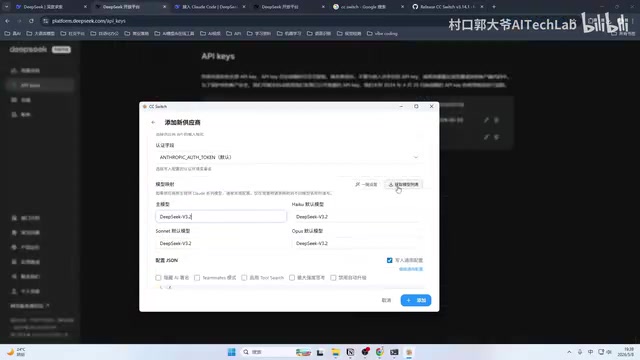
Download the installer for your system from the GitHub Releases page. The Windows version is only around ten MB — very lightweight. After installation, open the tool and follow these steps:
- Select target tool: Choose Claude Code from the dropdown menu at the top
- Add model provider: Click "Add" and select DeepSeek from the list
- Enter your key: Input your API Key; the Base URL and other fields will auto-fill
- Select model: Click "Get Model List" to auto-fetch, or manually select DeepSeek-V3, DeepSeek-R1, etc.
- Assign model slots: Set the primary model to the desired version and assign other slots as needed
- Save configuration: Click "Add" — the tool will automatically generate the
settings.jsonconfiguration file
After configuration, you can click the test button to verify model connectivity and enable usage queries to check your API balance in real time. Once confirmed, click "Enable" to activate.
The biggest advantage of CC Switch is zero-cost model switching. If you hold both a Claude official API and a DeepSeek API, you can seamlessly switch between them with a single click — no need to manually edit configuration files.
Hands-On: Creating Magazine-Style PPT with Skills
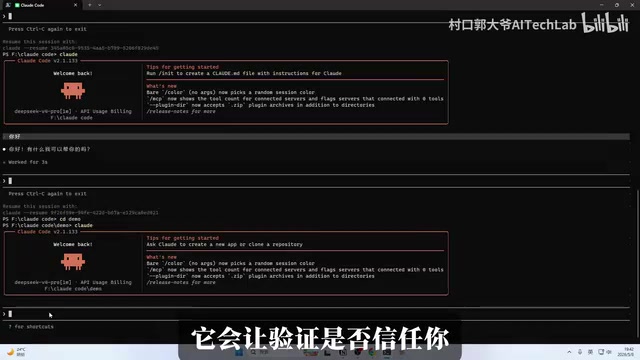
With the model configured, let's explore Claude Code's capabilities through a practical example.
Installing a PPT Skill
Search for ppt skill on GitHub to find various community-contributed PPT generation Skills, such as digital presentation style, magazine style, and more.
Installing a Skill is straightforward: copy and paste the installation instructions from the GitHub page directly into Claude Code, and it will automatically execute the installation process. You may be prompted for permissions multiple times during the process — authorize each one.
Generating the PPT
After installation, place your prepared content document in the working directory, then give Claude Code the instruction:
There's a PPT content file in the demo folder. Create a magazine-style PPT based on this file.
Claude Code will automatically read the Skill configuration and document content, then generate an HTML-format presentation after processing. The entire process is fully automated with no manual intervention required. In this test, it generated 11 beautifully formatted magazine-style PPT pages.
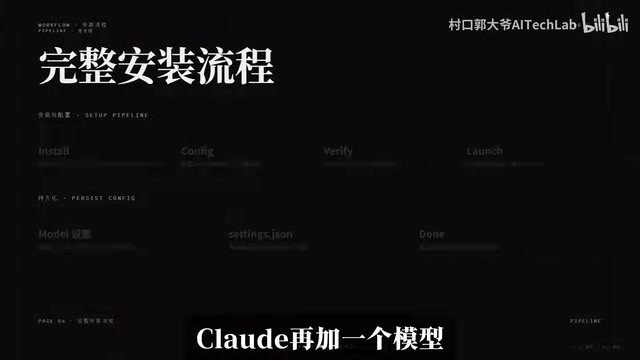
The final result is quite impressive — content is logically organized following the thematic flow, with clean and sharp layouts. If you place image assets in the designated image folder beforehand, the tool can also automatically insert accompanying images to further enhance the visual presentation.
Summary and Recommendations
Claude Code's value goes far beyond being just a code generator — it's more like a general-purpose AI command-line assistant. Once connected to a model and combined with Skills and the MCP protocol, it can handle a wide range of scenarios from code development to document generation, from data analysis to office automation.
For users in China, here are some practical tips:
- Model selection: Prioritize DeepSeek for its excellent cost-effectiveness and stable network connectivity
- Configuration management: Strongly recommend using CC Switch for permanent configuration to avoid the hassle of manually setting environment variables each time
- Keep exploring: Follow the Skill ecosystem on GitHub — the community continuously publishes new Skills that significantly expand Claude Code's application scope
The tool itself has a low barrier to entry. What truly determines how effective it is depends on how you use it. Start with a specific small need — like generating a PPT or automating a repetitive task — and gradually map out its capability boundaries.
Related articles
 Tutorials
ChatGPT Plus Subscription Guide: Are GPT-5.5, image-2, and Codex Worth the Upgrade?
A detailed look at ChatGPT Plus features — GPT-5.5, image-2, and Codex — with a Plus vs Pro comparison and a complete step-by-step subscription guide for users outside the US.
 Tutorials
Harness AI Engineering in Practice: Using Claude Code to Master Enterprise-Level E-Commerce Development
Deep dive into Harness AI Engineering: master enterprise e-commerce development with Claude Code using the Rules, Skills, Wiki, and Changes framework.
 Tutorials
Cursor + Codex Dual-IDE Collaboration: A Practical Methodology for Open-Source Project Customization
A complete methodology for open-source project customization based on real-world experience, detailing the Cursor+Codex dual-IDE workflow, seven-stage process, MVP validation, and AI source code reading techniques.