Claude Code Installation & Setup Guide: From Zero to Integrating Domestic LLMs
Step-by-step guide to installing Claude Code and integrating domestic LLMs for free AI-powered coding.
This article introduces Claude Code, Anthropic's command-line AI coding agent that goes beyond chat to directly read, write, and execute code in your project. It covers the key differences from tools like Cursor, a three-step installation process (Git, Node.js, CLI), solutions to common configuration pitfalls including network issues and free model integration via Alibaba Cloud Bailian, a hands-on webpage generation demo, and a breakdown of Claude Code's three working modes.
What Is Claude Code? How Is It Different from Traditional AI Chat?
Claude Code is a command-line AI coding assistant developed by Anthropic, but it's fundamentally different from the AI chat tools most of us use daily — like ChatGPT or DeepSeekAd. It doesn't just chat; it can directly edit your code, create files, and run commands.
From a technical paradigm perspective, Claude Code belongs to an emerging category called "Agentic Coding." Unlike traditional code completion tools (such as GitHub Copilot's inline suggestions), Agentic Coding tools have the ability to autonomously plan, call tools, and interact with the environment. Built on the Function Calling mechanism of large language models, Claude Code can decompose natural language instructions into a series of executable steps — including file system reads/writes, shell command execution, and Git operations. The core breakthrough of this paradigm is that AI is no longer a passive Q&A system, but an intelligent agent capable of perceiving the development environment and taking proactive action.
Think of it this way: traditional AI chat is like calling a remote consultant — they know everything, but you still have to do the work yourself. Claude Code is like hiring an assistant to sit right next to you — they can browse your folders, edit your code, and run your tests on their own.
Here's a comparison across five key dimensions:
| Dimension | Traditional AI Chat | Claude Code |
|---|---|---|
| Interaction | Copy code → paste into chat → copy response → paste back into editor | Operates directly in your project — no back-and-forth copying |
| Context | Only knows what you tell it | Automatically reads the entire project, searches files on its own |
| Execution | Can only offer suggestions or code snippets | Directly creates files, modifies code, runs commands, executes tests |
| Memory | Each conversation is independent — closes and forgets | Remembers project rules and coding preferences via config files |
| Tool Calling | Cannot call external tools | Connects to browsers, databases, GitHub, and more via MCP |
The MCP (Model Context Protocol) mentioned in the table deserves special attention. This is a standardized protocol open-sourced by Anthropic in late 2024, designed to solve the connectivity problem between large language models and external tools and data sources. Before MCP, every AI tool that needed to integrate with an external service (like a database, GitHub, or a browser) had to build a custom integration, leading to severe ecosystem fragmentation. MCP adopts a USB-like design philosophy — defining a unified communication standard so that any compliant service can be plug-and-play accessible to AI. The MCP architecture has three core roles: Host (the host application, e.g., Claude Code), Client (the protocol client), and Server (the tool service). Developers can write MCP Servers to expose their tool capabilities, while AI applications discover and invoke these tools through an MCP Client.
In practice, Claude Code can handle quite a lot: reading and editing code, creating files, searching files, refactoring, Git operations, task management, web scraping and analysis, and even scheduling reminders. For developers, this is a genuine productivity boost.
Claude Code vs. Cursor: Which Should You Choose?
Many developers wonder: I've been using Cursor — is it worth switching to Claude Code?
Honestly, both have their strengths, and you should use whichever feels more natural. That said, from hands-on experience, Claude Code has one notable advantage — it's more Token-efficient. Especially for frontend developers, Claude Code tends to produce results that better match expectations, reducing the back-and-forth iteration costs.
To understand this difference, you need to know how their architectures differ. Cursor is an AI-native IDE built on top of VS Code, deeply embedding AI capabilities into a graphical editor — offering code completion, conversational editing, and multi-file modifications. Claude Code, on the other hand, is purely command-line with no GUI; all interaction happens through terminal text. The Token consumption difference mainly comes from their different context management strategies: when handling large projects, Cursor often needs to send large amounts of file content to the model as context, while Claude Code uses a more targeted retrieval strategy — it first uses lightweight operations like grep and file tree traversal to locate relevant code, then reads only the necessary files, reducing unnecessary Token usage. Additionally, Claude Code uses Anthropic's own Claude models, which have been specifically optimized for code understanding and generation.
Three Steps to Install Claude Code: Git + Node.js + Claude CLI
Claude Code supports multiple usage modes: terminal command line, IDE integration, web browser, and desktop app. The terminal approach is the simplest and most direct — and the most natural fit for developers — so it's the recommended starting point.
Step 1: Install Git
Go to the Git official website (git-scm.com) and download the Windows installer. The entire process is just clicking Next — nothing special to watch out for.
After installation, open a command prompt and type git. If you don't see an error like "not recognized as an internal or external command," you're good to go.
Step 2: Install Node.js
Go to the Node.js official website (nodejs.org) and download the installer for your system. It's another straightforward installation — keeping the default path (C drive) is recommended unless you're really tight on space.
Claude Code's CLI tool is written in TypeScript/JavaScript, so it requires Node.js as its runtime environment. Node.js is a JavaScript runtime built on Chrome's V8 engine, originally created by Ryan Dahl in 2009 — it allows JavaScript to run server-side, outside the browser. There are a few practical reasons Claude Code chose the Node.js ecosystem: npm (Node Package Manager) is the world's largest open-source package registry, making it easy to distribute and update CLI tools; Node.js's asynchronous I/O model is naturally well-suited for file system operations and network requests, which are core tasks for Claude Code; and JavaScript/TypeScript's cross-platform nature allows Claude Code to support Windows, macOS, and Linux simultaneously.
After installation, type node -v in the terminal. If it outputs a version number, you're all set.
Step 3: Install the Claude Code CLI
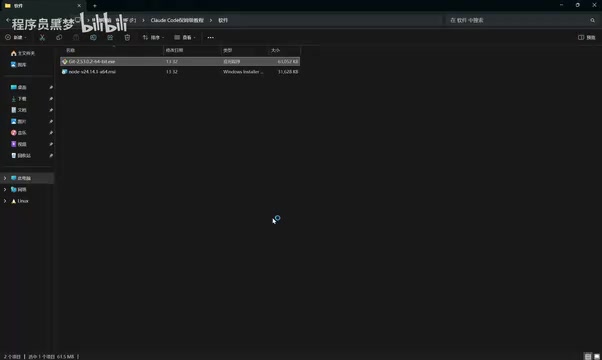
Open Windows PowerShell, copy the installation command from the Claude website (claude.ai), and run it. The installation may take a few minutes. When the terminal displays version information, the installation is complete.
Afterward, confirm the installation path. It's typically located at C:\Users\YourUsername\.local\bin\, where you should find the claude.exe executable.
Claude Code Configuration Pitfalls: Environment Variables, Connection Verification, and Model Switching
Installing it doesn't mean it'll work right away. There are three common pitfalls to handle upfront.

Pitfall 1: Environment Variables Not Configured — Terminal Can't Find the claude Command
If you type claude in the terminal and get an error, it's almost certainly an environment variable issue. Here's how to fix it:
- Locate the installation directory: Find
C:\Users\YourUsername\.local\bin\claude.exe - Add the environment variable: Search for "environment variables" in the Windows search bar and open "Edit the system environment variables"
- Edit Path: Under user variables, find Path, click Edit → New, and add the bin directory path
- Verify: Close and reopen PowerShell, type
claude— if it launches normally, you're done
Once configured, the claude command will work in both PowerShell and CMD.
Pitfall 2: Connection Verification Fails Due to Network Restrictions in China
Due to network environment restrictions, users in mainland China will very likely encounter authorization connection failures. The fix is to modify the configuration file:
Locate the file C:\Users\YourUsername\.claude.json, open it with Notepad, and add the code snippet to bypass the verification check. Save the file and re-run the claude command — it should start normally.
Pitfall 3: The Built-in Model Requires a Paid Subscription — How to Use It for Free by Integrating Domestic LLMs
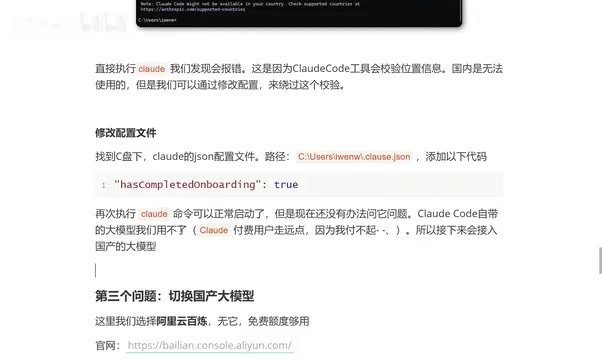
Claude Code's built-in Claude models require a paid subscription. For users who don't want to spend money, you can absolutely integrate a domestic LLM as an alternative. Alibaba Cloud Bailian is a solid recommendation — simply because its free tier is generous enough.
Alibaba Cloud Bailian is Alibaba Cloud's one-stop large model service platform, providing API access to the Qwen (Tongyi Qianwen) series of models. The reason Claude Code can integrate with Alibaba Cloud Bailian and other third-party models is that it supports the OpenAI-compatible API format. OpenAI's Chat Completions API has become the de facto standard interface in the LLM industry, and almost all major model providers (including Alibaba Cloud, DeepSeek, Moonshot, etc.) offer API endpoints compatible with this format. This means you only need to change three parameters — the Base URL, API Key, and model name — to seamlessly switch between different models. However, keep in mind that after switching models, coding performance will be limited by the capabilities of the chosen model. Domestic models still have a noticeable gap compared to Claude Sonnet/Opus series on complex code reasoning tasks.
The configuration process has three steps:
1. Create an Alibaba Cloud Bailian API Key
- Log in to the Alibaba Cloud Bailian website and check your free quota under "Model Usage"
- Find "API Key" in the left menu and click to create one
2. Set Environment Variables in the Terminal Run three commands in sequence:
- Set the API Key: configure the copied key value as an environment variable
- Set the URL: configure Alibaba Cloud Bailian's public API endpoint
- Set the model: specify the model name to use (e.g.,
qwen-max,glb-5, etc.)
3. Verify the Configuration Use output commands to check that all three settings match what you configured. If everything matches, you're good to go.
Hands-On Demo: Generate a Complete Webpage in Minutes with Claude Code
With everything configured, let's run a real example to see what Claude Code can actually do.
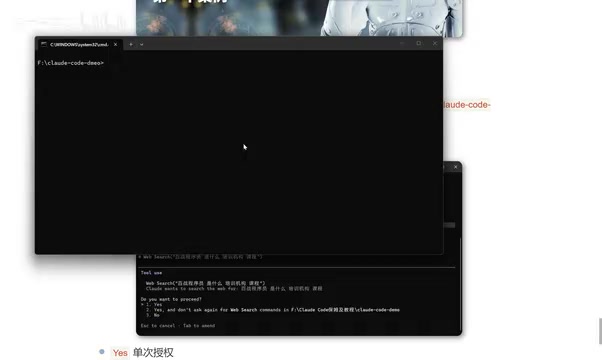
Create a Working Directory and Launch Claude Code
First, create a working directory for your code. Navigate to that directory in the terminal and run the claude command to launch it. When prompted, select "Trust this folder," and you can start describing your requirements in natural language in the chat box.
For example, type something like "Help me create a webpage to promote Baizhan Programmer." Claude Code will immediately get to work. If the information isn't sufficient, it will proactively ask for more details (such as key features, design style, etc.), and only after confirming it understands the requirements will it start executing.
The resulting webpage is impressive: a tech-forward design, smooth animations, and a complete page structure. A frontend developer writing this by hand might spend an entire day — Claude Code did it in minutes.
How to Switch Between Claude Code's Three Working Modes
Claude Code offers three working modes, toggled with the Shift + Tab shortcut:
| Mode | Name | Behavior | When to Use |
|---|---|---|---|
| Default | Default | Asks for confirmation before every file modification | When you need strict control over every step |
| Auto | Auto | Executes automatically after one-time authorization, no step-by-step prompts | When you trust the AI's judgment and want efficiency |
| Plan | Plan | Discusses plans only — doesn't touch any files | When complex business logic needs to be discussed first |
These three working modes correspond to three levels of trust in human-AI collaboration — a concept in AI Agent design known as the "Human-in-the-Loop" strategy. Default mode implements the strictest human oversight: every operation that could have side effects (like writing files or executing commands) requires explicit human approval, similar to how the sudo command works in Linux. Auto mode raises the trust level, allowing the AI to autonomously complete an entire task chain after a single authorization — suitable for scenarios where you're confident in the AI's output quality. Plan mode is the most unique: it's essentially a "read-only" reasoning mode where the AI only analyzes and designs solutions without executing any operations, reflecting the software engineering best practice of "design first." The design of these three modes embodies an important principle: the autonomy granted to AI tools should be flexibly controlled by the user based on the risk level of the task, rather than being one-size-fits-all.
Plan mode is especially worth highlighting: when facing complex business logic, never jump straight to having the AI modify code. The safer approach is to switch to Plan mode first, have multiple rounds of conversation with the AI to fully clarify requirements and solutions, and only switch to execution mode once everything is confirmed. This "discuss first, then act" workflow can dramatically reduce the need for rework.
Summary: Who Is Claude Code For, and How Do You Get Started?
Claude Code represents an important evolution in AI coding assistants — from "giving you advice" to "doing the work for you." Its core value shows up in four areas:
- No more copy-pasting: AI reads and writes files, executes commands directly in your project
- Project-level context understanding: No need to manually feed it information — it browses your code and searches files on its own
- Three flexible modes: Fully automated for efficiency, or step-by-step confirmation for precise control
- MCP protocol extensibility: Connect to browsers, databases, GitHub, and more — with an ever-expanding capability boundary
If you want to give it a try, start with a simple project and get familiar with when to use each of the three modes. Take advantage of the free tiers offered by domestic LLMs like Alibaba Cloud Bailian to experience Claude Code's real capabilities at zero cost. Once you're comfortable, you can decide whether a paid subscription to Claude's native models is worth it for stronger coding performance.
Related articles
 Tutorials
ChatGPT Plus Subscription Guide: Are GPT-5.5, image-2, and Codex Worth the Upgrade?
A detailed look at ChatGPT Plus features — GPT-5.5, image-2, and Codex — with a Plus vs Pro comparison and a complete step-by-step subscription guide for users outside the US.
 Tutorials
Harness AI Engineering in Practice: Using Claude Code to Master Enterprise-Level E-Commerce Development
Deep dive into Harness AI Engineering: master enterprise e-commerce development with Claude Code using the Rules, Skills, Wiki, and Changes framework.
 Tutorials
Cursor + Codex Dual-IDE Collaboration: A Practical Methodology for Open-Source Project Customization
A complete methodology for open-source project customization based on real-world experience, detailing the Cursor+Codex dual-IDE workflow, seven-stage process, MVP validation, and AI source code reading techniques.