Claude Code MCP Server Configuration Tutorial: Complete Guide to Connecting External Data Sources

MCP servers provide Claude Code with standardized plugin capabilities for connecting to external resources
MCP (Model Context Protocol) is Anthropic's open-source standard protocol based on JSON-RPC 2.0 that enables AI to call external resources through a unified interface. This article introduces the MCP server concept, three scope options (project/local/global), and provides detailed walkthroughs of installing and using MCP servers in Claude Code, with Context7 (fetching latest framework documentation) and Playwright (browser automation) as examples.
What Is an MCP Server?
MCP (Model Context Protocol) is a standard protocol designed by Anthropic to define how AI models interact with external resources. The protocol was officially open-sourced in November 2024, drawing inspiration from LSP (Language Server Protocol) — the same protocol that enables editors like VS Code to support intelligent suggestions for dozens of programming languages through a unified interface. MCP adopts a similar "protocol standardization" approach: rather than having each AI application implement its own integration logic for databases, APIs, and file systems, it defines a universal protocol that tool providers implement once and all compatible AI systems can call. Under the hood, the protocol is based on the JSON-RPC 2.0 communication specification and supports two transport methods: stdio (standard input/output) and HTTP+SSE (Server-Sent Events) — the former is suited for local process communication, while the latter is ideal for remote service calls.
Claude Code by itself can only work within the scope of a codebase — reading/writing files and running commands is fine, but it cannot directly connect to databases, call third-party APIs, or browse the web.
MCP servers are the bridge that solves this problem. Think of them as "plugins" — once installed, they provide Claude Code with additional tool sets. Different MCP servers come equipped with different tools that interface with different external resources:
- Supabase MCP Server: List database tables, deploy edge functions, execute SQL commands
- Playwright MCP Server: Open a browser, navigate web pages, inspect elements, take screenshots
- Context7 MCP Server: Fetch the latest documentation from various frameworks and libraries
One important clarification: it's not the AI itself that directly connects to external resources — the MCP server handles the actual connection work and then returns results to Claude Code for use.
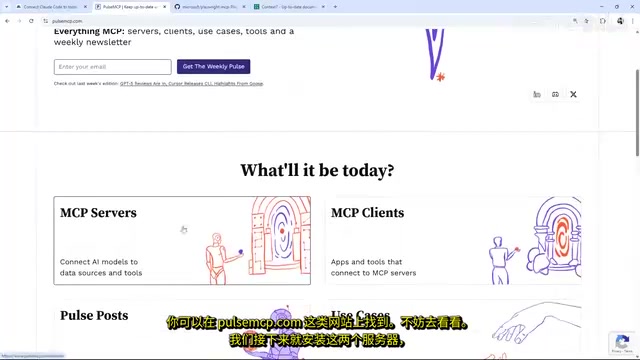
How to Add MCP Servers to Claude Code
Three Scope Options
When adding an MCP server, you need to choose a scope:
- Project: Configuration gets pushed to the remote repository, available to all project participants
- Local: Only available to the current user in the current project (default)
- Global: Available in any project on your machine

Installing the Context7 MCP Server
The basic command format is:
claude mcp add <server-name> --scope project -- <command and arguments>
For Context7, the recommended approach is using a remote HTTP connection. Find the installation command for Claude Code on its official documentation page, add the --scope project parameter, and execute.
Context7 solves the AI "knowledge cutoff date" problem. Large language models have a training data cutoff point, which means the model may know nothing about APIs from newer framework versions like Tailwind CSS v4 or Next.js 15, and might even "confidently" generate deprecated syntax from older versions. Context7 addresses this by continuously crawling and indexing official documentation from major frameworks, CHANGELOGs, and READMEs from GitHub repositories, building a continuously updated documentation knowledge base. When Claude calls Context7, it's essentially performing a Retrieval-Augmented Generation (RAG) operation — first using semantic search to locate relevant documentation snippets, then injecting them into the context window so the model can respond based on the latest information rather than relying on potentially outdated training memory.
Notes for Windows Users:
If you're running Claude Code natively on Windows, for local servers that use NPX, you need to prefix the command with cmd /c. Additionally, NPX's -y flag may cause an "unknown option" error — the workaround is to first run the command without that flag, then manually add -y to the arguments array in the generated mcp.json file.
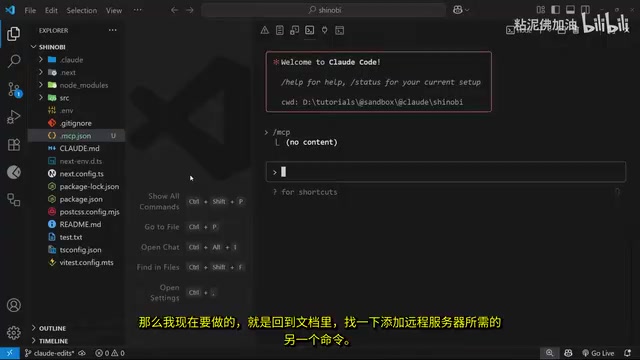
After successful installation, an mcp.json file will be generated in the project root directory, containing configuration information for all project-level MCP servers.
Installing the Playwright MCP Server
Playwright is Microsoft's open-source cross-browser automation testing framework that supports three major engines: Chromium, Firefox, and WebKit. It's the modern successor to Selenium. Its core advantage lies in native support for asynchronous operations and modern web features (such as Shadow DOM, iframes, and Service Workers), with a built-in auto-wait mechanism that eliminates the need to manually write wait logic. The Playwright MCP server encapsulates these capabilities into an AI-callable tool set, essentially launching a controlled browser instance locally and interacting with pages through the Chrome DevTools Protocol (CDP). This means Claude can not only "see" page text but also access DOM structure, computed CSS styles, network requests, and other low-level information, opening up new possibilities for AI-assisted UI debugging and visual regression testing.
The Playwright installation command is similar and also requires specifying --scope project. On Windows, you need to add the cmd /c prefix, but this server doesn't require the -y flag.
After installation, the mcp.json file will contain configurations for both the Context7 and Playwright servers.
Practical Demo: Using Context7 to Fetch Latest Framework Documentation
After launching Claude Code, entering the /mcp command lets you view the status of all connected MCP servers. A green checkmark indicates a successful connection.
Practical usage example:
Can you check the latest Tailwind docs to see if the theme variable configuration in the global CSS file is correct? Use Context7. The file path is src/app/global.css
Key tip: Explicitly mention "use Context7" in your prompt so Claude knows to fetch the latest information through that MCP server rather than relying on potentially outdated training data.
Claude will first call Context7's "resolve library ID" tool to locate the relevant documentation, then retrieve the specific content needed to answer your question accurately.
Related articles
 Tutorials
ChatGPT Plus Subscription Guide: Are GPT-5.5, image-2, and Codex Worth the Upgrade?
A detailed look at ChatGPT Plus features — GPT-5.5, image-2, and Codex — with a Plus vs Pro comparison and a complete step-by-step subscription guide for users outside the US.
 Tutorials
Harness AI Engineering in Practice: Using Claude Code to Master Enterprise-Level E-Commerce Development
Deep dive into Harness AI Engineering: master enterprise e-commerce development with Claude Code using the Rules, Skills, Wiki, and Changes framework.
 Tutorials
Cursor + Codex Dual-IDE Collaboration: A Practical Methodology for Open-Source Project Customization
A complete methodology for open-source project customization based on real-world experience, detailing the Cursor+Codex dual-IDE workflow, seven-stage process, MVP validation, and AI source code reading techniques.