Claude Code Programming from Scratch: A Beginner-Friendly Git Setup Guide for Windows

A beginner's guide to configuring the Git environment on Windows before using Claude Code for AI programming.
This beginner-friendly tutorial walks through the essential Git environment setup needed before using Claude Code on Windows. It covers installing git.git via winget, configuring Git for Windows (Git Bash, PATH, editor, line endings), common pitfalls like Chinese-character paths, and how to verify the install with git version.
Article Content
Amid the sweeping wave of AI, more and more people—whether or not they have any programming background—are hoping to leverage AI tools to write code. Even if it's just building a small app of your own in your spare time, it can make daily life more convenient and possibly bring in extra income as a side hustle. As the opening piece in a beginner-friendly tutorial series aimed at complete novices, this article focuses on the first hurdle before using Claude Code for AI programming: configuring the Git environment.
The goal of this series is to combine Claude Code with a locally-run large model (such as a DeepSeekAd-style local deployment), guiding zero-experience users step by step through the entire process from environment setup to software development.
About DeepSeek Local Deployment: DeepSeek is a series of open-source large language models developed by the company DeepSeek, known for its excellent cost-performance ratio and ability to run locally. "Local deployment" means the model runs directly on your own computer, without needing to call a cloud API over the internet—achieving data privacy protection and zero usage cost. Typically, using frameworks like Ollama or LM Studio, you can start a service on your local machine that is compatible with the OpenAI API format, allowing Claude Code to seamlessly connect to the local model. The specific configuration method will be covered in detail in a later tutorial.
Before using Claude Code on a Windows computer, the Git environment is an unavoidable prerequisite.
Why Claude Code Can't Do Without Git
Claude Code is an AI programming assistant released by Anthropic, and its underlying architecture relies heavily on a Unix/Linux-style command-line environment. On startup, it invokes native Unix commands such as bash, ssh, and curl—commands that simply don't exist in a pure Windows environment (CMD/PowerShell). Git for Windows uses a built-in POSIX compatibility layer (based on MinGW/MSYS2 technology) to simulate a complete Unix command-line environment on Windows, and it is precisely this mechanism that allows Claude Code to run properly.
Claude Code's Architectural Positioning: Claude Code is a command-line-native AI programming assistant launched by Anthropic in 2024. Unlike competitors such as GitHub Copilot and Cursor that exist as IDE plugins, it runs directly in the terminal environment. It can read the context of an entire project codebase, autonomously execute shell commands, invoke git operations, and modify multiple files—making it closer to an "autonomous coding agent" than a mere code-completion tool. This design philosophy means it depends far more deeply on the underlying system environment than plugin-based tools, which explains why the absence of Git Bash directly causes a crash rather than a graceful degradation. It's worth noting that the concept of the "Coding Agent" represents a new paradigm shift in AI programming tools: early tools (like the original version of Copilot) only did "code continuation," completing a few lines based on the cursor position; the Agent paradigm, by contrast, allows the AI to autonomously formulate multi-step plans, navigate and read/write across a project, execute test commands, and self-correct based on the output. The entire development task can be driven to completion from a single natural-language instruction, and Claude Code is a prime example of this direction.
MSYS2/MinGW Technical Principles: MSYS2 is a toolchain that simulates a POSIX (Portable Operating System Interface) environment on Windows, with its lineage traceable back to the Cygwin project. MinGW (Minimalist GNU for Windows) provides a set of compilers for compiling native Linux programs into Windows executables. Git for Windows fuses these two technologies together: MSYS2 provides Windows ports of Unix tools like bash, curl, and ssh, while MinGW is responsible for compiling the git core into a native Win32 program for optimal performance. This hybrid architecture allows Git Bash to both run standard shell scripts and directly call Windows system APIs—the fundamental reason Claude Code can find the Unix commands it needs on Windows.
Therefore, to run Claude Code on a Windows system, you must first have a working Git (especially Git Bash) environment; otherwise, Claude Code will almost certainly throw errors and crash. This is the core reason so many beginners get stuck on the very first step.
Here we first need to clarify a concept that's easily confused: Git actually comes in two parts.
The Difference Between git.git and Git for Windows
Git is a distributed version control system created in 2005 by Linus Torvalds, the creator of the Linux kernel, originally designed to manage Linux kernel code. Its core capabilities are tracking file change history, supporting multi-person collaboration, and branch management—for AI programming tools, every time the AI generates or modifies code, a snapshot can be saved via a Git commit, making it easy to roll back at any time.
The Evolutionary Trajectory of Version Control Systems: To understand Git's value, you need to know about the predecessors it replaced: both CVS (1990s) and SVN (2000s) used a centralized architecture where all history was stored on a single server, and you couldn't commit if the network went down; commercial tools like ClearCase and Perforce, though powerful, were extremely expensive. Git's distributed design completely changed the paradigm: every cloned repository is a full copy, so developers can commit offline and create branches locally, then sync with others. In AI programming scenarios, this feature means Claude Code can frequently create "experimental branches" locally to try different implementation approaches, and simply delete the branch if it fails—without worrying about polluting the mainline code.
The Origin of Git: Git was born from a crisis in the open-source community in 2005: after the Linux kernel team broke with the commercial version control tool BitKeeper, Linus Torvalds personally wrote the Git prototype in two weeks. Its distributed design means every developer keeps a complete history record locally, without relying on a central server—a fundamental difference from centralized systems like SVN. For AI programming scenarios, Git's "snapshot-style" commit mechanism is especially critical—each time you run
git commit, Git doesn't store differences but takes a snapshot of the entire project state (uniquely identified by SHA-1/SHA-256 hash values). This means when AI-generated code goes wrong, you can precisely roll back to any historical point. At the same time, Git's content-addressable storage mechanism ensures that history records cannot be tampered with—any modification to a historical commit produces an entirely new hash value, making code auditing reliable, which is especially important in scenarios where teams collaborate using AI tools to generate code.
This system has two different levels of implementation on Windows:
- git.git: The most core source code body of Git, natively designed to run on Linux systems.
- Git for Windows: Based on the MSYS2 framework, this is a "ported adaptation" of the git.git source code, with built-in components like the Git Bash terminal and the MinTTY emulator, enabling it to adapt to Windows systems and provide the complete Unix command-line environment that Claude Code requires.
Simply put, git.git is the original engine, and Git for Windows is the complete package that lets this engine run on Windows. For Windows users, the key to actually making Claude Code work properly lies in the Git Bash environment provided by Git for Windows.
Step One: Install the git.git Source Code
Open PowerShell on your Windows computer and enter the following command to automatically begin installing git.git:
winget install Git.Git
About winget: winget is Microsoft's official command-line package manager, built into Windows 10/11. The Linux world has long had mature package management tools like apt, yum, and pacman, and macOS has Homebrew, while Windows lacked an official solution for a long time, forcing developers to rely on third-party alternatives like Chocolatey and Scoop. Microsoft officially launched winget in 2020, providing automated installation, updates, and uninstallation for tens of thousands of software packages through a unified package index repository (the microsoft/winget-pkgs hosted on GitHub). Compared to manually downloading installers, winget ensures software comes from trusted sources at the latest version and is easy to script for batch environment deployment.
Git.Gitis the software's unique identifier in the winget repository (in the format "Publisher.SoftwareName"), and the system automatically downloads and installs it from official channels—no need to manually visit a website to download the installer. It's worth noting that winget also supports thewinget upgrade --allcommand to batch-update all installed software, which is a huge convenience for developers who need to maintain a development environment long-term—later, when tools like Git for Windows or Node.js release security updates, a single command completes the global upgrade.
After the command executes, the system automatically downloads and installs the git.git body.

Key reminder: The download of some source code requires connecting to overseas servers, so be sure you're in an environment with proper VPN access; otherwise, the download process will error out and interrupt. This is a common pitfall where many beginners fail to install and can't find the reason.
The Systemic Impact of VPN Access on Development Environment Setup: The network obstacles domestic developers face when setting up development environments go well beyond just Git installation. Key infrastructure such as GitHub (which hosts the winget package index, npm/pip package source mirrors, and the vast majority of open-source projects), Google's Maven Central repository, the official Node.js download servers, and the Docker Hub container image library all require stable overseas network access. This is precisely the fundamental reason domestic communities have long maintained mirror sites like USTC (University of Science and Technology of China), Tsinghua TUNA, Alibaba Cloud, and Tencent Cloud. For the subsequent steps in this tutorial series (installing Claude Code via npm, pulling Ollama model files, etc.), you likewise need to ensure your network environment is ready in advance. It's recommended to configure your proxy tool as a system-level proxy or set the
HTTPS_PROXYenvironment variable in the terminal to ensure command-line tools correctly route through the proxy channel. It's especially important to note that different proxy tools have different scopes: browser-plugin proxies (like SwitchyOmega) only affect browser traffic, and the network requests of terminal tools like winget, npm, and pip do not pass through the browser proxy. You must enable a "global proxy" in system settings or configure environment variables separately for the terminal to ensure the download requests of these command-line tools also route through the proxy channel.
Step Two: Install Git for Windows
After completing the installation of git.git, the next step is to install Git for Windows.
Download the Installer
Go to the official Git for Windows website, click the download button, and wait for the installer to finish downloading. After downloading, run the installer and configure the key options according to the steps below.
Key Settings During Installation
1. The installation path must not contain Chinese characters
This is a hard requirement you must note in advance. Once the installation path contains Chinese characters, Git Bash's POSIX compatibility layer will produce encoding errors when parsing the path, causing inexplicable errors during later use. Make sure the path consists entirely of English letters, numbers, and underscores.
The Deeper Reason Chinese Characters in Paths Cause Problems: This limitation stems from historical divergence between Unix/Linux systems and Windows systems in handling character encoding. Unix environments have long used UTF-8 encoding, while Chinese-version Windows systems default to GBK/CP936 encoding (code page 936), and these two encoding systems represent the same Chinese character with completely different byte sequences. MSYS2's path conversion layer, when handling mixed-encoding paths, very easily encounters situations where byte sequences are incorrectly truncated or interpreted, causing programs to think the path doesn't exist or that there's a permission error. In addition, some low-level C library functions (such as
realpath()) have known bugs when handling paths containing multi-byte characters, remaining a stubborn pain point in the Windows development environment to this day. Developing the habit of "using only English for development-related paths" can avoid over 90% of such environment problems.
2. Choose the Default Editor
During installation, you'll be asked which editor Git should use as the default. If your computer already has VS Code installed, choosing VS Code directly is the most worry-free option.
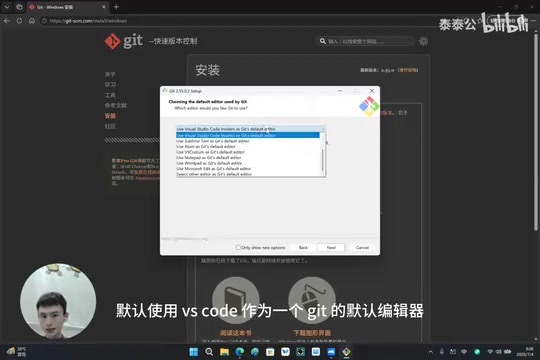
If you haven't installed VS Code yet, you can select nano editor from the dropdown menu as the default editor, which also works fine.
Why Vim Is Not Recommended for Beginners: The Git installer offers Vim as an editor option by default, but for beginners this is a notorious "newbie trap." Vim is a modal editor, with multiple operating states such as normal mode, insert mode, and command mode. On first use, many people don't even know how to exit (the answer: first press
Esc, then type:q!). When Git needs you to enter a commit message, it automatically opens Vim, and if you don't understand basic operations, the terminal appears to "freeze." By comparison, nano operates with logic closer to an ordinary text editor, with keyboard shortcut hints displayed directly at the bottom of the interface (^XmeansCtrl+Xto exit); VS Code goes even further, opening an editing window with a graphical interface, where closing the window completes the edit—the most beginner-friendly option.
3. Recommended Configuration for the Remaining Options
For beginners, the remaining options can be configured according to the following recommendations:
-
Branch name initialization: Keep the default
-
PATH environment variable: Choose
Git from the command line and also from 3rd-party softwarePATH Mechanism Explained: PATH is one of the most core environment variables in an operating system. Its essence is a list of directory paths joined by semicolons. When a user enters a command (such as
git) in the terminal, the operating system searches the directories listed in PATH one by one, in order, for an executable file of the same name, and executes the first match found. When installing Git for Windows, three PATH configuration options are offered: use only in Git Bash, allow third-party software to call it, or override Windows built-in tools. For AI tools like Claude Code, you must choose the second option—this way, not only can the git command be used within Git Bash, but CMD, PowerShell, and any environment invoked by Claude Code can also find Git. This is the key setting that ensures AI tools correctly call Git. PATH's "priority" logic is equally important: if your system has multiple versions of the same-named tool installed, directories earlier in the PATH list have higher priority—which is also why developers sometimes need to manually adjust the PATH order to switch tool versions. -
SSH execution method: Choose to use the native Windows Secure Channel Library
-
Line ending handling: Choose the recommended Checkout/Commit approach
The Historical Roots of Line Endings: This chaos stems from hardware divergence in the early days of computing. In the teletype era, two separate operations were needed to complete a line break: carriage return (CR,
\r) returned the print head to the start of the line, and line feed (LF,\n) advanced the paper up one line. When Unix was designed in 1969, it chose to use only LF to represent a line break, while MS-DOS (and subsequently Windows) adopted the CR+LF (CRLF) combination. This divergence created decades of persistent trouble in cross-platform development: if unhandled, code edited on Windows would have extra^Mcharacters at the end of every line on a Linux server, potentially causing shell scripts to fail. The recommended configuration automatically converts LF to CRLF when pulling code (adapting to Windows) and converts it back to LF when committing (conforming to open-source project standards), letting you edit normally locally while submitting standard-format code to the repository. This automatic conversion behavior is controlled by Git'score.autocrlfconfiguration item, and open-source projects usually also place a.gitattributesfile in the repository root to force specific line-ending formats for certain file types, overriding personal configurations and fundamentally resolving line-ending chaos in team collaboration. -
Terminal emulator: Choose MinTTY
Technical Details of the MinTTY Terminal Emulator: MinTTY is the default terminal emulator built into Git for Windows, developed based on PuTTY's terminal rendering engine. Compared to Windows' native conhost.exe (which drives the CMD and PowerShell windows), MinTTY natively supports the Unicode character set (including Chinese, Japanese, Emoji, etc.), 256-color/true-color ANSI escape sequences, and visual features like adjustable transparency and font ligatures. More importantly, MinTTY implements the standard POSIX terminal interface (via the pty pseudo-terminal mechanism), allowing Unix tools that depend on terminal color output and interactive interfaces (such as less, vim, and Claude Code's own TUI interface) to render correctly—programs that often display abnormally in the traditional Windows console. For the subsequent use of Claude Code, the true-color support and correct pty implementation provided by MinTTY are especially critical—Claude Code displays real-time progress, code diff comparisons, and other rich-text interfaces during operation, and these display effects render best in MinTTY.
-
Merge mode (pull behavior): Choose the default first option
After configuration is complete, click Install to begin installation, and after it finishes, click Finish to exit.
Step Three: Verify the Installation Was Successful
After installation is complete, open CMD or PowerShell and enter the following command:
git version
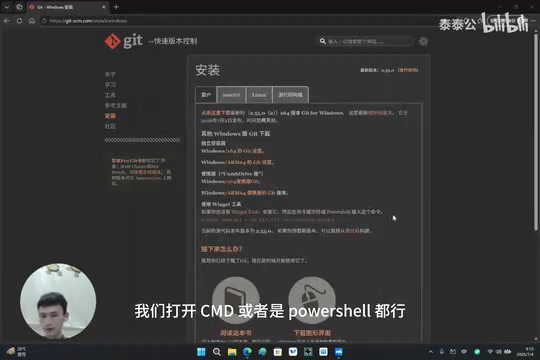
If the terminal correctly outputs Git's version number, it means all the previous installation steps have succeeded. This is the most direct way to determine whether the Git environment is ready.
Optional Optimization: Enable Colored Display for Code Characters
After verification passes, you can also perform an optional configuration that improves the experience: enabling color display for Git's terminal interface. Once enabled, code characters are shown in different colors according to their type, greatly enhancing readability and making it easier to quickly identify content during later programming.
The Technical Background of Colored Display: Git terminal color output relies on ANSI escape sequences—a control-character protocol embedded within an ordinary text stream, defined by the ANSI X3.64 standard in the 1970s. When the terminal parses a sequence like
\033[32m, it renders subsequent text in green;\033[0mresets to the default color. This standard originally came from the VT100 terminal hardware produced by DEC (Digital Equipment Corporation) and has now become the common language of virtually all modern terminal emulators. Git uses thecolor.ui = autoconfiguration item to automatically determine the output target: if it's an interactive terminal, color is enabled; if it's a pipe or file redirection, plain text is output (avoiding color control characters polluting script processing results). In modern terminals, color support has expanded from the early 16 colors to 256 colors and even the 24-million-color "True Color" (specified with RGB values via the\033[38;2;R;G;Bmformat), and third-party diff viewers like Git's delta and diff-so-fancy fully leverage true color to present finer code comparison effects. In the actual use of Claude Code, the red-green coloring ofgit diffmakes AI-generated code changes crystal clear at a glance, and the graphical branch output ofgit log --oneline --graphalso helps users intuitively understand project history—this "optional optimization" actually holds considerable value in daily use.
After configuration is complete, re-run the relevant commands; if the interface colors change, the setting has taken effect.
Summary and Next Steps
This article has provided a complete walkthrough of installing git.git and Git for Windows on a Windows system. For users who want to use Claude Code for AI programming, this is the essential prerequisite environment—without this step, everything that follows is out of the question.
Let's review a few key points:
- Running Claude Code on Windows requires the Git Bash environment (Git for Windows provides the Unix compatibility layer via MSYS2);
- When installing git.git, be sure to maintain VPN access, or the source code download will fail;
- The installation path for Git for Windows absolutely must not contain Chinese characters;
- For the PATH environment variable, choose the option that allows third-party software to call Git;
- Use the
git versioncommand to verify whether the installation succeeded.
The next tutorial will get to the main topic, explaining how to install the Claude Code body itself and how to configure a DeepSeek local large model for it, truly getting the AI programming tool up and running. For zero-experience beginners, steadily getting each step of the environment configuration right is a solid starting point for smoothly entering the world of AI programming.
Key Takeaways
Related articles

Cord: Teaching Masked Diffusion Models to Learn Dynamic Decoding Order
Cord proposes a confidence-anchored order residual decoding strategy that dynamically adjusts reveal order in masked diffusion language models via geometric residuals, significantly boosting task success across benchmarks with minimal inference overhead.

No God Required: Can AI Religious Exemptions Redefine Faith Boundaries in the Workplace?
A University of Kentucky administrator won a religious exemption from using AI—without believing in God. This analysis examines how loose religious exemption definitions become an institutional exit for employees refusing AI, and what it means for employer compliance and management.

How Do Multi-Agent Medical Systems 'Launder' Bias? New Study Reveals Unfairness Beneath Consensus
New study reveals "disparity laundering" in clinical multi-agent systems: deliberation cannot eliminate bias but hides it. Learn how diverse-perspective ensembles reduce disparities.