Claude Code Skills Tutorial: Create Reusable AI Skills with Zero Code

Claude Code Skills encapsulates repetitive AI instructions into reusable Markdown skill modules
This article introduces the design philosophy, underlying structure, and hands-on creation methods for the Claude Code Skills system. Skills are essentially a productized encapsulation of prompt engineering, using Markdown documents to define header and body sections, achieving "engineer once, reuse forever." Users can leverage Skills Creator to build skills with zero code using natural language. The system supports both global and project-level architecture, balancing universality with customization needs.
Why Do You Need Skills?
Have you ever encountered this pain point while using Claude Code daily: every time you ask AI to translate content, you have to repeatedly type similar requirements—"translate this to English, make it sound natural, not too stiff." Once or twice is fine, but when these repetitive instructions become routine, your efficiency takes a serious hit.
Claude Code is an AI programming assistant launched by Anthropic, built on the Claude large language model, and deeply integrated into mainstream development environments like VS Code. Compared to similar products like GitHub Copilot and Cursor, Claude Code's core differentiator lies in its understanding of complex contexts and autonomous execution of multi-step tasks. The Skills system is a personalization extension layer built on this foundation, allowing users to solidify their workflow preferences into reusable instruction modules.
Claude Code Skills was created precisely to solve the problem of repetitive input. You can package frequently used requirements, standards, and specifications into a Skill—like creating a "one-click button." From then on, you just feed it the content, the preset rules automatically take effect, and the AI outputs results according to your defined standards.
From a technical perspective, Skills are essentially a productized encapsulation of Prompt Engineering. Prompt Engineering refers to the technical practice of carefully designing input text to guide large language models toward producing desired outputs—it's one of the core skills in current AI application development. Traditional prompt engineering requires users to manually input complete contextual instructions every time, whereas Skills persistently store these optimized prompts, achieving "engineer once, reuse forever." This is identical in concept to encapsulating repetitive logic into functions in software development—essentially modular management of cognitive labor. Research shows that well-structured system prompts can improve model output quality by 20%-40% compared to ad-hoc instructions.

Deconstructing the Underlying Structure of Claude Code Skills
To use Skills effectively, you first need to understand their essence. A Skill is fundamentally a Markdown document, composed of the following core components.
Choosing Markdown as the storage format for Skills offers multiple engineering advantages: Markdown is a lightweight markup language originally designed by John Gruber in 2004, with the goal of giving plain text structured expression capabilities. First, Markdown files are plain text, making them naturally suited for Git version control. Second, large language models have encountered vast amounts of Markdown formatting in their training data, giving them extremely accurate understanding of its structure. Third, it's highly human-readable—users can directly edit and review Skill content without specialized tools. This design philosophy aligns closely with Anthropic's emphasis on "interpretability."
Header Section: The Skill's Identity Card
This is the Skill's "identity card," defining three key pieces of information:
- Name: What this Skill is called
- Description: What it does
- Trigger conditions: When it gets activated
Trigger conditions are particularly important—they're essentially a lightweight "intent recognition" mechanism. The large language model matches user input against registered Skill trigger keywords through semantic similarity, rather than simple string matching. This means even if a user inputs "convert this text to English," the system can recognize its semantic association with a "translation" Skill and automatically invoke it. This mechanism borrows from the retrieval approach in RAG (Retrieval-Augmented Generation) architecture, using the structured Skill library as an external knowledge source that's dynamically injected into context during inference. For example, when you input a "translation"-related instruction, the translation Skill is automatically awakened.
Body Section: The Skill's Core Logic
This is the core part of the Skill, containing all specific execution specifications. Taking a translation Skill as an example, you can define here:
- Target language (e.g., Chinese to English)
- Language style (natural, idiomatic)
- Special terminology handling rules
- Formatting requirements, etc.
Everything you normally need to type repeatedly can be written here once and for all.

Hands-On: Creating a Translation Skill with Zero Code Using Skills Creator
After understanding the structure, you might think: writing a Markdown-formatted Skill by hand is still pretty challenging. Don't worry—this is exactly where Skills Creator, the "father of skills," comes in.
Skills Creator is itself a Skill, embodying the "bootstrapping" philosophy in system design—using a Skill to create Skills. Its underlying principle is Meta-Prompt technology: Skills Creator has a built-in set of structured prompt templates that can transform users' natural language requirement descriptions into standardized Markdown Skill documents. This shares a similar design philosophy with OpenAI's GPT Builder, Coze, and other platforms' Bot creation assistants. The core value of Meta-Prompt is lowering the creation barrier, encapsulating professional prompt engineering capabilities into a natural language interaction interface operable by ordinary users.
If you haven't installed Skills Creator yet, refer to the earlier courses in this series, which contain detailed installation and usage tutorials.
Step 1: Prepare a Working Directory
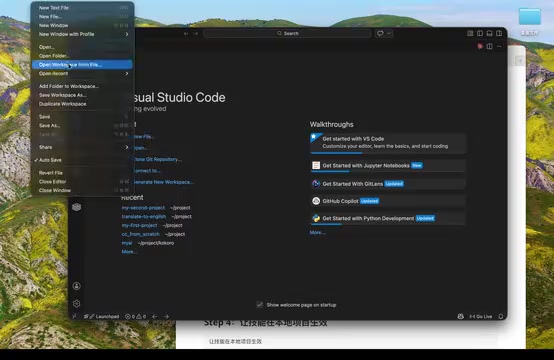
Open VS Code and create a new project directory. For example, create a folder named Translated-to-English, then open it in VS Code. At this point, it's a completely empty directory with no files.
Step 2: Activate Claude Code
Find the Claude Code entry point in the upper right corner of VS Code, and click to bring up the Claude Code interaction window.
Step 3: Invoke Skills Creator to Create a Skill
In Claude Code, invoke the skills-creator Skill and input the requirement description you've prepared. For example:
- Create a Chinese-to-English translation skill
- Translation results should be natural and idiomatic
- Avoid mechanical literal translation
Then let it execute.
Step 4: Notes During Execution
During the creation process, Claude Code may request various permissions—just type yes to let it continue. Don't panic if you encounter errors—Claude Code will automatically correct and fix them.

Here's a point worth emphasizing: you don't need to know how to code. Just communicate in natural language—don't feel pressured because you don't know programming. Claude Code is intelligent enough to understand your intent and complete the skill creation.
Step 5: Verify the Skill Creation Results
After a brief wait, the Skill is created. You'll find it has automatically generated a Markdown file containing detailed logic.
An interesting detail: Claude Code intelligently installed this Skill in the global skills directory (personal skills), rather than limiting it to the current project. This involves Claude Code's layered architecture design—Skills are divided into two levels: "global skills directory" and "project-level skills directory," similar to the relationship between "global environment variables" and "project-level configuration files" in operating systems. Global skills are stored in the user's home directory (typically ~/.claude/skills/) and apply to all projects; project-level skills are stored in the .claude/skills/ folder at the project root and are only visible to the current project. This layered architecture ensures cross-project consistency of personal preferences while allowing customized specifications for specific projects—for example, a project might have unique code style requirements or domain-specific glossaries.
Test the results: input
Related articles
 Tutorials
ChatGPT Plus Subscription Guide: Are GPT-5.5, image-2, and Codex Worth the Upgrade?
A detailed look at ChatGPT Plus features — GPT-5.5, image-2, and Codex — with a Plus vs Pro comparison and a complete step-by-step subscription guide for users outside the US.
 Tutorials
Harness AI Engineering in Practice: Using Claude Code to Master Enterprise-Level E-Commerce Development
Deep dive into Harness AI Engineering: master enterprise e-commerce development with Claude Code using the Rules, Skills, Wiki, and Changes framework.
 Tutorials
Cursor + Codex Dual-IDE Collaboration: A Practical Methodology for Open-Source Project Customization
A complete methodology for open-source project customization based on real-world experience, detailing the Cursor+Codex dual-IDE workflow, seven-stage process, MVP validation, and AI source code reading techniques.