Claude Code + TradingView: Building a Real-Time AI Trading Analysis System with MCP Protocol

Use MCP protocol to let Claude read TradingView data in real time for natural language-driven trading chart analysis.
This article introduces an AI trading chart analysis solution based on the MCP (Model Context Protocol) that solves two major pain points of traditional screenshot analysis: data latency and configuration complexity. Through a single MasterPrompt, Claude Code can automatically establish a real-time data connection with TradingView in four minutes, supporting natural language chart control, multi-timeframe and multi-instrument analysis, 12-hour automatic scan reports, and generating custom PineScript indicators from plain English descriptions.
Two Major Pain Points of Traditional AI Chart Analysis
Connecting AI to trading charts isn't new, but existing solutions have long suffered from two critical problems.
First, severe data latency. Most people's approach is to screenshot TradingView charts and feed them to ChatGPT or Claude for analysis. This method has several fundamental technical flaws: after chart screenshots undergo pixelation, key information like price values and indicator readings become inaccurate due to resolution limitations — the AI might read "approximately 75.3" instead of the precise "75.31"; screenshots are inherently static snapshots, and in volatile markets, prices may have moved significantly between the time you take the screenshot and when the AI returns its analysis; furthermore, screenshots cannot convey the metadata behind the chart, such as specific indicator parameter settings and historical data depth, which are critical for accurate analysis. The problem is that AI sees pixels, not real data. More critically, the data is already stale the moment you take the screenshot — you're effectively making trading decisions based on expired information.
Second, the configuration barrier is too high. Solutions that properly establish real-time connections often require you to clone GitHub repositories, modify JSON configuration files, and run various commands in the terminal. Traders without technical skills are essentially stuck at step one.
The solution presented in this article simultaneously solves both problems through a carefully designed MasterPrompt: Claude Code reads the actual values from TradingView charts at the code level in real time, including precise candlestick data and indicator readings, all updated in real time; the entire setup process only requires pasting one prompt, confirming "Yes" twice, and can be completed within four minutes.
MCP Connection Principles: From Screenshot Pixels to Real-Time Data Streams
The core of this solution is the MCP (Model Context Protocol) connection. MCP is a standardized protocol officially open-sourced by Anthropic in November 2024, designed to solve the fragmentation problem of integrating AI models with external tools and data sources. Before MCP, every AI application needed to develop separate connectors for different data sources, resulting in extremely high maintenance costs. MCP's design philosophy is similar to the USB-C unification approach — defining a universal client/server architecture that allows AI models (clients) to invoke any external tool (server) in a standardized manner. In trading scenarios, this means Claude no longer needs to "look at pictures and talk" but instead directly calls TradingView's underlying interfaces through the MCP server to obtain precise candlestick data, indicator calculation results, and other real-time information.
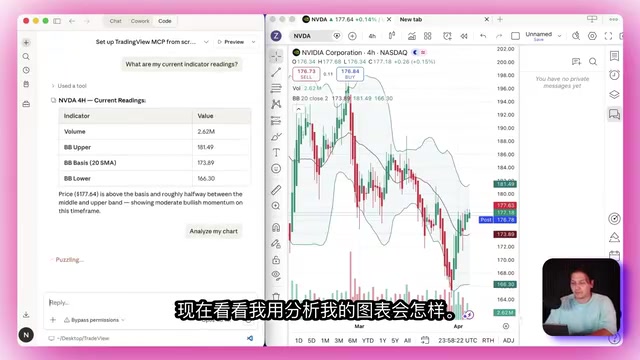
The fundamental difference from screenshot analysis is: Claude reads the real-time code and actual values behind TradingView charts, not image pixels.
After you paste the MasterPrompt, it automatically completes the following operations behind the scenes:
- Automatically clones the TradingView MCP GitHub repository (original project developed by Trades Don't Lie, containing 78 tools)
- Configures the MCP connection between Claude Code and TradingView
- Creates a Rules.json file storing your watchlist, directional bias criteria, and risk management rules
- Sets up 12-hour automatic update functionality
- Launches TradingView with a debug port enabling Claude to read data in real time
It's worth mentioning Claude Code's positioning here. Claude Code is Anthropic's command-line AI tool designed for developers. Unlike the consumer-facing Claude.ai web version, it's designed to run directly in a terminal environment, capable of reading/writing local files, executing shell commands, calling external APIs, and integrating with various tools through the MCP protocol. Claude Code's core advantage lies in its "agentic" work mode — it doesn't just answer questions but proactively executes multi-step tasks, such as automatically cloning repositories, modifying configuration files, and starting service processes, all without requiring step-by-step user intervention. This is precisely the technical foundation that allows the MasterPrompt to compress complex configuration into four minutes.
The entire process takes approximately three to four minutes, requiring only two confirmations along the way. This prompt was designed with the intention of letting traders focus on trading itself, rather than wrestling with environment configuration.
Natural Language-Driven Trading Analysis Features
Control TradingView Charts Like a Conversation
Once the MCP connection is established, you can control TradingView charts as naturally as talking to a person:
- "Show me Bitcoin on the weekly" → Chart switches instantly
- "Add RSI" → Indicator appears immediately
- "Switch to Heikin Ashi candles" → Chart type changes instantly
- "Add Bollinger Bands" → Bollinger Bands overlay appears
- "Remove RSI" → Indicator disappears
- "Take a screenshot of my chart" → A clean screenshot saved directly as a file, convenient for trade journal documentation
These operations require zero manual clicking — a single sentence gets it done.
12-Hour Automatic Scan Reports
This is one of the most practical features of the entire system. Type "run my 12-hour update" and Claude automatically iterates through every instrument on your watchlist, reads all indicators, checks multiple timeframes, then generates a structured report.
The report includes:
- Bullish/bearish/neutral assessment for each instrument
- Key price levels to watch
- Specific readings and interpretations for each indicator
- Risk points to be aware of going forward
This used to take 30 to 45 minutes every morning, going through charts one by one. Now it's done with a single command.

Deep Analysis and Multi-Timeframe Scanning
When you type "analyze my chart," Claude executes a complete analysis workflow: pulling the current quote, reading every indicator on the chart, identifying key price levels, capturing a chart screenshot, then integrating all information into a structured answer. It's like having a technical analyst sitting next to you at all times.
Multi-timeframe analysis is equally powerful. For example, asking "What does Bitcoin look like on the weekly, daily, and 4-hour?" causes Claude to automatically switch between three timeframes and consolidate the results in a single response. You no longer need to toggle between charts yourself or struggle to recall the weekly pattern while staring at the 4-hour chart.
Cross-instrument comparison analysis is also just a sentence away. For example, "Are BTC and ETH moving in sync right now? Compare their RSI and MACD" — correlation scanning completes instantly. Or "Show me Apple, Microsoft, Google, and Amazon on the weekly and tell me which tech stock is the strongest" — sector rotation analysis done in one sentence, with Claude automatically ranking and providing conclusions.
Generate Custom PineScript Indicators in Plain English

This is the most exciting capability in the entire setup. You can describe trading logic in plain language, and Claude will automatically convert it into PineScript code, inject it into TradingView, and compile and run it.
Before understanding the value of this feature, it's necessary to understand PineScript's inherent complexity. PineScript is TradingView's proprietary scripting language, developed by the TradingView team around 2012, specifically for creating custom technical indicators and backtesting strategies on charts. It uses Python-like syntax but is deeply optimized for time-series data, with hundreds of built-in financial calculation functions. PineScript's learning curve is quite steep for non-programmers — just understanding its unique "history referencing" mechanism (using square brackets to access historical data, such as close[1] for the previous candle's closing price) requires hours of practice. Claude's ability to generate PineScript from natural language essentially eliminates this technical barrier entirely.
For example, input: "Create an indicator that shows buy and sell labels when RSI crosses above 30 or 70, and price is above or below the 200 EMA."
Claude will:
- Understand your multi-condition signal logic
- Write complete PineScript code
- Inject it into TradingView
- Automatically compile and run it
The result is a fully customized indicator appearing on your chart, the entire process driven by a single sentence, with absolutely no need to understand PineScript syntax.
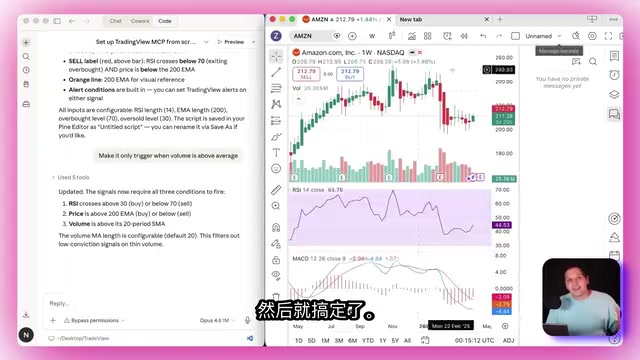
Even more powerful is the rapid iteration capability. Want to adjust conditions, modify thresholds, or add filters? Just tell Claude. For example, "Only trigger when volume is above average"
Related articles
 Tutorials
ChatGPT Plus Subscription Guide: Are GPT-5.5, image-2, and Codex Worth the Upgrade?
A detailed look at ChatGPT Plus features — GPT-5.5, image-2, and Codex — with a Plus vs Pro comparison and a complete step-by-step subscription guide for users outside the US.
 Tutorials
Harness AI Engineering in Practice: Using Claude Code to Master Enterprise-Level E-Commerce Development
Deep dive into Harness AI Engineering: master enterprise e-commerce development with Claude Code using the Rules, Skills, Wiki, and Changes framework.
 Tutorials
Cursor + Codex Dual-IDE Collaboration: A Practical Methodology for Open-Source Project Customization
A complete methodology for open-source project customization based on real-world experience, detailing the Cursor+Codex dual-IDE workflow, seven-stage process, MVP validation, and AI source code reading techniques.