Codex Account Locked by Phone Verification? Enable Two-Factor Authentication Before It's Too Late

Enable MFA on your ChatGPT/Codex account now to avoid being locked out by phone verification.
Codex accounts are increasingly triggering mandatory phone verification — and if your registered number is no longer active, you lose access permanently. One user discovered that accounts with a two-factor authenticator app pre-configured could bypass phone verification entirely. This article explains why MFA works and walks through the exact steps to enable it in ChatGPT settings before it's too late.
The Pain of a Locked Account: The Hidden Risk of Digital Assets
Whether it's Claude or Codex, users only truly appreciate how valuable their accumulated digital assets are once something goes wrong. For long-term AI users, an account holds far more than conversation history — it carries months or years of project context and work output.
As AI tools become deeply embedded in development and creative workflows, the "digital assets" users accumulate extend well beyond local files. Conversation histories, customized system prompts, and project context stored in AI accounts form a kind of intangible asset that's hard to migrate. The industry calls this phenomenon "Platform Lock-in" — the deeper a user's reliance on a single platform, the higher the cost of switching, and the greater the real loss when account security is compromised.
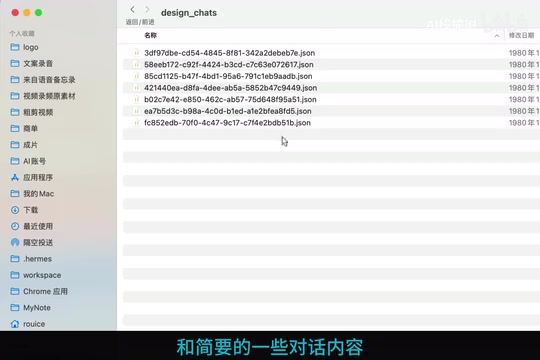
While Claude does offer an export feature, its output has notable limitations — essentially just monitoring files that record conversation IDs, brief content summaries, and project IDs, without including complete project assets. This means that if you lose access to your account, a significant amount of valuable data is effectively unrecoverable.
Following the growing wave of Claude account bans, many users are now reporting that Codex accounts have also begun triggering mandatory phone verification. This shift has caught many developers who rely on Codex for daily work completely off guard.
A Real Case: How Clearing Cache Triggered a Login Crisis
According to one Bilibili content creator's firsthand experience, these problems often strike without warning. His computer was running low on disk space, so he cleared some cached data. When he reopened Codex, the system asked him to log in again.
After clicking to log in, he was immediately hit with a phone number verification prompt. The trouble was, even a long-standing account offered no protection — the phone number he had registered with years ago had long since been deactivated or forgotten. After trying multiple workarounds without success, the account was effectively lost for good.
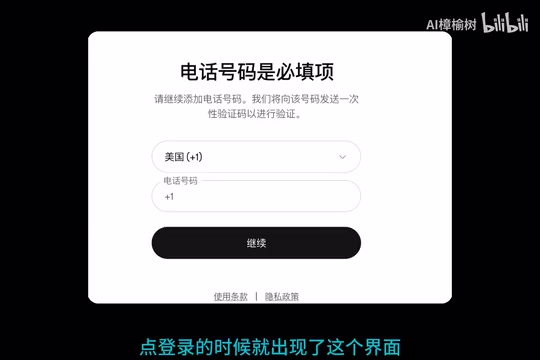
This case reveals a harsh reality: once phone verification is triggered and the linked number is no longer valid, the account is essentially gone forever. For users who store large amounts of work data in a single account, this kind of loss is immeasurable.
Two-Factor Authentication: The Key to Bypassing Phone Verification
However, the same creator's second account logged in without any issues. The only difference? This account had a two-factor authenticator app set up in advance.
Instead of being shown a phone verification screen, the system simply prompted for a one-time passcode. After entering the correct code, the account logged in successfully.

This contrast speaks volumes: as Codex tightens its verification policies, whether or not you have Multi-Factor Authentication (MFA) enabled may directly determine whether your account survives a verification trigger.
It's worth understanding how MFA works. It's a security mechanism that adds a second layer of identity verification beyond your password. The core concept draws on three types of credentials: "something you know" (password), "something you have" (phone/authenticator), and "something you are" (biometrics). Authenticator apps like Google Authenticator use the TOTP (Time-Based One-Time Password) algorithm — generating a new 6-digit code every 30 seconds based on your account key and the current timestamp. Even if an attacker intercepts one code, it can't be reused. Crucially, this provides an identity verification path that is completely independent of your phone number — which is exactly why it still works when your phone number is no longer valid.
Step-by-Step Guide: How to Enable Two-Factor Authentication in Advance
Codex, an OpenAI product optimized for code generation, shares the same OpenAI account system as ChatGPT. This means any security setting changes made to your ChatGPT account will carry over to your Codex access as well. Therefore, setting up two-factor authentication is done through ChatGPT's account settings. Here's how:
Step 1: Open Settings
Open ChatGPT, click your profile picture in the top-right corner, and select Settings to enter your account settings.

Step 2: Find Security & Protection
Within the Settings menu, locate and click on Security (Security & Protection).
Step 3: Enable Multi-Factor Authentication
Under Security settings, find Multi-factor authentication, select Authenticator app, and click to proceed.
Step 4: Scan the QR Code to Complete Setup
Toggle on the authenticator app binding option and follow the on-screen instructions — use an authenticator app on your phone (such as Google Authenticator, Microsoft Authenticator, or Authy) to scan the QR code, then enter the generated one-time passcode to complete the binding. Once done, the system will typically provide a set of Recovery Codes — it's strongly recommended that you save these somewhere safe in case you ever lose access to your phone.
Important Reminder: Check While You're Still Logged In
One final point that cannot be overstated: this setting must be configured in advance while your account is still logged in. Once you're logged out and phone verification is triggered — and you can't pass it — it will be too late to enable two-factor authentication.
If your Codex or ChatGPT account is currently logged in, it's strongly recommended that you follow the steps above right now and check — is the multi-factor authentication toggle already enabled? This simple setup takes just a few minutes, but at a critical moment, it could be the difference between keeping or losing your account and all your data.
For users who depend on AI tools for development and creative work, account security is no longer optional — it's fundamental infrastructure that needs to be in place before problems arise. Platform lock-in is a real risk. Rather than regretting the loss of an account after the fact, take protective action now: enabling multi-factor authentication and regularly exporting whatever data can be exported are the lowest-cost, highest-return self-protection measures available to you today.
Related articles

Coinbase Engineer: How to Determine Whether an AI Agent Can Operate Unattended
Coinbase engineer Evan Kormos shares an engineering method for judging whether an AI agent can run unattended: model processes with DAG/DCG, replace output comparison with statistical evaluation, and hand over control in three phases—supervision, sampling, and exception handling.

WorkBuddy Beginner's Guide: How AI Agents Automate Office Tasks
WorkBuddy tutorial: learn how this desktop AI agent workbench automates files, organizes data, and generates documents, compared with LLMs and Codex, plus a beginner path and cost analysis.

Doubao Work in Practice: Three Modes That Let AI Actually Get Work Done
Doubao Work practical tutorial: from chat mode to Work Mode Lite and Pro, explaining the logic for choosing among three modes with real office task demonstrations. Even complete beginners can learn to use an AI agent to handle local files, organize materials, and generate documents.