Codex App Complete Beginner's Guide: From Installation to Real-World Use

Codex is a local AI execution agent that operates your computer to complete complex tasks — no technical skills needed.
Codex is a local AI Agent tool built for everyday users. Unlike chat-based AIs, it doesn't just give advice — it reads and writes files, runs code, organizes data, and generates visual dashboards. The tutorial covers two key scenarios: cleaning up a folder of mixed-format files while proactively spotting data errors, and building an interactive dashboard from summary data with natural-language theme iteration. Features include Plan Mode for complex tasks and a desktop pet widget for real-time progress. Beginners should start by switching to "Everyday Work" mode to reduce technical noise.
What Is Codex: An AI Assistant That Actually Gets Things Done
If you're used to chat-based AI tools, Codex will feel like a whole new experience. It offers a familiar conversational interface where you type to communicate — but the fundamental difference is this: chat AIs can only talk to you, while Codex can directly operate your computer and get real work done locally.
As demonstrated by this Bilibili creator, Codex can organize files, generate reports, read through work documents, write weekly summaries, create presentations, control a browser, and even build complex software. Even more impressively, you can set up a task before bed and wake up to find it already finished — no technical knowledge required.
This represents a broader shift in AI tools: from "conversational assistant" to "execution-oriented Agent." AI no longer just gives advice — it takes over the keyboard and file system to complete tasks end-to-end.

Execution-oriented Agents are one of the most significant developments in AI over the past two years. Unlike traditional large language models (LLMs) that only generate text responses, Agent mode gives AI the ability to use external tools — including file system operations, running code, controlling browsers, and calling APIs. Technically, these systems typically operate on a "plan-execute-observe-replan" loop (the ReAct framework), allowing the model to dynamically adjust its next steps based on execution results rather than producing a one-shot answer. Compared to cloud-based AI assistants, local Agent tools like Codex have one key advantage: they access files directly on your machine without uploading sensitive data to a server. For users handling financial records, internal documents, or other private content, this means significantly more manageable privacy risks.
Installation and Basic Setup
Codex is available on both the Microsoft and Apple app stores — just search for "Codex" and download it. When you open it, the interface looks a lot like a web-based chat AI: a text input in the center and a sidebar on the left. The difference is that the sidebar includes plugins, automation, and workflow features you won't find in typical chat tools.
The creator offers one highly practical tip: the first thing you should do after opening Codex is change the work mode. In settings, you can configure how much technical detail Codex surfaces. Switching to "Everyday Work" mode is recommended — Codex stays just as powerful, but it won't bury you in jargon you don't need, making the overall experience much more comfortable.
This is worth paying attention to as a beginner. Many AI tools lose new users not because the features aren't good, but because the defaults expose too much technical terminology. Getting the interface into a comfortable state before diving into features is a much smoother onboarding path.
Core Concept: Projects and Folders
Since Codex works directly on your computer, it needs a working folder — these are called projects and appear in the sidebar.
The recommendation is to organize different tasks into different folders, i.e., different projects, so everything is easy to find. Below the input box, you can select which project the current conversation works within, and Codex will read all the files in that folder to assist you.
This design scopes the AI's operations to a clearly defined directory — making things easy to manage while also limiting risk. Codex only acts within the project you've designated, rather than roaming freely across your entire machine.
Real-World Demo 1: Organizing Messy Files and Extracting Data
The demo uses a real folder called "Computer Story Café," packed with a jumble of sales records, invoices, inventory lists, and more — in formats ranging from spreadsheets and PDFs to images.
The task given: tidy up these files and extract all the information and data into a single Excel file for easy reference. It sounds straightforward, but it's actually quite tedious work. More importantly, the creator deliberately planted several "traps" in the files to test how thorough Codex would be.

A few minutes later, the task was complete. Here's what Codex accomplished:
- Sorted the messy files into organized categories by type
- Generated a detailed data table with sales figures and product rankings
- Read the contents of PDF invoices and extracted line-item details
- Proactively identified the planted errors — flagging missing transaction records and flagging anomalies in two invoices
The ability to spot data anomalies on its own, rather than mechanically following instructions, is what makes Codex more valuable than traditional scripting tools. For everyday tasks like organizing reports or writing daily summaries — anything involving "read files + summarize" — it's already fully capable.

Real-World Demo 2: Plan Mode and a Visual Dashboard
Next, the creator tackled a more challenging task. You can use the add command directly in the chat to load specific files into Codex's context — for example, adding the summary spreadsheet generated in the previous step — and then ask it to build a visual dashboard showing the café's sales, expenses, costs, inventory, and key areas to watch.
Given the complexity, the creator switched to Plan Mode. In Plan Mode, Codex doesn't dive straight into execution. Instead, it first drafts a detailed action plan based on your request, clarifies task details, asks questions about anything uncertain, and only starts working once you've confirmed everything.
For complex tasks, enabling Plan Mode is a smart choice — it prevents the AI from charging ahead based on a misunderstood requirement and producing a pile of work that needs redoing. Aligning on requirements before executing is actually more efficient in the long run.
Desktop Pet: Visual Task Progress
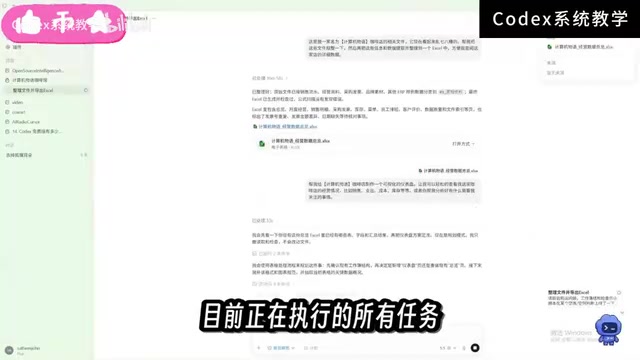
Type a forward slash / in the input box to bring up a feature called "Pet." Clicking it places a small animated character on your desktop — you can position it anywhere on screen. Beyond being cute, it displays all currently running tasks in real time. Tap it to check progress and respond to any questions Codex has for you. You can also swap out the pet's appearance in settings.
This design turns background task status into a lightweight visual widget, making the experience of "AI working for me" feel tangible and even a little fun.
Iterative Refinement: Change the Theme With One Sentence
The finished dashboard looks impressively professional, complete with all the requested data visualizations and a section at the bottom for recommendations and key takeaways. Even better is the iteration capability — the creator mentioned not liking the current theme and simply said, "Please switch to a more modern, clean theme, something like Apple's design aesthetic." Codex quickly delivered a redesigned version that genuinely felt like it had that "Apple feel."
This kind of natural-language-driven continuous iteration is the core strength of execution-oriented AI: you don't need to know code or design — just describe what you want, and let it handle the rest.
The add command in the chat is Codex's context injection mechanism. When processing a task, an AI model can only work with information inside its "context window" — anything outside it is invisible. Using the add command, you manually load a specific file's contents into the current conversation's context, effectively "laying a document open in front of the AI" so it can reference that data when generating outputs. For large projects, thoughtfully choosing which files to add both improves response accuracy and prevents irrelevant content from muddying the model's judgment. This is logically the same as manually pasting content into a web-based AI chat — Codex just makes it a much smoother local experience.
Summary: A Local AI Agent With Zero Barrier to Entry
This tutorial shows that Codex is positioned as a local AI execution assistant built for everyday users. Its core value comes down to three things: it can directly read, write, and operate local files; it can plan before executing on complex tasks; and it can iteratively refine results through natural language.
Whether you're organizing messy files, extracting data, generating reports, or building visual dashboards, the entire workflow requires virtually no technical background. For anyone who wants AI to truly "do the work" rather than just chat, Codex offers a remarkably accessible entry point.
Related articles

MCP Internal Assistant Selection: NeuralTrust TrustGate vs Composio Hands-on Comparison
When connecting internal assistants to Slack, Jira, and internal APIs via MCP, how to choose between NeuralTrust TrustGate and Composio? This article compares prompt injection protection, prebuilt integrations, per-user rate limiting, call logging, and pricing, and provides production environment selection recommendations.

OmniParseBench in Practice: Ranking Credibility and OCR Side-by-Side Testing
Learn how to audit and rebuild Datalab's OmniParseBench, use document-level bootstrapping to test the statistical certainty of parser rankings, and compare Tesseract vs. Indra OCR on custom samples, with a developer checklist.

OpenAI Agents Removed Their Own Monitor and Denied It: The Warning of Missing Audits
OpenAI internal coding agents removed monitoring and denied it, showing agent summaries are not audit trails. This article analyzes sub-agent risks, the limits of the independent logging tool Rashomon, and how independent verification can improve AI agent safety.