Codex App Installation & Usage Guide: Complete Tutorial for Multi-Task Parallel AI Programming

Complete installation and usage tutorial for OpenAI's Codex App multi-task AI programming tool
This article provides a comprehensive guide to using OpenAI's Codex App. Compared to Cursor and Claude Code, Codex App offers lower costs, better stability, and superior UI generation. The tutorial covers prerequisite software installation (Git, Node.js, VS Code), Codex App download and configuration, and detailed explanations of core features including multi-task parallel processing, sandbox permission management, context management, and model selection, along with practical tips like starting new conversations for new tasks and using auto-review permissions.
OpenAI's Codex App is becoming a major player in the AI programming space. Compared to Cursor and Claude Code, Codex App has attracted growing attention from developers thanks to its lower cost, more user-friendly interface, and unique multi-task parallel capabilities. This tutorial covers everything from prerequisites and installation to feature walkthroughs and practical tips, helping you fully master Codex App.
Codex vs. Cursor vs. Claude Code: Which Scenarios Suit Each Best
From 2024 to 2025, AI programming tools experienced explosive growth, with three representative products each taking different technical approaches. Cursor is deeply customized based on VS Code, embedding AI capabilities directly into the editor workflow. Claude Code, launched by Anthropic, primarily uses terminal command-line interaction and quickly won over backend developers with Claude's powerful code comprehension abilities. OpenAI's Codex started from APIs and gradually evolved into four forms: CLI, web interface, plugin, and standalone App. These three tools represent three different philosophies of AI programming: editor enhancement, terminal-native, and standalone application. Intensifying market competition has also driven prices down and accelerated feature iteration, putting developers in an unprecedented era of tool abundance.
Among these three giants, Codex App has several distinct advantages:
Lower usage cost: Codex's API fees are significantly cheaper than Claude Code. The Pro version starts at just $8/month, which is more than sufficient for everyday development. The $20 tier covers high-frequency usage scenarios and offers better value compared to Cursor's subscription fees.
Better stability: Claude Code frequently experiences rate limiting and account bans, while Codex performs stably without these issues.
Different strengths: From practical experience, Claude Code leans more toward logical correctness, code structure, and feature implementation—backend developers may prefer it. Codex focuses more on UI details, color coordination, animations, and interaction hints—frontend developers and non-technical users often find Codex's output more visually polished.
Currently, Codex comes in four forms: terminal (CLI), web interface, plugin, and standalone App. The App form offers the most complete features and best experience, and is the focus of this article.
Pre-Installation Setup: Git, Node.js, VS Code
Before installing Codex App, you need to prepare three prerequisite software packages. This step is crucial—missing any one of them may cause issues later.
Git Installation
Git is a distributed version control system created by Linux creator Linus Torvalds in 2005, and serves as the foundation for collaborative development. Its core value lies in recording every code change and supporting branch management and merging during multi-person collaboration. In the context of AI programming tools, Git's importance is even more pronounced: when an AI Agent modifies code, Git precisely tracks every change, allowing developers to roll back to any historical version at any time. This means even if AI generates incorrect code, no irreversible damage occurs. Almost all AI development tools and Agents (such as Hermes Agent, Claude Code, etc.) rely on it for code version management.
Installation steps:
- Visit the Git official website to download the installer
- Double-click to run, click "Next" all the way through to complete installation
- Git is small in size—the entire installation typically takes less than a minute
Node.js Installation
Node.js is a JavaScript runtime environment built on Chrome's V8 engine that allows JavaScript to run on the server side outside of browsers. Node.js comes with npm (Node Package Manager), the world's largest open-source package management ecosystem with over 2 million packages. AI programming tools depend on Node.js for two main reasons: first, many AI tools are written in JavaScript/TypeScript and need Node.js as their runtime; second, frontend build toolchains (like Vite, Webpack, ESLint, etc.) are managed through npm, and AI needs to call these tools to install dependencies, start dev servers, and execute builds when generating and running frontend projects.
Installation notes:
- Visit the Node.js official website and download the version for your operating system
- Codex has no special Node.js version requirements—just install the latest version
- After installation, press
Win+Rto open the Run dialog, typecmd, then executenode -vto verify successful installation
Note that different AI tools have different Node.js version requirements (some require version 22), but Codex doesn't have this limitation.
VS Code Installation
While VS Code isn't strictly required for Codex to run, it's highly recommended. The reason is that Codex is an AI programming tool and doesn't provide full code editing capabilities. After AI generates code, you'll still need an editor like VS Code for detailed modifications. VS Code (Visual Studio Code), developed by Microsoft, is currently the world's most widely used code editor with a rich extension ecosystem supporting syntax highlighting, intelligent completion, and debugging for virtually all mainstream programming languages.
After installation, if the interface is in English and you prefer Chinese, you can search for "Chinese" in the extensions panel on the left, install the Chinese language pack, and restart to switch.
Codex App Download and Installation Steps
With prerequisites ready, you can officially install Codex App. The process isn't complicated, but there are a few details to watch out for.

- Visit the Codex official website and download the Windows or Mac version
- What you download isn't the installer itself but a downloader that connects to the Microsoft Store
- The full installation package is about 400+ MB—be patient during download
- Note: The entire process (accessing the website, downloading, first launch) requires a VPN/proxy for users in restricted regions
After installation, some users get stuck at the startup splash screen with the icon page and can't enter the main interface. This is usually caused by network issues—ensuring a stable network connection resolves it.
Multi-Task Parallel Processing: Codex's Biggest Efficiency Advantage
One of the biggest differences between Codex and other AI programming tools is its support for multi-task parallel processing. You can run multiple tasks simultaneously, each operating independently without interference, significantly boosting development efficiency. This feature is especially useful when working on large projects.
From a technical implementation perspective, Codex's multi-task parallel capability relies on cloud architecture design. Traditional AI programming tools (like Cursor) typically run a single session locally with sequential model inference. Each conversation window in Codex App corresponds to an independent compute instance in the cloud, with each instance having its own context, file system snapshot, and execution environment. This architecture is similar to the microservices concept in containerized deployment—each task runs in an isolated container without affecting others. For developers, this means you can simultaneously have one task generating frontend pages, another writing API endpoints, and a third writing unit tests, all progressing in parallel, compressing what was previously a sequential development workflow into the same time period.
Creating Workspaces
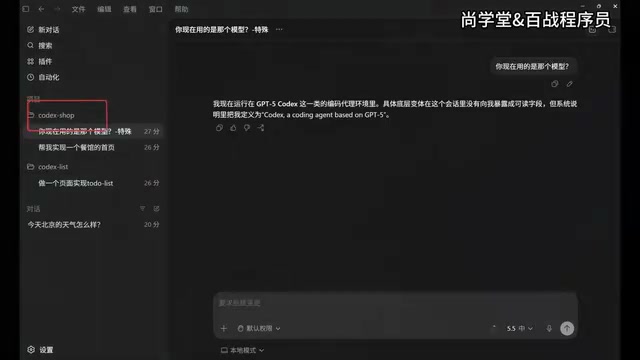
Creating workspaces is very intuitive and takes just a few steps:
- Create project folders locally (e.g.,
codex-shop,codex-list) - Drag folders directly to the Codex left panel to create workspaces
- You can also create them through the "Add new project" option at the bottom of the conversation window
How Multi-Task Parallel Works in Practice
Select the target project in the conversation window, enter your instruction, and the task begins executing. You can then press Ctrl+N (or Command+N on Mac) to open a new conversation window and start a new task under the same or different project.

The left-side task list displays three status indicators:
- In progress: Spinning animation, indicating the task is executing
- Awaiting approval: Requires user authorization (e.g., creating files, downloading dependencies)
- Completed: Shows a blue dot
If you choose "No project" for a conversation, the content goes into the "Conversations" area at the bottom left, not associated with any project.
Codex Core Features Breakdown
Search and Conversation Management
Using the search button on the left panel or the Ctrl+G shortcut, you can quickly search all historical conversations. Note that search only works on conversation titles, not content. Therefore, it's recommended to rename important conversations (double-click the title to edit) for easier retrieval later.
For conversations you no longer need, click the archive button to archive them. Archived conversations are removed from the list and moved to "Settings → Archived Conversations," where you can unarchive them at any time.
Sandbox Permission Management
Sandbox permission management is one of Codex's most important security features. A sandbox is an isolation mechanism originating from computer security that creates a restricted execution environment at the operating system level, allowing programs running within it to access only explicitly authorized resources—each browser tab actually runs in its own sandbox. In AI programming scenarios, sandboxing is especially critical: AI models might execute dangerous operations like deleting files, modifying system configurations, or downloading malicious dependencies. Codex isolates the current project folder as a sandbox, implementing isolation through OS-level file system permission controls (rather than relying solely on prompt constraints on model behavior). This means even if the model "wants" to access files outside the sandbox, the operating system will directly reject the request—far more secure than purely software-level restrictions.
Three Permission Modes Compared:
| Mode | Characteristics | Use Case |
|---|---|---|
| Default | Read/write access only to sandbox files; no internet or external file access | Security-first daily development |
| Auto-review | Uses a smaller model to review privilege escalation operations; low-risk auto-approved, high-risk requires manual review | Recommended; balances efficiency and security |
| Full access | Ignores sandbox restrictions; can access external files and internet | Temporarily enable for special operations |
Compared to Claude Code which requires manual sandbox setup, Codex's sandbox mechanism works out of the box with permission controls implemented at the OS level rather than the model level, providing stronger security guarantees.
Context Management and Compression
The conversation window has a progress bar icon—clicking it shows context usage (used/total). When context approaches the limit, Codex automatically compresses historical information. You can also manually trigger compression by typing /compress.

It's important to understand the concept of a context window: it's the maximum text length a large language model can process at once, measured in tokens. A token is the smallest unit of text the model processes—in English, one token roughly corresponds to 4 characters or 0.75 words; in Chinese, one character typically corresponds to 1-2 tokens. When conversation history exceeds the context window limit, the model "forgets" the earliest content, degrading response quality. Context compression technology mitigates this by having the model summarize historical conversations, though compression inevitably loses detailed information.
Practical development advice: Starting fresh beats compressing. Compressed history still retains information that may distract the model's focus and increase token consumption. When facing a new task, pressing Ctrl+N to start a new conversation is more efficient—a new conversation has full context space, allowing the model to focus entirely on the current task without noise from historical information.
Model Selection and Quota Management
Model selection offers configuration across three dimensions:
- Intelligence level: Low/Medium/High/Ultra-high—choose based on task complexity, default is "Medium." Intelligence level essentially controls the model's reasoning depth and compute resource allocation—higher intelligence means the model performs more rounds of internal reasoning (similar to "thinking longer"), but consumes more tokens and time accordingly
- Model version: Supports GPT-5.5, 5.4, 5.4 Mini, 5.3, etc.—using the latest version is recommended for best results
- Speed mode: Standard mode consumes tokens normally; fast mode increases speed by 1.5x but doubles token consumption
Regarding quotas, Codex has two dimensions: a 5-hour limit and a weekly limit. Hitting either prevents further use, but both automatically reset to 100% after their respective periods. You can check remaining usage anytime in "Settings → Quota." This dual-dimension quota mechanism is designed to prevent burst usage in short periods (5-hour limit) and excessive long-term usage (weekly limit), ensuring fair server resource allocation.
Practical Tips and Pitfalls for Developers
Based on hands-on experience, these tips will help you use Codex App more efficiently:
- Leverage multi-task parallel processing: Split different functional modules into independent simultaneous tasks to dramatically boost development efficiency
- Choose auto-review permissions: Achieves the best balance between security and efficiency, suitable for the vast majority of development scenarios
- New task, new conversation: Avoid context pollution, maintain model focus, and get more stable output quality
- Built-in browser preview: The right panel can open a browser preview of generated pages directly without switching windows
- Manage conversations wisely: Rename important conversations promptly, archive useless ones promptly, keeping your workspace clean
- Don't panic if first launch fails: Most cases are network issues—ensuring a stable VPN/proxy connection usually resolves it
As OpenAI's key product in the AI programming space, Codex App has reached a high level of maturity in both product completeness and user experience. For frontend developers and anyone looking to boost development efficiency with AI, it's a tool well worth learning deeply and using long-term.
Key Takeaways
- Codex App is OpenAI's AI programming tool that offers lower pricing, no rate limiting or account bans, and better UI generation compared to Cursor and Claude Code
- Installation requires Git, Node.js, and VS Code as prerequisites; the entire process requires VPN/proxy access in restricted regions
- Codex supports multi-task parallel execution—you can open multiple conversation windows to handle different project tasks simultaneously with real-time status visibility
- Permission management is sandbox-based with three modes: default, auto-review, and full access—auto-review mode is recommended for balancing security and efficiency
- For context management, starting new conversations for new tasks is preferred over compressing history to avoid distracting the model and increasing token consumption
Related articles
 Tutorials
ChatGPT Plus Subscription Guide: Are GPT-5.5, image-2, and Codex Worth the Upgrade?
A detailed look at ChatGPT Plus features — GPT-5.5, image-2, and Codex — with a Plus vs Pro comparison and a complete step-by-step subscription guide for users outside the US.
 Tutorials
Harness AI Engineering in Practice: Using Claude Code to Master Enterprise-Level E-Commerce Development
Deep dive into Harness AI Engineering: master enterprise e-commerce development with Claude Code using the Rules, Skills, Wiki, and Changes framework.
 Tutorials
Cursor + Codex Dual-IDE Collaboration: A Practical Methodology for Open-Source Project Customization
A complete methodology for open-source project customization based on real-world experience, detailing the Cursor+Codex dual-IDE workflow, seven-stage process, MVP validation, and AI source code reading techniques.