Codex APP Tutorial: Mastering 11 Core Features from Beginner to Pro

A hands-on guide to mastering OpenAI Codex APP's 11 core features for AI-powered development.
This article provides a systematic introduction to OpenAI Codex APP's 11 core features based on a hands-on e-commerce project. It covers initial setup (language, editor, sleep prevention), model selection and reasoning level strategies, Plan Mode's task decomposition advantages, Git version management integration, and the Skills system's prompt engineering encapsulation—helping developers quickly get started with this AI programming tool from scratch.
OpenAI's Codex APP is a development tool that integrates multiple AI programming capabilities, combining code generation, version management, automated testing, and skill extensions into one seamless experience. This article walks through Codex APP's 11 most commonly used core features based on a hands-on e-commerce project, helping you get up to speed quickly from scratch.
Initial Setup: Three Steps to Get Started
After downloading and installing Codex APP, complete a few basic configurations:
Language Settings: Click the settings icon in the bottom-left corner, and switch the language to your preferred option under "General." In most cases, Codex APP will automatically detect your system language—if it doesn't switch automatically, you can set it manually. Native language support is built-in, which makes for a smooth experience.
Default Editor: Codex APP doesn't include a built-in code editing interface. After generating code, you'll need a third-party editor to view it. It defaults to your system's built-in software, but you can also choose your preferred editor (such as VS Code)—clicking a file will automatically open it in the corresponding editor.
Prevent System Sleep: It's recommended to enable this option. Codex's automation features need to stay running, often executing long-duration tasks. If your computer goes to sleep, it will directly interrupt the task.
Additionally, you can adjust the AI's response tone and style under "Personalization," choosing from different styles such as gentle or pragmatic.
Model Selection and Usage Management
Codex APP currently only supports OpenAI's own models, including GPT-5.3 Cortex and others. You can select the reasoning level on the right side of the dialog box, with four tiers:
| Level | Characteristics |
|---|---|
| Low | Fastest response, prioritizes speed, code quality may be compromised |
| Medium | Balance between speed and quality |
| High | Slightly slower, better response quality (recommended as default) |
| Ultra | Slowest speed, suitable for complex tasks, best output quality |
The reasoning level essentially controls the model's "thinking depth," corresponding to the "reasoning tokens" mechanism in OpenAI's o-series models. A higher reasoning level means the model consumes more internal computation steps (i.e., implicit chain-of-thought) before giving a final answer. These steps aren't directly shown to users but significantly improve accuracy in complex logical reasoning and code architecture design—at the cost of increased response latency and higher token consumption. Therefore, a practical strategy for balancing efficiency and quality is to use "Medium" for everyday minor fixes and switch to "Ultra" when dealing with system architecture design or complex business logic.
Regarding usage, Codex APP employs a weekly limit + 5-hour limit dual mechanism. You can check your remaining quota in the interface; once it's exhausted, you'll need to wait for the next reset cycle.
Plan Mode: The Best Starting Point for AI Programming
Plan Mode is one of Codex APP's most powerful features, particularly suited for building projects from scratch or handling complex requirements.
How to activate: Click the plus icon in the dialog box and select "Plan Mode," or use the shortcut Ctrl + Tab to toggle.
On a technical level, Plan Mode is a combined application of "Chain-of-Thought" and "Task Decomposition." In the large language model domain, directly asking a model to generate complex code often leads to incoherent logic or missed edge cases. Plan Mode forces the model to first output a structured plan and then execute step by step, significantly improving completion quality for complex tasks. This aligns closely with the "design first" principle in software engineering and is the core differentiator from other AI programming tools that "generate code directly."
Let's look at Plan Mode in action using the example of building a simple PC e-commerce site (with a product listing page and shopping cart page). When inputting requirements, you can use Codex's built-in voice input feature—Chinese recognition accuracy is very high, it supports extended voice recording, and can fully replace typing.
After submitting your requirements, Codex won't generate code immediately. Instead, it will proactively ask questions and discuss requirement details with you, such as tech stack choices (Next.js), database solutions (MySQL), etc. After several rounds of Q&A, it will output a detailed implementation plan.

You should carefully review this plan. If anything is missing, you can reject it and add supplementary requirements—Codex will rethink and revise accordingly. Once confirmed, click "Submit for Implementation," and it will generate code step by step according to the plan. Among all the AI programming tools I've used, this is the best implementation of Plan Mode.
Git Integration and Version Management
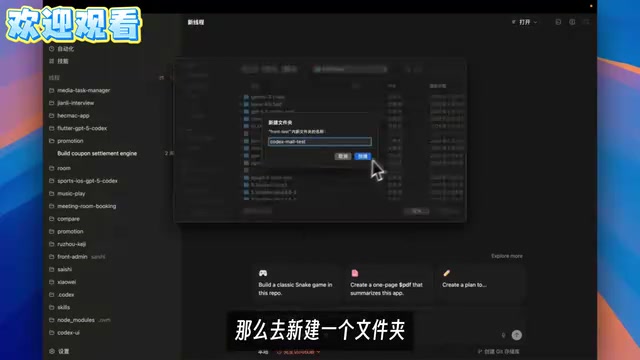
After creating your project folder, the first thing to do is initialize a Git repository. Codex APP provides a one-click button in the bottom-right corner to create a Git repository—just click and initialization is complete.
Git is the de facto standard version control system in the software industry. Its core value lies in recording the complete history of every code change, making team collaboration and issue tracing possible. For AI-assisted programming scenarios, Git's importance is especially pronounced—AI-generated code doesn't always meet expectations perfectly, and being able to roll back to the last working version at any time is a critical safety net for development.
Once the project is connected to a Git workflow, subsequent operations like commits, branch management, and PR creation can all be completed directly in the interface without manually typing Git commands—very friendly for developers unfamiliar with the command line.
Skills System: Giving AI Professional Capabilities
When generated page UIs aren't visually appealing enough, you'll need Codex's Skills system.
The Skills system is essentially an encapsulation mechanism for "Prompt Engineering." Behind each skill is a professionally tuned system prompt embedded with domain-specific best practices and constraint rules. By modularizing this professional knowledge, ordinary users don't need to deeply understand prompt writing techniques to achieve professional-grade output quality from the AI in specific domains (such as UI design, code security auditing, or API documentation generation).
Finding and installing skills: Click the "Skills" button to browse recommended skills or search for specific ones (e.g., searching for "UI" or "Front End").
Related articles
 Tutorials
ChatGPT Plus Subscription Guide: Are GPT-5.5, image-2, and Codex Worth the Upgrade?
A detailed look at ChatGPT Plus features — GPT-5.5, image-2, and Codex — with a Plus vs Pro comparison and a complete step-by-step subscription guide for users outside the US.
 Tutorials
Harness AI Engineering in Practice: Using Claude Code to Master Enterprise-Level E-Commerce Development
Deep dive into Harness AI Engineering: master enterprise e-commerce development with Claude Code using the Rules, Skills, Wiki, and Changes framework.
 Tutorials
Cursor + Codex Dual-IDE Collaboration: A Practical Methodology for Open-Source Project Customization
A complete methodology for open-source project customization based on real-world experience, detailing the Cursor+Codex dual-IDE workflow, seven-stage process, MVP validation, and AI source code reading techniques.