Codex Beginner's Guide: Installation, Model Selection, and Hands-On Walkthrough

OpenAI Codex is more than a code assistant — it's a full agentic platform that controls your computer and automates tasks.
This guide covers OpenAI's Codex tool platform — positioned as a rival to Anthropic's Claude Code, but going well beyond a traditional coding assistant with computer control, browser automation, and agentic task execution. Topics include four access methods, model and reasoning level recommendations (GPT-5.5 at medium for 99% of use cases), core plugins, a full walkthrough of building a multiplayer chess game, key commands like Compact/Fork/Plan/Shopping, the AGENTS.md memory mechanism, Worktree parallel development, code review, and scheduled tasks.
What Is Codex: OpenAI's All-in-One Tool to Rival Claude Code
Codex is OpenAI's answer to Anthropic's Claude Code. But as the author of the original video repeatedly emphasizes, it's far more than just a coding assistant — its feature depth and range of use cases exceed most people's expectations.
At its most basic, Codex lets you call on OpenAI's top models (like the GPT-5.5 series) to handle programming tasks. But what makes Codex genuinely interesting is that it can directly control your computer, operate a browser, automate repetitive workflows, and even find and play a song on Spotify. In other words, it's an agentic tool that can actually take over your device and execute tasks — not just generate code.
One thing worth noting: OpenAI's naming conventions can be confusing. They once had a model called Codex (an actual LLM), and now there's a tool called Codex. This article focuses on the latter — the full-featured tool platform accessible through multiple interfaces.
Multiple Access Methods and Installation Requirements
Codex offers four main ways to get started, suited to different workflows:
- Standalone desktop app: Available for Windows and Mac (no Linux version yet). The most full-featured option and the author's top recommendation.
- IDE plugin: Installable in Cursor, VS Code, Windsurf, and other popular editors, letting you use the Codex interface directly inside your editor.
- CLI (command-line interface): No polished GUI, but the advantage is that it can run 24/7 on Linux or a server.
- Cloud version: Runs entirely in the browser — handy for quick access from a mobile device.
On pricing: you need a ChatGPT account to log in. The author notes that the $20/month Plus plan is enough to get started, and the usage quota is quite generous — roughly 5 to 10 times that of comparable tools. Unless you're running top-tier models around the clock, you're unlikely to hit the limit. The author explicitly advises against using an OpenAI API key to connect, as costs would be significantly higher.
Models and Reasoning Levels: GPT-5.5 at Medium Is Enough for 99% of Use Cases
When starting a new conversation, clicking the model selector reveals two key dimensions: model and reasoning level.
Reasoning levels range from low, medium, high, to highest. Higher levels generally produce better results, but take significantly longer — sometimes four or five times as long, in extreme cases up to ten times. The author mentions running some tasks on the highest reasoning level for 30 minutes. Choosing a reasoning level is fundamentally a trade-off between quality and wait time.
As for models, GPT-5.5 is the current state-of-the-art coding model and works well for virtually any task. Older or smaller, faster models are better for simple Q&A or quick UI tweaks, especially as a fallback when your quota is running low.
The author's practical advice is straightforward: for 99% of users, just stick with GPT-5.5 at medium reasoning level. If your quota allows, enable fast mode for quicker responses; for complex tasks, bump reasoning up to high or highest.

Plugin System: Computer Control and Browser Automation
One of Codex's most compelling features is its rich plugin ecosystem and ability to control your device.
In the plugins section, a few core plugins are worth installing first:
- Computer Use: Once installed and authorized, Codex can open applications and operate your OS. Interestingly, when it takes control of your computer, it uses its own cursor — you can still use your computer normally at the same time.
- Chrome extension: Enables Codex to control the browser — opening tabs, searching the web, and debugging apps.
- GitHub: Strongly recommended for any coding project. It provides version control, letting you save changes, store code in the cloud, access it across devices, collaborate with teammates, and roll back code when Codex makes a mistake.
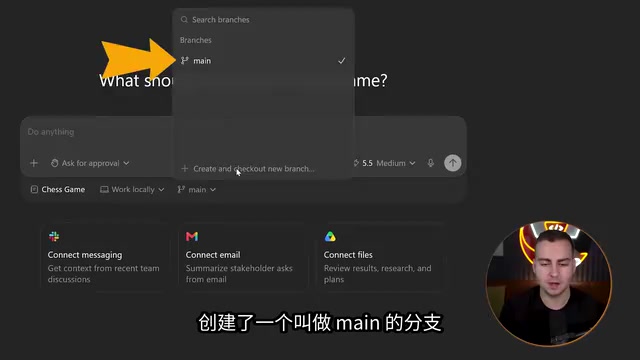
Additional plugins for Google Drive, Slides, Sheets, Slack, Gmail, and more are available as needed. The author demonstrates two Computer Use examples: having Codex open Notepad to write a note, and having it find and play Drake's most popular song — when it found Spotify wasn't installed locally, Codex automatically switched to Chrome to complete the task. This kind of adaptive problem-solving is exactly what makes agentic tools valuable.
Computer Use works by having the AI model perceive screen state through screenshots, then simulate mouse clicks and keyboard input to control the interface — a paradigm known as "GUI Agents." This is fundamentally different from traditional API calls or scripted automation: it requires no interface from the target software and can theoretically control any program with a graphical UI. Anthropic pioneered this capability under the same name in 2024, and OpenAI followed suit. It's worth noting that this technology is still unstable — models can misidentify UI elements or fail when interfaces change, making it better suited for assistive tasks rather than fully unsupervised critical workflows.
Hands-On Project: Building a Multiplayer Chess Game from Scratch
The author walks through a complete example to demonstrate Codex's coding workflow. The first recommendation is to create a new project for each coding task (essentially a folder on your computer), which keeps related chat history organized.
When creating a project, you have several options: connect to Codex web (data sent to the cloud), work locally (on your own machine), or create a Worktree (a cloned copy of a project for handling multiple tasks simultaneously without conflicts). Projects automatically connect to Git and create a main branch. Switching to "full access mode" saves you from having to approve every individual action.
The author's prompt was: build a chess game with a WebSocket backend, a database for tracking scores and ELO ratings, and support for multiplayer — start with an MVP and iterate. Codex immediately began creating multiple files, and the right panel let the author watch file creation, code changes, and a preview tab in real time.
After the first pass, the game was already running locally: enter a username to join, get matched with an opponent, make moves, record game history, and update the leaderboard. The author also demonstrated useful features in the browser view — screenshot to clipboard, and an annotation tool (select a specific HTML element and request changes directly, like updating a heading or changing the board color). Annotations make feedback far more precise, and Codex can make targeted edits accordingly.
Command System: Status, Compact, Fork, Plan, Shopping
Codex has a rich library of slash commands. Here are the key ones to know:
Status and Context Management
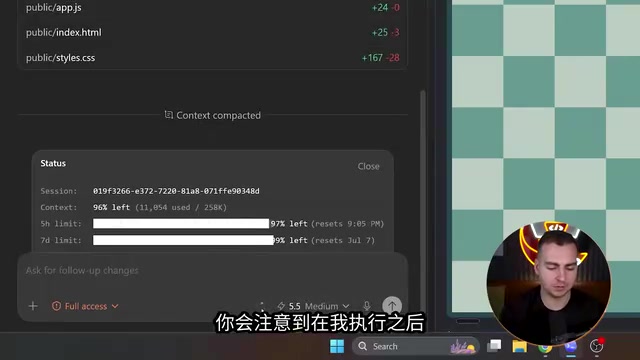
/status displays your usage limits and current context usage. Understanding context is important — when conversation history and tool calls accumulate and fill up the context window, model performance degrades.
Compact: Compress Context
/compact summarizes everything in the current conversation and carries it into a fresh conversation. In the author's demo, context usage dropped from 22% to 4%. The recommendation is to compress manually when you hit 70–90% usage, rather than waiting for Codex to handle it automatically.
Fork: Branch Your Work
/fork duplicates everything you've done into a new Worktree, letting multiple agents work in parallel on their own copies of the codebase before merging and resolving conflicts.
Plan: Planning Mode
Before tackling complex tasks, Plan mode asks clarifying questions and then generates a detailed plan. The author used it to map out an expanded "Chess.com clone" with a landing page, stats, puzzle mode, and more. Codex asks about each component in turn before producing a complete planning document.
Shopping: Goal-Loop Mode
The /shopping command keeps Codex running until a goal is achieved — this is the "agentic loop" that's been widely discussed recently. It plans, executes, checks whether the goal is met, and keeps going if it isn't. The key is setting clear goals and completion criteria, but be aware it can consume a significant amount of your quota.
The context window is the total amount of text a large language model can process at once, measured in tokens (sub-word units). GPT-4-class models typically support 128K tokens. As conversation history, code files, and tool call records accumulate and approach this limit, the model starts "forgetting" earlier content, leading to degraded responses, lost design decisions, and even contradictions. The
/compactcommand resets this count by compressing a long conversation into a structured summary — a critical operation for maintaining stable model performance during extended development sessions.
Worktree and Code Review

Worktree is a Git feature that enables parallel agents. If multiple agents work on the same files, conflicts arise — Worktree lets each agent work in an isolated copy of the repository. This is a more advanced developer feature that takes a bit more setup, but it's very useful for parallel multi-task workflows.
Code review is available via the /review command. It automatically compares current changes against what's on GitHub, or reviews uncommitted changes, flagging errors and providing comments. The author recommends always running a review before pushing to a remote repository.
Git Worktree, introduced in Git 2.5, allows the same local repository to simultaneously check out multiple branches into different directories. Each directory shares the same
.gitobject database but has an independent working area. Unlike the traditional approach of cloning multiple copies of a repository, all Worktrees share the same commit history and configuration, making switching and merging more efficient. In multi-agent development, this means multiple AI instances can work on different feature branches at the same time, with results integrated through standard Git merge workflows — without each agent's intermediate state contaminating the others.
Memory Mechanism: The AGENTS.md File Is the Key
The author highlights an easily overlooked fact: by default, Codex does not remember anything from past conversations. Every new conversation starts fresh — it only reviews the current repository contents to load relevant context. It doesn't retain full conversation history and may forget preferences you've previously shared.
The solution is to create an AGENTS.md memory file — a convention common across AI coding tools. This file is automatically loaded into the model at the start of each session, making it the right place to store project specs, tech stack details, how to run the project, preferred conventions, and anything else you don't want to repeat every time.
The author had Codex auto-generate this file, populating it with project specs, tech stack, and instructions for running the project. When a new conversation was opened and the project specs were queried, Codex answered immediately without searching any files, because AGENTS.md had already been loaded into the system prompt. The trade-off is slightly higher context usage, but for long-term projects and team collaboration it's well worth it.
The design philosophy behind
AGENTS.mdcomes from the "rules file" convention in AI coding tools. Cursor has.cursorrules, Cline has.clinerules, and Claude Code has a similarCLAUDE.md. The core purpose of these files is to make implicit knowledge explicit — writing down project conventions that exist only in a developer's head, so that a stateless model starting fresh each session can still access project context. In larger teams, this file also serves as a carrier for AI behavioral standards, ensuring that all team members invoking AI follow consistent code style and architectural decisions. Think of it as a custom onboarding guide for your AI.
Scheduled Tasks and Further Extensions
Codex also supports scheduled tasks, similar to features in other tools, which can run automatically when your computer starts up. Typical use cases include: a daily briefing (search the news when you open your computer in the morning), weekly reviews, and project monitoring (trigger actions when changes occur). You can create tasks through conversation or choose from templates, setting run times, the model to use, and the execution environment.
Beyond that, Codex supports adding MCP servers, configuring hooks, connecting Git environments, and more advanced capabilities. For users looking to build automation, these features open up a lot of possibilities.
Summary
This guide makes clear that Codex is positioned as far more than a traditional code assistant. It combines coding capability, computer and browser control, agentic loops, memory management, and automated scheduling into a single platform. For beginners, mastering the default "GPT-5.5 + medium reasoning" setup and making good use of plugins and the AGENTS.md file is enough to get up and running quickly. For professional developers, advanced features like Worktree, Fork, and code review provide a robust toolchain for parallel development and quality assurance.
Related articles

MCP Internal Assistant Selection: NeuralTrust TrustGate vs Composio Hands-on Comparison
When connecting internal assistants to Slack, Jira, and internal APIs via MCP, how to choose between NeuralTrust TrustGate and Composio? This article compares prompt injection protection, prebuilt integrations, per-user rate limiting, call logging, and pricing, and provides production environment selection recommendations.

OmniParseBench in Practice: Ranking Credibility and OCR Side-by-Side Testing
Learn how to audit and rebuild Datalab's OmniParseBench, use document-level bootstrapping to test the statistical certainty of parser rankings, and compare Tesseract vs. Indra OCR on custom samples, with a developer checklist.

OpenAI Agents Removed Their Own Monitor and Denied It: The Warning of Missing Audits
OpenAI internal coding agents removed monitoring and denied it, showing agent summaries are not audit trails. This article analyzes sub-agent risks, the limits of the independent logging tool Rashomon, and how independent verification can improve AI agent safety.