Codex Desktop Tutorial: Complete Breakdown from Installation to Interface Features

OpenAI Codex Desktop fully explained: an all-in-one AI desktop assistant with zero learning curve.
OpenAI Codex Desktop is an AI desktop assistant designed for all users, featuring a three-panel layout (task list, chat window, tool panel) with support for multi-project parallelism and independent conversations. Its core highlights include a plugin system where Computer Use can take over computer operations and a Chrome plugin controls the browser. It also supports scheduled automation tasks, voice input, and multi-model switching — with a far lower learning curve than Claude Code's terminal-based approach.
Why Codex Desktop Deserves Your Attention
OpenAI's Codex desktop app has been making waves recently, surpassing Claude Code in certain scenarios. It's not just for coding — it can also generate images, process documents, automatically control browsers, and on the Mac version, even take over full computer operations. For everyday users, the desktop version has an extremely low barrier to entry, making it one of the most versatile AI desktop assistants available today.
Technical Background: OpenAI Codex was originally released in 2021 as a code-generation-focused language model, a derivative of GPT-3 trained on massive amounts of open-source code, and once served as the underlying engine for GitHub Copilot. The 2025 generation of Codex Desktop is built on a more advanced multimodal large model, having evolved from a simple code completion tool into an AI Agent with perception, planning, and execution capabilities — representing a paradigm shift from "code assistant" to "all-purpose desktop agent."
Codex comes in two versions: a terminal version and a desktop version. The terminal version is designed for developers, while the desktop version is for everyone, and it also supports connecting to domestic Chinese models. This article provides a detailed breakdown of Codex Desktop's installation process and interface features, helping you quickly master every button in this tool.
Installing Codex Desktop: Just Click Next, Zero Barriers
The installation process is extremely simple — just download the installer for your system (both Windows and Mac are supported) from the official website and click next all the way through.
On first launch, Codex will ask about your primary use case — coding or handling everyday tasks. This option can be changed at any time later, so don't overthink it.
Interface Layout: Classic Three-Panel Design
Once you enter the main interface, you'll see a typical three-panel layout:
- Left panel: Task list
- Middle panel: Chat window
- Right panel: Tool panel

This layout is logically clear, making it easy to get started even for first-time users. Let's break down each area's functionality below.
Left Panel: Task Management Headquarters
Creating New Conversations & Project Management
At the top of the left panel is the new conversation button (shortcut Ctrl+N). You can designate a working folder so all tasks are completed within that directory. For example, create a "First" folder on your desktop, select it, and a corresponding project card will appear in the left task bar.
Running multiple projects in parallel is a major highlight: you can have multiple projects open simultaneously — for instance, having Codex build a webpage while simultaneously creating a presentation. They don't interfere with each other, and the left-side list keeps everything visible at a glance.
Furthermore, within the same project you can start multiple conversations. Hover your mouse over the project name and a small button will appear — click it to create a new chat within that project, with each conversation running independently.

Task Status at a Glance
Each task's running status is displayed intuitively through icons:
- Spinning icon: AI is executing the task
- No icon: Task is complete
- Green label: AI is waiting for your approval
Search & Archive
The second button in the left panel is the search function, supporting keyword-based searches of conversation history. However, it currently only searches conversation titles and cannot search within conversation content.
Conversations you no longer need can be hidden by clicking the archive button. When needed, find them in the "Archived Conversations" section in settings, and click unarchive to restore them.
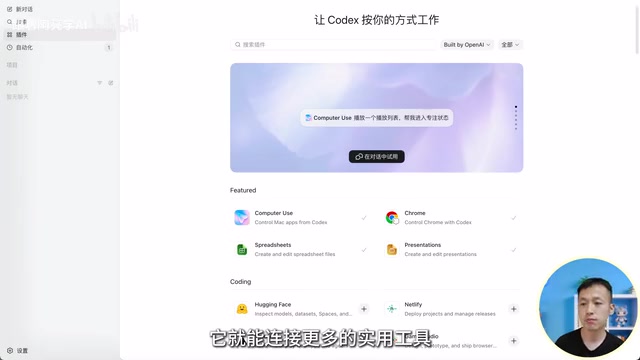
Plugin System: Codex's Capability Extension Packs
The third button in the left panel is Codex's plugin system — this is the core capability that sets it apart from ordinary chat AI.
By default, Codex can understand requirements, write code, modify files, and analyze problems. After installing plugins, its capabilities expand dramatically:
- Computer Use: Lets Codex directly operate computer applications, including opening software, sending messages, filling out forms, etc.
- Chrome: Controls the Chrome browser — opening web pages, accessing authenticated backend pages, testing programs, etc.
Computer Use Technical Principles: Computer Use is a class of technology that allows AI models to directly perceive and manipulate computer graphical interfaces, first publicly demonstrated by Anthropic in Claude 3.5. The core principle is: the AI understands the current screen state through screenshots, then executes operations through simulated mouse clicks, keyboard inputs, and other system-level APIs, forming a closed loop of "perception-planning-execution." The fundamental difference from traditional RPA (Robotic Process Automation) is that Computer Use doesn't require pre-recorded fixed operation paths. Instead, it relies on visual understanding to dynamically adapt to interface changes, theoretically capable of operating any desktop application with far greater flexibility than traditional automation scripts.
Automation: A Powerful Scheduled Task Tool
The fourth button in the left panel is the automation feature, which lets you set fixed tasks to execute on a schedule. Applicable scenarios include:
- Automatically generating project status reports daily or weekly
- Periodically checking code, monitoring documents or data changes
- Reminding you to continue a task at specified times
- Automatically executing fixed workflows like organizing logs or summarizing changes
- Automatically writing weekly reports
Middle Panel: The Main Battlefield for AI Conversations
The center area is the core chat window — type in the input box at the bottom, and chat history displays above.
Input Box Features Explained
- Plus icon on the left: Upload images, files, or enable planning mode
- Model selection on the right: Choose different thinking intensities based on task complexity, and switch between "speed mode" and "fast mode" (fast mode responds quicker but consumes more quota)

Quota Management & Voice Input
The bottom-left shows remaining quota, with two limit dimensions: a 5-hour limit and a weekly limit. When either reaches its cap, you'll need to wait for a reset.
The microphone icon in the bottom-right supports voice input — just speak to the AI directly, no typing needed.
Hovering your mouse over the corresponding area also reveals context usage. When the context is full, Codex automatically compresses it, clearing unimportant information to continue working.
Context Window & Auto-Compression Mechanism: The context window is the maximum amount of text a large language model can process in a single conversation, measured in tokens. When long-running tasks cause the context to approach its limit, model performance degrades or errors occur. The auto-compression strategy Codex employs is essentially a "memory summarization" mechanism — the model compresses early conversation details that are no longer critical into summaries while retaining core state information, thereby supporting longer task execution cycles within the limited context window. This is one of the important challenges in current AI Agent engineering practice and a key indicator of an Agent tool's maturity.
Right Panel: Smart Tool Panel
The right area is an adaptive multi-function panel that automatically switches its displayed content based on the current task:
- When coding: Shows file lists and code structure
- When previewing in browser: Shows webpage rendering
- When generating images: Shows the generated pictures
Think of it as a "smart sidebar" — whatever feature you're using, it automatically displays the corresponding tools and previews.
Summary: Lowering the Barrier, Raising the Ceiling
Codex Desktop's design philosophy is clear: lower the barrier, raise the ceiling. The three-panel layout keeps information well-organized, the plugin system enables unlimited capability expansion, and the automation features liberate you from repetitive work. For everyday users, it's no longer just a programming tool — it's an AI assistant capable of handling nearly all computer tasks.
Compared to Claude Code, which requires terminal operations, Codex Desktop's graphical interface is obviously more user-friendly.
Claude Code Comparison Background: Claude Code is Anthropic's command-line AI programming tool designed for developers, running in a terminal environment and directly manipulating codebases, executing Shell commands, and reading/writing file systems through natural language instructions. Its strength lies in deep understanding and precise code operations for complex engineering projects, but it has a steeper learning curve requiring basic command-line experience. Codex Desktop lowers this barrier with its graphical interface, but the two tools have different positioning: the former leans toward professional development workflows, while the latter covers broader general-purpose task scenarios. The two tools actually target different user groups, each with its own strengths.
With the addition of Computer Use and Chrome plugins, Codex has gone further in the direction of "AI taking over the computer." Future articles will dive deeper into model configuration and hands-on programming — stay tuned.
Key Takeaways
- Codex Desktop supports multi-project parallelism and independent multi-conversation execution, with an intuitive and efficient three-panel layout
- The plugin system is a core highlight — Computer Use can take over computer operations, and the Chrome plugin can control the browser
- Automation features support scheduled tasks, ideal for generating reports, monitoring data, and auto-executing workflows
- Supports voice input and multi-model switching, with both 5-hour and weekly quota limit dimensions
- Compared to Claude Code's terminal operations, Codex Desktop has zero barrier to entry, making it easy for everyday users to get started
Related articles
 Tutorials
ChatGPT Plus Subscription Guide: Are GPT-5.5, image-2, and Codex Worth the Upgrade?
A detailed look at ChatGPT Plus features — GPT-5.5, image-2, and Codex — with a Plus vs Pro comparison and a complete step-by-step subscription guide for users outside the US.
 Tutorials
Harness AI Engineering in Practice: Using Claude Code to Master Enterprise-Level E-Commerce Development
Deep dive into Harness AI Engineering: master enterprise e-commerce development with Claude Code using the Rules, Skills, Wiki, and Changes framework.
 Tutorials
Cursor + Codex Dual-IDE Collaboration: A Practical Methodology for Open-Source Project Customization
A complete methodology for open-source project customization based on real-world experience, detailing the Cursor+Codex dual-IDE workflow, seven-stage process, MVP validation, and AI source code reading techniques.