Codex for Beginners: A Three-Step Guide from Setup to Account Configuration

A beginner's three-step guide to accessing official Codex: network setup, ChatGPT account, and membership.
This beginner-focused guide breaks down the full process of accessing OpenAI's official Codex into three steps: setting up overseas network access using a subscription link and client software like Clash or Shadowrocket, registering a ChatGPT account via Google or email, and downloading the Codex desktop app to log in with the same account. It recommends starting with a dynamic IP and a free account before gradually upgrading, and advises using mainstream open-source client software to avoid privacy risks.
It's 2026, and Codex's reputation precedes itself — developers everywhere have been using it to build impressive things. But for beginners, the very first step is often where progress stalls. This tutorial breaks down the entire process of accessing the official Codex into three steps, so you can get up and running as quickly as possible.
Why "Three Steps"?
When we say "official Codex," we mean logging into Codex with your own ChatGPT account and subscribing to an official OpenAI membership — not relying on third-party proxy services. This approach ensures your account and the underlying model come from the same ecosystem, giving you the best stability and compatibility.
The entire onboarding process boils down to just three stages:
- Step 1: Set up overseas network access (commonly called a VPN or proxy)
- Step 2: Register a ChatGPT account
- Step 3: Top up your membership via a proxy payment service or directly through OpenAI
Codex itself is an AI Agent — it is not a large language model (LLM), but rather runs on top of one. Since Codex and ChatGPT both belong to OpenAI, Codex naturally comes with built-in support for ChatGPT's models. In theory, you could also connect it to other models like DeepSeekAd or Kimi, but this article focuses on the most authentic combination: Codex + ChatGPT.
It's worth clarifying how an AI Agent like Codex differs from a standard chat AI. LLMs like GPT-4o are fundamentally "question-and-answer engines" — you input a prompt, and they output text. An Agent goes further: it can autonomously plan task steps, call tools (such as a code executor, file system, or terminal commands), and adjust its actions based on intermediate results until a complex goal is accomplished. OpenAI Codex is positioned as a programming agent that can write code, run code, and fix bugs. Give it a requirement, and it can automatically generate code, run tests, fix errors, and close the loop. This is the fundamental difference between Codex and simply "chatting about code" in the ChatGPT web interface: one executes automatically, the other offers suggestions.
Step 1: Set Up Overseas Network Access
Both ChatGPT and Codex are products of OpenAI, a US-based company, and are not directly accessible from mainland China. You'll need to resolve the network access issue first. This isn't as technically complex as it sounds — it essentially comes down to two components: a subscription link and the client software that loads that link.
What you're paying for is essentially an overseas network subscription link. Think of it like a web address (similar to www.baidu.com) — you just need to know it's a link; you don't need to understand how it works under the hood.
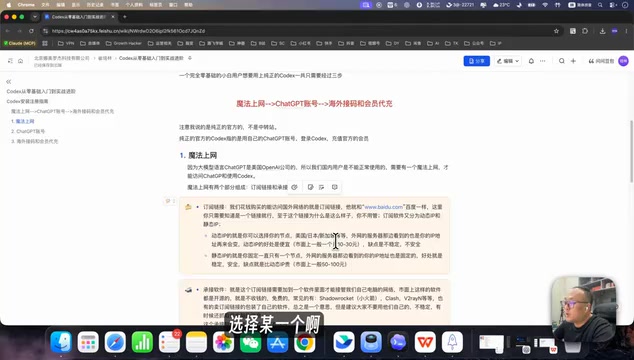
Dynamic IP vs. Static IP
Subscription links come in two flavors — dynamic IP and static IP:
- Dynamic IP: Nodes rotate across different countries — the US today, Japan tomorrow, Singapore the day after. The upside is cost: roughly ¥10–30/month. The downside is reduced stability and weaker security.
- Static IP: Fixed to a single node, so the IP address seen by external servers stays consistent. More stable and secure, but pricier — starting around ¥50/month, with higher-quality options reaching ¥100–200+.
Recommendation for beginners: Start with a dynamic IP. It's affordable and more than sufficient for everyday use. Once you're comfortable and have higher demands, consider upgrading to a static IP.
Here's a common point of confusion: why is OpenAI so sensitive about IP origin? OpenAI uses IP geolocation to determine a user's region, and certain areas (including mainland China) are listed as unsupported. Dynamic IP nodes are shared among many users, meaning a single IP might generate thousands of requests in a short period — making it more likely to be flagged by OpenAI as suspicious traffic, which can trigger risk controls or even account bans. A static IP means you're the sole or one of very few users sharing an exit address, making your usage pattern more closely resemble that of a real individual. For developers who plan to use Codex heavily and long-term, the account security benefit of a static IP often outweighs the price difference.
Choosing Your Client Software
Once you have a subscription link, you need client software to load it and route your computer's traffic through the overseas network. Most of these tools are open-source and free. Popular options include Clash, Shadowrocket, and ClashX.
One important note: avoid using software bundled by the seller of your subscription link. These apps tend to be less stable and may collect information from your device, posing a privacy risk.
The right software depends on your operating system:
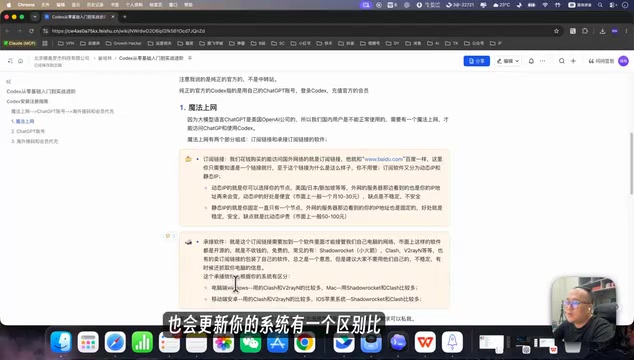
- Windows: Clash or ClashX-based clients
- Mac: Shadowrocket or Clash
- Android: Clash-based clients
- iOS: Shadowrocket or Clash
For this tutorial, we're using a Mac with Shadowrocket paired with a static IP node. Once configured, you'll be able to access overseas services.
Step 2: Register a ChatGPT Account
With your network set up, verify it's working: open a browser and navigate to www.google.com. If it loads normally, your overseas network access is live.
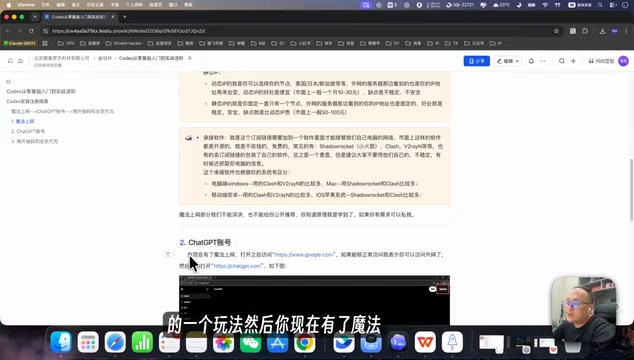
Next, open the official ChatGPT website by typing chatgpt.com into your browser. If you're not logged in, you'll see Sign in and Sign up for free options in the upper right corner.
Registration Walkthrough
Clicking "Sign up for free" gives you two options:
- Google account authorization: If you have a Google account, clicking "Continue with Google" is the easiest path.
- Email registration: No Google account? Just enter an email address that can receive verification codes. Chinese email services like QQ Mail or 163 Mail work fine — as long as you can receive the verification code.
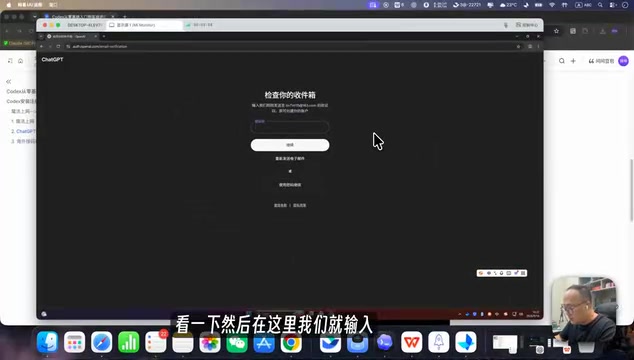
After entering your email, the system will send a verification code. Once entered, follow the prompts to fill in your name, age, and other details (you can fill these in freely), then click Continue to complete registration. Once registered, your account will appear in the lower left corner — at this point it's a free account, and you'll need to upgrade to a paid membership to unlock more powerful features.
Step 3: Download and Log In to Codex
Since ChatGPT and Codex are both from OpenAI, they share the same account. You can find a Codex entry point directly in the left sidebar of the ChatGPT web interface; clicking it will take you to the Codex page. Alternatively, you can search for "codex" on Google and open the official site directly — either method works.
There's one key difference in how the two products are delivered: ChatGPT is a web app, while Codex is a standalone desktop application. When you open the Codex page, it will automatically detect whether you're on Windows or Mac and present the appropriate installer. Download it, log in with your ChatGPT account, and you're officially up and running with Codex.
A couple of practical details about upgrading your membership are worth knowing in advance. First, OpenAI's paid plans (ChatGPT Plus or Pro) currently only accept international credit cards or PayPal — domestic UnionPay cards typically fail when added directly. This is why "proxy payment services" are a common option: a third party with access to international payment methods completes the purchase on your behalf. Second, Codex's advanced features (such as extended context windows and stronger autonomous execution) generally require a ChatGPT Pro subscription (
$200/month), while the basic Plus plan ($20/month) unlocks a limited Codex usage quota. New users are advised to start with Plus, confirm that their workflow is stable, and then consider upgrading to Pro.
Wrap-Up: Get It Running First, Then Go Deeper
For beginners, Codex might seem intimidating — but broken down, it really comes to just three things: network access, an account, and a membership. The step most likely to discourage newcomers is the network setup, but once you understand the "subscription link + client software" pairing, the registration and download steps are pretty intuitive.
The recommended approach for beginners: start with a dynamic IP, get a free account running first, then gradually upgrade your membership and switch to a static node. Get the toolchain working before diving into what Codex can actually do.
Friendly reminder: Please comply with all applicable local laws and regulations regarding overseas network access. This article is intended for technical education purposes only.
Related articles

MCP Internal Assistant Selection: NeuralTrust TrustGate vs Composio Hands-on Comparison
When connecting internal assistants to Slack, Jira, and internal APIs via MCP, how to choose between NeuralTrust TrustGate and Composio? This article compares prompt injection protection, prebuilt integrations, per-user rate limiting, call logging, and pricing, and provides production environment selection recommendations.

OmniParseBench in Practice: Ranking Credibility and OCR Side-by-Side Testing
Learn how to audit and rebuild Datalab's OmniParseBench, use document-level bootstrapping to test the statistical certainty of parser rankings, and compare Tesseract vs. Indra OCR on custom samples, with a developer checklist.

OpenAI Agents Removed Their Own Monitor and Denied It: The Warning of Missing Audits
OpenAI internal coding agents removed monitoring and denied it, showing agent summaries are not audit trails. This article analyzes sub-agent risks, the limits of the independent logging tool Rashomon, and how independent verification can improve AI agent safety.