Codex Registration Guide: Complete Process from ChatGPT Account Signup to Phone Verification

Register ChatGPT first, then log into Codex and complete phone verification to get started.
This article provides a complete registration guide for OpenAI's Codex programming assistant: first register a ChatGPT account on the web interface using a domestic email, then log into the Codex client with that account, and finally complete verification using a US phone number from a third-party platform. It also covers troubleshooting for common issues like login errors, configuration conflicts, and 403 errors, emphasizing that correct order and region matching are the keys to success.
Introduction
OpenAI's recently launched Codex programming assistant has taken the developer world by storm, but many developers find themselves stuck at the Codex registration step — either failing phone verification or encountering frequent errors. Based on hands-on experience, this article outlines a complete process from ChatGPT account registration to Codex phone verification, helping you get started with this AI programming tool smoothly.
About OpenAI Codex: Codex is an AI system built by OpenAI on top of the GPT series of large language models, specifically fine-tuned for code generation and comprehension tasks. It can understand natural language descriptions and transform them into executable code, supporting dozens of programming languages including Python, JavaScript, TypeScript, Go, Ruby, and more. Codex also serves as the underlying technology behind GitHub Copilot — by incorporating massive amounts of open-source code repositories into its training data, it far outperforms general-purpose conversational models in code completion, debugging, and refactoring scenarios. It's the core product line driving OpenAI's push to bring AI-assisted programming to production.
Core Strategy: Register ChatGPT First, Then Log Into Codex
The root cause of most people's issues is trying to register or log in directly through the Codex client, which almost always triggers "verification mismatch" errors. The correct approach involves three steps:
- Complete account registration on the ChatGPT web interface first
- Log into Codex using your registered ChatGPT account
- Complete phone verification within Codex
The order matters — this is the key to making the entire Codex registration process work.
Step 1: Register a ChatGPT Account
Open the official ChatGPT website and click the "Sign up free" button. For the email field, domestic Chinese email addresses work perfectly fine, including QQ Mail and 163 Mail — no need to prepare an overseas email, which significantly lowers the registration barrier.
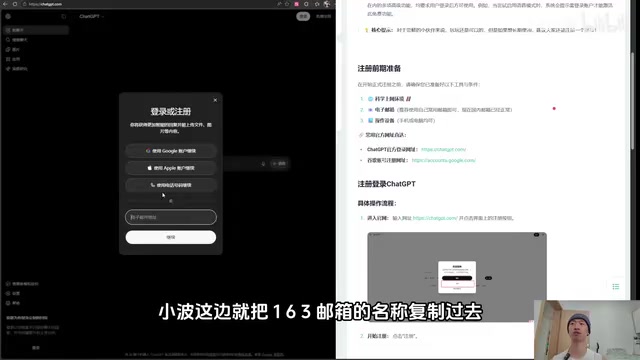
Here are the specific steps:
- Enter your email address and click "Next"
- Check your inbox for the verification code sent by ChatGPT
- Enter the verification code on the registration page and click "Continue"
- Fill in any name; age must be over 18
- Click "Complete account creation"
The entire process is very smooth — 163 Mail has been tested and confirmed to receive verification codes normally. After registration, click "Skip" on the onboarding page, and you'll see the successfully logged-in ChatGPT interface.
Step 2: Log Into Codex with Your ChatGPT Account
Once your ChatGPT account registration is complete, you can open Codex to log in. Whether you're using the standalone Codex client or the ChatGPT plugin in VS Code, the login process is identical.
About the VS Code Plugin Ecosystem: VS Code (Visual Studio Code) is an open-source code editor developed by Microsoft that has become one of the world's most popular development tools thanks to its lightweight design, cross-platform support, and rich plugin ecosystem. Its marketplace already features multiple AI programming assistant plugins based on the OpenAI API, embedding AI conversational capabilities directly into the editor sidebar so developers can get code suggestions, explanations, and debugging help without switching windows. The official Codex client and VS Code plugin share the same account system — once you've completed a ChatGPT account binding, both methods can be used interchangeably.
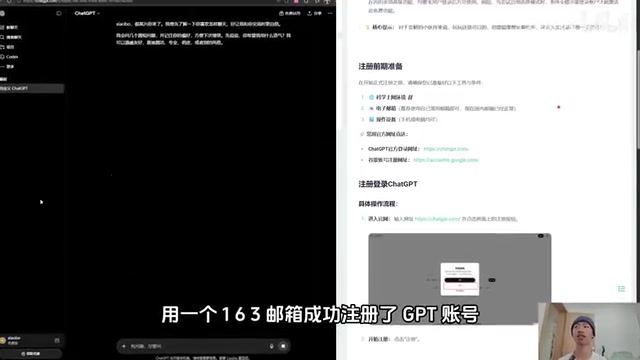
After opening Codex, click the "Continue with ChatGPT" button. The system will automatically detect the ChatGPT account you just registered in your browser. Confirm the account information is correct, then click "Continue" to proceed to phone verification.
Important reminder: You must complete ChatGPT registration on the web interface first, then log into Codex. Doing it in reverse will trigger various verification errors — this is the primary reason many people fail at Codex registration.
Step 3: Complete Codex Phone Verification
Phone verification is the step in the Codex registration process most prone to issues. You'll need to obtain a usable phone number from a third-party number platform to receive the verification SMS.
How Third-Party Number Platforms Work: These services (also known as virtual number services or SMS verification platforms) provide users with temporary phone numbers by deploying real SIM cards in target countries/regions or partnering with local carriers. The technical principle involves forwarding SMS content received by physical SIM cards to the platform interface in real-time via API, allowing users to complete phone verification without holding a physical phone. Since OpenAI's servers verify the geographic location of phone numbers, US numbers typically have higher success rates than numbers from other regions. Note that numbers have limited validity — you usually need to complete the verification within a few minutes of obtaining one.
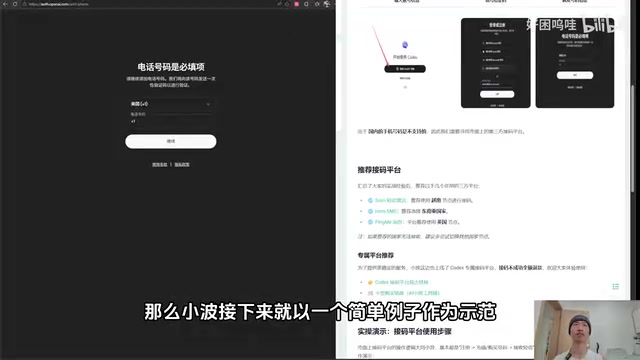
Key points:
- Obtain a phone number from a number platform (US numbers are recommended for higher success rates)
- Enter the number on the Codex verification page
- The region selection must match the number's country of origin — if you have a US number, select the United States; numbers from other regions need corresponding matching
- After clicking "Continue," check the number platform for the received verification code
- Paste the verification code into the Codex verification page and click confirm
Once verification passes, the Codex client is officially ready to use.

In testing, after successful login, asking any question returns a normal response, confirming the entire Codex registration and verification process is fully working.
Common Codex Registration Errors and Troubleshooting
Even following the process above, you may encounter some issues in practice. Here are troubleshooting approaches listed by priority:
1. Login Errors: Try Again First
If errors occur during the Codex login process, try logging in again 2-3 times. Some errors are temporary server-side issues that often resolve after a few retries.
2. Configuration Conflicts: Clear Old Configurations
If you've previously configured third-party APIs (such as custom API Keys or proxy addresses), these residual configurations may conflict with the official login process. It's recommended to delete related configuration files and reinstall the Codex client, starting from a clean environment.
3. 403 Error: Network Environment Issues
If you consistently encounter 403 errors with messages about "country/region not supported," this is essentially confirmed to be a network environment issue.
Why 403 Errors Occur: HTTP 403 (Forbidden) in the context of OpenAI services means the request was actively rejected by the server, not that the network is unreachable. OpenAI performs geographic location detection (GeoIP) on the IP address of each request source. When an IP is detected as belonging to an unsupported country or region, the server directly returns a 403 access denied response. This is closely tied to the exit node location of network proxies — even when using proxy tools, if the exit IP is identified as being in a restricted region, or is flagged by OpenAI's risk control system as a data center IP or high-risk IP range, a 403 will still be triggered. The solution requires ensuring the proxy node is located in a region supported by OpenAI and that the IP isn't blacklisted.
You need to ensure the geographic location of your network exit IP when accessing OpenAI services is in a supported region. This is something users need to resolve by adjusting their own network environment.
Summary
The entire Codex registration process isn't complicated — the core is getting the "ChatGPT first, Codex second" order right, plus paying attention to region matching details during phone verification. Here's a recap of the key steps:
| Step | Action | Notes |
|---|---|---|
| Register ChatGPT | Sign up on web with domestic email | Don't register directly in Codex |
| Log into Codex | Select "Continue with ChatGPT" | Both client and VS Code plugin work |
| Phone Verification | Get number from third-party platform | Region selection must match number's country of origin |
For users encountering errors, troubleshoot in this order: retry → clear configurations → check network environment.
Related articles
 Tutorials
ChatGPT Plus Subscription Guide: Are GPT-5.5, image-2, and Codex Worth the Upgrade?
A detailed look at ChatGPT Plus features — GPT-5.5, image-2, and Codex — with a Plus vs Pro comparison and a complete step-by-step subscription guide for users outside the US.
 Tutorials
Harness AI Engineering in Practice: Using Claude Code to Master Enterprise-Level E-Commerce Development
Deep dive into Harness AI Engineering: master enterprise e-commerce development with Claude Code using the Rules, Skills, Wiki, and Changes framework.
 Tutorials
Cursor + Codex Dual-IDE Collaboration: A Practical Methodology for Open-Source Project Customization
A complete methodology for open-source project customization based on real-world experience, detailing the Cursor+Codex dual-IDE workflow, seven-stage process, MVP validation, and AI source code reading techniques.