Complete Guide to Building Websites with Google AI Studio + Firebase and Selling to US Clients

Build and sell booking websites to US clients using Google AI Studio + Firebase — zero coding required.
This tutorial presents a no-code freelance workflow for overseas developers: use Google AI Studio's Gemini model with two prompts to generate a business website with a booking system, connect it to Firebase Authentication and Firestore for user login and persistent data storage, and deliver a complete frontend + booking + admin dashboard package. For client acquisition, search Google Maps to find US local businesses with no website or a poor one, publish a Demo link, use ChatGPT to craft outreach messages, and close deals via WhatsApp, Instagram, or email. The approach is low-barrier and fast, but AI-generated output still requires human debugging, and real commercial success depends heavily on execution and client communication skills.
A Repeatable No-Code Freelance Model
This content comes from a hands-on tutorial shared by a YouTube creator. The core idea is straightforward: use Google AI Studio combined with a Firebase backend to quickly generate a full-featured business website — complete with a booking system and admin dashboard — then sell it to local small businesses in the US. The entire workflow requires zero coding, relying solely on prompts and two free platforms.
The demo shows a surprisingly complete website: users can browse services, view pricing (the demo showcases a $295 consulting service), select dates and time slots, enter contact details, and complete a booking. Registration or Google sign-in is required before booking, ensuring customer data gets captured. This trifecta of "front-end display + booking system + admin panel" is exactly what US local businesses — clinics, consulting firms, and similar merchants — genuinely need.
Breaking Down the Website's Core Features
The generated website includes two separate login systems — one for regular users and one for administrators (Admin). After a user completes a booking, the admin can log into the backend dashboard via the Staff Access portal to view full operational data.
The Admin Panel includes:
- Appointments: View all bookings with statuses of pending and confirmed; admins can manually confirm appointments
- Patients: Displays all registered users
- Treatments: Supports adding services, setting prices, and configuring available time slots
- Inquiries: Collects customer inquiries
- Website Settings: Clients can modify the clinic name, public email, tagline, phone number, city, zip code, and address themselves
One notable design choice worth highlighting: after handoff, clients can update most of the content themselves through the settings panel, including the Header and Footer information. This reduces ongoing maintenance overhead — a major selling point for freelancers, since it means you won't be constantly chasing down small text changes after the sale.
Build Steps: From Prompt to Backend Connection
The entire build process breaks down into a few key stages.
Step 1: Generate the Frontend in Google AI Studio
Open Google AI Studio, select a Gemini model (the tutorial uses a newer Flash version), and click Build New App. Paste in the first prepared prompt, and the AI will automatically generate the entire website frontend.
The creator provides a zip archive that, once extracted, contains two prompts: the first generates the platform itself, and the second connects it to the backend.
Step 2: Configure the Firebase Backend
While the frontend is being generated, head over to Firebase and create a new project. A few setup details matter here:
- Name the project (the demo uses "clinics")
- Disable Google Developer Program
- Disable Enable Gemini in Firebase
- Disable Google Analytics
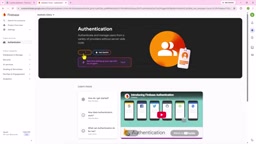
Once the project is created, go to Security → Authentication to enable authentication, and turn on Google sign-in so users can register manually or log in with a Google account. Then navigate to Database, open Firestore, and select Start in Production Mode to create the database.
Firebase is Google's Backend-as-a-Service (BaaS) platform that gives developers database, authentication, file storage, and more — no server setup required. Firestore is a NoSQL cloud database that organizes data as Documents and Collections and supports real-time syncing — when a new booking is written, the admin dashboard updates without a page refresh. The Authentication module handles user login, supporting email/password, Google accounts, phone numbers, and more. For this type of "rapid delivery" website, Firebase's free tier (Spark Plan) is typically sufficient for a small business's daily traffic: 50,000 reads, 20,000 writes, and 20,000 deletes per day, plus 1GB of Firestore storage. As traffic grows, you can upgrade to the pay-as-you-go Blaze Plan. Start in Production Mode is preferred over Test Mode because production mode denies all unauthenticated read/write requests by default — a more secure posture appropriate for real-user commercial deployments.
Step 3: Connect Frontend and Backend
Back in Google AI Studio, enable the Firebase integration option, then paste in the second prompt along with your Firebase configuration details. Once connected, any user registration or booking will appear simultaneously in the Admin Panel and the Firebase console. This step is the core of what makes the whole solution commercially viable — data now has persistent storage.
How to Find US Clients
The technical build is actually the easy part. The tutorial repeatedly emphasizes: finding clients is the critical step. The creator's method uses Google Maps to precisely target potential clients.
The approach: search Google for "industry keyword + US city and state" — for example, "[industry] in Miami Florida" — then switch to the map view. The map lists all relevant businesses in the area. The two types of targets to focus on are:
- Businesses with no website at all — direct new client opportunities
- Businesses with a poor website — candidates for a redesign

Click on a business listing to get their phone number, email, and existing website URL. If their current site looks solid, skip them. If it clearly has room for improvement, add them to your target list. The About section, reviews, and business details can all be copied and pasted back into Google AI Studio so the AI can generate a customized website based on their real information.
The creator also mentions a practical reality: given the time zone difference between China and the US, you'll need to schedule outreach around the client's business hours.
Delivery and Closing: Sending the Demo Link
Once the website is ready, you can Publish it directly from Google AI Studio to get a shareable online Demo link. Note that this is a temporary link — not your own domain — because the website will ultimately be sold to the client and doesn't need to be tied to your account.

With the link in hand, the creator demonstrates using ChatGPT to help craft a sales message: paste the target business's information into ChatGPT, have it write a tailored outreach message, then send it via Instagram DM, WhatsApp, or email — including the Demo link and a note like, "here's what's holding back your current site, and here's a more compelling version I built for you." If they're interested, you've got a deal.
The Demo was also tested on mobile and renders correctly with responsive design — especially important for local service businesses, since most of their customers browse on phones.
Temporary links published from Google AI Studio are hosted on Google's infrastructure, typically ending in
*.web.appor*.firebaseapp.com(served via Firebase Hosting). These work perfectly as Demo links, but for formal delivery to a client, you'll generally need to migrate the project to a custom domain the client purchases, and confirm domain binding and SSL certificate configuration. This step is a natural upsell opportunity — domain registration, annual renewal fees, and migrating the Firebase project from demo status into the client's own account can all be packaged as separate billable services, rather than treating the website as a one-time sale with no ongoing relationship.
The Value and Limitations of This Approach
This is a classic "AI tools + cross-border freelancing" monetization model. Its strengths are the low barrier to entry and fast turnaround — it genuinely transforms website development from "writing code" to "writing prompts." For individuals looking to take on overseas small business clients, it offers a workflow you can start using immediately.
That said, a few realities deserve clear-eyed consideration: errors do come up during generation (the video demonstrates using "please fix this issue" to let the AI self-correct), which means AI generation isn't one-shot perfect — human review and debugging are still required. The booking system's connection to Firebase can also be intermittently unstable and may need manual intervention. And true commercialization involves client communication, pricing negotiation, and ongoing maintenance — areas where AI can't substitute for human judgment.
As a tutorial, it presents a complete closed loop from technical build to client acquisition and closing. As a business, success depends far more on execution and sales ability than on the tools themselves.
Related articles

Gemini 4 Argon Hands-On: AI Builds Board Games, Constructs Temples, and Trains Robots Autonomously
Gemini 4 Argon hands-on roundup: AI autonomously builds a desk racetrack and temple in Blender, writes a ray tracing engine, trains a humanoid robot to sink 7 shots, plus API pricing and developer access.

The Magic Octagonal Coin: Why Only 9% of People Can Predict Its Flip?
Only 9% of people can correctly predict the Magic Octagon coin flip. This article explains its spatial rotation mechanism, common cognitive pitfalls, and a new hypothesis based on Relevance Theory, exploring the limits of human spatial reasoning.

Sam Altman: AI Is Entering the Era of Scientific Discovery — Math Breakthroughs Will Replicate in Biology and Energy
Sam Altman says AI is entering the era of scientific discovery — math breakthroughs will replicate in biology, materials science, and energy to help develop new drugs and energy sources.