Complete Guide to Codex Pet Feature: From Enabling Default Pets to Creating Your Custom AI Companion

How to enable, customize, and use the Codex pet feature from start to finish.
OpenAI's Codex now includes a pet system that goes beyond decoration — pets display runtime status, suggest replies, and interact in conversations. This guide covers enabling default pets in settings, installing the Skill system to build custom animated companions, and important copyright considerations to keep in mind.
Complete Guide to Codex Pet Feature: From Enabling Default Pets to Creating Your Custom AI Companion
OpenAI's Codex recently launched an unexpected feature — a pet system. That's right, your AI coding assistant can now have a pet. And this pet isn't just cute — it can display runtime status, suggest replies, and even jump into conversations to help you get things done. This guide walks you through how to enable the Codex pet feature, how to create your own custom pet, and whether the whole thing is actually worth your time.
When AI coding tools start competing over "virtual pets," you know just how saturated this space has become.
Why Did Codex Build a Pet Feature?
Codex is positioned as a serious cloud-based coding agent — so the fact that it's promoting a "pet feature" as a noteworthy new addition is itself pretty telling.
Think about it: the core capabilities of AI coding tools — code generation, comprehension, debugging — are converging fast. When the core product is hard to differentiate, emotional and playful peripheral features become the new battleground. "Virtual pets" might sound juvenile, but it could be the lowest-cost user retention hook out there. If a little golden retriever wags its tail at you from the corner of your screen every time you open your editor, can you really bring yourself to turn it off?
At the end of the day, developer attention and retention are the real prize.
Basic Setup: Enable a Default Pet in Three Steps
Enabling a default pet is straightforward — the whole process takes under a minute:
Step 1: Make sure your Codex is updated to the latest version. Open the top-left menu to check your current version number, and update if needed.
Step 2: Click the settings icon in the bottom-left corner and navigate to the "Appearance" tab.
Step 3: Scroll all the way to the bottom of the page. That's where the pet options live. The system comes with several built-in pet designs — pick one you like and release it. You can dismiss it anytime.
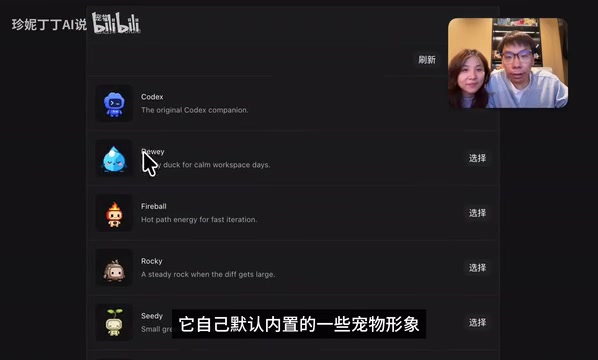
One small detail worth noting: the pet option is intentionally buried at the bottom of the settings page. The design choice makes sense — it keeps the product feeling professional for serious users while still offering a delightful surprise for those who explore. That said, a handful of built-in default designs isn't fundamentally different from Windows Vista's desktop gadgets from fifteen years ago. The real fun starts with customization.
Advanced: Install a Skill to Create a Custom Pet
The default pets get old fast. The real highlight is building your own one-of-a-kind companion. This is where Codex's Skill system comes in — think of it like VS Code extensions or ChatGPT's GPTs, where each Skill packages a specific set of capabilities.
Here's how to do it:
- Open any new session window
- Type @ in the chat box to trigger the Skill search
- Search for and install a Skill called Skill Installer — this acts as an "app store." You need to install this "installer" first before you can use it to install other modules
- Once Skill Installer is set up, use it to search for and install the dedicated pet creation Skill
- After installation, invoke it using the Skill command in your conversation
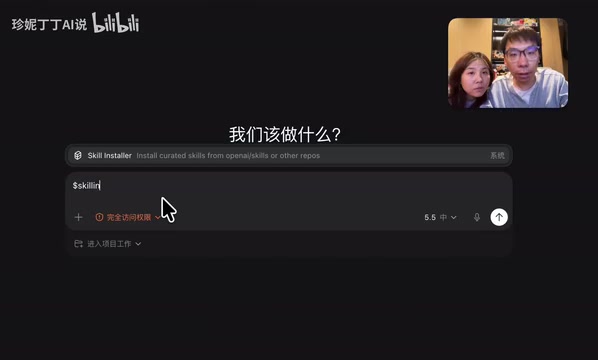
This "use a Skill to install other Skills" inception-style design is essentially Codex building out its own plugin ecosystem. What's interesting is that the first killer use case for this ecosystem turned out to be "make a pet" rather than "build better code review" — the prioritization is worth thinking about. But flip it around: using a fun, lighthearted feature to teach users how to install and use Skills is actually a smart onboarding move that lowers the cognitive barrier for the entire ecosystem.
Step-by-Step: How to Create Your Custom Pet
Once the pet creation Skill is installed, the process goes roughly like this:
Describe your pet → Tell the Skill in natural language what you want. Something like "a Shiba Inu wearing a little vest," "a pixel-art robot," or you can even drop in a reference image.
Confirm the main image → The Skill generates a primary character image based on your description for your approval. Not happy with it? Keep refining your description until you're satisfied.
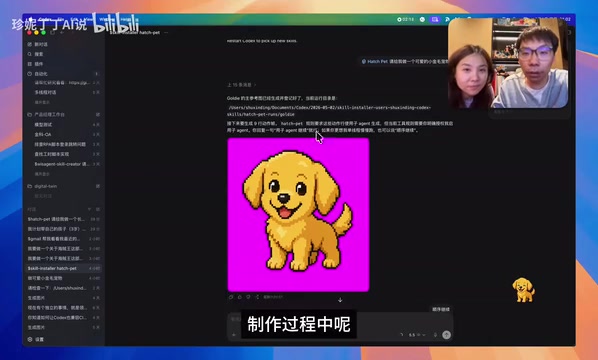
Generate action frames in bulk → Once the design is confirmed, the Skill automatically generates various action frames based on that character — walking, jumping, idle, working, and more. The process is similar to creating frame-by-frame animation, or what game developers call a Sprite Sheet.
The underlying tech stack here is genuinely impressive: text-to-image generation, maintaining visual consistency across frames, and automatically decomposing action sequences — it chains together several distinct AI capabilities. Apply the same pipeline to game development or UI prototyping and you've got a real productivity tool. Using it to make a tiny animal bounce around the bottom of a code editor feels like overkill — but that's exactly what makes it a vivid demonstration of where AI's capability boundaries actually lie.
Practical Features: More Than Just Eye Candy
Once your pet is ready, you can find and select it in the settings page. But it's not just a decorative element sitting in the corner — it comes with some genuinely useful features:
- Real-time status display: The pet's animations change based on what Codex is currently doing — compiling, waiting, or encountering an error — all visible at a glance
- Suggested replies: At the right moments, the pet proactively joins the conversation with suggestions
- Guided content generation: It can output prompts and guidance directly
- Instant interaction: After it outputs something, you can reply right next to the pet for a back-and-forth exchange
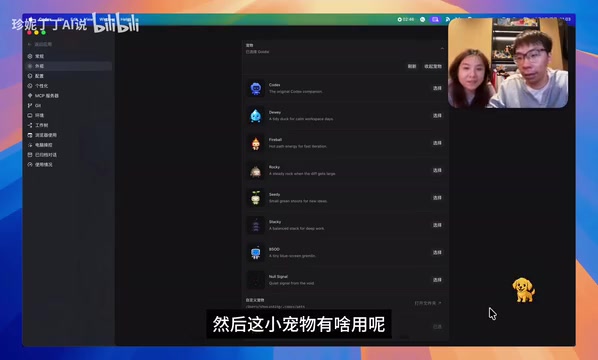
The experience is reminiscent of QQ Pet — a little creature perched on your workspace that you can interact with. But there's a fundamental difference: QQ Pet was a pure time sink, while the Codex pet is trying to be a productive companion.
Anthropomorphizing system status and packaging AI suggestions as "the pet talking to you" is a clever interaction design choice. People are naturally more receptive to a suggestion from an adorable little animal than a cold system dialog box. Whether this feature actually holds up, though, depends entirely on the quality of those suggested replies. If the suggestions are solid, the pet becomes your coding partner. If they're not, it's just an animated desktop wallpaper.
Copyright Red Lines: Why You Can't Make a Mario Pet
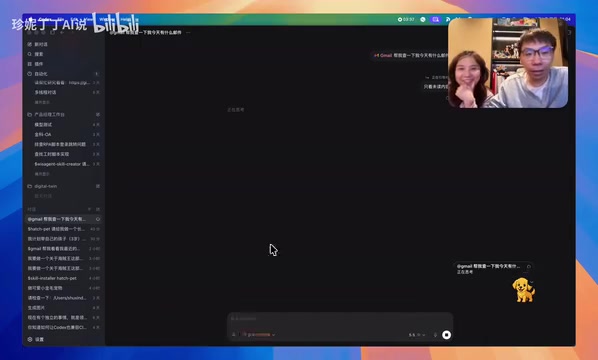
One very real moment during testing: trying to generate a Mario-themed pet got an immediate refusal.
This isn't a bug — it's the AI's copyright protection mechanism at work. Mario is a registered trademark and copyright-protected character owned by Nintendo, which is also one of the most aggressive IP enforcers in the world. Most mainstream AI image generation tools have these protections built in and will refuse to generate content that closely resembles well-known IPs.
That said, there's a gray area worth flagging: you can't make Mario, but you can make something that's "95% Mario but not quite Mario." As users get used to AI generating content on demand, copyright awareness tends to erode. That blurry line may be the biggest legal minefield in the AI content ecosystem going forward.
The recommendation: when creating custom pets, lean into original ideas and stay away from well-known IPs. A Mario-style little star, for instance, is far safer than Mario himself.
Wrapping Up
Here's the full flow in summary: Update Codex → Enable a default pet in Settings → Install Skill Installer → Install the pet creation Skill → Describe your character → Confirm the main image → Generate action frames → Select and use it in Settings. The whole process isn't complicated — you can get it done in under ten minutes.
When developer tools start competing for mindshare through virtual pets, it signals that the technical advantage era of AI coding is over and the experience advantage era has just begun. The real winners will always be the products where the pet isn't just cute — it actually gets work done.
If you've made your own Codex pet, drop a screenshot in the comments. Let's see who comes up with the most creative one.
Related articles
 Tutorials
ChatGPT Plus Subscription Guide: Are GPT-5.5, image-2, and Codex Worth the Upgrade?
A detailed look at ChatGPT Plus features — GPT-5.5, image-2, and Codex — with a Plus vs Pro comparison and a complete step-by-step subscription guide for users outside the US.
 Tutorials
Harness AI Engineering in Practice: Using Claude Code to Master Enterprise-Level E-Commerce Development
Deep dive into Harness AI Engineering: master enterprise e-commerce development with Claude Code using the Rules, Skills, Wiki, and Changes framework.
 Tutorials
Cursor + Codex Dual-IDE Collaboration: A Practical Methodology for Open-Source Project Customization
A complete methodology for open-source project customization based on real-world experience, detailing the Cursor+Codex dual-IDE workflow, seven-stage process, MVP validation, and AI source code reading techniques.