Complete Tutorial: Connect Cursor to Third-Party APIs in 5 Steps to Freely Call Any Model

Use a free local proxy tool to connect Cursor to third-party APIs and break through model usage limits.
This article introduces a method for connecting third-party APIs in the Cursor editor using a free local proxy middleware. Through five steps—downloading the proxy tool, entering API Keys and request URLs, configuring models, and starting the service—you can break through Cursor's built-in model quotas and freely call premium models like Claude Opus 4 and GPT-4.5, enabling pay-as-you-go billing and flexible model switching.
Introduction
Cursor is one of the most popular AI coding tools available today, with multiple built-in large language models for developers to use. However, many users encounter two pain points in practice: first, the built-in premium models (such as Claude Opus, GPT-4.5, etc.) have usage limits or are inaccessible; second, Cursor doesn't provide an official entry point for directly connecting to third-party APIs, leaving users who've purchased their own API credits with no way to use them.
This tutorial introduces a method for successfully connecting third-party APIs in Cursor using a free middleware tool. The entire process requires no programming background—just follow the steps to complete the setup.
Why Connect Third-Party APIs in Cursor?
Limitations of Cursor's Built-in Models
Both Cursor's free and Pro versions impose limits on premium model usage. When you frequently use top-tier models like Claude Opus 4 or GPT-4.5 for code generation and refactoring, your quota runs out quickly. Additionally, users in certain regions may experience unstable access to Cursor's built-in model services due to network issues.
Core Advantages of Connecting Third-Party APIs
By connecting to third-party API relay services, you gain the following benefits:
- Break through model restrictions: Freely choose premium models like Claude Opus 4 and GPT-4.5 without being constrained by Cursor's quotas
- Pay-as-you-go is more cost-effective: Billing based on actual usage avoids subscription waste
- Better network stability: Some relay services are optimized for specific regional networks, offering faster response times
Background: Large Language Models and Token Billing
Third-party API calls are typically measured in Tokens. A Token is the basic unit of text processing for models—roughly 1–2 Tokens per English word, and 1–2 Tokens per Chinese character. Taking GPT-4o as an example, input Tokens and output Tokens are billed separately, with output Token pricing typically higher than input Tokens. This is why the "pay-as-you-go" model is often more economical than fixed subscriptions for developers with variable usage patterns: you can use top-tier models during intensive work and switch to cheaper models like GPT-4o-mini for everyday lightweight tasks, giving you flexible cost control.
Tools to Prepare Before Setup
To complete the connection between Cursor and third-party APIs, you'll need the following:
- Cursor editor: Make sure you have the latest version installed
- API proxy tool: A free local proxy middleware that converts third-party APIs into a format Cursor can recognize
- Third-party API Key and request URL: Obtained from your chosen API service provider

Detailed Configuration Steps for Connecting Cursor to Third-Party APIs
Step 1: Download and Install the Local Proxy Tool
After opening the proxy tool, you first need to download its core component. There's usually a prominent download button on the interface—click it to complete the installation.
The essence of this tool is a local reverse proxy middleware: it starts a lightweight HTTP service on your computer, intercepts model requests sent by Cursor, converts them into the format required by the target API, forwards them, and returns the response back to Cursor. The entire forwarding process happens entirely locally—your code and conversation content won't pass through any additional third-party servers (except the API address you explicitly configure), so security is reasonably assured. This architecture is extremely common in enterprise API gateways and microservice scenarios; here it's simply a "lightweight" application for personal development environments.
Step 2: Configure the First Model (Using Claude as an Example)
Go to the tool's model configuration page, where you need to fill in three key pieces of information:
- API Key: The secret key obtained from your third-party service provider
- Request URL (Base URL): The API endpoint address
- Model ID: Select the specific model identifier you want to use
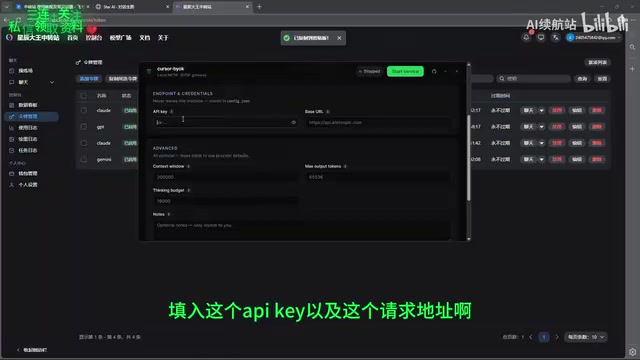
Leave other options at their defaults, and click save when done.
Step 3: Add More Model Configurations
If you also want to use OpenAI series models, you can continue adding configurations. The process is exactly the same as the previous step—enter the corresponding API Key and request URL, then save.
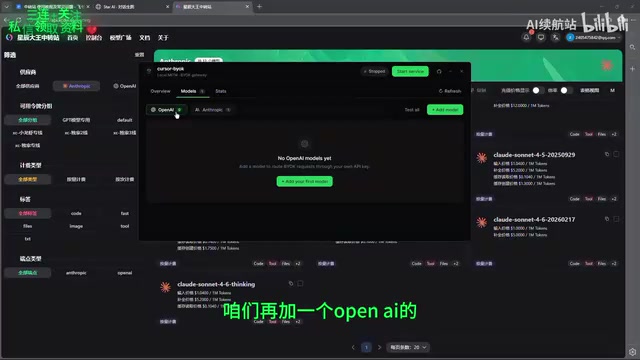
You can add multiple model configurations as needed, and the tool will manage all these interfaces in one place.
Comparison of Mainstream AI Coding Models
Current mainstream models each have their strengths—understanding the differences helps you switch as needed:
- Claude Opus 4: Excels at ultra-long context understanding (supports 200K Token context window) and complex code refactoring, with clear advantages when handling large codebases, though per-call costs are higher.
- GPT-4.5: Well-balanced in code generation and debugging, with high instruction-following accuracy, suitable for scenarios requiring precise execution of complex requirements.
- GPT-4o-mini: Fast inference speed and low pricing, ideal for everyday lightweight coding, code completion, and simple Q&A—the top choice for cost control.
Recommended usage strategy: Use GPT-4o-mini for everyday coding to maintain a smooth experience, and switch to Claude Opus 4 or GPT-4.5 only when facing high-difficulty tasks like architecture design or complex bug troubleshooting—balancing both efficiency and cost.
Step 4: Start the Local Proxy Service
Once all model configurations are complete, click the "Start Service" button on the tool's interface to launch the local proxy service. The tool will then listen on a local port, waiting for requests from Cursor.
Note: Keep the tool running in the background while using Cursor—closing the tool will cause model calls to fail.
Step 5: Select and Use Models in Cursor
Open Cursor and go to the model selection interface (Model Settings). If configured correctly, the third-party models you added should already appear in the model list.
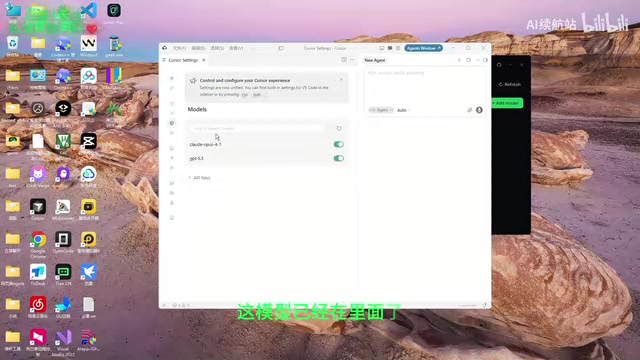
Select the model you want to use, and you're ready to start AI-assisted programming.
Important Notes During Use
About Response Speed
Third-party API response speed depends on multiple factors: the service provider's server quality, the inference speed of your chosen model, and current network conditions. If you find a particular model responding slowly, try switching to another model or changing service providers.
About Cost Control
While the proxy tool itself is completely free, third-party API calls are billed per Token. Tokens are the smallest unit of text processing for models—the Token conversion ratio differs slightly between Chinese and English characters, but as a rough estimate, 1000 Chinese characters equals approximately 1500–2000 Tokens. Here are some practical tips:
- Set a Spending Limit in your service provider's dashboard to avoid unexpected overcharges
- Use cost-effective models (like GPT-4o-mini) for everyday coding
- Only switch to top-tier models like Claude Opus 4 or GPT-4.5 when you need high-quality output
- Regularly check usage reports in your service provider's dashboard to understand your consumption patterns
About Security
- API Keys are sensitive information—never leak or share them with others; if you suspect a leak, immediately revoke the key in your service provider's dashboard and generate a new one
- Choose reputable third-party API service providers, prioritizing platforms with clear privacy policies and data non-retention commitments
- The proxy tool runs only locally—data won't pass through additional third-party servers (except the API address you configure)
Summary
With a free local proxy tool, we can easily break through Cursor's model limitations and connect to third-party API services we've purchased. The entire configuration process takes just five steps: download the tool → enter API information → add models → start the service → use in Cursor.
Whether you want to experience the latest Claude Opus 4 or GPT-4.5, you can freely call them in Cursor using this method, significantly boosting your AI programming efficiency. If you encounter any issues during configuration, feel free to leave a comment for discussion.
Related articles
 Tutorials
ChatGPT Plus Subscription Guide: Are GPT-5.5, image-2, and Codex Worth the Upgrade?
A detailed look at ChatGPT Plus features — GPT-5.5, image-2, and Codex — with a Plus vs Pro comparison and a complete step-by-step subscription guide for users outside the US.
 Tutorials
Harness AI Engineering in Practice: Using Claude Code to Master Enterprise-Level E-Commerce Development
Deep dive into Harness AI Engineering: master enterprise e-commerce development with Claude Code using the Rules, Skills, Wiki, and Changes framework.
 Tutorials
Cursor + Codex Dual-IDE Collaboration: A Practical Methodology for Open-Source Project Customization
A complete methodology for open-source project customization based on real-world experience, detailing the Cursor+Codex dual-IDE workflow, seven-stage process, MVP validation, and AI source code reading techniques.