Complete Tutorial: Image2 + Codex to Generate Editable Figma Design Files

Turn AI-generated UI images into editable Figma designs using Image2 and OpenAI Codex.
This tutorial walks through a three-step workflow: generate high-quality UI mockups with ChatGPT Image2, use OpenAI Codex to parse the images and convert them into Figma plugin projects, then import them into Figma as fully editable vector layers. The result is production-ready design assets with selectable text, replaceable images, and clear layer hierarchies — bridging the gap from AI creativity to real design workflows.
Overview: A New Workflow for AI-Generated Design Files
Designers and developers have long faced a pain point: AI-generated UI interfaces may look visually appealing, but they're essentially just bitmaps — composed of pixel grids with all visual elements "baked" onto a single flat layer. They blur when scaled up, and you can't select or edit any individual component. This tutorial shares a complete workflow — using ChatGPT's Image2 feature to generate high-quality UI design mockups, then leveraging OpenAI Codex to convert them into vector layer-structured files editable in Figma. The entire process bridges the last mile from AI creativity to production-ready design assets.
From an industry perspective, this workflow falls under the "Code-to-Design" direction — automatically generating design files through code or AI. The counterpart is the more mature "Design-to-Code" direction (tools like Figma Dev Mode, Locofy, and Anima that convert design files into frontend code). Bridging both directions means the barriers between design and development are being systematically dissolved by AI. There are already similar tools on the market, such as Screenshot-to-Figma plugins and Galileo AI, but they still fall short in layer restoration accuracy and editability. What makes the Image2 + Codex approach unique is its combination of large language model visual understanding and code generation capabilities, which theoretically offers stronger generalization.
The Core Workflow in Three Steps
Step 1: Generate UI Design Mockups with Image2
Start by using the Image2 feature in ChatGPT to generate app interface designs. Image2 is OpenAI's native image generation upgrade launched in 2025, built on the GPT-4o model's multimodal architecture. Unlike the previous approach that relied on DALL·E 3 as a standalone image generation module, Image2 integrates image generation directly into the language model's reasoning process. This means the model can better understand contextual semantics and spatial layout relationships when generating images. For highly structured visual content like UI design mockups, Image2's advantages are particularly evident — it can accurately render text typography, alignment grids, component spacing, and other design details that were previously weak spots for AI image generation tools.
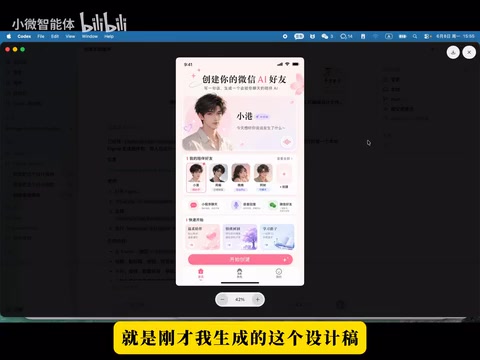
In this example, the author used prompts to generate two complete app interfaces containing common UI elements such as navigation bars, card components, and avatar lists. After generation, the design mockup images were downloaded and saved as input materials for the next step.
Step 2: Convert Images to Figma Files with Codex
This is the most critical step in the entire process. The Codex referred to here is OpenAI's cloud-based AI coding agent platform launched in 2025 (not the earlier code completion API). It runs in a sandboxed cloud environment and can autonomously execute multi-step programming tasks, including reading files, writing code, and running scripts.
In the Codex environment, custom-written Skills (skill scripts) are used to take the previously generated UI design mockup images as input, letting Codex automatically parse the UI elements in the images and convert them into plugin configuration files recognizable by Figma. Codex's Skills mechanism allows users to predefine a set of instructions and script templates that automatically trigger when receiving specific types of input. In this workflow, the core logic of the Skills script is: invoke visual understanding capabilities to parse element hierarchies in UI screenshots, then map the parsed results to JSON node descriptions required by the Figma Plugin API, and finally package everything into a Figma plugin project containing a manifest.json.
Codex plays the role of visual parsing + code generation here: it needs to identify text, icons, images, buttons, and other UI components in the image, and generate corresponding Figma node descriptions for each component, including position, dimensions, and style properties. This process is essentially "visual understanding + structured reconstruction" — restoring flat pixel information into a vector layer structure with hierarchical relationships. After execution, Codex outputs a project structure containing a Manifest file that can be imported directly into Figma.
Step 3: Import and Edit in Figma
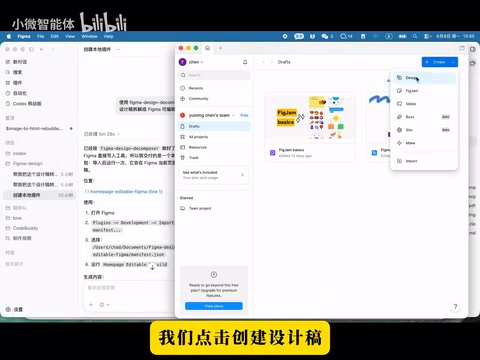
Open Figma, create a new design file, and follow these steps to import:
- Click "Plugins" in the menu
- Select "Development"
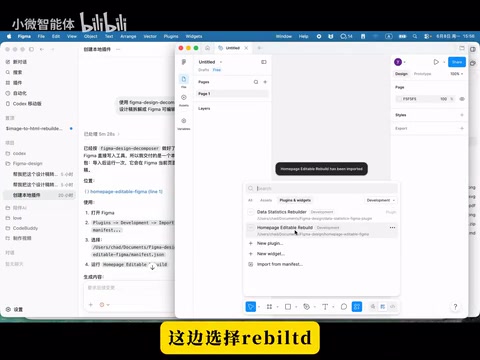
- Select "Import plugin from manifest"
- Navigate to the project folder generated by Codex and select the Manifest file
- Click "Rebuild" to execute the reconstruction
Figma's plugin system is built on web technologies — plugins are essentially JavaScript programs running in Figma's sandbox environment. Each plugin project contains a manifest.json configuration file (declaring plugin metadata and entry files) along with the actual script code. What Codex generates is not a traditional .fig design file, but rather a Figma plugin project — when the plugin runs, it programmatically creates Frame, Text, Rectangle, Image, and other nodes through the Figma Plugin API, thereby "rebuilding" the complete design mockup on the canvas. The elegance of this approach lies in bypassing Figma's closed file format restrictions, using the Plugin API as a bridge to convert external data into Figma-native layers.
Once the rebuild is complete, the imported content is no longer a flat image but a complete, editable design file.
Editability Verification: What Can You Do After Import?
The imported design file has the following editable properties:
- Text is selectable and editable: Each text element is an independent text layer — you can directly modify content, font, and color
- Images are replaceable: Images in the interface are embedded via cropping and can be swapped with other assets
- Components are draggable: Components like avatar lists support drag-to-reposition, and double-clicking lets you select specific child elements (such as individual avatars)
- Clear layer hierarchy: The entire design has a logical layer nesting structure, making it easy to adjust layouts later
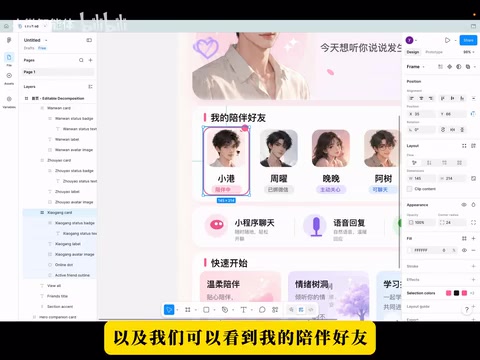
These capabilities are possible precisely because every visual element after import is a Figma-native vector node object, not a pixel image. Each button is a Rectangle node with fill color and border-radius properties; each piece of text is a Text node with font, size, and line-height properties — they each exist independently in the layers panel, identical to layers manually created by designers. This means designers can make secondary modifications to the file just like a normal design file, without needing to redraw everything from scratch.
Practical Value for Different Roles
This workflow offers clear value for different roles:
- Designers: Quickly obtain an editable design draft, saving time starting from a blank canvas, and focus on detail refinement and brand tone adjustments
- Product Managers: Rapidly generate high-fidelity prototypes for requirements communication and user testing, dramatically shortening the cycle from requirement description to visual solution
- Independent Developers: Obtain professional-grade UI design assets even without design expertise, lowering the design barrier during the product cold-start phase
Caveats and Current Limitations
While this workflow is already quite practical, there are some things to keep in mind:
- Codex Skills need to be written manually: The current implementation uses custom scripts, and there may not yet be universal open-source solutions in the community. Writing Skills requires understanding both Figma Plugin API node creation logic and Codex's task orchestration approach, which presents a technical barrier for users
- Limited parsing accuracy for complex interfaces: For interfaces with deeply nested hierarchies and complex component interactions, Codex's visual parsing may not fully restore all hierarchical relationships, and manual adjustments may be needed after conversion. Complex visual effects like gradients, shadows, and blurs, as well as interactive states like tab switching and dropdown menus, currently have suboptimal restoration quality
- Design specification consistency needs verification: AI-generated interfaces may not fully comply with design system specifications (such as Material Design 3 or Apple Human Interface Guidelines) in details like spacing, font sizes, and border radii. Manual verification is still needed after import to ensure consistency with the team's Design Token system
- Vectorization level of icons and illustrations: In the current workflow, icons and illustrations may still be embedded as bitmaps rather than true SVG vector paths. If high-quality icon assets are needed, additional replacement with standard icons from the design system's icon library may be required
Conclusion
From AI-generated images to editable Figma design files, this Image2 + Codex + Figma workflow demonstrates an important direction for AI-assisted design: not just generating attractive images, but generating design assets that can directly enter the production pipeline. The core breakthrough lies in using the multimodal capabilities of large language models (visual understanding + code generation) as a bridge to transform unstructured pixel information into structured design layers, achieving seamless import through the clever technical pathway of the Figma Plugin API. As Codex capabilities continue to improve and community tools mature, workflows like this are poised to become standard equipment for design teams.
Key Takeaways
Related articles

Resume Guide for Programmers Transitioning to AI: From an HR Perspective to Job Requirement Matching
How should programmers transitioning to AI write a resume? This Bilibili tutorial gives five key preparation actions: set aside two or three days to review skills and projects, choose a simple template, reverse-engineer the tech stack from job sites, emphasize LLM capabilities, and do a final check from an HR perspective.

Building a RAG Knowledge Base: A Complete Guide from Architecture to Retrieval Evaluation
A systematic overview of the full RAG knowledge base workflow: from overall architecture and mature retrieval solutions to key details of retrieval evaluation and who should learn it, helping developers build a path from beginner to hands-on practice.

Turn Screenshots into Web Code in Seconds: Anyone Can Write HTML with AI
A Bilibili creator demonstrates using AI to turn webpage screenshots directly into HTML and CSS code without manual coding. The article analyzes the tool's usage, new features like video-based app cloning, iterative refinement, and the real boundaries of AI giving zero-foundation users programming ability.