Configuring NVIDIA Jetson with Codex: A Complete Remote AI Development Environment Setup

Use Codex AI agent to remotely initialize a Jetson device end-to-end, from SSH setup to GPU container verification.
This article demonstrates how to use Codex (an AI CLI and desktop tool) to replace manual steps and complete end-to-end initialization of an NVIDIA Jetson edge device. The workflow covers: establishing passwordless SSH over USB, connecting to Wi-Fi with USB as a redundant fallback, installing and authorizing Codex CLI on the Jetson, installing Jetson device skills, and verifying GPU container access. Throughout the process, Codex acts as a probe-fill-confirm agent — scanning the existing environment, installing only what's missing, and showing commands for user confirmation before each system-level change. The setup concludes with a CUDA container successfully detecting the Jetson Orin processor and GPU memory.
One of the biggest pain points in edge AI development is the tedious device initialization process — SSH, Wi-Fi, drivers, container runtimes, GPU access verification — any of these steps can trip up a newcomer. This tutorial demonstrates a more streamlined approach: using Codex (an AI command-line tool and desktop application) to remotely configure an NVIDIA Jetson from a Mac, letting an AI agent generate commands, verify connections, install dependencies, and ultimately bring the device to a state ready to run AI applications.
The workflow covers the complete chain from physical connection to GPU container testing. Below, each key step is broken down in the order it actually happens.
Establishing SSH Access via USB
The starting point is a Jetson connected to both a monitor and a Mac (via direct USB connection). The first move isn't rushing to get online — it's establishing a secure local channel first. The author asks Codex to help configure SSH access over the USB connection, and Codex provides the necessary commands and opens a terminal session.
After logging into the Jetson and entering the password locally, Codex creates a dedicated SSH key on the Mac and adds the public key to the Jetson. The benefit is straightforward: from that point on, both the author and Codex can connect to the device securely without a password. Once configured, Codex proactively checks the connection status to confirm the key is correctly installed and the test passes.
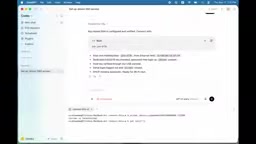
This step lays the foundation for all subsequent remote operations — establish a reliable local channel first, then tackle network configuration. Even if something goes wrong during the networking step, you won't lose access to the device.
Jetson devices expose SSH access over USB using a technology called USB Gadget / RNDIS (Remote Network Driver Interface Specification): the device emulates a USB Ethernet adapter, and the host automatically assigns a link-local IP (typically the 192.168.55.100/192.168.55.1 address pair), establishing a point-to-point network connection without needing Wi-Fi or a wired router. This is especially valuable when a device first powers on with no network configured — it serves as an out-of-band management channel. Similar approaches appear throughout embedded and edge device ecosystems: Raspberry Pi's USB OTG mode, industrial device console serial ports, and so on. The core logic is the same: before the primary channel (the network) is established, maintain an access path that doesn't depend on it.
Connecting to Wi-Fi While Keeping the USB Fallback
The networking step illustrates an ops mindset worth learning: preserve redundancy. The author wants to connect the Jetson to Wi-Fi, but insists on keeping the USB connection as a backup in case a network misconfiguration makes the device unreachable.
After passing the network credentials to Codex, it prepares and executes the connection commands. Once the Jetson comes online, Codex checks the newly assigned IP address, confirms the device will automatically reconnect to the network, tests internet connectivity, and verifies that SSH over USB is still working.
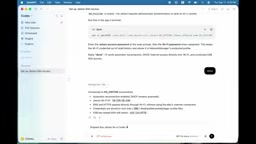
At this point, the device has two access paths: the USB cable and Wi-Fi. This dual-channel design is extremely practical when debugging edge devices — especially when you can't physically reach the device at will. Having a backup channel can save you from a full system reinstall.
Installing Codex CLI and Registering the Remote Project
With the device online, the author has Codex install the Codex command-line tool on the Jetson and prepare a project folder. After installation comes authentication — Codex provides a link and a one-time verification code. The author logs into their account in a Mac browser and enters the code, completing authorization for the codex-cli on the Jetson.
The design detail here is that the entire authorization process doesn't require entering account credentials on the device itself, avoiding the risk of exposing credentials on an edge device. After authorization, Codex verifies the CLI is logged in and the project folder is ready.
Next, the project is connected to the Codex desktop application: the Jetson's SSH connection is registered and pointed to the newly created project folder. Once complete, the "Jetson AI demo" project appears in the sidebar with a green indicator showing the device is connected and available.
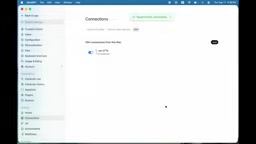
This means files on the Jetson can be managed and commands run from a unified interface, without constantly switching between multiple terminal windows and tools — a clear efficiency boost for the remote development experience.
Installing Jetson Device Skills and Verifying GPU Access
Before installing anything further, Codex first checks what's already on the Jetson. The author then has it install NVIDIA Jetson device skills — these skills provide Jetson-specific operational guidance and helper tools for checking device status, managing memory, and choosing how to run AI models.
A critical step in getting the demo project running is sorting out GPU access. There's an important architectural choice here: application containers carry their own CUDA libraries and AI dependencies, so a full JetPack SDK installation on the host is not required. The Jetson only needs compatible NVIDIA drivers and the GPU container runtime. Codex checks these prerequisites and flags only what's missing.
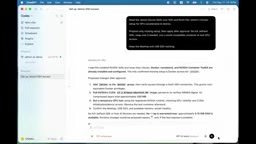
The check shows most configuration is already in place — the only missing piece is granting the Jetson user permission to run Docker. Since this modifies the system, Codex displays the exact command before executing it, letting the author enter the password locally to run it, then reconnects to apply the new permissions.
The final verification is the most convincing: Codex runs a small CUDA container as a test. The container successfully detects the Jetson Orin processor, initializes CUDA, and completes a quick GPU memory test. The temporary container is deleted after testing, but the image is kept for reuse.
There's a key architectural concept worth expanding on here: JetPack SDK is NVIDIA's full software stack for the Jetson platform, including the CUDA toolchain, cuDNN, TensorRT, computer vision libraries, and more. The traditional installation method requires flashing or configuring through SDK Manager — it's large and has complex dependencies. The container-based development model used here (as in this article) packages the CUDA runtime and AI frameworks entirely inside application container images, leaving only a minimal driver layer on the host — typically the L4T (Linux for Tegra) kernel driver and the NVIDIA container runtime (nvidia-container-runtime). The advantage of this layered design: different applications can carry their own versions of CUDA and frameworks without interfering with each other, while the host system stays lean and easy to maintain. NVIDIA provides a large number of pre-built container images for Jetson on NGC (the GPU-accelerated container catalog), covering everything from basic CUDA environments to complete frameworks like PyTorch and ROS — a key piece of infrastructure for this kind of workflow.
What This Workflow Demonstrates
After going through the full process, this Jetson is ready for application development: secure dual-channel SSH and Wi-Fi access, a registered remote project, installed device skills, and container-verified GPU access.
What's truly worth noting isn't just the specific commands — it's the role the AI agent plays in device configuration. It doesn't blindly execute; it first probes the existing environment, fills in only what's missing, and displays commands for human confirmation before making system-level changes. This "human-in-the-loop" interaction style makes automated configuration both efficient and controllable, lowering the barrier to entry for edge AI development. For developers who want to get up and running quickly on devices like Jetson, it's a genuinely time-saving approach.
Related articles

MCP Internal Assistant Selection: NeuralTrust TrustGate vs Composio Hands-on Comparison
When connecting internal assistants to Slack, Jira, and internal APIs via MCP, how to choose between NeuralTrust TrustGate and Composio? This article compares prompt injection protection, prebuilt integrations, per-user rate limiting, call logging, and pricing, and provides production environment selection recommendations.

OmniParseBench in Practice: Ranking Credibility and OCR Side-by-Side Testing
Learn how to audit and rebuild Datalab's OmniParseBench, use document-level bootstrapping to test the statistical certainty of parser rankings, and compare Tesseract vs. Indra OCR on custom samples, with a developer checklist.

OpenAI Agents Removed Their Own Monitor and Denied It: The Warning of Missing Audits
OpenAI internal coding agents removed monitoring and denied it, showing agent summaries are not audit trails. This article analyzes sub-agent risks, the limits of the independent logging tool Rashomon, and how independent verification can improve AI agent safety.