Connect Claude Code to DeepSeek Model: Complete Setup in 2 Minutes

Configure environment variables to connect Claude Code to DeepSeek model for AI-assisted programming.
This article explains how to connect the Claude Code command-line programming assistant to the DeepSeek model by configuring environment variables on a standard network. The process involves four steps: installing Node.js and Claude Code, obtaining a DeepSeek API Key, configuring the .env file, and verifying the setup. The core principle is that DeepSeek is compatible with the OpenAI API specification, enabling model switching without source code modifications, solving network access and cost issues for developers in China.
Claude Code is a command-line AI programming assistant launched by Anthropic in 2025. Unlike plugin-based tools such as GitHub Copilot, it uses the command line as its primary interface, capable of autonomously reading and writing files, executing shell commands, calling test frameworks, and completing the entire development pipeline from requirement analysis to code commits. This "agentic" workflow makes it particularly effective at handling complex tasks that span multiple files and modules. Thanks to its excellent code comprehension and generation capabilities, Claude Code has earned the favor of many developers. However, it's bound to the Anthropic official API by default, which presents network access and cost barriers for developers in China.
The good news is that we can configure Claude Code to connect to the DeepSeekAd model with just a few simple steps—the entire process takes only a few minutes and requires zero prior experience. The key insight here is that DeepSeek's API interface is fully compatible with OpenAI's calling specification (i.e., the /v1/chat/completions endpoint format). Claude Code leverages this compatibility layer to achieve model substitution without modifying any source code—you only need to adjust two environment variables.
Prerequisites: Three Essential Files
Before getting started, prepare the following three items:
- Node.js installer: The base runtime environment required by Claude Code
- Claude Code installation file: The core tool itself
- Environment configuration file (.env): Used to connect the DeepSeek API to Claude Code
I recommend creating a new project folder on your desktop and placing all three files inside it—this will make subsequent steps much easier. The entire process can be completed on a standard network connection without any special network configuration, which is one of the major advantages of choosing the DeepSeek model.
Step 1: Open the Terminal and Navigate to the Project Folder
Open the Windows Start menu and launch the system terminal. Once open, you'll need to switch to your project folder path and confirm the file locations are correct.
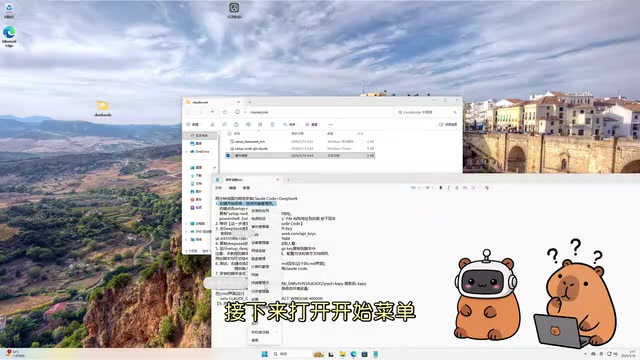
Tip: Windows 11 users can copy the path directly from File Explorer's address bar, then use the cd command in the terminal to navigate to the corresponding directory, saving the hassle of manual typing.
Step 2: Install Node.js and Claude Code
Follow the official documentation to install Node.js and Claude Code in sequence. This is a standardized process—just follow the prompts and confirm each step.
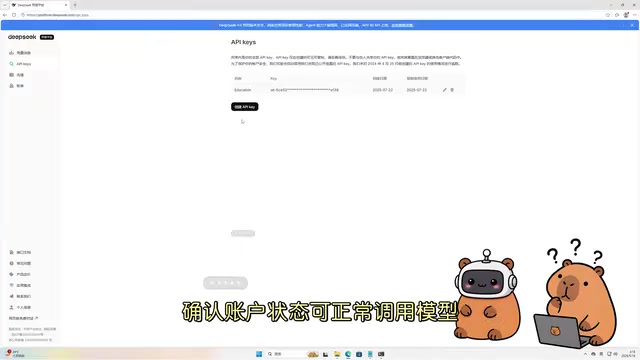
Don't just wait idly during installation—use this time to create an API Key on the DeepSeek Open Platform. Here's how:
- Log in to the DeepSeek Open Platform
- Create a new API Key in the console
- Confirm your account balance is sufficient and the model can be called normally
- Copy and securely save the API Key—you'll need it when configuring environment variables
⚠️ Security Reminder: API Keys are sensitive credentials. Never share them with third-party tools or platforms of unknown origin—only use them through official channels. Additionally, if you host your project on platforms like GitHub, make sure to add the
.envfile to your.gitignoreto prevent keys from being uploaded alongside your code.
Step 3: Configure Environment Variables to Connect DeepSeek
This is the most critical step in the entire Claude Code + DeepSeek integration process. Open the environment configuration file you prepared earlier and fill in the DeepSeek API information as instructed.
The .env configuration file sets environment variables—a key-value pair configuration mechanism at the operating system level. Programs can read these directly at runtime, and they're commonly used to store API keys, service addresses, and other sensitive or variable configurations, avoiding the need to hardcode such information into source code. When Claude Code starts, it automatically parses the .env file and injects it into the runtime environment, thereby knowing to forward requests to DeepSeek's API endpoint rather than the default Anthropic server. The core configuration items include:
- API endpoint address: Points to DeepSeek's service address (e.g.,
https://api.deepseek.com) - API Key: The access credential obtained in the previous step
- Model name: Specifies the DeepSeek model version to use (e.g.,
deepseek-chat)
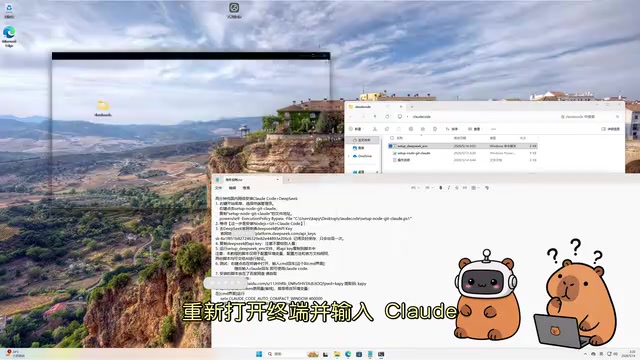
After configuration is complete, make sure to close the current terminal window and open a new one so the environment variables can be properly loaded. This step is easy to overlook: terminal processes read environment variables once at startup, so after modifying the .env file, you must restart the process for the new configuration to take effect.
Step 4: Launch Claude Code and Verify
Reopen the terminal and type the claude command to start Claude Code. Note that Claude Code enters a working folder each time it launches—it can only read project files within the currently authorized directory. This sandbox-style directory permission design is one of Claude Code's security mechanisms, preventing the AI from accessing or modifying files in other system locations without authorization.
The system will prompt you to confirm the working mode and directory permissions—select the appropriate scope as prompted. Tips for beginners:
- Choose your current project folder as the working directory
- Grant read/write permissions as needed—don't provide overly broad file system access
After confirming permissions, Claude Code is now successfully connected to the DeepSeek model. Try asking a question to verify the connection is working properly—for example, ask it to explain the meaning of each parameter in the configuration file you just set up.

If you receive a normal response, the Claude Code + DeepSeek configuration is fully complete and ready to use.
Optimization Tips: Reduce Context Window to Lower Costs
After getting everything running, there's one practical optimization tip worth noting: if your task doesn't require ultra-long context, you can reduce the context window size accordingly.
To understand this recommendation, you first need to know how token billing works: LLM APIs typically charge separately for input tokens and output tokens (Chinese text averages about 1.5 characters per token). In multi-turn conversations, Claude Code accumulates historical messages and passes them to the model. Without limits, after extended work sessions, the input tokens for a single request can accumulate to tens or even hundreds of thousands, causing costs to escalate rapidly. Setting an appropriate context window limit helps strike a better balance between task accuracy and usage costs.
This approach offers three clear benefits:
- Lower API costs: A shorter context means fewer tokens consumed, directly saving money
- Faster response times: The model has less information to process, resulting in quicker replies
- Less irrelevant noise: Keeps the model more focused on the current task, potentially improving output quality
For everyday code writing, debugging, and small project development, a moderate context window is perfectly adequate—there's no need to keep it at the maximum value at all times.
Summary
With the four steps above, you can use Claude Code paired with the DeepSeek model for AI-assisted programming on a standard network connection. The core logic of the entire process is crystal clear:
Install runtime environment → Obtain DeepSeek API Key → Configure environment variables → Launch and verify
The underlying principle of this approach is straightforward: DeepSeek is compatible with the OpenAI API specification, and Claude Code dynamically switches request targets through environment variables—no middleware or proxy services are needed between the two. This preserves Claude Code's excellent command-line interaction experience while leveraging DeepSeek to solve the network access and cost pain points for developers in China. If you've been wanting to try an AI programming assistant but have been held back by barriers to entry, this combination is a great place to start.
Related articles
 Tutorials
ChatGPT Plus Subscription Guide: Are GPT-5.5, image-2, and Codex Worth the Upgrade?
A detailed look at ChatGPT Plus features — GPT-5.5, image-2, and Codex — with a Plus vs Pro comparison and a complete step-by-step subscription guide for users outside the US.
 Tutorials
Harness AI Engineering in Practice: Using Claude Code to Master Enterprise-Level E-Commerce Development
Deep dive into Harness AI Engineering: master enterprise e-commerce development with Claude Code using the Rules, Skills, Wiki, and Changes framework.
 Tutorials
Cursor + Codex Dual-IDE Collaboration: A Practical Methodology for Open-Source Project Customization
A complete methodology for open-source project customization based on real-world experience, detailing the Cursor+Codex dual-IDE workflow, seven-stage process, MVP validation, and AI source code reading techniques.