Connect Codex to DeepSeek: A Complete Setup Guide for Beginners
Use DeepSeek with OpenAI Codex via Codex++ — no ChatGPT Plus account needed.
This guide walks you through connecting domestic LLMs like DeepSeek to OpenAI's Codex AI coding agent using the Codex++ management tool — bypassing the ChatGPT Plus login requirement entirely. It covers installation, API key setup, account top-up, and launching Codex correctly, so you can start AI-assisted coding for as little as 10 RMB.
Article Content
OpenAI's Codex is one of the most talked-about AI coding agent tools available today. To set the context: Codex is built on the GPT-4 series of models, designed specifically for code generation and programming assistance. It can autonomously execute multi-step programming tasks inside an isolated sandbox environment — including reading and writing files, running tests, and debugging code — making it a textbook implementation of the AI Agent paradigm. It's not just a code completion tool; it's a "programming assistant" that understands task objectives, plans execution steps, and independently completes complex engineering work. However, this tool comes with a significant barrier for users in China — by default, it requires a ChatGPT Plus account to log in. For most developers who don't have an overseas account or the necessary network environment, this is a nearly insurmountable wall.
The good news is that through a third-party management tool, you can completely bypass the ChatGPT login requirement and use domestic models like DeepSeekAd or Doubao as the backbone powering Codex. This article, based on a hands-on tutorial, walks you through a complete setup workflow — from zero installation to successfully connecting DeepSeek.
Two Paths: Decide Which One Applies to You
Before diving in, clarify which type of user you are — this directly determines how complex the setup will be.
Path 1: You have a ChatGPT Plus account. If you're overseas, have a working network environment, and hold a ChatGPT Plus membership, simply download Codex and log in with your ChatGPT account. No extra configuration needed — this is the easiest option.
Path 2: Use a domestic large model as a substitute. This is the focus of this article. The vast majority of users in China don't have a Plus account and can't reliably access OpenAI. In this case, you can use the Codex++ management tool to connect DeepSeek or Doubao to Codex, letting it run on a domestic model as its backend.
It's worth clarifying: third-party tools like Codex++ do not modify Codex's core functionality. They simply change the login method, allowing you to authenticate with an API Key instead of a ChatGPT account — understanding this is key to grasping the whole approach. Modern AI coding tools generally use a separated architecture: a "frontend interaction layer" plus an "underlying inference model." Codex handles task management, UI interaction, and the code execution sandbox as the frontend; the actual language understanding and code generation are handled by the underlying LLM. This architecture allows developers to swap out the inference backend as needed, and Codex++'s value lies in exposing this "swappable backend" capability to everyday users.
Step 1: Install the Codex Main Application
Regardless of which path you take, you first need to install Codex on your computer.
On Windows, the easiest way is to open the Start menu, search for and open the Microsoft Store, search for Codex, find the corresponding app, and click "Get" to download it for free. Mac users follow a similar process through the App Store. The whole process is no different from installing any regular software — no technical hurdles involved.
After installation, there's one critical note: Do NOT open Codex directly! Launching it directly will prompt you to log in with a ChatGPT Plus account — which is exactly what most users in China don't have. The correct approach is to install the management tool first, then launch Codex through it.
Step 2: Install the Codex++ Management Tool
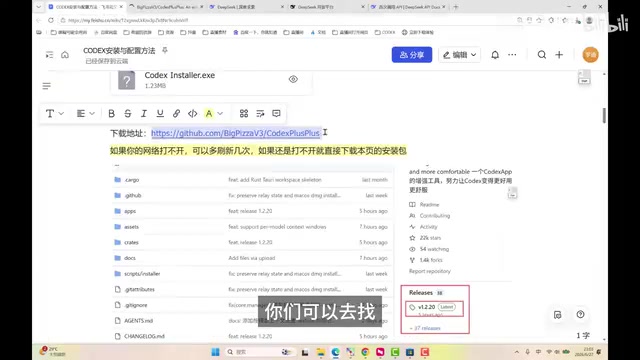
Once you've downloaded the main Codex application, the next step is to install the Codex++ management tool. You can usually find the latest version on its GitHub repository's Releases page. If GitHub is inaccessible from your network, you can use a pre-packaged installer provided in the tutorial (available in separate Windows and Mac versions).
Installation is again a straightforward "Next" through the defaults. After completion, you'll typically see three related programs in your system:
- Codex (main application)
- Codex++ Management Tool
- Codex++
This is the most common point of confusion: select "Codex++ Management Tool" — don't pick the wrong one. The interface has many features, but we only need one: "Model Provider Configuration." Ignore everything else.
Step 3: Configure the DeepSeek Provider
This is the core of the entire process. In the Codex++ management tool, click "Model Providers" in the left sidebar. By default, there's only one entry. We need to manually add a domestic model.
Fill in the Provider Details
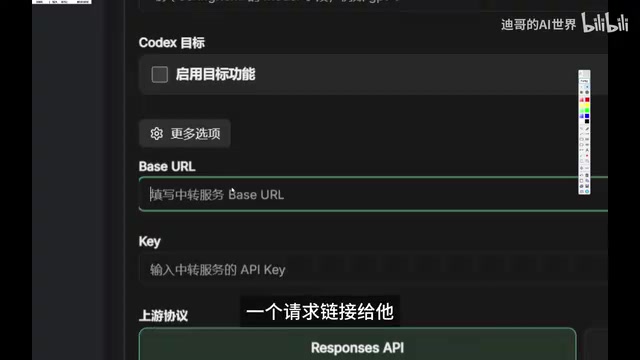
Click "Add Provider" and fill in the following:
- Name: Anything you like, e.g., "My DeepSeek" — just for your own reference.
- Access Mode: Must be set to "Pure API." We're connecting via API interface, not account login. Choosing the wrong option will cause failures later.
- Base URL: Enter the official DeepSeek API address:
api.deepseek.com. Copy and paste this to avoid typos.
A bit of technical context on Base URL: it's the root address for all API requests — every interface call is built on top of this path. Notably, mainstream domestic LLMs including DeepSeek, Doubao, and Tongyi Qianwen have proactively adopted compatibility with OpenAI's API protocol specification. This means that by simply swapping the Base URL and API Key, client tools originally designed for OpenAI can drive domestic models without any code changes — and that's the technical foundation that makes this entire approach work.
Obtain and Enter Your DeepSeek API Key
The API Key is the unique credential tied to your DeepSeek account — Codex uses it to verify your identity and draw from your token balance. Technically, an API Key is a unique string bound to your account: every time an API call is made, the server identifies the caller by the Key and deducts token usage from the corresponding account. Tokens are the basic unit for LLM text processing — roughly 1 token per 1.5 Chinese characters, or per 4 English characters. The token pricing for domestic models like DeepSeek is far lower than OpenAI's, which is the technical reason behind the "extremely low call costs" mentioned later.
How to get your API Key: Go to the DeepSeek official website, click "API Open Platform," find "API keys" in the left menu, and click "Create" to generate a new key.
Critically important: After creation, the API Key is only shown once. Once you close the window, it cannot be retrieved. Copy it immediately and save it somewhere safe (e.g., a local document or notes app) — otherwise you'll have to delete it and create a new one.

Paste the copied key into the corresponding field in the management tool. For the protocol option, just select DeepSeek's official default protocol.
Fetch the Model List and Save
After configuring the URL and Key, click the "Fetch from Upstream" button — this acts as a connectivity test. If the model list loads successfully, your interface configuration is correct.
Among DeepSeek's currently available APIs, it's recommended to use the Pro version (e.g., DeepSeek V4 Pro) for stronger performance at still-affordable pricing. Once the list loads, there's no need to select a model on this screen — just scroll up to find the "Save" button and click it.
After saving, the provider you just configured will appear in the provider list. Hover over the right side and click "Use" — when the status shows "In Use," the switch was successful.
Step 4: Top Up Your DeepSeek Account
There's one more prerequisite after configuration — your account needs a balance, or API calls will fail immediately.
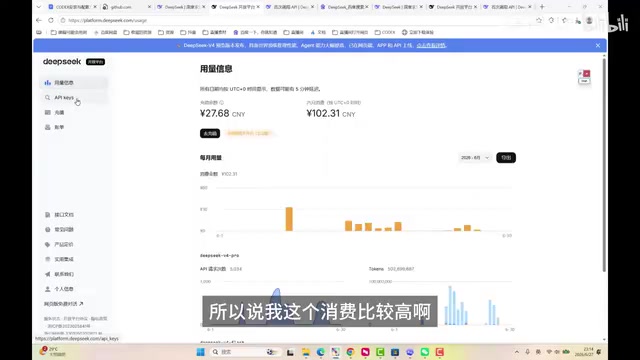
Go to the DeepSeek API platform's top-up page and add 10 RMB — more than enough for learning purposes. DeepSeek's call costs are extremely low; even with heavy daily usage across multiple simultaneous tasks, monthly spending typically stays around 100 RMB. For most learners, a 10 RMB balance is sufficient to cover the majority of practice scenarios.
Step 5: Launch Codex Through the Management Tool
With everything configured, return to the Codex++ management tool and find the "Restart Codex++" option in the upper right corner. Always launch Codex through the management tool, not by opening the Codex application directly — only this way will the modified login method take effect.
Once clicked, the tool will automatically launch the installed Codex. The login screen will present two options:
- Log in with ChatGPT (do not select this for the domestic model approach)
- Log in with another method (select this one)
After selecting "Log in with another method," paste the DeepSeek API Key you saved earlier (the interface prompt says "OpenAI API Key" — that's fine, enter your DeepSeek key there — this works precisely because both share the same API protocol specification), then click "Continue." The first login may take a moment.
Once you're in the main interface, do one final verification: click the model selection menu in the bottom right corner and confirm you can select the DeepSeek model you just configured. If you can select DeepSeek V4 Pro, the entire setup is complete and you're ready to start using it.
A Trend Worth Watching
The official Codex team has announced that they plan to natively support third-party LLM integration in a future update — at which point tools like Codex++ may no longer be needed, and you'll be able to configure DeepSeek, Doubao, and other domestic models directly. This trend reflects a broader shift across the AI tools landscape: as domestic LLMs universally adopt OpenAI API protocol compatibility, the architecture of "tool shell separated from inference backend" is becoming an industry standard, giving users increasing autonomy over which underlying model they use.
If this feature ships smoothly, it will significantly lower the barrier for developers in China to use Codex. But until that official feature arrives, connecting via a third-party management tool remains the most viable solution.
Summary
The core value of this tutorial isn't in "copying the steps" — it's in understanding the logic behind them: Codex is just a shell; the underlying LLM is what actually does the work. Whichever model you use, you top up that provider and configure that provider's API.
Once you've internalized the methodology of "bypass login → configure API → verify connectivity," it doesn't matter whether DeepSeek releases a new model or you want to switch to Doubao, Tongyi Qianwen, or another domestic model — the configuration logic is identical. One approach, endlessly reusable.
Related articles

Salesforce Acquires Rune for $375M: AI Logistics Tech Bolsters Defense Business
Salesforce reportedly acquires defense tech startup Rune for $375M. Rune's AI logistics tech will strengthen Salesforce's Missionforce defense platform, continuing its M&A spree.

Why Fair Use Benefits Everyone in the AI Era
Starting from a Hacker News discussion, this article analyzes the legal logic and controversies of the fair use principle in AI training and content creation, and its dual impact on creators and the tech ecosystem.

Mistral Large 4 Open-Sources a Trillion Parameters, Microsoft Offers Voluntary Severance to 60,000 Employees
Mistral Large 4 open-sources a trillion-parameter multimodal model with a coding agent score of 48; SanDisk earnings show AI inference reshaping NAND demand; Google Gemini adds in-app file editing, OpenAI raises Codex quotas, and Microsoft offers voluntary severance to 60,000 employees.