Connect Personal WeChat to AI: Screenshot + OCR Solution for Auto-Reply in 1 Hour

Low-risk personal WeChat AI auto-reply via screenshot OCR and hotkey simulation
This article compares three technical approaches for integrating AI with personal WeChat (protocol capture, client hijacking, screenshot OCR) and recommends the low-risk screenshot + OCR method: locally deploy Qwen vision model with Ollama to recognize chat screenshots, detect new messages via periodic pixel comparison, then send AI replies using Python hotkey simulation. It documents three development pitfalls and solutions: Base64 prefix errors, cursor blinking false detection, and message infinite loops.
Why Connect Personal WeChat to AI
Giving your personal WeChat AI-powered auto-reply capability is a real need for many developers and productivity enthusiasts. Customer service, community management, personal knowledge assistants... there are plenty of use cases, but WeChat has never opened up a personal account API, forcing everyone to find workarounds.
This article breaks down a low-risk, quick-to-implement approach — screenshot recognition + hotkey sending — that gets your personal WeChat running AI auto-reply within 1 hour.
Comparison of Three Technical Approaches for WeChat-AI Integration
Before diving in, let's lay out the three mainstream technical routes currently available, each with its own pros and cons.
Approach 1: Protocol-Layer Packet Capture (High Risk)
By capturing and cracking WeChat's network communication protocol, you forge protocol packets to interact directly with WeChat's servers. This gives the highest level of access and theoretically enables all WeChat client features, but the account ban risk is extremely high. WeChat's security detection mechanisms identify abnormal protocol behavior, and once flagged, your account could be permanently banned.
Protocol-layer packet capture refers to using network sniffing tools like Wireshark, Fiddler, or mitmproxy to intercept communication packets between the WeChat client and servers, reverse-engineering the encryption methods and packet structure, then writing custom programs to forge legitimate protocol packets for direct server communication. Earlier versions of WeChat used an HTTP long-polling Web WeChat protocol that was widely exploited by open-source libraries like itchat, but WeChat gradually shut down the Web WeChat channel around 2019. Currently, WeChat primarily uses proprietary binary protocol long connections (based on TCP/TLS) and has introduced device fingerprinting, behavioral analysis, traffic pattern detection, and other multi-layer security mechanisms, making protocol forgery significantly more difficult and risky.
Approach 2: Client Hijacking (Medium-High Risk)
This involves hijacking the WeChat client process at the OS level, injecting code to access client capabilities. It's slightly safer than the protocol-layer approach, but fundamentally still constitutes unauthorized manipulation of the WeChat client, with significant ban risk.
Client hijacking is typically implemented through DLL injection, Hook techniques, or memory read/write operations. On Windows, common methods include using SetWindowsHookEx or the Detours library to inject custom code into the WeChat process, intercepting internal function calls to gain message send/receive capabilities. Some open-source projects (like early WeChatFerry, ComWeChatRobot, etc.) were built on this approach. These solutions require deep understanding of WeChat client's memory structure and function offset addresses, and every WeChat version update may change these internal structures, breaking the injected code. Additionally, the WeChat client has built-in integrity checks and anti-debugging mechanisms that can detect process injection or memory tampering, triggering the risk control system's ban procedures.
Approach 3: Screenshot + OCR Recognition (Low Risk) ✅
Periodically screenshot the WeChat chat window, use a vision model to recognize text messages in the image, then trigger hotkeys to send replies. The functionality is limited, but it's simple to implement with extremely low ban risk — because it completely simulates human behavior without any protocol-layer or process-layer intrusion.
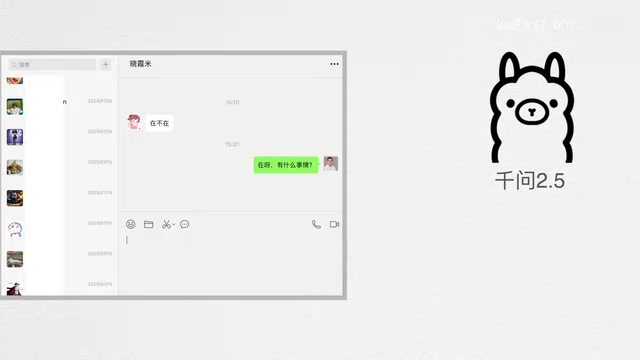
Considering both security and implementation difficulty, Approach 3 is the optimal choice for individual developers.
Technical Architecture of the Screenshot + OCR Solution
The tech stack for this system isn't complicated, consisting of three core modules.
Deploying Qwen Vision Model Locally with Ollama
Ollama is an open-source tool designed specifically for running large language models locally. Its design philosophy is similar to how Docker manages containers — users only need a single command (e.g., ollama run qwen2.5-vl) to download and run a specified model. Under the hood, Ollama is based on the llama.cpp inference engine, supports GGUF quantized model files, and can run efficiently on consumer-grade hardware. It provides a RESTful API interface compatible with the OpenAI format (listening on port 11434 by default), allowing developers to interact with models through standard HTTP POST requests, greatly lowering the barrier to local model deployment.
Ollama is used to deploy the Qwen vision model, which handles recognizing chat text in screenshots. The benefits of local deployment are straightforward: data never leaves your machine ensuring privacy, while eliminating the latency and cost of cloud API calls.
The Qwen Vision Model (Qwen-VL series) is a multimodal large model from Alibaba Cloud's Tongyi team, capable of understanding both text and image inputs simultaneously. Its architecture typically consists of a visual encoder (like ViT) and a large language model. The visual encoder converts images into feature vectors, which are then fed into the language model alongside text tokens through a cross-modal alignment module for joint reasoning. In this solution, the Qwen vision model doesn't just perform traditional OCR (Optical Character Recognition) for text extraction — more importantly, it can understand the layout semantics of the chat interface: distinguishing who sent each message, the chronological order of messages, which message is the latest — and directly generates appropriate replies based on conversation context, combining OCR and response generation into one step.
Two key considerations during deployment:
- OCR recognition accuracy: The vision model needs to accurately recognize text in the WeChat chat interface, including nicknames, timestamps, and message content
- Hardware resource consumption: Ensure CPU and memory usage stays within acceptable limits to avoid impacting daily use
Screenshot and New Message Detection Mechanism
The system takes a screenshot of a designated area of the WeChat chat window every 5 seconds, then performs a pixel-level comparison between the current screenshot and the previous one. If changes are detected in the image content, it means a new message has arrived, triggering the AI reply process.
Pixel-level screenshot comparison is a simple but effective change detection method. Implementation typically uses Python's Pillow or OpenCV library, converting both screenshots to NumPy arrays and calculating pixel-by-pixel differences. Common evaluation strategies include calculating Mean Squared Error (MSE) or Structural Similarity Index (SSIM) between the two images, determining a change has occurred when the difference exceeds a preset threshold. Compared to event-driven message listening mechanisms, this polling + comparison approach sacrifices some real-time responsiveness but requires absolutely no access to any of WeChat's internal interfaces — a purely "black-box" detection method. In practice, factors like screen rendering anti-aliasing, font smoothing, and system time display changes can all cause pixel-level differences, requiring reasonable tolerance thresholds to avoid false positives.
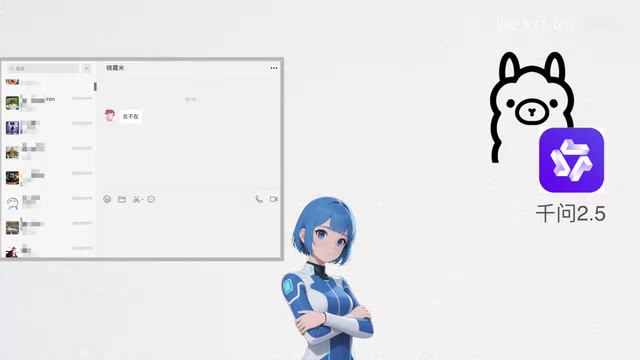
The core process has four steps:
- Periodic screenshots: Capture images of the WeChat chat area
- Change detection: Compare with the previous screenshot to determine if new messages have arrived
- OCR recognition + AI response generation: Send the screenshot to Ollama's Qwen model via HTTP interface for text recognition and reply generation
- Simulated sending: Use Python to simulate hotkey operations, pasting the reply content into WeChat's input box and sending it
Simulating Hotkey Message Sending with Python
Using Python automation libraries like pyautogui to simulate keyboard operations, the AI-generated reply is written to the clipboard, pasted into WeChat's input box, and sent by pressing Enter. This step completely mimics human behavior — to WeChat, it's indistinguishable from normal use.
pyautogui is one of the most commonly used GUI automation libraries in the Python ecosystem. It simulates mouse movement, clicks, and keyboard presses by calling the OS's underlying input event APIs (win32api on Windows, Quartz on macOS, Xlib on Linux). In this solution, the typical message-sending flow is: first write the AI-generated text to the system clipboard using the pyperclip library, then simulate Ctrl+V paste with pyautogui, and finally simulate pressing Enter to send. Since these operations produce events at the OS level that are completely identical to those generated by a real person using keyboard and mouse, the WeChat client cannot distinguish the source. Similar automation tools include pywinauto (focused on Windows window control operations) and the keyboard library (a lighter keyboard simulation solution) — developers can choose the appropriate tool based on specific needs.
Development Pitfalls and Solutions
Several typical pitfalls were encountered during development. Here's each one documented.
Pitfall 1: Ollama HTTP Interface Call Errors
When calling Ollama's HTTP interface, if the image data includes a prefix like data:image/png;base64,, the interface throws an error.
Base64 is an encoding method that converts binary data into ASCII strings, commonly used to transmit binary data like images within text protocols such as JSON. The encoded string is approximately 4/3 the length of the original data. In web development, Base64 image data is typically presented in Data URI format with the data:image/png;base64, prefix, which browsers can parse directly. However, Ollama's HTTP API follows its own interface specification — its images field requires pure Base64 encoded strings (without the Data URI prefix) because the API internally already knows the data type and doesn't need additional MIME type declarations. This discrepancy is a common pitfall for developers on their first integration.
Solution: Don't include the data: prefix in the Base64 encoded string — just pass the raw encoded content.
Pitfall 2: Cursor Blinking Causes False Screenshot Detection
Even without new messages, the cursor in WeChat's input box blinks constantly, causing pixel differences in every screenshot and making the system falsely detect new messages.
Solution: Adjust the screenshot area — move it up to avoid the cursor position in the input box, capturing only the chat message display area.
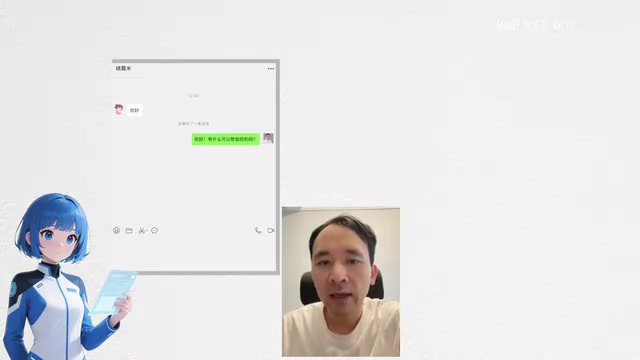
Pitfall 3: Message Infinite Loop — The Most Critical Bug
This was the trickiest problem in the entire project. After the AI sends a reply, a new message appears in the chat interface. The system takes another screenshot, finds it different from before, and triggers another reply — and so on, entering an infinite loop.
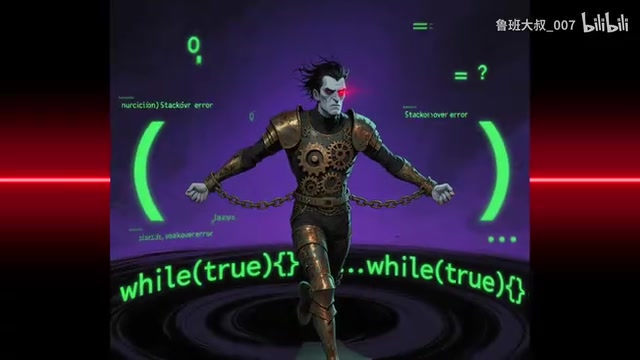
If not addressed promptly, CPU usage stays maxed out until the system eventually crashes.
The message infinite loop is essentially a classic Feedback Loop problem, very common in automation system design. When a system's output changes its input state and there's no effective termination condition, an infinite loop occurs. Similar issues appear in email auto-reply scenarios (two auto-reply mailboxes triggering each other), chatbot conversations (two bots replying to each other), CI/CD pipelines (code commits triggering builds, build results triggering new commits), and other contexts.
Solution: Immediately after sending a reply, take a new screenshot and update the baseline image. This way, the next comparison uses a baseline that already includes the AI's reply, preventing the reply logic from triggering again. This is essentially a state synchronization mechanism — ensuring the system's understanding of the "current state" always includes its own latest output, thereby breaking the feedback loop. The approach is simple but genuinely effective. More complex systems might need to introduce message ID deduplication, sender identification filtering, cooldown time windows, and other multiple mechanisms to prevent infinite loops.
Limitations and Future Optimization Directions
This solution can quickly get a prototype running, but it has several obvious shortcomings:
- Can only handle the current chat window: Cannot monitor multiple chat conversations simultaneously
- Depends on window position: The WeChat window cannot be obscured or minimized
- 5-second polling interval: Limited response speed, unsuitable for scenarios requiring instant replies
- Text messages only: Image, voice, and other message types cannot be processed yet
Future optimization directions include: introducing smarter message deduplication mechanisms, supporting multi-window monitoring, optimizing screenshot comparison algorithms to reduce false positives, and integrating stronger multimodal models to improve recognition accuracy.
Conclusion
This "Screenshot + OCR + Hotkey" solution achieves personal WeChat AI integration in the most straightforward way possible. No protocol cracking needed, no code injection required — it works entirely by simulating the human behavior chain of "look at screen → understand content → type reply."
While functionality is limited, it wins on safety, stability, and being achievable within 1 hour, making it ideal for individual developers to quickly build a WeChat AI assistant prototype.
If you have higher requirements, consider WeChat Work's official API, or WeChat Open Platform's Mini Program and Official Account interfaces for more comprehensive AI integration solutions.
Related articles
 Tutorials
ChatGPT Plus Subscription Guide: Are GPT-5.5, image-2, and Codex Worth the Upgrade?
A detailed look at ChatGPT Plus features — GPT-5.5, image-2, and Codex — with a Plus vs Pro comparison and a complete step-by-step subscription guide for users outside the US.
 Tutorials
Harness AI Engineering in Practice: Using Claude Code to Master Enterprise-Level E-Commerce Development
Deep dive into Harness AI Engineering: master enterprise e-commerce development with Claude Code using the Rules, Skills, Wiki, and Changes framework.
 Tutorials
Cursor + Codex Dual-IDE Collaboration: A Practical Methodology for Open-Source Project Customization
A complete methodology for open-source project customization based on real-world experience, detailing the Cursor+Codex dual-IDE workflow, seven-stage process, MVP validation, and AI source code reading techniques.