Cursor 2.0 Beginner's Guide: Three AI Interaction Modes & Core Features Explained

A comprehensive guide to Cursor 2.0 AI code editor's core features and interaction modes
Cursor 2.0 is an AI code editor built on VS Code that offers three interaction modes: Plan (planning), Agent (auto-execution), and Ask (Q&A). Core features include multi-Agent parallelism, code review with Diff view, Quick Edit for precision editing, Tab autocompletion, @ symbol context references, and a project rules system. The article emphasizes the importance of Git version control and code review in AI-assisted programming.
Cursor 2.0 Complete Getting Started Guide: Core Features & Best Practices for an AI Code Editor
Cursor 2.0, an AI code editor built on VS Code, has recently undergone a major interface redesign and feature upgrade. This article systematically covers its core features and workflows to help beginners quickly get up to speed with this powerful AI programming tool.
Technical Background: Cursor is built on VS Code (Visual Studio Code), using a "fork" strategy that inherits the complete ecosystem of Microsoft's open-source editor—the Electron desktop framework, plugin system, Language Server Protocol (LSP), and Debug Adapter Protocol (DAP) are all fully preserved. This means users can seamlessly migrate their existing VS Code plugins, keyboard shortcuts, and workflows, allowing the Cursor team to focus all their efforts on deep AI integration without rebuilding the editor infrastructure from scratch.
Initial Setup & Interface Overview
After downloading and installing Cursor, you first need to create a working folder to store your project code. Simply open or create a new folder via File → Open Folder to get started.
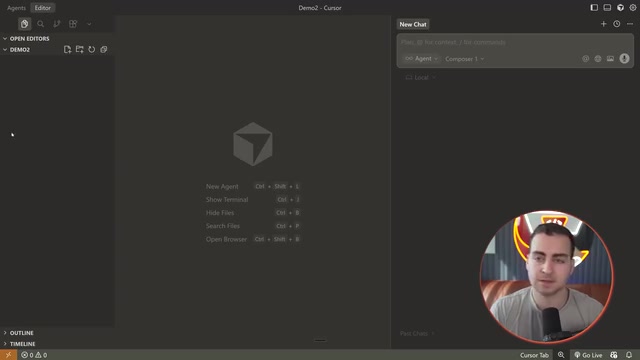
Cursor 2.0's interface has been significantly redesigned. Key changes include:
- Proprietary Composer Model: Claimed to be 4x faster than comparable models
- Multi-Agent Parallelism: Run multiple AI agents simultaneously on different tasks
- New Agent/Editor Dual-View Toggle
At the top of the interface, there are two main view toggle buttons: Agent and Editor. The Agent view focuses on AI interaction, while the Editor view is the traditional code editing interface. The toggle button in the upper left corner controls the visibility of the sidebar, terminal, and other panels.
If you want to change the editor theme, use Ctrl+Shift+P (or Cmd+Shift+P on Mac) to open the command palette and search for "theme" to switch.
Three Interaction Modes: Plan, Agent, Ask
Cursor 2.0 offers three core interaction modes, each suited for different development scenarios:
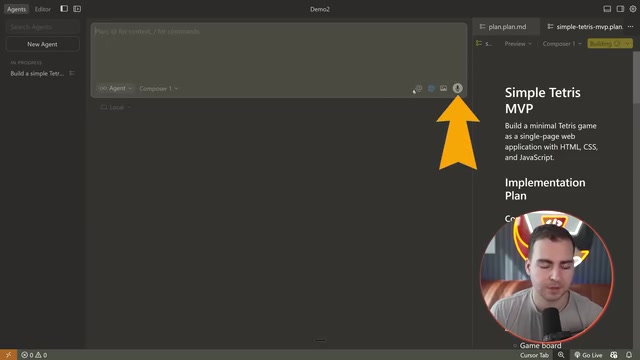
Plan Mode: Plan Before You Build
Before writing any code, let the AI generate a development plan. This is the recommended starting point for your workflow. For example, you can tell it: "Please plan a browser-based Tetris game for me. Keep it simple—just basic block movement and scoring."
The AI will generate a Markdown-formatted plan file listing all the steps to complete. You can review and modify this plan, then click the Build button to have the Agent start executing once you're satisfied.
Agent Mode: Automatically Execute Development Tasks
This is the most powerful—and most "dangerous"—mode. The Agent will directly modify files, generate code, and run commands. It's ideal for executing well-defined development tasks, but be aware that it may make many unexpected changes.
Agent's Underlying Mechanism: Agent mode is powered by a "Tool-Use Loop" architecture. The large language model can not only generate text but also call predefined tool functions—reading files, writing code, executing terminal commands, etc. After each reasoning step, the model decides which tool to call; the tool returns results, and reasoning continues, forming an autonomous loop until the task is complete. This is exactly why the Agent can produce extensive changes: each decision is the model's probabilistic inference based on context rather than deterministic rules, making the code review step critically important.
Ask Mode: Query Without Modifying—The Safest Option
The safest mode—ask without modifying. The AI will only provide text responses without touching any files. Ideal for these scenarios:
- Asking how to run a project
- Understanding what a piece of code does
- Getting technical solution recommendations
Code Review & Git Version Control
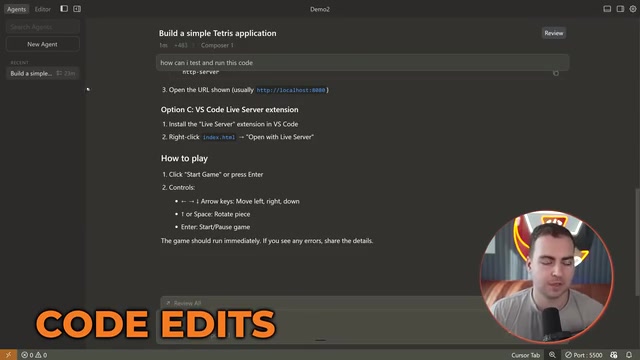
When the Agent completes a task, it enters an "Awaiting Review" state. This is a critical checkpoint where you decide whether to accept the AI-generated code.
Review Workflow
Clicking the Review button opens the Diff view, showing all modified files. Note: The code generated by the Agent has already been written to the files—Keep All simply confirms acceptance, while Undo All actually reverts the changes.
Understanding the Diff View: Diff (difference comparison) is a standard tool in software development that uses green to highlight added lines and red for deleted lines, visually displaying line-by-line differences between two versions. The Git version control system uses diff as its core data structure to record changes in each commit. In Cursor's review workflow, the diff shows the difference between the "current file on disk" and the "last Git commit"—this is why it's recommended to make a Git commit before starting any Agent task. With a baseline in place, you can clearly see exactly what the AI has changed.
Recommended review workflow:
- Don't rush to click Keep All
- Switch to Editor view to examine the code
- Actually run the project to test the results
- Accept all changes only after confirming everything works
Git Version Control
This is your last line of defense for protecting your code. Even if the AI makes a mess of your project, Git lets you roll back to a previous working state.
The simplest approach is to directly tell the Agent: "Use Git to save the current work," and it will automatically execute git init, git add, and git commit commands.
Precision Editing & Code Autocompletion
Beyond the Agent chat window, Cursor provides more granular code editing capabilities:
Quick Edit (Ctrl+K / Cmd+K)
Select a piece of code and press the shortcut to make precise modifications to the selected portion. For example, select a function and type "add comments and clean up the code"—the AI will only modify the selected part without affecting other code.
Reference to Agent (Ctrl+L / Cmd+L)
Select code and press Ctrl+L to send it as context to the Agent chat window, then ask questions like "What does this code do?"
@ Symbol References
Use @ in the chat window to reference specific files, folders, documentation, etc., providing the AI with more precise context information.
Tab Autocompletion
While manually writing code, Cursor predicts the next line of code in real time—press Tab to accept the completion suggestion. This feature can significantly boost efficiency during everyday coding.
Project Rules & MCP Extension Configuration
Rules System
Cursor allows you to set global or project-level rules to ensure the AI always follows specific coding conventions.
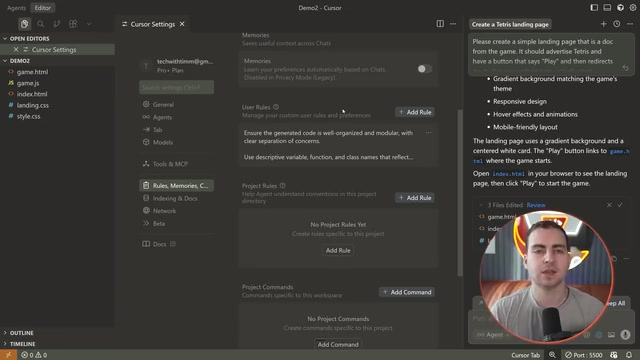
Go to Settings → Rules to create rule files. Rules support three application methods:
- Always Apply: Always active
- Apply Intelligently: AI decides when to apply
- Apply to Specific Files: Only applies to specific file types
For example, setting "always generate docstring for functions"
Related articles
 Tech Frontiers
A Rare Quiet Day in AI: Recursive Self-Improvement Stirs Beneath the Surface
A rare quiet day in AI sees multiple sources go silent simultaneously. Behind the calm, Recursive Self-Improvement (RSI) research continues. What this means for the industry.
 Tech Frontiers
Reve 2 vs. Ideogram 4: A Deep Dive into Layout Control in AI Image Generation
A deep comparison of Reve 2 and Ideogram 4's layout control capabilities, covering technical approaches, real-world use cases, and industry trends for designers and creators.
 Tech Frontiers
In the Weights: Check Your Influence Score in the AI World
In the Weights is an AI influence search engine that quantifies your presence in the AI world with a score. Explore how it evaluates practitioners and what it means for digital identity.