Cursor AI Auto Search: Python + Selenium in Practice

Generate a Selenium script with a one-line Cursor prompt to automate the full Google search flow.
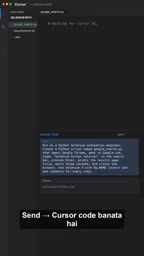
The article introduces a short video tutorial on generating Selenium automation scripts with Cursor. The author enters a natural-language prompt in Cursor Chat asking the AI to "find the search box on Google, enter a query term, press Enter, and print the page title." Cursor then generates google_search.py, using By.NAME to locate the search box, send_keys to enter content, Keys.ENTER to trigger the search, and Title to print the results page title. The script can be run directly in Cursor, with Chrome opening automatically and completing the search without any manual operation. The article also adds several practical engineering tips: By.NAME depends on page structure stability, so real projects need explicit waits; automated access to search engines requires rate control to avoid verification or throttling; and Selenium needs a version-matched browser driver, a common stumbling block for beginners. The next episode in the series will move on to form-filling automation.
From Opening a Browser to Automated Search
If you've already used Cursor to open Chrome, the natural next step is to automate the search too. According to a short video tutorial on YouTube (EP02), Cursor Chat can get the AI to write a runnable Selenium script directly, completing the full flow of "open Google → enter keywords → press Enter → print the page title."
The previous episode in this series covered opening Chrome; this one moves on to searching; the next episode is teased as form-filling automation—forming a step-by-step mini learning path for automation.
One-Sentence Prompt, AI Generates the Full Script
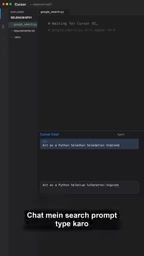
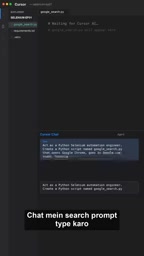
The first step in the demo is to open Cursor Chat and type a natural-language request: find the search box on Google, enter a query term, press Enter, print the title, and then send it.
The prompt itself doesn't specify any Python library or API details—it relies entirely on the AI to infer the implementation. This is exactly the value of AI coding tools like Cursor: leave the "what to do" to the developer and the "how to write it" to the model.
The Generated File: google_search.py
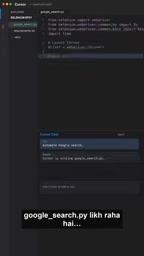
After the prompt is sent, Cursor starts generating code, and in the video you can see it writing google_search.py. According to the creator, several key calls in the script each serve their own purpose:
- By.NAME: used to locate the search box element on the Google page
- send_keys: enters the query keyword into the search box
- Keys.ENTER: simulates the Enter key to trigger the search
- Title: reads and prints the title of the results page
These APIs are among Selenium's most basic and commonly used operations, making them a good first script for getting started with automated testing or scraping.
Selenium WebDriver is the core component of the Selenium project. It provides an object-oriented API that lets code programmatically control a real browser—opening pages, finding elements, simulating clicks and keyboard input, and reading page content. WebDriver communicates with the official drivers provided by each browser (such as chromedriver), translating Python method calls into low-level instructions the browser understands. Every action in the script (locating the search box, entering keywords, pressing Enter) is essentially a request in the WebDriver protocol. Understanding this helps clarify that the script isn't "simulating" a browser—it's directly driving a real Chrome instance.
By.NAME, send_keys, and Keys.ENTER are all part of the WebDriver API. By is an enum class of locator strategies; besides NAME, it also includes ID, CSS_SELECTOR, XPATH, and more. send_keys is a method of the WebElement object, used to send text or keystrokes to editable elements such as input fields. Keys encapsulates keyboard constants, with Keys.ENTER representing the Enter key. Together, these three form the most common "enter and submit" pattern in Selenium.
Running It: The Fully Automated Execution Process
Once the script is generated, enter a run command in Chat to have Cursor execute google_search.py. The process described in the video is: Chrome opens automatically, the search term is entered automatically, and the results page appears automatically—no manual operation needed throughout.
The creator describes the effect as "जबरदस्त" (meaning "awesome"). From an engineering perspective, the significance of such scripts goes beyond a demo—it shows how AI tools can compress the path from "idea to runnable code" into just a few sentences.
Considerations and Practical Advice
The video doesn't go into pitfalls, but from the script structure we can infer a few common issues in practice:
Stability of element location: Locating the search box with By.NAME depends on the stability of Google's page structure. A page redesign may break the script, so real projects often need to pair it with explicit waits.
Rate control: When automating access to search engines, high-frequency requests may trigger verification or rate limiting. For batch tasks, reasonable intervals should be added.
Driver management: Selenium requires a browser driver that matches the version, which is the step where beginners most often get stuck. AI-generated code usually won't handle environment configuration for you.
Explicit Wait is the standard approach in Selenium for handling asynchronous page loading. Elements on modern web pages are often dynamically rendered by JavaScript after the DOM has loaded; if the script tries to find an element before it appears, it will throw a NoSuchElementException. Explicit waits use WebDriverWait together with expected conditions (such as presence_of_element_located) to have the script poll repeatedly within a specified timeout until the condition is met or the timeout expires. In contrast, implicit wait (implicitly_wait) is a global setting with coarser granularity. What the article calls "a page redesign breaking the script" is often actually a timing issue caused by delayed element loading—explicit waits can significantly improve script robustness.
Browser driver (WebDriver) management is the most error-prone part of Selenium environment setup. After each major Chrome version update, an older chromedriver may fail to communicate with the new browser, throwing errors like SessionNotCreatedException. The early approach was to manually download a driver strictly matching the browser version and put it on the PATH, which had high maintenance costs. Nowadays it's more recommended to use libraries like webdriver-manager, or the built-in Selenium Manager since Selenium 4.6, which automatically detect the browser version and download a matching driver, greatly lowering the barrier for beginners. AI-generated code snippets usually focus only on business logic and don't include this environment handling, so developers need to fill it in themselves.
Next Step: Form-Filling Automation
At the end, the creator teases the topic of the next episode—form-filling automation. From opening a browser to automated search to filling out forms, this series uses short videos to string together the core operations of Selenium automation into a single line.
For developers who want to quickly get started with Python automation, the combination of generating code with Cursor and then understanding the generated results line by line makes it easier to build intuitive understanding than writing everything by hand from scratch.
Related articles

Nothing CMF Buds 2A Drops to $17.89 on Black Friday: A New Low for ANC Earbuds
Nothing CMF Buds 2A wireless earbuds Black Friday deal: just $17.89 on Amazon, about $11 off retail and a record low. ANC earbuds at an entry-level price.

When AI Creation Gets Accused of "Spitting": Hacker News Heats Up Over the Glaude Controversy
A Hacker News post, "Spitting in the Face of Glaude," sparks debate on AI creation transparency and attribution ethics. This analysis examines the blurred creator identity behind the controversy and offers practical advice for AI content production.

Akai Embraces Custom Firmware: MPC Sample 1.4 Lets Users AI-Program Their Sampler
Akai embraces the modding community with MPC Sample 1.4 firmware, supporting vibe-coded custom firmware and effects. We analyze the impact of this open strategy on music hardware and AI-assisted programming.