Cursor Redesign Guide: How to Use the Agent and IDE Dual-Window Setup

Cursor's redesign splits into Agent and IDE windows with built-in browser control and MCP automation support.
The new Cursor splits its interface into a standalone Agent window and a VSCode-style IDE, defaulting to the Agent side on login. AI features include Tab auto-completion and natural-language Agent conversations that can read and modify your codebase directly. The standout new capability is built-in browser control — the Agent uses page snapshots to understand and interact with web content, automating repetitive tasks. Advanced users can extend AI to OS-level automation via Skills and MCP. For cost control, use budget models like Grok for simple tasks and escalate only when needed.
After the Cursor Redesign: Two Interfaces to Know
Cursor recently underwent a major redesign, with a noticeably different interface logic from before. Many longtime users find themselves confused the first time they open it. According to this Bilibili creator's hands-on testing, the new Cursor is effectively split into two separate interfaces: one is Cursor's own Agent window, similar to Claude Code (CC) — a conversational AI agent panel; the other is the familiar VSCode-based IDE for coding.
After logging in, you land on the Agent interface by default. There's an "IDE" button in the top-right corner that takes you to the VSCode-style code editor. For users accustomed to the old single-IDE experience, this dual-window structure takes a bit of getting used to. In short: write code on the IDE side, and direct the AI either through the standalone Agent window or the Agent panel on the right side of the IDE.
Step 1: Switch the Interface to Chinese
The new IDE defaults to English when you first open it. Cursor's own shell interface doesn't yet have full Chinese localization, but the underlying VSCode layer can be localized.
The steps are simple:
- Go to View → Extensions from the top menu
- Search for Chinese in the search box
- Find the "Chinese (Simplified)" language pack and click Install
- A prompt will appear asking you to restart — after restarting, the entire interface will be in Chinese
Once localized, load any code repository via Open Project. The left panel shows the file tree, the center is the code area, and the right side is the Agent panel — the overall layout closely matches standard VSCode, so the learning curve is minimal.
Tab Completion vs. Agent: Two Ways to Use AI
The new Cursor's AI capabilities run along two main tracks, which the creator clearly distinguishes in their testing.
First: Tab auto-completion. While writing code or comments in the editor, Cursor predicts what you're about to type based on context. Press Tab to accept the suggestion. For example, write a comment describing "a program to calculate what 1 plus 1 equals," and it'll attempt to generate the corresponding code. Models aren't perfect — the hands-on test did surface cases where the generated result didn't quite match expectations — but the core completion feature works.
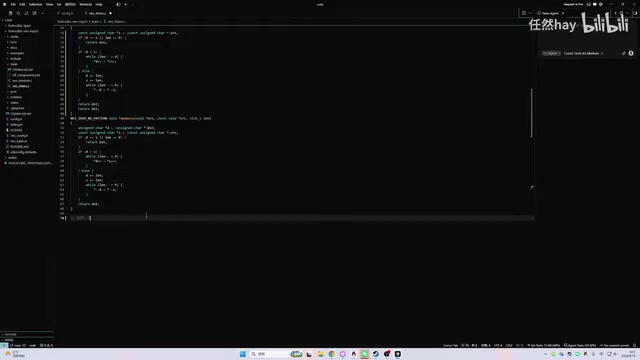
Second: The Agent panel on the right. Click New Agent to start a new conversation and issue tasks in plain language. No need to memorize commands like code review or explain. The creator's advice: "just ask in plain terms." For instance, ask it to "explain what this project does," and it'll read through the codebase and the files on the left to give you a summary of the project's functionality and architecture.
Agent in Action: Edit Code, Add Features, Reference Files
Where Agent really shines is its ability to directly work with your codebase.
Type @ in the chat box to reference specific files, focusing the AI on exactly the scope you define. You can also attach branches, terminal context, and more. In the demo, the creator intentionally deleted a function to cause an error, then used @ to reference the file and asked the Agent to "fix this part" — and it filled the missing code right back in.
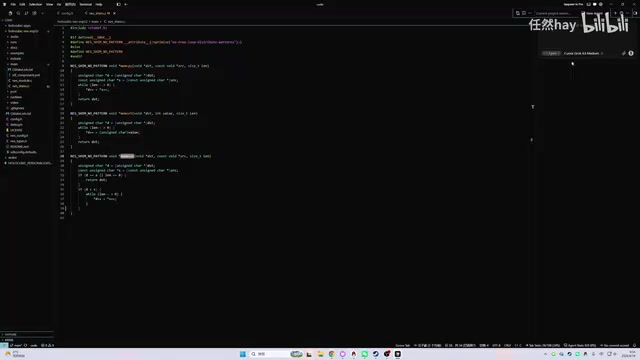
One noteworthy detail: the creator pointed out that the default model felt "a bit dated" — instead of checking the git history and doing a proper revert, it just rewrote the code from scratch. The result worked, but the approach wasn't particularly smart. This serves as a reminder that model selection directly affects Agent performance.
After generating or modifying code, Agent offers two choices: Keep to accept the changes, or Undo to roll them back. The feedback loop is clean and immediate.
Standout Feature: Agent Can Control Your Browser
The most surprising new capability in this redesign, according to the creator, is the built-in browser that the Agent can control.
Just tell it to "open Baidu" and it'll load the page. If you want it to operate within your own browser, you need to explicitly say so — otherwise it defaults to its internal tool. In the demo, the Agent used snapshots to read page content and carried out tasks like searching trending topics and summarizing information directly in the browser.
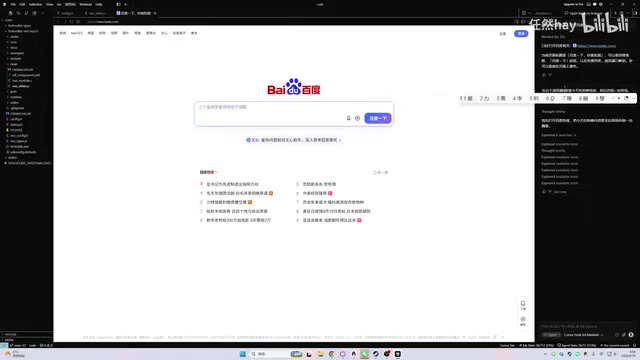
The creator's takeaway is spot-on: this means you can hand off repetitive browser tasks to AI. Whether paired with RPA tools or used for general web interactions, you just describe what you need in plain language — "add a certain workflow," "search and summarize this topic" — and the AI handles the clicking, form filling, and content extraction, freeing your hands for other work.
The underlying mechanism of Agent-controlled browsing is fundamentally different from traditional RPA (Robotic Process Automation) tools like UiPath. Traditional RPA relies on pre-recorded coordinates or element selectors to replay actions — a brittle approach that breaks easily when page layouts change. Cursor Agent's browser control works via a "snapshot" mechanism: the Agent captures a screenshot or reads the DOM structure, uses the language model to understand the page semantics, then infers what to click or fill in next. This understanding-based approach is more robust to page changes, but it depends on the model's visual and reasoning capabilities and can still fail on complex pages. Both approaches have their place: RPA is more reliable for fixed, batch workflows, while the Agent approach excels at flexible, unstructured tasks that require judgment.
Choosing Models: Match the Task, Control the Cost
In the Models panel under Settings, you can see the full range of models Cursor supports. The creator offers a practical cost-efficiency ranking:
- Grok series (budget tier): First choice for everyday simple tasks — capable enough and cost-effective
- Mid-tier models: Step up when the budget tier isn't cutting it
- High-end models like Claude Opus: Powerful but "insanely expensive" — the creator bluntly noted it could "burn through a month's quota with a single message." Not recommended unless absolutely necessary.
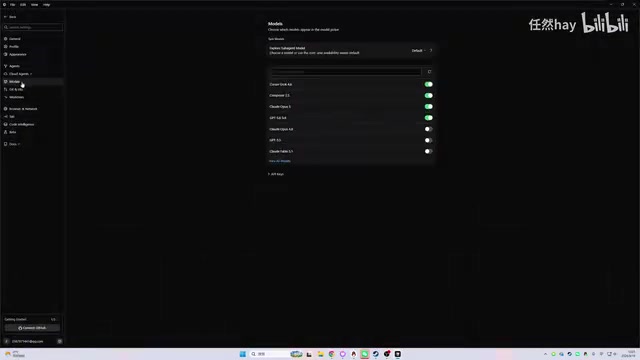
The core strategy is tiered usage: cheap models for simple tasks, escalate gradually for complex ones, and avoid burning through your quota unnecessarily.
Advanced: Skills and MCP
During exploration, the creator also discovered that the new Cursor supports extending capabilities through Skills and MCP (Model Context Protocol).
For example, you can create a Cursor Skill, connect computer use–related MCPs, or even install an MCP that directly controls your local computer — theoretically enabling OS-level automation like "open WeChat and send a message to someone." However, these configuration options are buried fairly deep in the new UI, and the creator had trouble finding the right place to add them during recording, eventually confirming it's done under the create skill / MCP settings.
Browser control is already built in and doesn't require a separate MCP. For AI to take over your entire computer, you'll need to install the corresponding computer use MCP separately. This area is relatively complex, and the creator mentioned plans to research and demonstrate it in a future video.
MCP (Model Context Protocol) is an open standard proposed by Anthropic in late 2024, designed to unify the interface between AI models and external tools and data sources. Think of it as the "USB port" of the AI world — as long as a tool implements the MCP server spec, any MCP-compatible AI client (such as Cursor, Claude Desktop, etc.) can call it directly, without needing custom integration for each tool. A wide range of MCP server implementations are already available, covering database queries, file system access, browser control, code execution, and more. Computer use is a separate capability Anthropic opened up for Claude models, allowing the model to operate graphical interfaces like a human — through a loop of screenshot → analyze → click/type — rather than relying on structured APIs. Combined with MCP, AI is no longer limited to text generation; it can genuinely take over full workflows in desktop applications.
Summary
For users getting started with the new Cursor, a few key points will get you up and running: understand the distinction between the Agent and IDE interfaces, install the Chinese language pack, use both Tab completion and Agent conversation to invoke AI, and match your model choice to task complexity to manage costs. Browser control and MCP extensions represent its deeper automation potential — well worth digging into further down the road.
Related articles

AgentCore in Practice: Connecting Custom Tools and MCP Servers to Agents
DebuggerCafe tutorial shows how to connect custom tools and MCP servers to Amazon Bedrock AgentCore agents, covering tool contract design, MCP reuse, and production concerns.

816B Parameters Scores Only 39? The Real Cost-Effectiveness of the Open-Source LLM Parameter Race
Meta's 816B Muse Spark Open scores just 39 on Artificial Analysis, while 180B Qwen3.8-Flash-Next scores 40. This article analyzes 11 open-weight models' parameters vs. scores, exploring the real impact of activated parameters, quantized size, and deployment cost.

Aerial Manipulators: The Next Step for Drones from 'Seeing' to 'Changing'
Starting from a Reddit discussion, this article analyzes the technical challenges, potential applications, and deployment bottlenecks of aerial manipulators, exploring the key challenges for drones moving from environmental perception to physical manipulation.