DeepSeek Harness Installation Guide: Complete Node.js Environment Setup

A complete guide to installing Node.js and configuring environment variables for running DeepSeek Harness on Windows.
This guide walks through the full Node.js environment setup required to run the DeepSeek Harness LLM evaluation tool. Key steps include downloading Node.js and installing it outside the C drive, checking Add to Path for global command access, and always opening a new terminal window to verify the installation. It also covers redirecting global packages and cache to custom directories using `npm config set prefix/cache`, then registering `NODE_PATH` and updating `Path` in system environment variables — preventing npm dependencies from bloating the C drive over time.
Setting up an LLM evaluation environment often hits a wall at the very first step: environment configuration. DeepSeek Harness, a tool designed for large model evaluation, depends heavily on a properly configured Node.js environment to install and run. This guide is based on a hands-on walkthrough by Bilibili creator Pange, covering the full process from installing Node.js to configuring environment variables — helping you avoid the most common pitfalls.
Why Node.js Comes First
Installing and running DeepSeekAd Harness both require a working Node.js environment, so the very first thing to do is confirm whether Node.js is already on your machine. The check is simple: press Windows + R, type cmd, and hit Enter to open a command prompt. Then run these two commands:
node -v— check the Node.js versionnpm -v— check the npm package manager version
If neither command returns a version number, or you see an error like "not recognized as an internal or external command," Node.js is either not installed or the installation is broken — you'll need to install it fresh.
Node.js is a JavaScript runtime built on Chrome's V8 engine. Originally designed for server-side development, it has become the foundation for a huge number of frontend toolchains and CLI tools. npm (Node Package Manager) is bundled with Node.js and handles downloading, installing, and managing third-party packages. Many AI evaluation tools and scaffolding tools are distributed via Node.js because it's cross-platform, has a mature ecosystem, and is incredibly easy to distribute — developers can pull all dependencies with a single npm install command. On Windows, the Node.js installer handles most of the setup automatically, but the correct writing of environment variables (specifically Path) is what determines whether node and npm can be called globally from the command line.
Installing Node.js
Head to the official Node.js website and navigate to the downloads page. Click "Get Node.js" and select the version for your operating system. Windows users can download the default version directly; Mac users can find their version from the dropdown list.
Once downloaded, double-click the installer and follow these steps: click Next → accept the license agreement → click Next again.
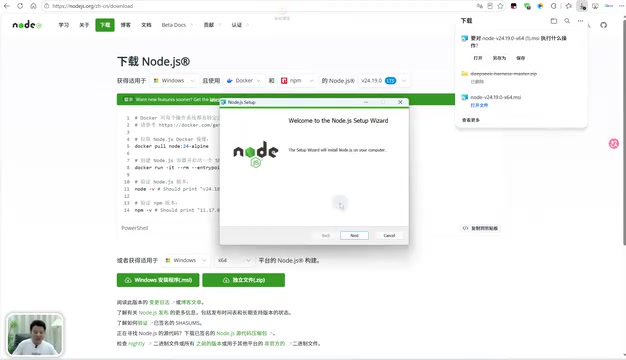
The critical step here is changing the installation directory. The default path points to the C drive, which will gradually fill up as you use more tools, slowing your system down. It's strongly recommended to switch to a different drive — for example, create a folder called Node.js on your F drive (avoid using Chinese characters in the folder name).
After selecting your directory, click Next. On the feature selection screen, make sure to check Add to Path — this is what allows the system to recognize node commands globally. Then click Next through the remaining steps and hit Install. The installation is quick.
Verifying the Installation
After clicking Finish, you need to open a brand new command prompt window before running any verification commands. This is an easy-to-miss detail — if you use the same window that was open before the installation, the system will still report "not recognized as an internal or external command," because the old window hasn't loaded the updated environment variables.
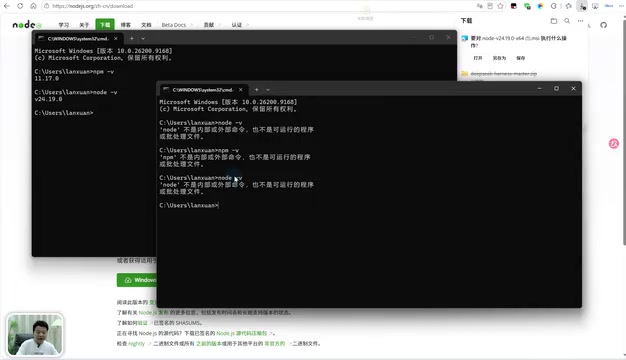
Open a new window and run node -v and npm -v again. If both version numbers display correctly, Node.js is successfully installed.
Configuring Environment Variables: Keeping C Drive Clean
This step isn't strictly required, but it's strongly recommended. Without it, npm will default to storing all downloaded packages and plugins on the C drive. As your use of DeepSeek Harness grows, the accumulation of plugins and dependencies can put significant pressure on your C drive.
The idea is to redirect both the download directory and the cache directory to a different drive. Here's how:
Create Custom Directories
Inside your Tool directory (or wherever you prefer), create a folder called nodehome (the name is up to you). Inside it, create two subdirectories:
node_global— where downloaded packages and plugins will be storednode_cache— the cache directory (required)
Bind the Paths via npm Commands
Open a new command prompt and run the following two commands, pointing each path to the directories you just created:
npm config set prefix "your node_global path"
npm config set cache "your node_cache path"
prefix sets the global installation path, telling npm where to put downloaded content. cache sets the cache directory. After pressing Enter, some files will be automatically generated inside the cache directory.
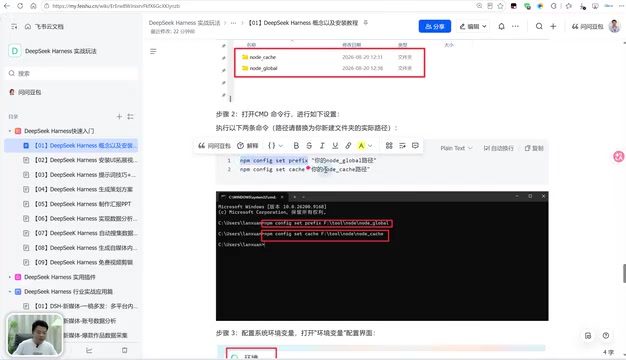
Register in System Environment Variables
Setting the directories alone isn't enough — the system also needs to know where to look. Right-click This PC → Properties → Advanced system settings → Environment Variables.
Under system environment variables, click New and create a variable:
- Variable name:
NODE_PATH - Variable value: the path to the
node_modulesfolder insidenode_global
Next, find the Path variable and double-click to edit it. Add two entries:
- The full path to the
node_globaldirectory %NODE_PATH%(referencing the variable you just created)
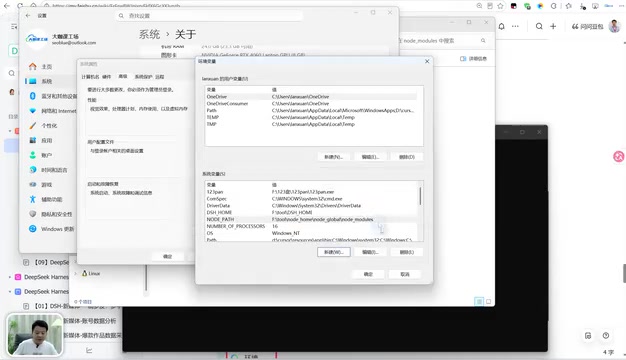
Click OK through each dialog to save.
Environment variables are key-value pairs the operating system uses to store global configuration. The Path variable is particularly important — whenever you run a command, the system searches each directory listed in Path in order, looking for a matching executable. NODE_PATH is a Node.js-specific module search path variable that tells the runtime where to look for globally installed modules. By default, npm installs global packages to the system drive's user directory (typically C:\Users\username\AppData\Roaming\npm on Windows), and this directory can easily grow to several gigabytes as dependencies accumulate. Redirecting prefix and cache to a different drive and registering the paths via system environment variables is standard practice for managing Node.js global packages on Windows — it effectively prevents C drive space exhaustion and the resulting performance degradation.
Verifying the Environment Variable Configuration
Once the configuration is complete, you can run a quick test. Copy the test command provided in your notes, paste it into a command prompt, and wait for the download to finish. Afterward, navigate to the node_modules folder inside node_global — if you can see content there, it confirms that npm is now installing everything to your custom directory instead of piling up on the C drive.
At this point, the Node.js environment needed to run DeepSeek Harness is fully ready. You're now set to use the tool for model evaluation.
Summary
The process itself isn't complicated, but two key points are worth emphasizing: first, check Add to Path during installation and move the directory off the C drive; second, always open a new command prompt window before verifying. Getting the environment variable migration right will keep your plugin management clean and efficient, and lays the groundwork for building a complete LLM evaluation setup.
Related articles

Second-Model Review in Practice: What 40 Comments Reveal About AI Review's Real Value
A test of seven articles and forty review comments reveals AI second-model review's real value: strong at reconciliation, not judgment; catches unbounded claims, but usability is only 38%, with false positives stemming from missing context.

APSD: Asymmetric Distillation by Correctness for 2.6x Faster LLM Post-Training
APSD proposes a correctness-dependent asymmetric self-distillation objective: interpolation preserves successful behavior on correct rollouts, extrapolation strengthens correction on incorrect ones, reaching SDPO-level performance on Qwen3 with 2.6x fewer training steps.

LP-SMC: Improving Diffusion Language Model Inference with Lineage-Preserving Resampling
LP-SMC introduces lineage-preserving SMC resampling with Chopthin resampling and input weight floors, boosting oracle coverage by up to 25.6 points and end-to-end accuracy by up to 18.3 points on diffusion language models for math reasoning and code generation, without additional training.