DeepSeek Harness Installation Guide for Beginners: Temporary vs. Global Install Explained

Complete beginner's guide to installing DeepSeek Harness and choosing between the two methods.
This beginner-oriented article systematically explains the DeepSeek Harness installation process. First, install the Node.js environment—version 20+ LTS recommended—and verify with `node -v` and `npm -v`, where npm handles package management and node handles execution. Second, choose an installation method: temporary install pulls via npm on the spot, saving disk space but requiring an open command-line window and reinstallation each time; global install uses `npm install -g deepseek-ai/dsh`, launches via `dsh web`, and makes upgrading and uninstalling easier—ideal for long-term use. The article also notes that installation doesn't equal usability: API keys and models still need configuring, and it summarizes troubleshooting for common issues like missing desktop icons and pages that won't open.
DeepSeek Harness is a recently much-talked-about AI application-building tool, but many beginners get stuck at the very first step—installation. Based on a step-by-step tutorial from a Bilibili creator, this article walks through the Windows/Mac/Linux-compatible installation process, the trade-offs between the two installation methods, and how to verify the installation afterward.
Before Installing: Set Up the Node.js Scaffolding
No matter which method you ultimately use to run DeepSeekAd Harness, the first step always involves Node.js. The creator used a vivid analogy: Node.js is like the scaffolding when building a house—the foundation for everything that follows. Notably, similar tools like Codex and Claude also depend on this environment, so installing it once benefits you long-term.
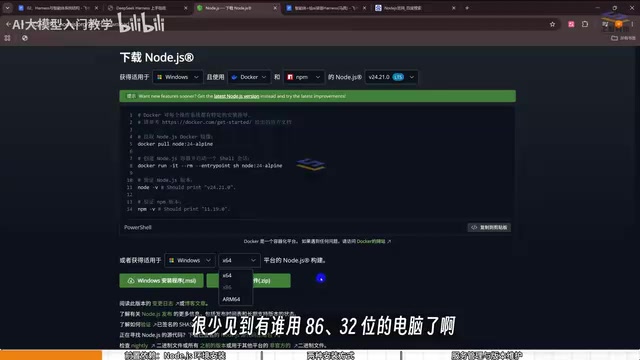
The Node.js installation process isn't complicated. After opening the official website, the system automatically detects your operating system; Windows users just download the MSI file and double-click it. There are two key choices here: pick a version 20 or above, and prioritize the blue-labeled LTS (Long Term Support) version. In the demo, the creator chose 24 LTS. As for 32-bit systems, they're rare nowadays—installers default to matching 64-bit environments, so users generally don't need to adjust anything manually.
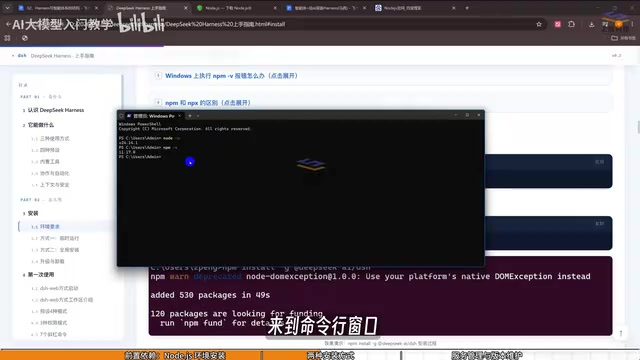
After installation, Node.js won't create a desktop icon—you verify it through the terminal. Windows users can search for PowerShell to open the command line; Mac users use Terminal, and type node -v and npm -v. In the demo, the creator got version numbers 24.14 and 11.170—as long as version numbers print out, the installation succeeded. These two commands are really two sides of the same coin: npm handles installing packages and managing configuration, acting as the "manager"; node handles actual execution, acting as the "worker." If npm -v throws an error, the creator also offered a fix—run a specified command as administrator to adjust it—though this only affects a small number of users.
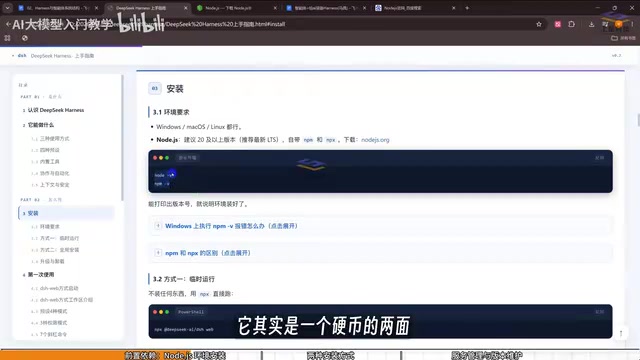
Node.js is a JavaScript runtime environment based on the Chrome V8 engine. It lets JavaScript run directly on the operating system outside the browser, which is why it's often used as the runtime foundation for various development tools and command-line programs. npm (Node Package Manager) is the package manager installed alongside Node.js, responsible for downloading, installing, updating, and uninstalling third-party code packages from the official repository, as well as managing project dependencies and configuration.
LTS stands for Long Term Support, referring to version branches for which the official team continues to provide security updates and bug fixes over an extended period. Compared to Current versions that chase new features, LTS is more stable and suitable for production and everyday use. A larger major version number (like 20, 24) usually means newer, but newer isn't always better—choosing an LTS version still within its maintenance window avoids dependency incompatibility issues.
Two Installation Methods: Temporary Invocation vs. Global Install
Once Node.js is in place, you finally reach the DeepSeek Harness installation step. The creator introduced two paths, each with clear pros and cons, suited to different usage frequencies.
Temporary Install: No Disk Space Used, but Start Over Every Time
The idea behind temporary installation is not to fix the package onto a specific drive, but to pull and invoke it on the spot via npm each time. In practice, you copy the official command, paste it into the command line and hit Enter, press Y to confirm once you see the version prompt (1.7 in the demo), and wait for installation to complete.
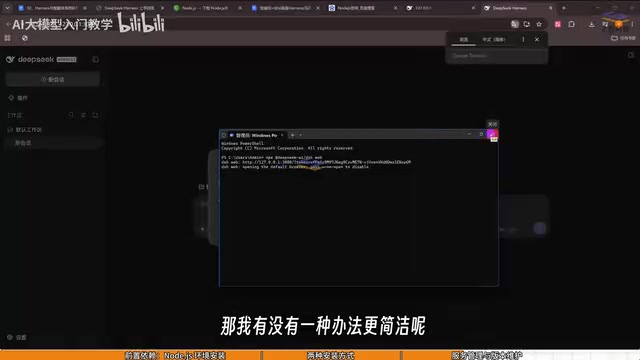
Once installed, the program automatically pops up a page with a local address plus token—this is the DeepSeek Harness local running interface. The token differs on every computer, which is normal. If the page doesn't pop up automatically, you can Ctrl+click the link or copy the address into your browser.
The biggest limitation of this method: the command-line window cannot be closed. Because it's the server side, closing the window means shutting down the server, and refreshing the page won't work anymore. Besides closing the window directly, pressing Ctrl+C also terminates the service. So temporary installation suits users who just want to try it out and don't want to use up disk space—the downside being you have to repeat the installation process every time, which is time-consuming.
Global Install: Install Once, Use Long-Term
If you're sure you'll use it long-term, global installation is clearly more convenient. The command is npm install -g deepseek-ai/dsh; the creator reminds you to just copy the command from the materials if you're worried about typos. Global installation takes a bit longer, and when it finishes it won't pop up a page automatically—it ends silently, so you need to verify manually.
The verification command is dsh --version; in the demo the creator got version number 0.1.7-rc1, confirming successful installation. After that, each time you just type dsh, then run dsh web, and the program starts on a local port (3080 in the demo)—again, you can Ctrl+click or copy the link to open it in your browser.
Another advantage of global installation is that upgrading and uninstalling are simple: use the update command to upgrade, the uninstall command to remove—one command does it all, no need to start from scratch each time like with temporary installation.
npm installs packages in two modes: "local install" and "global install." Local install puts the package into the node_modules folder under the current directory, applying only to that project; global install (adding the -g parameter) puts the package into the system's global directory and generates a directly callable command usable from any path.
Temporary installation is essentially pulling and running a package on the spot through mechanisms like npx—use and discard, without writing to the global directory, so it doesn't occupy long-term disk space, but must be re-downloaded each time. Global installation fixes the program into the system, after which a short command launches it. Understanding this difference explains why after global installation you can simply type dsh, while temporary installation requires keeping the command-line window open—the former is a resident program, the latter more like a one-off temporary service process.
The local address plus token and the 3080 port mentioned in the article involve basic concepts of local services. After DeepSeek Harness starts, it runs a web service on your machine, which the browser accesses via localhost (i.e., 127.0.0.1, the local loopback address) plus the port number. A port is a number that distinguishes different services on the same computer; 3080 is just the default, and if it's occupied you can usually change it in the configuration.
A token is a random string used for identity verification, essentially a temporary key to enter the local service. Different tokens per machine are by design, preventing other devices on the local network from accessing it at will. The launch command dsh web brings up this local service in web mode, so closing the command-line window ends the process and the page naturally can't open anymore.
Installed Doesn't Mean Usable: Configuration Is the Next Step
A reminder: installing DeepSeek Harness only sets up the framework—at this point it's still "unopened." When the creator clicked around the interface during the demo, it already prompted for a key, meaning model configuration and other activation work hasn't been done yet. The creator saved this part for the next episode; users eager to get started should first prepare the corresponding API key, then complete configuration along with the follow-up tutorial.
Looking at the whole installation process, DeepSeek Harness's barrier to entry isn't actually high. The real pitfalls are concentrated in two places: first, choosing too old a Node.js version; second, accidentally closing the command-line window during temporary installation and interrupting the service. Avoid these two, and even absolute beginners can complete the installation smoothly.
Quick Troubleshooting
- No desktop icon after installation? Normal—both DeepSeek Harness and Node.js are invoked via the command line and don't create desktop shortcuts.
- What if
npm -vthrows an error? Run the adjustment command as administrator per the official instructions; most users won't encounter this. - Page won't open? Check whether the command-line window is still open—in temporary install mode, closing it disables the service.
- Which installation method should I choose? For occasional trials, choose temporary installation; for long-term use, choose global installation.
Related articles

Salesforce Acquires Rune for $375M: AI Logistics Tech Bolsters Defense Business
Salesforce reportedly acquires defense tech startup Rune for $375M. Rune's AI logistics tech will strengthen Salesforce's Missionforce defense platform, continuing its M&A spree.

Why Fair Use Benefits Everyone in the AI Era
Starting from a Hacker News discussion, this article analyzes the legal logic and controversies of the fair use principle in AI training and content creation, and its dual impact on creators and the tech ecosystem.

Mistral Large 4 Open-Sources a Trillion Parameters, Microsoft Offers Voluntary Severance to 60,000 Employees
Mistral Large 4 open-sources a trillion-parameter multimodal model with a coding agent score of 48; SanDisk earnings show AI inference reshaping NAND demand; Google Gemini adds in-app file editing, OpenAI raises Codex quotas, and Microsoft offers voluntary severance to 60,000 employees.