Deploying n8n Locally: Setting Up an Automation Platform with Docker

Step-by-step guide to deploying n8n automation platform locally using Docker with full configuration walkthrough.
This article walks through the complete process of deploying the n8n open-source workflow automation tool locally using Docker Desktop. Key configuration covers three areas: persisting workflow data to the host via Docker volumes, mapping port 5678 for Web UI access at localhost:5678, and correctly setting the TZ and GENERIC_TIMEZONE environment variables for reliable scheduled triggers. After the first launch, users complete account registration and use-case setup, with team collaboration scenarios potentially requiring a paid plan. The article also briefly introduces Docker Compose and Docker Engine for more advanced deployment needs.
Deploying n8n Locally: Setting Up an Automation Platform with Docker
When learning AI automation, having a stable, controlled local environment is an unavoidable first step. n8n is an open-source workflow automation tool that lets you orchestrate APIs, services, and AI capabilities into visual workflows. This article, based on episode 9 of a complete n8n course series, walks through how to deploy n8n locally using Docker and explains the reasoning behind each configuration step.
Compared to cloud-hosted solutions, a self-hosted environment gives you full control over data storage, port mapping, and runtime parameters — which is especially important for hands-on practice with each node and for truly understanding how automation workflows operate.
Why Run n8n with Docker
Docker packages n8n along with all its dependencies into a single container, eliminating the need to manually configure a Node.js environment. The entire deployment process comes down to a few core actions: creating a volume for data persistence, pulling the n8n image, starting the container, and mapping ports and environment variables.
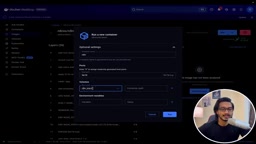
The most important detail — and the one most easily overlooked — is the data volume. The tutorial emphasizes that the volume is where all your workflows and configurations are saved: "whatever you build will be stored here." If you don't mount the volume correctly, your workflows will be lost every time the container restarts. In your configuration, set the host path to n8n_data and the container path to /home/node so that data persists outside the container.
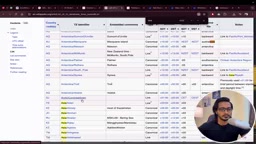
It's worth briefly explaining Docker's core concepts. An image is a read-only template that includes the OS layer, the Node.js runtime, and the n8n application itself. A container is a running instance of that image — think of it as an isolated, lightweight virtual environment. Every time you run docker run, Docker creates a new container from the image. Containers are stateless: once you stop and delete a container, all data generated inside it disappears. That's exactly why volumes exist. Volumes live outside the container's lifecycle, storing data on the host filesystem. Even if the container is deleted or the image is updated, your workflow configurations remain intact.
Key Configuration: Ports and Timezone
The startup command maps port 5678 on the container to the same port on the host — this is n8n's default Web UI entry point. Once deployed, you can open the dashboard directly at localhost:5678.
The timezone (TZ) setting also deserves special attention. According to the tutorial, the TZ environment variable sets the container's system timezone and directly affects the results returned by scripts and commands like date. If your workflows involve scheduled triggers or timestamp logging, an incorrect timezone can cause tasks to run at unexpected times.
Looking up your timezone is simple: search by region in a timezone list. The tutorial author uses India as an example — searching Asia and selecting Asia/Kolkata — then copies that value into the configuration. You should choose the timezone identifier that best matches your country.
Filling In the Environment Variables
This deployment requires four environment variables, each entered manually:
- GENERIC_TIMEZONE: The general timezone — enter the value you looked up (e.g.,
Asia/Kolkata) - TZ: The system timezone — enter the same timezone value
- The remaining two boolean variables should be set to
true
Both timezone variables use the same value. Once everything is filled in, click the Run button and select Allow. Docker will then pull the image, start the container, and complete the installation — no further intervention needed.
First Launch and Account Setup
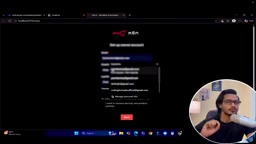
After installation, click the generated access link and n8n will walk you through initialization. First comes an account registration form: enter your email and password, and make sure to save them somewhere safe.
n8n will then ask for some information about you and your use case — your role, your purpose, and so on. The tutorial recommends answering honestly: students can select "educational use," while business users should choose the appropriate option. One thing to note regarding usage limits: if you plan to use n8n for team collaboration, you'll typically need a paid plan; personal learning and practice has no such restrictions. The initial setup can be continued by obtaining a license key.
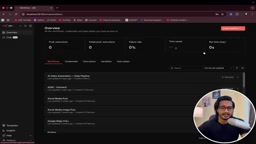
Once complete, you'll land on the n8n main interface, where you can start creating workflows. The local deployment process is now finished.
Going Further: Docker Compose and Docker Engine
Beyond Docker Desktop's graphical interface, the tutorial also mentions an alternative deployment method: Docker Compose. This approach involves writing a configuration file (not real programming per se) and is suited for scenarios requiring finer control or multi-service orchestration. The author notes there's a dedicated video covering this approach.
For users who run into compatibility issues with Docker Desktop, Docker Engine is another option. The tutorial suggests, however, that for most beginners Docker Desktop is more than capable of handling all their needs — there's no need to complicate things from the start.
Docker Compose uses a YAML configuration file called docker-compose.yml to centrally declare all the parameters you'd otherwise pass one by one on the command line — ports, volume mounts, environment variables, and more. A single docker compose up command handles the entire startup. Its main advantage is repeatability: the config file can be version-controlled, and anyone on the team — or on a new machine — can reproduce the same environment from that one file. Docker Engine is Docker's underlying daemon. On macOS and Windows, Docker Desktop essentially runs Docker Engine inside a virtual machine with a graphical interface layered on top. On Linux servers, installing Docker Engine directly is the lighter-weight option — no desktop environment needed — and it's the common choice for production deployments on cloud servers.
Summary
This guide covered n8n's local deployment from start to finish: data volume persistence, port mapping, timezone and environment variable configuration, and the initial launch and account setup. The author repeatedly stresses one point — practice everything hands-on. Even the simplest settings should be run through yourself so you can truly understand how n8n works under the hood. With this environment foundation in place, you'll be well-positioned to dive deeper into every automation node along the way.
Related articles

Why Does the Tesla Roadster Need to Fly? A Deep Dive into Musk's Wild Demo
Tesla's Roadster launch showed wall-climbing, upside-down driving, and flying stunts—but The Vergecast notes the demo car may lack a battery, the Rocket version is invite-only and not street-legal, and the website terms don't guarantee delivery. After nine years of delays, why does this car still need to exist?

AI Is Not a Replacement: Human-AI Collaboration Through the Lens of Factory Root Cause Analysis
Starting from factory root cause analysis, this article explains how AI accelerates evidence chain construction rather than replacing human experts, exploring the pragmatic implementation logic and business value of 'AI supporting people rather than replacing them.'

AI Agent Decision Auditing: Building an Evidence Chain in Regulated Workflows
Starting from a Reddit discussion, this article analyzes three core issues in AI agent decision auditing within regulated workflows: what fields audit records should contain, how to handle feedback latency for erroneous decisions, and how to continuously calibrate LLM judge consistency with human judgment.