Farewell to Long-Term Keys: Passwordless AWS CLI Login and Policy Simulator in Practice

Swap long-term keys for auto-refreshing temporary credentials with aws login, then rehearse policy behavior using the IAM policy simulator.
The article walks through a long-term-key-free AWS CLI workflow: use `aws login` to swap browser console login for CLI-managed temporary credentials that refresh every 15 minutes and last up to 12 hours, with no access key stored on disk. After logging in, confirm identity with `aws sts get-caller-identity`, then use the IAM policy simulator's Custom mode to verify draft policies—the key is pairing one should-pass and one should-fail case to prove a condition actually takes effect. It notes that as of 2.38.1 the simulator returns only an aggregate result per action, with single-resource decisions read from `ResourceSpecificResults`, and reminds readers that the simulator has boundaries: results may not match the real environment, making it a rehearsal rather than a guarantee.
Farewell to Long-Term Keys: Passwordless AWS CLI Login and Policy Simulator in Practice
Pasting an access key and secret into a config file is practically every developer's first lesson when getting started with the AWS CLI. What that action leaves behind is a long-lived key sitting quietly on your laptop. Next you have to write a permission policy, and what it actually allows or denies often only becomes clear when some service throws an error.
This article is based on an AWS CLI walkthrough and outlines two alternative paths: using aws login to replace ordinary console login with temporary credentials managed automatically by the CLI, and using the IAM policy simulator to verify a policy's behavior without sending any real requests. Combined, you neither store long-term keys on disk nor let a policy cause real impact before you've rehearsed it. One caveat upfront: the simulator is a rehearsal, not a guarantee, and it's worth understanding exactly where it breaks down.
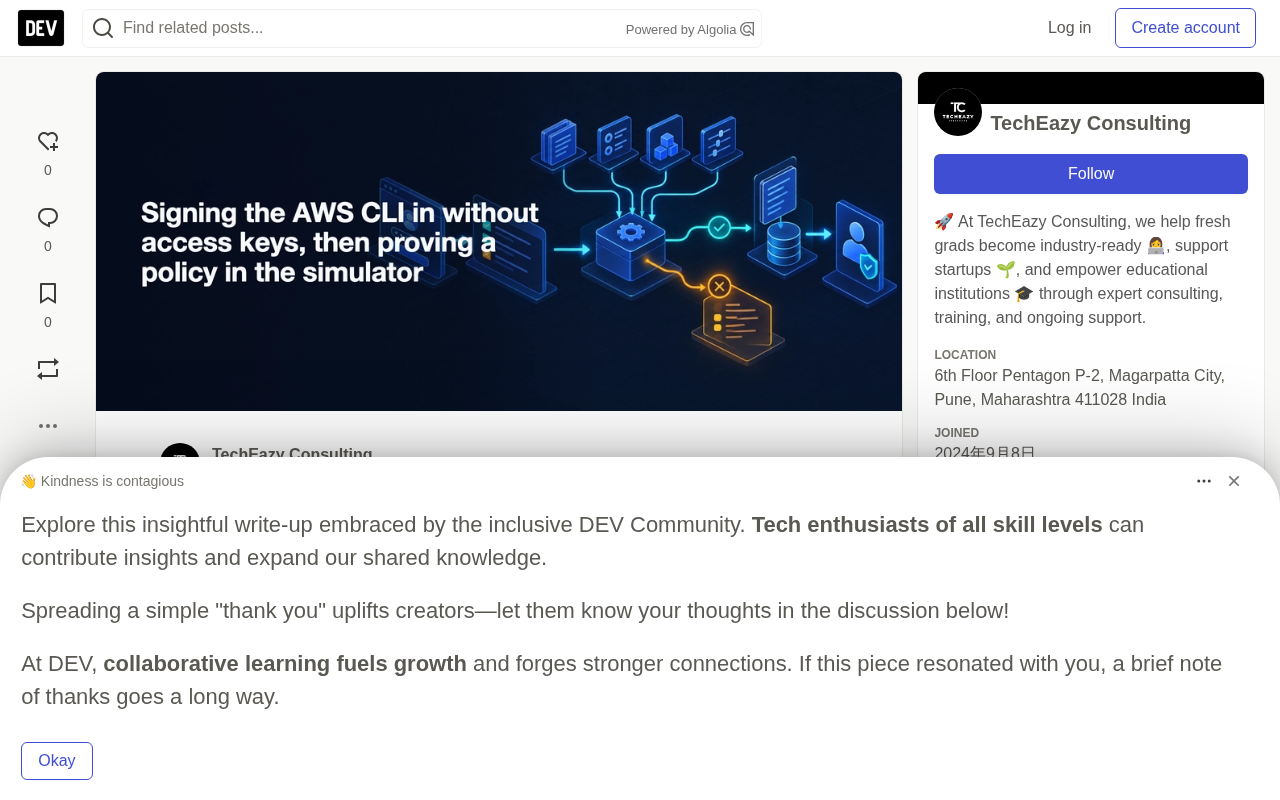
Three Steps: Log In, Verify, Clean Up
The whole flow is broken into three strictly ordered tasks:
- Log in to the CLI without an access key and confirm what identity it's currently acting as;
- Write a policy and prove in the simulator that it behaves as expected;
- Find where the session is stored, inspect it, then delete it.
The order matters. Every simulator command in the second task is itself an AWS CLI call, so it depends on the credentials produced by the first task; the third task cleans up the traces left by the first. This structure—establish a temporary identity, use it to verify, then reclaim it—is the core of a long-term-key-free workflow.
Version Threshold and Identity Prerequisites
aws login requires AWS CLI version 2.32.0 or higher. The tutorial was written against 2.38.1, well above that floor. Confirm your local version with the global --version option:
$ aws --version
Beyond the version, you need an identity that can log in to the AWS Management Console—root user, IAM user, or a federated identity from an identity provider. If your organization uses IAM Identity Center, that's a separate configuration path.
That identity must also be permitted to use this login method: attach the SignInLocalDevelopmentAccess managed policy to the IAM user, role, or group. Root users need no additional permissions, but logging in as root just to experiment on a shared account is a bad habit—the more sensible default is an IAM user or federated identity carrying the managed policy above.
What the SignInLocalDevelopmentAccess managed policy is. This is an AWS managed policy introduced in 2024 to accompany aws login, with a very narrow semantic: it only authorizes a principal to obtain temporary credentials through the local development login flow, and attaches no access rights to business resources. In other words, it's an "admission ticket" rather than a "pass"—attaching it merely qualifies you to take the aws login route, and what you can do after logging in is still determined by your existing permission policies. Precisely because the permission boundary is clear, attaching it to an IAM user, role, or group is far safer than using root for experimentation; root inherently possesses this capability without attaching any policy, but it's also the identity least suited to daily use.
What the IAM Identity Center path is. IAM Identity Center (formerly AWS SSO) is a centralized identity and access management service for multi-account organizations: administrators configure users, permission sets, and account assignments uniformly at the organization level, and users obtain short-term credentials for multiple accounts through a single login. Its CLI integration is aws configure sso plus aws sso login, and credentials likewise land in a local cache rather than a long-term key—but the configuration flow, profile structure, and logout command (aws sso logout) all differ from aws login. The article explicitly frames IAM Identity Center as "a separate configuration path," precisely to remind readers not to mix the two.
How aws login Turns Console Login into Temporary Credentials
Run it directly in the terminal:
$ aws login
To log in to a specified (or newly created) profile, add --profile:
$ aws login --profile my-dev-profile
If the profile is new or hasn't been configured with a Region, the CLI will ask for a Region, suggesting us-east-1 by default, which you can later change with aws configure set region NEW_REGION.
The CLI then tries to open your default browser to the login page. You can pick an already-active console session or log in fresh. Select the credentials to use in the browser, then return to the terminal.
One easily overlooked detail: if that profile already holds another session—say it was originally configured as a read-only user and you're now logging in as an administrator—the CLI will ask whether to overwrite the existing session and wait for you to type y or n.
For machines without a browser (such as a remote server), use aws login --remote, and the CLI prints a URL for you to open on another device; after logging in, copy the authorization code back at the CLI prompt. These two flows have separate resource ARNs that can be independently allowed or denied in IAM policies, which means teams can finely control which of "same-device login" and "cross-device login" is permitted.
The basics of temporary credentials and the refresh mechanism. Behind aws login is a call to AWS's login service, which returns temporary security credentials issued by AWS Security Token Service, comprising an access key ID, a secret access key, and an indispensable session token. All three are required, and the session token is the core marker distinguishing it from a long-term key. Such credentials carry an explicit expiration, cannot be renewed, and can only be re-issued. The CLI and the SDKs in every language store the credentials and their expiration in a local cache, check the remaining validity before each call, and automatically perform a refresh as expiry approaches—the "refreshes every 15 minutes" mentioned in the article refers to this background step.
Why refreshing doesn't interrupt your work. Because the refresh is transparent to the caller: the aws s3 ls you type in the terminal is syntactically no different from one using a long-term key in your config, but the CLI swaps out the credentials used for signing underneath. This also explains why sessions have a ceiling: the chain of temporary credential refreshes is ultimately bounded by the session duration of the IAM principal established at initial login, and once the ceiling is reached you must go through the browser flow again. SSH keys and OAuth access tokens follow a similar idea—short-lived, revocable, auditable—and aws login simply brings that pattern to the AWS CLI.
First Ask "Who Am I"
Before trusting the session, confirm your identity with AWS:
$ aws sts get-caller-identity
$ aws sts get-caller-identity --profile my-dev-profile
The first uses the default profile, the second a named profile, and the result should match the identity you selected in the browser.
Credentials then take care of themselves: the CLI and the SDKs refresh the cached credentials every 15 minutes as needed, and the session lasts until the session duration limit set by the IAM principal, up to 12 hours, after which simply run aws login again. The original likens this mechanism to "a day pass that auto-renews at the turnstile, rather than a key you cut and carry on your person for life"—a fairly accurate analogy.
The Simulator: Answering "Allow or Deny" Without Touching Any Real Resource
The IAM policy simulator evaluates a request against the policies you provide, and never sends that request to any AWS service. For each action and resource you test, it returns one of only two outcomes: allowed or denied. When the result is allowed or an explicit deny, it also points out which policy statement caused it.
The simulator has two modes:
- Principal mode: tests policies already attached to a user, role, or group;
- Custom mode: tests policies you write or paste on the spot, saving nothing to the account.
Use Custom mode when checking draft policies, which corresponds to aws iam simulate-custom-policy on the command line; use simulate-principal-policy to test policies already attached to an identity.
One Command Plus One Context Value to Verify Whether a Condition Actually Takes Effect
Imagine a draft policy: allow all DynamoDB actions, but only after a certain date and time. The following command simulates dynamodb:CreateBackup and supplies a value for the aws:CurrentTime key that the condition checks:
aws iam simulate-custom-policy \
  --policy-input-list '{"Version":"2012-10-17","Statement":{"Effect":"Allow","Action":"dynamodb:*","Resource":"*","Condition":{"DateGreaterThan":{"aws:CurrentTime":"2018-08-16T12:00:00Z"}}}}' \
  --action-names dynamodb:CreateBackup \
  --context-entries "ContextKeyName='aws:CurrentTime',ContextKeyValues='2019-04-25T11:00:00Z',ContextKeyType=date"
The supplied date is later than the date in the condition, so the result shows "EvalDecision": "allowed", and its MatchedStatements points to PolicyInputList.1, i.e., the first policy you passed in.
A single passing test proves nothing by itself. Change the context value to 2014-04-25T11:00:00Z, earlier than the date required by the policy, and the decision becomes implicitDeny with an empty MatchedStatements—that's what proves the condition is actually doing something. Two passing cases prove nothing either; you need a paired pass and failure. The habit worth cultivating in practice: for every condition you care about, write one test that should pass and one that should fail.
There are a few input rules: action names must carry a service prefix (e.g., iam:CreateUser), and wildcards are not allowed; if --resource-arns is omitted, the resource defaults to *, meaning all resources; the resources you specify need not actually exist in the account.
Reading Results: Decisions, Statements, and Missing Context Keys
Every result carries an EvalDecision with three possible values. When multiple statements apply simultaneously, one explicit deny overrides any number of allows, and only that deny statement appears in the result.
Another field you must watch is MissingContextValues, which lists the context keys the policy needs but you didn't supply. If the supplied value doesn't satisfy the condition, the action will be denied.
The simulator automatically fills in some keys: principal keys (such as aws:PrincipalAccount, aws:UserName) and organization keys (such as aws:PrincipalOrgID); every other key you must supply yourself. To know before running which keys a draft policy requires, the CLI reference points to GetContextKeysForCustomPolicy.
What the three EvalDecision values mean. allowed means at least one Allow statement matched and no stricter statement overrode it; explicitDeny means some Deny statement explicitly matched the request, an outcome that cannot be bypassed; implicitDeny means no statement explicitly allowed the request—it isn't an active determination of "denied" but rather "fails by default." Understanding the difference among the three is critical: an explicit deny makes it nearly impossible to regain permission by any means, whereas an implicit deny often means you missed an Allow statement or omitted a context key.
What context keys are. Context keys are request attributes that IAM reads when evaluating conditions. Those prefixed with aws: are AWS-provided global keys (such as aws:CurrentTime, aws:SourceIp, aws:PrincipalArn), while unprefixed ones are usually service-specific keys (such as s3:prefix). Condition blocks rely on these keys to make judgments about time, IP, tags, encryption state, and the like. The simulator won't guess what value you intend to pass, so any key that appears in the policy but that you don't provide in --context-entries will fall into MissingContextValues. Fill them in and the simulation is meaningful; ignore them and an allowed result is very likely a false positive.
The 2.38.1 Aggregation Behavior: One Answer for Many Resources
In version 2.38.1, no matter how many resource ARNs you pass, the simulator returns only one evaluation result per action, whereas the old behavior returned one result per resource (carrying the same overall decision).
The top-level EvalDecision is now the strictest decision across all resources: if any resource produces explicitDeny, the top-level decision is explicitDeny. To see each resource's individual decision, you must read ResourceSpecificResults. This directly affects how you parse output—the top-level EvalResourceName is now the ARN template for that resource type rather than a specific ARN you passed, and any script that parses a single-resource answer from the top level needs to change to read ResourceSpecificResults.
A few more limitations worth remembering: only one resource-based policy can be included per simulation; the simulator won't fetch a resource's own policy for you, so you must pass it in manually; IAM roles don't support simulating resource-based policies; service control policies can be passed in order from organization root down to account, but for security reasons, the statements they match won't be shown in the results.
Cleanup: Where the Session Lives, How to Inspect It, How to Delete It
Where it lives. Logging in with the default profile writes a login_session line into the config file, holding the identity's ARN, right next to the Region. The temporary credentials and the details needed for refresh are cached in ~/.aws/login/cache on Linux and macOS, or %USERPROFILE%\.aws\login\cache on Windows. The AWS_LOGIN_CACHE_DIRECTORY environment variable can move the cache elsewhere.
How to inspect it. Open the config file and find the login_session entry for the corresponding profile, and list the cache directory while you're at it—the filenames within are based on the resolved profile.
How to delete it. You can let the credentials expire naturally, or remove them immediately:
$ aws logout
$ aws logout --profile my-dev-profile
$ aws logout --all
When no profile is specified on the command line or in AWS_PROFILE, aws logout logs out the default profile; --all logs out all profiles using login credentials. No cleanup is needed for policy work: Custom mode policies are never saved to the account, and editing a policy in the simulator doesn't modify the real one.
Where the Simulator's Boundaries Lie
The original is candid about the limitations of this flow, and that's worth preserving.
The simulator itself states: its results may not match your actual environment. It doesn't evaluate resource control policies, and it may deviate on VPC endpoint policies, role chaining, and resources with multiple resource-based policies. A simulated allowed is strong evidence but not proof. There's also a final check this tutorial doesn't cover: after actually attaching the policy, confirm its behavior in your real account.
In other words, treat the simulator as a pre-commit static check, not a post-release acceptance test. The genuinely sound path is: the simulator catches obvious errors, and verification in the real account serves as the safety net.
Resource control policies and VPC endpoint policies. The former is a policy type introduced by AWS Organizations in 2024, applying to resources within an organization to set resource-side guardrails similar to SCPs; the latter is attached to a VPC endpoint and determines whether traffic through that endpoint can access a specific resource. Both can change the final outcome at real request time, yet the simulator doesn't factor them into evaluation—so "simulation passes, real machine fails," or the reverse, can both occur.
Role chaining. When a principal switches to another role via sts:AssumeRole and then makes a request, what actually takes effect is the intersection of the role session's permissions and the permissions of the assumed identity (subject to constraints like permission boundaries and SCPs). The simulator targets a single principal's policy set and cannot fully reconstruct this chain, so in cross-account or multi-layer role-assumption scenarios its conclusions are less reliable. Keep these limitations in mind and you can judge more accurately: which simulation results are trustworthy, and which must be verified again in a real account.
Key Takeaways
aws loginrequires CLI version 2.32.0 or higher; it exchanges console login for auto-refreshable temporary credentials, up to 12 hours, with no long-term key landing on disk.- Before relying on a session, confirm your identity with
aws sts get-caller-identity. - Use Custom mode's
simulate-custom-policyto verify draft policies, always pairing one should-pass case with one should-fail case, and fill in every context key the condition checks. - In 2.38.1, the single-resource decision must be read from
ResourceSpecificResults; the top-level decision is an aggregate across all resources. - Clean up with
aws logout, and simulated policies leave nothing behind in the account.
One-line Summary
Use aws login to obtain auto-refreshing temporary credentials instead of long-term keys, then use the IAM policy simulator to rehearse policy behavior before committing.
Paragraph Summary
The article walks through a long-term-key-free AWS CLI workflow: use aws login to swap browser console login for CLI-managed temporary credentials that refresh every 15 minutes and last up to 12 hours, with no access key stored on disk. After logging in, first confirm identity with aws sts get-caller-identity, then use the IAM policy simulator's Custom mode to verify draft policies—the key is pairing one should-pass and one should-fail case to prove a condition actually takes effect. The article particularly notes that as of 2.38.1 the simulator returns only an aggregate result per action, with single-resource decisions read from ResourceSpecificResults, and reminds readers that the simulator has boundaries: results may not match the real environment, and it's a rehearsal rather than a guarantee.
Related articles

Why Does the Tesla Roadster Need to Fly? A Deep Dive into Musk's Wild Demo
Tesla's Roadster launch showed wall-climbing, upside-down driving, and flying stunts—but The Vergecast notes the demo car may lack a battery, the Rocket version is invite-only and not street-legal, and the website terms don't guarantee delivery. After nine years of delays, why does this car still need to exist?

AI Is Not a Replacement: Human-AI Collaboration Through the Lens of Factory Root Cause Analysis
Starting from factory root cause analysis, this article explains how AI accelerates evidence chain construction rather than replacing human experts, exploring the pragmatic implementation logic and business value of 'AI supporting people rather than replacing them.'

AI Agent Decision Auditing: Building an Evidence Chain in Regulated Workflows
Starting from a Reddit discussion, this article analyzes three core issues in AI agent decision auditing within regulated workflows: what fields audit records should contain, how to handle feedback latency for erroneous decisions, and how to continuously calibrate LLM judge consistency with human judgment.