Figma Tutorial: A Complete Guide to Design Mode and Make AI Generation

A Figma core features and Make AI design workflow guide for full-stack developers
This article systematically covers Figma's core modules, six project types, and practical operations, with focus on Design mode's basic drawing and Variable global management, as well as Make mode's ability to auto-generate design mockups from natural language via AI. It recommends full-stack developers adopt the efficient workflow of "Make for prototyping → Design for refinement → Cursor for code development" to bridge the complete design-to-engineering pipeline.
In the full-stack development workflow, design mockups are the critical bridge connecting product vision to code implementation. Based on the Cursor full-stack Xiaomi Store clone tutorial series, this article systematically introduces Figma's core features and practical operations, helping developers quickly get started with this design tool and master the complete workflow from Design to Make.
Figma's Industry Position: Founded in 2012 and officially launched in 2016, Figma rapidly disrupted the local design tool market dominated by Sketch and Adobe XD with its browser-based real-time collaboration capabilities. Its core technical advantage lies in using a WebGL rendering engine to handle vector graphics processing in the browser, while implementing multi-user real-time collaborative editing through Operational Transformation (OT) algorithms—similar in principle to Google Docs collaboration. In 2022, Adobe announced an approximately $20 billion acquisition of Figma, but terminated the deal in 2023 due to antitrust scrutiny. Since then, Figma has continued independent development while accelerating its AI feature roadmap. For full-stack developers, Figma is not just a design tool but a standardized platform bridging design and engineering collaboration.
Figma Interface and Core Module Overview
After opening Figma, the left navigation bar is your starting point. Understanding the purpose of each module will make subsequent work much more efficient.
Recent: Displays recently opened projects for quick access to ongoing work.
Community: A treasure trove of design resources, including UI kits, icon libraries, design templates, and more. For non-professional designers, Figma's community resources significantly lower the design barrier.
Draft: Your personal private workspace where you can freely experiment with various design approaches without affecting team projects.
Resources: Unlike Community, Resources focuses on reusable design components and productivity tools, such as plugins, widgets, and component libraries—more oriented toward "grab and use."
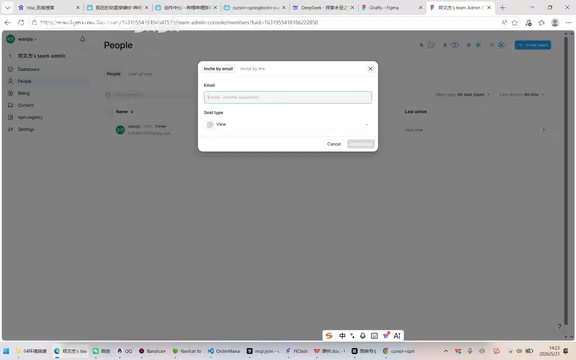
Admin Dashboard Features
In the Admin area, Figma provides comprehensive team collaboration management capabilities:
- Dashboard: Overview panel for a quick grasp of project status
- People: Manage team members, with support for email invitations and permission adjustments
- Billing: Manage plans and invoices, supporting Visa and Chinese credit cards for the $20/month membership fee
- Content: Manage team files, projects, and component libraries
- NPM Registry: Private code repository, primarily used in conjunction with Make AI-generated projects
It's worth noting that Figma's credit card payment acceptance rate is somewhat higher than Cursor's. Cursor tends to reject payments when the address and credit card information don't match during signup.
Creating Projects: Six Project Types Explained
Clicking the Create button in the top-right corner of Team Project, Figma offers six project types:
| Type | Purpose |
|---|---|
| Design | Main canvas for UI/web/app interface design |
| FigJam | Flowcharts, user journeys, mind maps, meeting discussions |
| Slides | Online presentations and product proposal showcases |
| Make | Quickly generate interfaces, icons, and components from text prompts |
| Basei | Auxiliary content creation tool |
| Import | Import external files like Adobe XD, images, SVG, etc. |

For full-stack developers, the most frequently used types are Design and Make. Design is suited for professional UI specialists doing refined design work, while Make is an AI-driven rapid prototyping tool—and the core tool of this tutorial series.
Design Mode in Practice: Quickly Building an App Interface
Although we primarily use Make to generate design mockups, understanding Figma Design's basic operations is still essential.
Basic Drawing Workflow
- Select an artboard: Choose a device size in the right panel (e.g., iPhone 17), which determines the base resolution of your design
- Draw the structure: Use the rectangle tool to draw the app header and bottom navigation bar
- Add elements: Use the circle tool to draw product icons and text components for product titles
- Duplicate and arrange: Quickly duplicate multiple identical elements with Ctrl+C/Ctrl+V
- Fill with images: In product display areas, select fill mode, upload local images, and adjust opacity
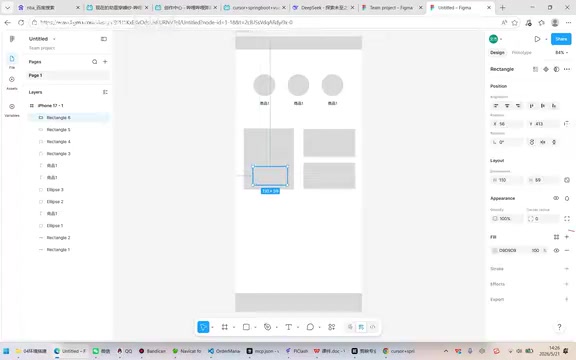
Figma Design's toolbar includes artboards, shape selectors, pen tool, text components, and more. The overall operational logic is similar to Photoshop, so developers with PS experience can get up to speed quickly.
Variables: Unified Management of Design Tokens
Figma's Variable feature is similar to CSS Custom Properties in frontend development, allowing you to define colors, sizes, and other design tokens at a global level for unified management and one-click modifications.
The Engineering Background of Design Tokens: Design Tokens is a concept introduced around 2014 by the Salesforce Lightning Design System team. In essence, it abstracts design decisions (colors, fonts, spacing, border-radius, etc.) into platform-agnostic named variables. This approach solves the engineering challenge of maintaining visual consistency across multiple platforms (Web, iOS, Android) in large-scale products. Figma's Variable feature provides native support for this concept, forming a complete pipeline with frontend ecosystem tools like Style Dictionary and Theo for token conversion—enabling variables in design files to be directly exported as CSS Custom Properties, iOS Swift constants, or Android XML resource files. For full-stack developers, understanding this mechanism means every variable in a design file can seamlessly map to a corresponding variable in code, truly achieving "single-source" management between design and development.

Using color variables as an example, here's the specific workflow:
- Create a blue variable named
Colorin the Variable panel - Return to the design and bind font colors and product background colors to that variable
- When you need to adjust the theme color, simply modify the blue variable's value in Variables
- All elements bound to that variable will automatically sync and update
The core value of this approach is global control—whether it's theme colors, text colors, or spacing dimensions, everything can be standardized through variables. When you later need to change brand colors or adapt to dark mode, modifying a single variable takes effect globally, dramatically improving maintenance efficiency.
Make Mode: AI-Driven Design Generation
Figma Make is one of the most exciting features available today and the core tool of this tutorial series. It can automatically generate complete design mockups from text descriptions, fundamentally changing the traditional design process.
Technical Principles and Industry Trends of AI-Generated UI: The AI-generated UI direction represented by Figma Make relies on multimodal large language models' ability to understand interface layout semantics. Compared to similar tools like v0 (Vercel), Locofy, and Galileo AI, Figma Make's differentiating advantage is that generated results land directly within Figma's design layer system, preserving complete component structure and editability rather than merely outputting static images or HTML code. This direction aligns closely with the industry's "Design as Code" evolution—Figma's Dev Mode can already auto-annotate designs into developer-ready CSS/Swift/Kotlin code, while Make extends this pipeline upward to the requirements description stage, making it possible to close the entire product development loop from "natural language description" to "runnable code."
Practical Demonstration
After creating a Make project in Team Project, simply enter a description of the design you want to generate. For example, entering "a fishing community website" will have the AI quickly generate a complete design including homepage, listing pages, and other core pages.
If you find the generated pages incomplete (e.g., missing "Messages" or "Profile" pages), you can directly ask the AI to generate additional ones. The entire process requires no design background—it's purely driven by natural language.
Figma Make also offers several practical features:
- Model switching: Switch between different AI models in the bottom-left corner to choose the best generation results for your current needs
- Code view: Directly view the frontend code corresponding to the generated design, or have Cursor read that directory for development
- Copy Design: One-click copy of Make-generated designs into a Design project for further refinement
Summary: Figma Full-Stack Development Workflow
For full-stack developers, Figma's value isn't in making you a professional designer—it's in connecting the complete pipeline from design to development:
- Design mode provides the foundational ability to understand design file structure, facilitating efficient collaboration with designers
- Variable system establishes a variable bridge between design and development, ensuring visual consistency
- Make mode dramatically lowers the design barrier through AI, enabling developers to quickly produce high-quality prototypes
In real full-stack projects, the recommended workflow is: first use Figma Make to quickly generate a design prototype, then fine-tune details in Design, and finally have Cursor read the design file directory for code development. The next lesson will move into hands-on practice—using Make to actually generate the Xiaomi Store design mockups.
Key Takeaways
- Figma offers six project types including Design, Make, and FigJam; full-stack developers should focus on Design and Make modes
- The Variable feature works like CSS Custom Properties, enabling unified management of theme colors, dimensions, and other design tokens with one-click global updates
- Make mode uses AI to automatically generate complete design mockups from natural language descriptions, dramatically lowering the design barrier for non-designers
- Make-generated designs can be viewed as code, copied to Design projects, or read directly by Cursor for development
- Recommended workflow: Make for rapid prototyping → Design for detail refinement → Cursor reads design files for code development
Related articles
 Tutorials
ChatGPT Plus Subscription Guide: Are GPT-5.5, image-2, and Codex Worth the Upgrade?
A detailed look at ChatGPT Plus features — GPT-5.5, image-2, and Codex — with a Plus vs Pro comparison and a complete step-by-step subscription guide for users outside the US.
 Tutorials
Harness AI Engineering in Practice: Using Claude Code to Master Enterprise-Level E-Commerce Development
Deep dive into Harness AI Engineering: master enterprise e-commerce development with Claude Code using the Rules, Skills, Wiki, and Changes framework.
 Tutorials
Cursor + Codex Dual-IDE Collaboration: A Practical Methodology for Open-Source Project Customization
A complete methodology for open-source project customization based on real-world experience, detailing the Cursor+Codex dual-IDE workflow, seven-stage process, MVP validation, and AI source code reading techniques.