Gemini CLI Image Generation Tutorial: Nanobanana Extension Installation, Configuration & Hands-On Guide

Gemini CLI's Nanobanana extension enables AI image generation and project integration from the command line
This article introduces Nanobanana, a third-party extension for Gemini CLI that adds image generation capabilities through the MCP protocol. It covers the complete global installation and configuration process, API Key setup, and demonstrates a full workflow of generating combo card images for a food website and automatically integrating them into the project. The article concludes with practical advice on AI coding tools: maintain proactive skill development, keep human-in-the-loop review, and use wisely without overuse.
In the tenth installment of the Gemini CLI tutorial series, we'll explore a highly practical extension — Nanobanana. It lets you call AI models to generate images directly from the command line and seamlessly integrate them into your project development workflow. This article walks you through the entire process from installation and configuration to real-world usage.
What Is the Nanobanana Extension?
Nanobanana is a third-party extension for Gemini CLI that adds image generation capabilities through an MCP (Model Context Protocol) server. Once installed, you can use a set of new commands within Gemini CLI conversations to generate images, edit images, create icons, produce diagrams, and more.
MCP is a standardized protocol open-sourced by Anthropic in late 2024, designed to solve the connection problem between AI models and external tools or data sources. Before MCP, every AI application needed custom integration code to connect with external tools, leading to severe ecosystem fragmentation. MCP adopts a client-server architecture: AI applications act as clients initiating requests, while various tools (such as image generation, database queries, file operations, etc.) serve as MCP servers providing capabilities. This design is similar to USB port standardization — as long as the protocol specification is followed, any tool can be called by any MCP-supporting AI application. Nanobanana runs as an MCP server, which is exactly why it can be seamlessly recognized and called by Gemini CLI.
The core value of this extension is: you don't need to leave your terminal or code editor to complete the entire workflow from image generation to project integration. For frontend developers, this means generating visual assets on-demand while building pages.
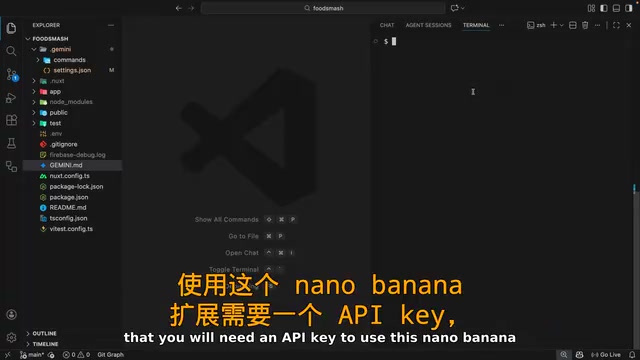
It's important to note that using the Nanobanana extension requires an API Key, and each image generation costs approximately 15 to 25 cents, depending on the image quality settings. AI image generation technology has experienced explosive growth in recent years — from the release of Stable Diffusion and DALL·E 2 in 2022, to the iterations of Midjourney V5 and DALL·E 3 in 2023, to the continuous upgrades of Google's Imagen series — generation quality has evolved from "obviously AI-generated" to approaching professional photography and design standards. Most of these models are based on Diffusion Model architectures, generating new images by learning the process of gradually restoring images from noise. Integrating this capability into developer command-line tools represents the trend of AI tools transitioning from standalone applications to embedded workflow components.
Nanobanana Installation and Configuration Process
Global Extension Installation
Installing Nanobanana is straightforward. Find the corresponding installation command on the extension page and execute it in your terminal. Interestingly, this extension is installed globally — it gets added to the extensions directory within the .gemini folder in your user directory, rather than being tied to a specific project.
Gemini CLI's extension system is divided into project-level and global-level. Project-level extension configurations are stored in the .gemini folder at the project root and only apply to the current project; global extensions are installed at ~/.gemini/extensions under the user's home directory and apply to all projects. This design borrows from npm's distinction between global and local installations. Global extensions are suited for capabilities that are unrelated to specific projects and serve as general-purpose tools (like image generation), while project-level extensions are better suited for tools tied to specific tech stacks or business logic.
In other words, once installed, you can use Nanobanana's features in any project where you launch Gemini CLI.
Configuring the API Key
Nanobanana requires a Google AI API Key to call the image generation model. If you've previously created an API Key for Gemini CLI (for example, in Google AI Studio), you can reuse the same Key.
Google AI Studio is Google's AI model development and testing platform where developers can create API Keys to call Gemini series models. An API Key is essentially an identity credential that Google uses to track usage and handle billing. Gemini's image generation capability is based on the Imagen series of models, which underwent multiple iteration upgrades between 2024-2025. The 15-25 cents per image cost primarily depends on output resolution and quality parameters — higher resolution, higher quality images require more computational resources and therefore cost more. By comparison, pure text Gemini API calls are much cheaper, typically in the range of a few dollars per million tokens.
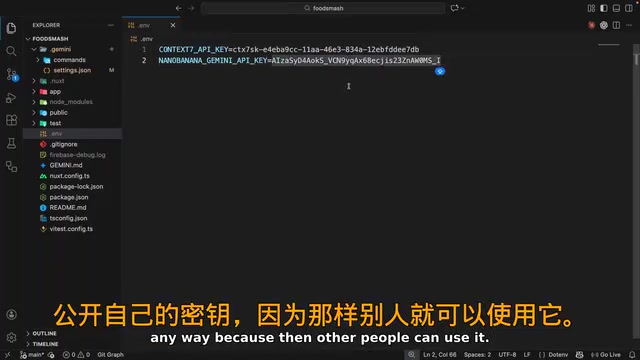
The configuration method is to add an environment variable in your project's .env file:
NANOBANANA_GEMINI_KEY=your_api_key
Nanobanana will automatically read this environment variable for authentication. Never share your API Key publicly, as others could use your quota and incur charges.
Hands-On Demo: Generating Combo Card Images with Gemini CLI
Calling the Image Generation Command
After configuration is complete, launch a new Gemini CLI instance in your terminal. Type the / slash command to see all the new Nanobanana commands:
/diagram— Generate diagrams/edit— Edit existing images/generate— Generate new images/icon— Create icons
These slash commands follow the interaction paradigm of modern CLI tools. In Gemini CLI, slash commands serve as a bridge between user intent and underlying MCP tool calls — when you type /generate, the CLI actually wraps your prompt into a standard MCP request, sends it to the Nanobanana server, which then calls Google's Imagen model to complete the image generation, and finally returns the result and saves it locally.
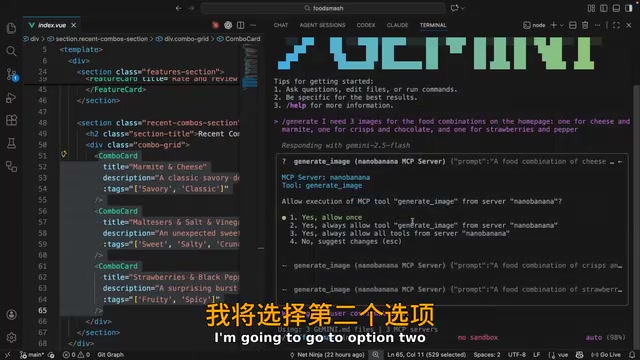
In this demo, the goal is to generate three food pairing images for a food website's homepage "Combo Cards" section. Here are the steps:
- Open the homepage file, select the combo cards code section, and let Gemini automatically pick up the context
- Use the
/generatecommand and enter a prompt - Prompt content: "I need three food combo images — one of cheese with Marmite, one of crisps with chocolate, and one of strawberries with pepper"
When using an MCP tool for the first time, the CLI will request permission confirmation. Selecting "Always allow" prevents repeated confirmations going forward. This permission mechanism is part of MCP protocol's security design, ensuring users remain informed and in control of AI's external tool calls.
Generated Results and Project Integration
Once generation is complete, the three images are saved in the nanobanana-output directory. The preview results look quite impressive:
- Marmite with cheese — Clear composition, natural food pairing presentation
- Chocolate with crisps — Good visual effect (by the way, chocolate with salt and vinegar crisps is genuinely worth trying)
- Strawberries with pepper — Generation quality is equally satisfying
Now comes the best part — directly asking Gemini to integrate these images into the project. Simply say in the conversation: "Please add these three new images to the combo cards on the homepage," and Gemini will automatically:
- Move the images from the output directory to the project's
publicfolder - Modify the homepage component code to update image URL references
- Ensure each image correctly matches its corresponding card
This automated integration process demonstrates the core advantage of AI Coding Agents — they can not only generate content but also understand project structure and code context, autonomously completing file operations and code modifications. In a traditional workflow, developers would need to manually download images, rename them, move them to the correct directory, then modify reference paths in the code. Gemini CLI compresses all these steps into a single natural language instruction.
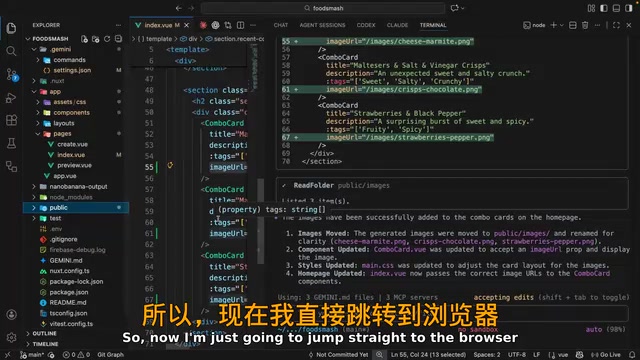
Previewing in the browser, the three AI-generated images are perfectly embedded in the combo cards, with the entire process flowing seamlessly from generation to integration.
Tips for Using AI Coding Tools
As a closing note for this tutorial series, here are some recommendations about using AI coding tools worth sharing:
Maintain Proactive Skill Development
Over-reliance on AI will hinder your skill growth across all areas — whether coding, writing, or design. AI should be an accelerator, not a replacement. Understanding underlying principles and having the ability to solve problems independently remains a developer's core competitive advantage.
This point has sparked widespread discussion in the industry. Multiple studies and surveys show that developers who frequently use AI code completion tools may experience declining independent coding ability when working without these tools. This doesn't mean you should reject AI tools, but rather suggests maintaining a "deliberate practice" mindset during use — when AI provides a piece of code, take time to understand why it's written that way instead of just copying and pasting.
AI Is Not a Silver Bullet
AI isn't a silver bullet — it can't solve all problems, and it makes mistakes. At every stage of development, you should stay in the loop, actively review AI output, guide the AI into details when needed, rather than blindly accepting all suggestions.
"Human-in-the-Loop" (HITL) is a core concept in AI system design, referring to maintaining human review and intervention at various points in AI's decision-making or output process. This concept originally came from cybernetics and automation fields. In the context of AI coding tools, it means developers shouldn't treat AI as a black box but should actively review every code modification, understand the AI's reasoning logic, and make manual judgments at critical decision points. Research shows that AI-assisted coding, while improving speed, may introduce hard-to-detect logic errors or security vulnerabilities without human review. Developers who maintain HITL practices tend to achieve a better balance between efficiency gains and code quality.
Use Wisely, Don't Overuse
Tools like Gemini CLI can significantly boost development efficiency when used correctly, especially for repetitive tasks, asset generation, code scaffolding, and similar scenarios. The key is finding the optimal balance point for human-AI collaboration.
Summary
The Nanobanana extension demonstrates the extensibility of the Gemini CLI ecosystem. Through the MCP protocol, third-party developers can add various new capabilities to the CLI, with image generation being just one example. As more extensions emerge, Gemini CLI has the potential to become a feature-rich AI development assistant platform.
From a broader perspective, the adoption of the MCP protocol is driving the standardization of the AI development tool ecosystem. Currently, beyond Gemini CLI, mainstream AI coding tools like Cursor, Windsurf, and Claude Desktop also support the MCP protocol. This means extensions like Nanobanana could potentially run on multiple different AI platforms with minimal adaptation costs in the future, forming a cross-platform AI tool ecosystem.
For developers looking to introduce AI coding agents into their workflow, Gemini CLI is a worthwhile option to try — provided you always maintain control over code quality and the development process.
Related articles
 Tutorials
ChatGPT Plus Subscription Guide: Are GPT-5.5, image-2, and Codex Worth the Upgrade?
A detailed look at ChatGPT Plus features — GPT-5.5, image-2, and Codex — with a Plus vs Pro comparison and a complete step-by-step subscription guide for users outside the US.
 Tutorials
Harness AI Engineering in Practice: Using Claude Code to Master Enterprise-Level E-Commerce Development
Deep dive into Harness AI Engineering: master enterprise e-commerce development with Claude Code using the Rules, Skills, Wiki, and Changes framework.
 Tutorials
Cursor + Codex Dual-IDE Collaboration: A Practical Methodology for Open-Source Project Customization
A complete methodology for open-source project customization based on real-world experience, detailing the Cursor+Codex dual-IDE workflow, seven-stage process, MVP validation, and AI source code reading techniques.