Gemini CLI + MCP Server Cloud Real Device Automated Testing: Natural Language-Driven Mobile App Testing in Practice

Integrate cloud real device MCP Server with Gemini CLI for natural language-driven mobile app automated testing.
This article explains how to integrate Unity's cloud real device platform MCP Server with Google Gemini CLI, enabling automated mobile app testing through natural language commands. Using MCP as a standardized bridge between AI and external tools, developers can describe requirements in natural language while AI automatically handles device borrowing, APK installation, performance monitoring, test execution, and crash log analysis—significantly lowering the technical barrier and improving efficiency.
Introduction
Mobile app testing has always been a time-consuming and labor-intensive part of the development workflow. Traditional automated testing requires writing extensive scripted code, placing significant technical demands on testers. However, with the deep integration of AI large language models and the MCP (Model Context Protocol), a new paradigm of "natural language-driven testing" is rapidly emerging.
MCP (Model Context Protocol) is an open protocol standard introduced by Anthropic in late 2024, designed to solve the connectivity problem between large language models and external data sources and tools. Before MCP, every AI application needed custom integration code to interface with external services, resulting in massive duplication of effort. MCP adopts a client-server architecture: the MCP Server exposes tool interfaces and data resources, while the MCP Client (such as an AI assistant) discovers and invokes these capabilities through a standardized protocol. This design is analogous to how USB interfaces unify hardware devices—once a service implements the MCP Server specification, any AI client that supports MCP can plug in and use it. MCP has now gained widespread industry support and has become the de facto interoperability standard in the AI tool ecosystem.
This article provides a step-by-step guide on integrating the Unity Cloud Real Device platform's MCP Server with Google's Gemini CLI, enabling automated mobile app testing, performance monitoring, and crash analysis through natural language commands. This solution significantly lowers the technical barrier for cloud real device automated testing, allowing developers to run complete test workflows directly from the terminal.
What is Gemini CLI?
Gemini CLI is an interactive AI command-line assistant released by Google that brings the capabilities of the Gemini series of large models directly to the terminal environment. Its core value proposition is clear: developers don't need to switch to a browser or other GUI tools—they can access AI-assisted capabilities right in their familiar command line without interrupting their workflow.
From a technical architecture perspective, Gemini CLI is built on Node.js and calls Google's Gemini 2.5 series models (including Gemini 2.5 Pro and Flash variants), supporting a context window of up to 1 million tokens. It operates in an interactive REPL (Read-Eval-Print Loop) mode, allowing developers to conduct multi-turn conversations in the terminal. A key design philosophy of Gemini CLI is "code first"—it can directly read files in the current working directory, understand project structure, and execute Shell commands with user authorization. Google provides free API call quotas for individual developers (60 requests per minute, 1000 requests per day), significantly lowering the barrier to entry.
When combined with the MCP protocol, Gemini CLI's capabilities extend from local file operations to arbitrary remote service calls, forming a highly extensible AI workbench. Taking the cloud real device platform in this article as an example, AI can not only understand your testing requirements but also automatically execute a series of operations including device borrowing, APK installation, performance monitoring, and log analysis—these are precisely the capabilities granted to it by the MCP Server.
Activating Cloud Real Device Service and Obtaining API Keys
Cloud Real Device Technical Background
Before diving into the specific operations, it's worth understanding the technical background of cloud real devices. A Cloud Real Device is a testing infrastructure that hosts physical mobile devices in cloud data centers and provides remote access over the network. Unlike emulators/simulators, cloud real devices use actual phones and tablets that can precisely reproduce real users' hardware environments, including GPU rendering, sensor behavior, network switching, and other scenarios that simulators struggle to cover. This is particularly important for gaming applications, as frame rates, rendering effects, and touch responsiveness are highly dependent on hardware characteristics. The cloud real device service provided by UOS (Unity Online Services) is designed for Unity ecosystem developers, exposing device management, application deployment, and performance collection capabilities through OpenAPI interfaces, making these operations programmatically callable and providing the foundation for MCP Server encapsulation.
Creating a UOS Application
First, complete the basic configuration on the UOS official website:
- Visit the UOS official website and click the "Applications" button
- Click "Add New Application," select an organization, and enter a project name
- Click "Create and Enable" to complete the UOS App creation
- Find "Device" in the service list on the overview page and click "Free Trial" to enable the cloud real device service
Applying for OpenAPI Keys
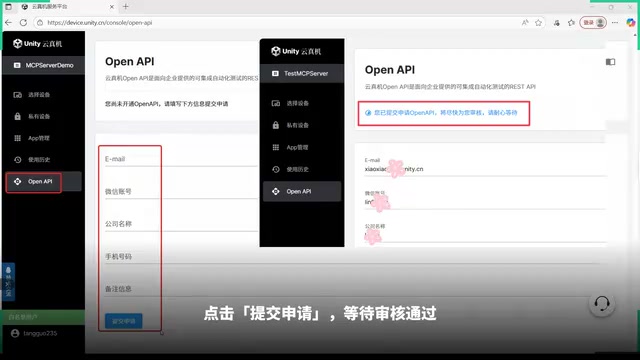
On the console page, click "Go to Borrow Device," and the page will redirect to the cloud real device page. Switch to the "OpenAPI" tab, fill in your email, WeChat ID, company name, phone number, and remarks, then submit the application.
After approval, you can obtain the corresponding App ID and App Secret on the OpenAPI page. These two parameters are the key credentials for configuring the MCP Server later—make sure to keep them safe.
Installing and Configuring Gemini CLI
Environment Preparation (Windows Example)
Developers using Windows need to first install Node.js 20 or higher, then execute the installation command in the command line to deploy Gemini CLI.
After installation, enter Gemini CLI and log in with your Google account following the prompts. Next, complete the Google Cloud project configuration:
- Go to the Google Cloud IAM page, create a new project or select an existing one
- Copy the project ID
- Go to the "Gemini for Google Cloud" page and click to enable the Gemini API
- Configure the environment variable: create a new system variable
GOOGLE_CLOUD_PROJECTwith the Google Cloud project ID as its value
Configuring MCP Server Connection to Cloud Real Devices
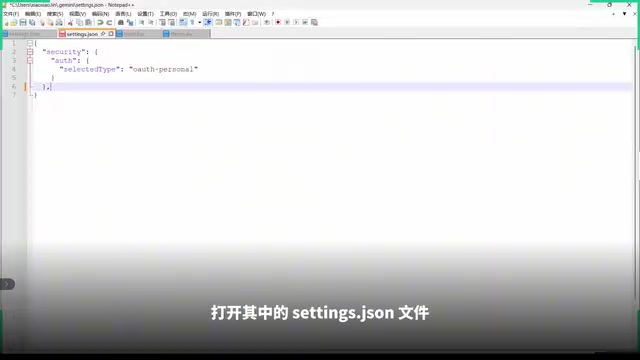
After successfully logging into Gemini CLI, find the .gemini folder in the user root directory and open the settings.json file. Add the mcp-servers field to the file (note that this field should be at the same level as other fields), filling in the OpenAPI App ID and App Secret obtained earlier.
It's worth noting that besides Gemini CLI, any AI assistant that supports MCP Server configuration can connect to the cloud real device service, such as Cline, Claude Desktop, etc. The configuration methods are largely similar, and developers can choose their preferred tool. This is precisely the value of MCP protocol standardization—the server only needs to implement the MCP Server once, and it can be reused by the entire AI assistant ecosystem.
Hands-On: Complete Cloud Real Device Automated Testing Workflow
Preparing Test Resources
Before starting the test, prepare two key files:
- mcpserverdemo.apk: The application package to be tested (using the Bolt Attack game as an example)
- demo.py: The automated test script
Place both files in your local project folder, ensuring Gemini CLI can access them.
Driving the Complete Test Flow with Natural Language
After deploying the MCP Server, simply enter your testing requirements as a prompt in the Gemini CLI conversation window. The AI will automatically analyze the requirements and execute the following operations in sequence:
- Log in to the cloud real device platform: Complete authentication using the configured credentials
- Upload test resources: Upload the APK file and automated test script to the platform
- Borrow a cloud real device: Automatically select and borrow an available real device
- Install and launch the APK: Install and launch the target application on the cloud real device
- Enable performance monitoring: Automatically collect key performance metrics including CPU, memory, and frame rate
- Execute test scripts: Run automated test cases
- Stop monitoring and collect data: Stop performance monitoring after testing and obtain the test report
- Return the device: Release cloud real device resources
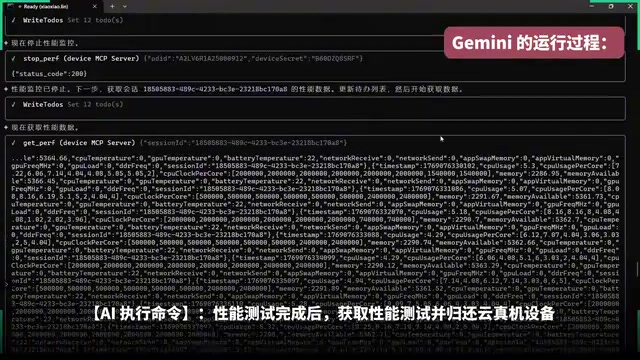
Throughout the entire process, developers only need to describe their testing requirements in natural language, and the AI will automatically call the tool interfaces provided by the MCP Server to complete the operations. Compared to the traditional approach of manually writing API call code, the efficiency improvement is significant.
This Natural Language Driven Testing represents a paradigm shift in the software testing field. Traditional automated testing has evolved from record-and-playback, keyword-driven, Behavior-Driven Development (BDD), to coded test frameworks—each generation attempting to lower the barrier to writing tests. BDD frameworks (such as Cucumber) already introduced quasi-natural-language Gherkin syntax, but fundamentally still require developers to write step definition code to bind natural language to actual operations. The MCP + LLM combination truly achieves "zero-code binding"—after the large model understands natural language intent, it autonomously decides which tools to call, in what order to execute them, and how to handle exceptions. This approach not only lowers the technical barrier but, more importantly, enhances testing flexibility: when requirements change, testers only need to modify the natural language description rather than refactor test scripts.
Performance Report Comparison Analysis
After executing tests multiple times, you can continue asking Gemini to perform comparative analysis of performance data. The AI will process as follows:
- Retrieve the list of all test sessions for the application
- Filter out the latest performance reports
- Automatically generate a comparison analysis file for the performance reports
- Generate visual chart comparison files locally
Developers can find the automatically generated performance test comparison files in the local user root directory, visually inspect performance trends between different test rounds, and quickly identify performance regression issues.
In mobile app performance testing, CPU usage, memory consumption, and frame rate (FPS) are the three most critical monitoring dimensions. CPU usage reflects the application's computational load—sustained high CPU usage leads to device overheating and rapid battery drain. Memory consumption needs attention regarding peak values and leak trends—Android systems trigger the Low Memory Killer mechanism to forcefully terminate processes when memory pressure is too high. Frame rate directly impacts user experience—gaming applications typically use 60FPS as a benchmark, and users will noticeably perceive stuttering below 30FPS. Additionally, there are auxiliary metrics such as GPU rendering time, network latency, and battery consumption. Through performance data comparison across multiple test rounds, developers can establish performance baselines and promptly detect performance regressions introduced by code changes—this is also the core basis for performance gates in continuous integration pipelines.
Intelligent Crash Log Analysis
Beyond performance testing, AI can also automatically analyze application crash issues. If an application running on a cloud real device crashes, simply provide Gemini with the session ID containing the crash log and ask a question. The AI will:
- Retrieve the complete logs for the specified session
- Automatically locate and analyze key information in the crash logs
- Provide detailed analysis of the crash cause and possible fix suggestions
Mobile app crash log analysis has always been a pain point in development. Crash logs on the Android platform typically contain Java-layer Exception stacks or Native-layer Tombstone information—the latter involves memory addresses and register states, requiring address resolution using symbol tables to locate specific code lines. For Unity-developed applications, crashes may also occur in the IL2CPP-translated C++ layer or the Mono runtime layer, making stack traces even more complex. Traditional crash analysis relies on developers manually reading logs, matching known problem patterns, and consulting documentation—time-consuming and highly dependent on experience. The advantage of large language models in this scenario is that they've been trained on massive amounts of code and technical documentation, enabling rapid identification of common crash patterns (such as null pointer dereferences, buffer overflows, thread deadlocks, etc.) and providing targeted fix suggestions based on context, transforming crash analysis from "expert experience-driven" to "AI-assisted."
This capability is extremely helpful for quickly locating production issues and shortening bug fix cycles.
Summary and Outlook
The MCP protocol provides a standardized bridge for integrating AI assistants with external tools. By connecting the cloud real device platform's MCP Server to Gemini CLI, we've achieved a new paradigm of "natural language as code" for mobile app testing.
Core advantages of this solution:
- Lower barrier to entry: Testers don't need deep knowledge of API interface details—they can drive complex cloud real device automated testing workflows using natural language
- Improved efficiency: AI automatically orchestrates test steps, reducing manual operations and script writing time
- Intelligent analysis: AI not only executes tests but also automatically analyzes performance data and crash logs, outputting valuable insights
- Tool flexibility: Supports multiple AI assistants including Gemini CLI, Cline, Claude Desktop, etc.—developers can choose whichever tool they're most comfortable with
As the MCP ecosystem continues to mature and large model capabilities keep improving, this AI-driven automated testing paradigm will play a role in more scenarios and is worth the attention and experimentation of every mobile developer.
Related articles
 Tutorials
ChatGPT Plus Subscription Guide: Are GPT-5.5, image-2, and Codex Worth the Upgrade?
A detailed look at ChatGPT Plus features — GPT-5.5, image-2, and Codex — with a Plus vs Pro comparison and a complete step-by-step subscription guide for users outside the US.
 Tutorials
Harness AI Engineering in Practice: Using Claude Code to Master Enterprise-Level E-Commerce Development
Deep dive into Harness AI Engineering: master enterprise e-commerce development with Claude Code using the Rules, Skills, Wiki, and Changes framework.
 Tutorials
Cursor + Codex Dual-IDE Collaboration: A Practical Methodology for Open-Source Project Customization
A complete methodology for open-source project customization based on real-world experience, detailing the Cursor+Codex dual-IDE workflow, seven-stage process, MVP validation, and AI source code reading techniques.