Gemini CLI Practical Guide: Custom Commands & MCP Plugin Configuration Explained

Gemini CLI adds MCP integration and custom commands, becoming a powerful free AI coding tool
Google has significantly updated Gemini CLI with MCP plugin integration, custom commands, and more. It offers 1,000 free daily requests with a 1 million Token context window, supports reusable shortcut commands via TOML files, and seamlessly connects to third-party tools like Context7 and Mermaid through the MCP protocol. Compared to Claude Code, Gemini CLI has clear advantages in free tier allowance and context window size, making it an excellent free choice for AI-assisted coding.
Google recently rolled out a series of important updates to Gemini CLI, adding MCP integration, IDE support, and custom instructions. As a free and powerful AI coding command-line tool, Gemini CLI is becoming the new choice for an increasing number of developers. This article will take you from installation and configuration to advanced usage, giving you a comprehensive mastery of Gemini CLI's core capabilities.
Installation & Basic Configuration
Quick Installation
Installing Gemini CLI is straightforward—just follow the official instructions. After installation, confirm with Enter and the system will automatically complete the environment setup. Upon first launch, you'll need to authenticate—type the /auth command and select Login to complete authentication.
Gemini CLI currently offers a generous free tier:
- Daily requests: 1,000
- Model: Gemini 2.5 Pro
- Context window: 1 million Tokens
- Request rate: 60 per minute
This free tier is more than sufficient for daily development. The 1 million Token context window deserves special attention—a context window refers to the maximum text length a large language model can process in a single inference. Tokens are not equivalent to characters or words; typically one English word is about 1-2 Tokens, and one Chinese character is about 1-2 Tokens. One million Tokens is roughly equivalent to 750,000 English words, or about 1,500 pages of standard documents. For coding scenarios, this means you can load dozens of medium-sized source code files at once, allowing the model to understand project dependencies and architectural design from a global perspective without manually splitting context—an enormous advantage when working with large projects.
First Experience: Summarizing a Project with Gemini CLI
After successful login, you can directly ask Gemini CLI to summarize your current project. It will automatically read key files like README.md and package.json, then return a structured project overview including core highlights, tech stack, and usage instructions.
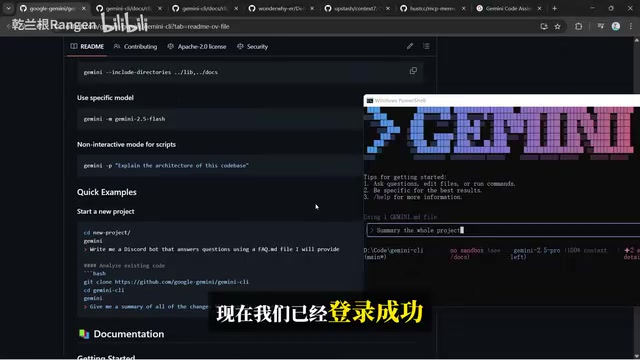
From hands-on experience, Gemini CLI's understanding of project structure is quite accurate, quickly capturing the core information of a project—extremely helpful for getting up to speed on a new codebase.
Custom Commands: Building a Personalized Workflow
Custom commands are one of Gemini CLI's most practical features, allowing you to encapsulate frequently used prompts into shortcut commands, dramatically boosting productivity.
Creating Custom Commands
After opening your project in VS Code, create files following this directory structure:
project-root/
└── .gemini/
    └── commands/
        └── summary.toml
Create a commands folder under the .gemini directory, then create a .toml file using the command name as the filename. Gemini CLI uses TOML (Tom's Obvious, Minimal Language) as its configuration format—a lightweight markup language designed specifically for configuration files, created by GitHub co-founder Tom Preston-Werner in 2013. Compared to JSON, TOML supports comments and date types, with syntax closer to natural human writing; compared to YAML, TOML has stricter indentation rules, making it less prone to parsing failures from whitespace errors. This is why it's widely adopted by the Rust ecosystem (Cargo.toml) and many modern development toolchains. Simply fill in your prompt template in the TOML file to complete the configuration.

For example, to create a summary command, the prompt could be "Please generate a summary for this project." If you need parameter support, you can set it to "Generate a summary for the specified file or folder" for more flexible invocation.
Using Custom Commands
After re-entering Gemini CLI, type / and you'll see the newly created summary command in the command list. Press Enter to execute, and Gemini CLI will automatically read the prompt from .gemini/commands/summary.toml, scan project files, and generate a summary.
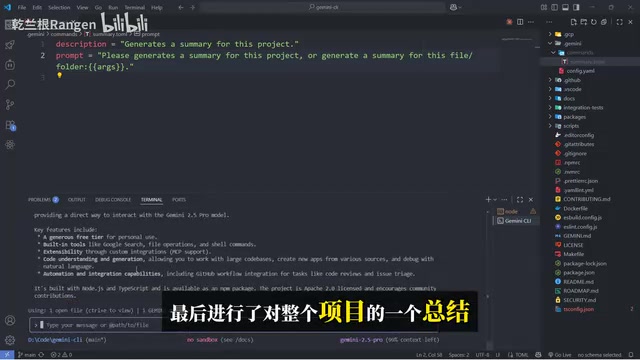
The value of this feature lies in reusability. You can create a standardized command set for your team—such as review (code review), refactor (refactoring suggestions), test (generate test cases)—enabling every team member to collaborate with AI in a consistent manner.
MCP Plugin Integration: Unlimited Extensibility
MCP (Model Context Protocol) is a standardized protocol proposed and open-sourced by Anthropic in late 2024, designed to solve the fragmentation problem of integrating AI models with external tools and data sources. Before MCP, every AI tool needed to develop separate adaptation layers for different external services, resulting in extremely high maintenance costs. MCP defines a unified client-server communication specification, allowing any AI application supporting the protocol to plug-and-play with third-party tools—much like how the USB interface standardized hardware connections. MCP has now gained broad support from major tech companies including Google and Microsoft, with its ecosystem expanding rapidly. Gemini CLI's native MCP support means it can seamlessly tap into this growing tool ecosystem.
Configuring MCP Servers
Navigate to the .gemini folder in your user directory and find the settings.json file. Following the official documentation, add the mcpServers field to this file with the corresponding MCP Server configuration.

Taking Context7 MCP as an example, simply copy its provided configuration into the mcpServers field of settings.json. You can configure multiple MCP Servers simultaneously, such as:
- Context7: Provides context enhancement tools that can fetch the latest documentation for third-party libraries in real-time
- Mermaid MCP: Generates Mermaid flowcharts and diagrams
- Desktop Commander: Provides desktop operation-related tools
Verifying & Using MCP Tools
After configuration, reopen Gemini CLI, type the /mcp command, then use the list subcommand to see all connected MCP Servers and their available tools. Once you confirm the tools have loaded successfully, you can invoke these MCP tools at any time during your coding workflow.
For example, when you need to generate an architecture diagram, you can directly have Gemini CLI call Mermaid MCP; when you need to look up the latest library documentation, you can get real-time information through Context7. This plugin-based extension mechanism built on the MCP protocol means Gemini CLI's capabilities are no longer limited to the model itself—they continuously expand alongside the entire MCP ecosystem.
Comparison with Claude Code
In terms of feature completeness, Gemini CLI already possesses the core capabilities to compete with Claude Code:
| Feature | Gemini CLI | Claude Code |
|---|---|---|
| Free tier | 1,000/day, 1M Tokens | Limited free tier |
| MCP support | ✅ | ✅ |
| Custom commands | ✅ (TOML config) | ✅ (slash commands) |
| Context window | 1M Tokens | ~200K Tokens |
Gemini CLI's biggest advantages are its generous free tier and massive context window. A 1 million Token context means it can understand more code files simultaneously, providing a clear edge when working with large projects. However, the actual code generation quality and reasoning capabilities still need further validation in real-world projects.
Summary
After a flurry of recent updates, Gemini CLI has evolved from a simple command-line tool into a fully-featured AI coding assistant. Custom commands let you build a personalized development workflow, while MCP integration leverages this open protocol—which is becoming an industry standard—to grant virtually unlimited extensibility. For developers who want to try AI-assisted coding without paying, Gemini CLI is undoubtedly one of the most worthwhile options available today.
Key Takeaways
- Gemini CLI offers 1,000 free daily requests, supporting the Gemini 2.5 Pro model with a 1 million Token context window
- Create TOML files in the project's .gemini/commands/ directory to define custom shortcut commands encapsulating common prompts
- Supports MCP protocol integration—configure settings.json to connect third-party tools like Context7 and Mermaid
- Compared to Claude Code, Gemini CLI has clear advantages in free tier allowance and context window size
- The combination of custom commands and MCP plugins enables building an efficient, personalized AI coding workflow
Related articles
 Tutorials
ChatGPT Plus Subscription Guide: Are GPT-5.5, image-2, and Codex Worth the Upgrade?
A detailed look at ChatGPT Plus features — GPT-5.5, image-2, and Codex — with a Plus vs Pro comparison and a complete step-by-step subscription guide for users outside the US.
 Tutorials
Harness AI Engineering in Practice: Using Claude Code to Master Enterprise-Level E-Commerce Development
Deep dive into Harness AI Engineering: master enterprise e-commerce development with Claude Code using the Rules, Skills, Wiki, and Changes framework.
 Tutorials
Cursor + Codex Dual-IDE Collaboration: A Practical Methodology for Open-Source Project Customization
A complete methodology for open-source project customization based on real-world experience, detailing the Cursor+Codex dual-IDE workflow, seven-stage process, MVP validation, and AI source code reading techniques.